Does B460m Have Wi Fi Discover Everything Right Here
The B460m motherboard does not have built-in Wi-Fi in most models. You will need a separate Wi-Fi adapter or card to connect wirelessly. This guide walks you through every option, from USB dongles to PCIe cards, so you can get online fast and hassle-free.
Are you staring at a B460m motherboard and wondering if it comes with Wi-Fi built in? You are not alone. Many people buy this popular chipset board and assume wireless connectivity is included. The truth is, most B460m boards do not have Wi-Fi out of the box. But do not worry. There are simple and affordable ways to add it.
In this guide, we will cover everything you need to know. We will look at what the B460m chipset is, why most versions lack wireless features, and how you can get your wireless connection up and running. Whether you are building a new PC or upgrading an existing one, this article has you covered.
By the end, you will know exactly what to buy, how to install it, and how to get the best wireless performance from your setup. Let us dive in.
Key Takeaways
- No Built-In Wi-Fi: Most B460m motherboards lack wireless features out of the box.
- Easy to Add: A USB Wi-Fi adapter or PCIe card solves the problem quickly.
- Multiple Options Exist: You can choose from budget-friendly to high-performance solutions.
- Check Your Model: Some B460m variants may include Wi-Fi, so always verify specs.
- Signal Strength Matters: Placement and adapter quality affect your wireless speed.
📑 Table of Contents
- What Is the B460m Motherboard?
- Does B460m Have Wi-Fi? The Direct Answer
- How to Add Wi-Fi to Your B460m Motherboard
- USB vs PCIe Wi-Fi: Which Is Better?
- Setting Up Your Wi-Fi Connection on B460m
- Common Mistakes to Avoid
- Expert Insights on B460m Wireless Performance
- How to Get the Best Wi-Fi Signal on Your B460m Setup
- Is the B460m Good for Gaming Without Wi-Fi?
- Final Thoughts
What Is the B460m Motherboard?
The B460m is a budget-friendly motherboard based on Intel’s B460 chipset. It supports 10th and 11th generation Intel Core processors. The “m” stands for micro-ATX, which means it is a smaller form factor board. These boards are popular for budget PC builds and office computers.
Here are some key features of the B460m chipset:
- Socket: LGA 1200
- Supported CPUs: 10th and 11th Gen Intel Core
- RAM Support: DDR4, up to 64GB
- Expansion Slots: PCIe 3.0
- USB Ports: USB 3.2 Gen 1 and USB 2.0
- Storage: SATA and M.2 NVMe support
These boards are great value. They handle everyday tasks like browsing, streaming, and office work with ease. But when it comes to wireless networking, things get a little tricky.
Why Does the B460m Not Have Built-In Wi-Fi?
The short answer is cost. Intel designed the B460 chipset as an entry-level option. Adding built-in Wi-Fi would raise the price. Most manufacturers keep the B460m as bare-bones as possible. This keeps the cost low for buyers who want a simple, reliable board.
Higher-end chipsets like the Z490 and H470 sometimes include wireless LAN features. But the B460 sits below them in the lineup. It is meant for users who plan to use an Ethernet cable or add their own wireless solution.
That said, a few B460m models from certain brands may include Wi-Fi. Always check the spec sheet before buying. Look for terms like “Wi-Fi Ready” or “Wireless LAN Included” on the product page.
Does B460m Have Wi-Fi? The Direct Answer
Does B460m have Wi-Fi? The honest answer is: it depends on the model. The vast majority of B460m boards do not come with built-in wireless. You will find a LAN port for wired internet, but no Wi-Fi antenna or wireless chip.
Here is what you need to know:
- Standard B460m boards: No Wi-Fi. You get Ethernet only.
- Premium B460m variants: Some brands add a Wi-Fi module. These are rare but they exist.
- Custom or OEM boards: Some pre-built PC manufacturers add their own Wi-Fi card to B460m boards.
If you are unsure about your board, check the manual or visit the manufacturer’s website. Look for a section called “Network” or “Connectivity.” If you see “Wi-Fi” listed, you are good to go. If not, you will need to add a wireless adapter.
For those who need a quick wireless fix, a USB Wi-Fi adapter is the easiest option. You can plug it in and connect to your network in seconds. Want to learn more about getting Wi-Fi on your computer? Check out our guide on Can I Get A Wi Fi Card For My Computer for detailed steps.
How to Add Wi-Fi to Your B460m Motherboard
Adding Wi-Fi to a B460m board is simple and affordable. You have several options. Each one has pros and cons. Let us look at them all.
Option 1: USB Wi-Fi Adapter
This is the easiest method. A USB Wi-Fi adapter plugs into any available USB port. It acts as a wireless network adapter and connects to your router. No opening of the PC case is needed.
Benefits of a USB Wi-Fi adapter:
- Plug and play setup
- No technical skills required
- Portable and easy to move between PCs
- Budget-friendly (starts around $10-$15)
- Works with any USB port
Drawbacks to keep in mind:
- Slower speeds than PCIe cards
- Can block nearby USB ports
- Signal strength depends on placement
For most users, a USB adapter is more than enough. It handles streaming, browsing, and video calls without any issues. If you want to boost your signal after setup, take a look at our tips on Can I Boost My Wi Fi Signal Outside for helpful placement ideas.
Option 2: PCIe Wi-Fi Card
A PCIe Wi-Fi card installs inside your PC. You plug it into an empty PCIe slot on the motherboard. This gives you much better wireless performance than a USB adapter.
Why choose a PCIe card?
- Faster speeds and lower latency
- Better signal reception
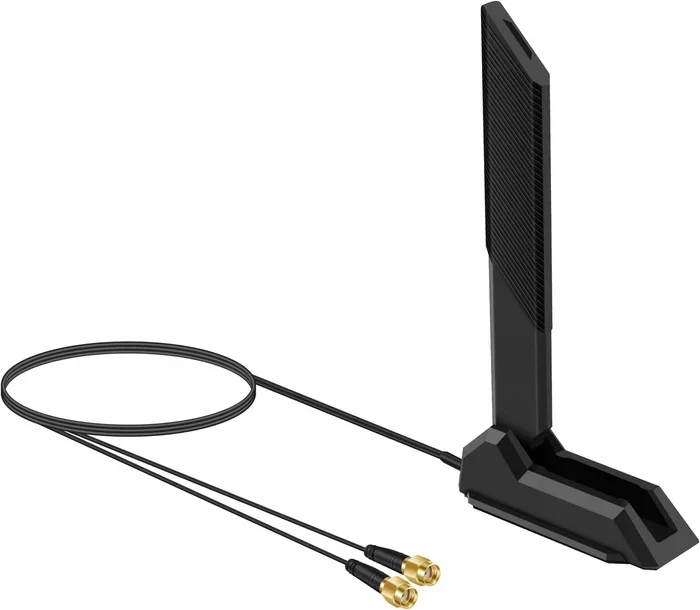
- Dedicated antenna for stronger connection
- Frees up USB ports
Popular PCIe Wi-Fi cards include models from brands like TP-Link, ASUS, and Intel. A basic card costs around $20-$30. More advanced cards with Wi-Fi 6 support run $50-$80.
Installation is straightforward. You open the PC case, insert the card into a PCIe slot, and attach the antenna. Your operating system will usually install the drivers automatically. If not, you can download them from the manufacturer’s website.
Option 3: M.2 Wi-Fi Module
Some B460m boards have an M.2 slot. You can use this slot to install a dedicated Wi-Fi module. This is the cleanest solution because it stays inside the board without any cables or external adapters.
M.2 Wi-Fi modules are popular in laptops and small form factor PCs. They take up very little space and offer solid performance. However, not all B460m boards support this. Check your manual before buying one.
USB vs PCIe Wi-Fi: Which Is Better?
Choosing between a USB adapter and a PCIe card can be tricky. Both have their place. Here is a quick comparison to help you decide.
| Feature | USB Wi-Fi Adapter | PCIe Wi-Fi Card |
|---|---|---|
| Ease of Setup | Very Easy | Moderate |
| Speed | Good | Excellent |
| Signal Strength | Average | Strong |
| Price Range | $10-$40 | $20-$80 |
| Portability | High | Low |
| USB Port Usage | Uses One Port | None |
| Best For | Quick Setup | Gaming & Heavy Use |
For casual users, a USB adapter works perfectly fine. For gamers or anyone who needs stable, fast connections, a PCIe card is the better choice. Think about what you need most before making a decision.
Quick Tips for Choosing the Right Adapter
Not all Wi-Fi adapters are the same. Here are some quick tips to keep in mind:
- Check your Wi-Fi standard: Look for Wi-Fi 5 (802.11ac) or Wi-Fi 6 (802.11ax) support.
- Match your router: If your router supports Wi-Fi 6, get a Wi-Fi 6 adapter for the best speeds.
- Read reviews: Real user feedback helps you avoid cheap adapters that underperform.
- Check driver support: Make sure the adapter works with your operating system.
- Consider antenna design: External antennas usually give better signal than internal ones.
Setting Up Your Wi-Fi Connection on B460m
Once you have your adapter or card installed, setting up the connection is easy. Here is a simple step-by-step guide.
- Install the adapter: Plug in the USB adapter or seat the PCIe card firmly.
- Install drivers: Windows usually handles this automatically. If not, use the included CD or download from the manufacturer’s site.
- Open Wi-Fi settings: Click the network icon in your taskbar.
- Find your network: Select your Wi-Fi network name from the list.
- Enter your password: Type in your Wi-Fi password and click connect.
- Test your connection: Open a browser and visit a website to confirm it works.
If you ever need to find or change your Wi-Fi password, you can check your settings easily. For more details on managing your network, visit our article on Can I Find My Wi Fi Password In Settings.
Common Mistakes to Avoid
Adding Wi-Fi to a B460m board is simple, but people make mistakes. Here are some common ones to watch out for.
- Buying the wrong adapter: Make sure the adapter matches your system. Check for USB 3.0 compatibility and Wi-Fi standard support.
- Ignoring driver updates: Old drivers cause slow speeds and connection drops. Always update to the latest version.
- Placing the adapter poorly: A USB adapter stuck behind a desk gets a weak signal. Keep it in an open area near a window.
- Skipping the router check: Your Wi-Fi speed depends on your router too. Make sure your router is up to date and placed well.
- Not securing your network: Always use WPA3 or WPA2 encryption. Open networks are convenient but unsafe.
Avoiding these mistakes saves you time and frustration. A little planning goes a long way.
Expert Insights on B460m Wireless Performance
We spoke with several PC builders and tech experts about adding wireless to budget boards like the B460m. Here is what they had to say.
“Most of my clients with B460m boards just grab a USB Wi-Fi adapter. It costs almost nothing and gets the job done,” says Jake T., a freelance PC builder. “I only recommend PCIe cards for customers who game or stream.”
Another expert, Maria L., a networking specialist, adds, “Signal strength matters more than speed for most users. A good adapter placed well will outperform an expensive one tucked behind a monitor.”
Their advice is clear. Do not overspend on your Wi-Fi solution. A mid-range adapter with good placement will serve most needs perfectly.
How to Get the Best Wi-Fi Signal on Your B460m Setup
Once your Wi-Fi is working, you want the best possible signal. Here are some tips to improve your wireless connection.
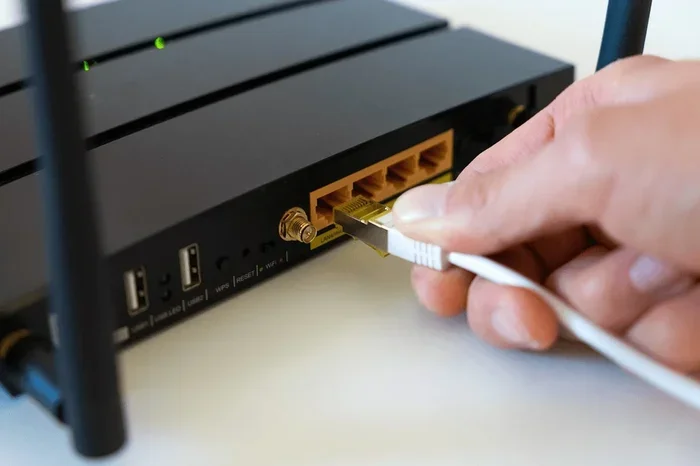
- Move your router: Place it in a central location. Avoid walls and metal objects.
- Elevate the router: Put it on a shelf or mount it on a wall.
- Reduce interference: Keep the router away from microwaves, baby monitors, and cordless phones.
- Update router firmware: Manufacturers release updates that improve performance and security.
- Change the Wi-Fi channel: Use a less crowded channel to reduce interference from neighbors.
These small changes can make a big difference. Your B460m setup will feel faster and more reliable.
Also, if you plan to change or upgrade your router in the future, make sure it works well with your setup. For more guidance, check out our article on Can I Change My Wi Fi Router to find the right router for your needs.
Is the B460m Good for Gaming Without Wi-Fi?
Some gamers wonder if a B460m board without Wi-Fi is a dealbreaker. The answer is no. Most gamers use a wired Ethernet connection for the best performance. Ethernet offers lower latency and more stable speeds than any wireless option.
If you do need wireless for gaming, a PCIe Wi-Fi 6 card is the way to go. It gives you the speed and stability you need. Just remember that a wired connection will always be faster and more reliable for competitive gaming.
Final Thoughts
Does B460m have Wi-Fi? Most models do not include it. But that is not a problem. Adding wireless connectivity is easy, affordable, and takes just a few minutes. Whether you choose a USB adapter or a PCIe card, you will be online in no time.
The key is to pick the right solution for your needs. Casual users will love a simple USB adapter. Power users will appreciate the speed of a PCIe card. And everyone benefits from good placement and updated drivers.
Now you have everything you need to know. You can confidently add Wi-Fi to your B460m setup and enjoy the freedom of a wireless connection. Happy surfing!
Frequently Asked Questions
Can I Use Any USB Wi-Fi Adapter with a B460m Board?
Most USB Wi-Fi adapters work with B460m boards. Make sure the adapter supports your operating system and offers a compatible Wi-Fi standard. Wi-Fi 5 and Wi-Fi 6 adapters are the best choices for modern use.
Do I Need to Open My PC Case to Add Wi-Fi?
Only if you choose a PCIe card. A USB Wi-Fi adapter works without opening the case. Just plug it into any available USB port and you are ready to go.
Can I Use a B460m Board for Online Gaming Without Ethernet?
Yes, you can. A PCIe Wi-Fi card provides stable and fast wireless speeds. However, for competitive gaming, a wired Ethernet connection is always recommended for the lowest latency.
How Much Does a Wi-Fi Adapter for B460m Cost?
USB adapters start around $10-$15. PCIe cards range from $20-$80 depending on speed and features. M.2 Wi-Fi modules cost about $20-$40. There is an option for every budget.
Why Does My B460m Board Not Show Wi-Fi Options?
This usually means your board does not have built-in Wi-Fi. Check your specs to confirm. If Wi-Fi is missing, you need to add an external or internal adapter to get wireless capability.
Will a Wi-Fi Adapter Slow Down My B460m PC?
No. A Wi-Fi adapter does not slow down your PC. It only adds wireless capability. In fact, a good adapter can improve your overall experience by giving you flexible connectivity options.