Can You Transfer Sound Through Hdmi to Your TV or Speaker
Yes, you can absolutely transfer sound through HDMI to your TV or speaker. HDMI carries both high-definition video and multi-channel audio through a single cable, making it the simplest way to connect your devices. Whether you use HDMI ARC, eARC, or a standard HDMI connection, you get better sound quality than traditional audio cables. This guide will walk you through every method, setup step, and common fix so you can enjoy theater-quality audio at home.
This is a comprehensive guide about Can You Transfer Sound Through Hdmi.
Key Takeaways
- HDMI transfers both video and audio: One cable handles everything, simplifying your setup.
- HDMI ARC and eARC are game-changers: They let your TV send audio back to your soundbar or receiver.
- Multiple audio formats work over HDMI: Dolby Digital, DTS, and uncompressed PCM are all supported.
- Troubleshooting is usually simple: Most HDMI audio issues are fixed by checking settings or replacing a cable.
- eARC offers the best sound quality: It supports lossless formats like Dolby Atmos and DTS:X.
- You do not need extra cables: HDMI eliminates the clutter of multiple audio and video wires.
[FEATURED_IMAGE_PLACEHOLDER]
Most people never think twice about the sound coming from their TV. They turn it on, watch their favorite show, and move on with their day. But if you have ever wondered whether you can get better audio from your television setup, the answer is a clear yes.
The question “Can You Transfer Sound Through HDMI” comes up more often than you might think. People want to know if a single cable can carry both picture and sound. The short answer is yes. HDMI was designed to do exactly that. It sends high-definition video and multi-channel audio through one slender cord, and it has been the standard for over two decades now.
Whether you are connecting a soundbar, an AV receiver, or a simple pair of computer speakers, HDMI makes the process easier than older methods like optical cables or RCA connections. You get cleaner setup, fewer cables, and often better sound quality too. In this article, we will break down everything you need to know about transferring sound through HDMI. We will cover how it works, the different types of HDMI audio connections, common problems, and step-by-step fixes. By the end, you will feel confident setting up your home audio the right way.
What Is HDMI and How Does It Carry Audio?
HDMI stands for High-Definition Multimedia Interface. It is a standard connection used across TVs, laptops, gaming consoles, Blu-ray players, and sound systems. The key advantage of HDMI is that it combines video and audio into one signal. Before HDMI existed, you needed separate cables for picture and sound. Now, one cable does it all.
When you plug an HDMI cable between two devices, the cable transmits digital data. This data includes both the visual frames and the audio channels. HDMI supports a wide range of audio formats, from basic stereo to advanced surround sound. Let us look at the most common formats:
- PCM (Pulse Code Modulation): Uncompressed stereo or multi-channel audio. This is the most basic digital audio format.
- Dolby Digital: A compressed 5.1 surround sound format used by most DVDs and streaming services.
- DTS: Another popular surround sound codec that offers high-quality audio at higher bitrates.
- Dolby TrueHD: A lossless format used for Blu-ray discs and high-quality streaming.
- Dolby Atmos: An immersive 3D audio format that places sounds all around you.
- DTS:X: A competing immersive audio format that works similarly to Dolby Atmos.
Not all HDMI cables support all formats. The cable version matters. For example, older HDMI 1.4 cables may not handle the latest audio codecs. HDMI 2.0 and HDMI 2.1 cables support higher bandwidth and more advanced audio formats. When shopping for cables, always check the version to make sure it meets your audio needs.
HDMI Versions and Audio Support
Different HDMI versions unlock different capabilities. Here is a quick look at what each version supports for audio:
- HDMI 1.4: Supports Dolby Digital and DTS. This version introduced ARC (Audio Return Channel), which was a big deal at the time.
- HDMI 2.0: Adds support for higher-resolution audio and enhanced audio return channel features.
- HDMI 2.1: The latest standard. It supports uncompressed audio, Dolby Atmos, DTS:X, and much higher bandwidth overall.
If your devices support HDMI 2.1, you are getting the best possible audio experience. But even older HDMI versions handle most common audio formats just fine for everyday use.
Understanding HDMI ARC and eARC
Two terms you will hear often when discussing HDMI audio are ARC and eARC. These features are essential if you want to use your TV as a hub for all your audio devices. They are not the same thing, and understanding the difference helps you get the best setup.
What Is HDMI ARC?
ARC stands for Audio Return Channel. It was introduced with HDMI 1.4. Before ARC, if you connected a Blu-ray player to your TV and wanted sound from your soundbar, you needed a separate audio cable running from the TV back to the soundbar. ARC changed that. It allows your TV to send audio back down the same HDMI cable to your soundbar, receiver, or speaker system.
This means fewer cables and a cleaner entertainment setup. You plug your cable box, gaming console, or streaming stick into your TV. Then you connect your TV to your soundbar using the same HDMI cable. The TV handles the video display and sends the audio back to the soundbar automatically.
What Is HDMI eARC?
eARC stands for enhanced Audio Return Channel. It was introduced with HDMI 2.1. eARC is a major upgrade over standard ARC. It supports higher bandwidth, which means it can carry uncompressed audio and advanced formats like Dolby Atmos and DTS:X.
Standard ARC has a limitation. It typically only supports compressed 5.1 surround sound. If you have a Dolby Atmos soundbar, standard ARC will not pass the Atmos signal properly. eARC fixes this problem. It gives you the full immersive audio experience through a single HDMI cable.
If you are building a home theater system, eARC is the way to go. Make sure both your TV and your audio device support eARC for the best results. Look for the eARC label on the back of your TV or in the product specifications.
How to Transfer Sound Through HDMI to Your TV
Setting up HDMI audio on your TV is usually straightforward. Most modern TVs come with multiple HDMI ports, and the audio settings are built right into the menu system. Here is how to get started.
Step-by-Step Setup Guide
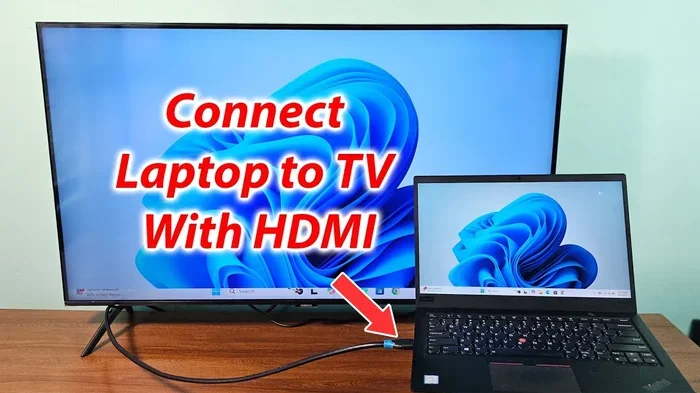
- Connect your device: Plug one end of the HDMI cable into your source device (like a Blu-ray player or gaming console) and the other end into an HDMI port on your TV.
- Select the right input: Use your TV remote to switch to the HDMI input where you connected the device.
- Check the audio output settings: Go to your TV settings menu. Look for “Sound” or “Audio Output.” Make sure the output is set to HDMI.
- Enable HDMI CEC: CEC (Consumer Electronics Control) lets devices communicate through HDMI. Turn it on if it is not already enabled. Different TV brands call it different names, like Anynet+, Bravia Sync, or SimpLink.
- Test the audio: Play a video or song and check if sound is coming through. If yes, you are all set.
Choosing the Right HDMI Port
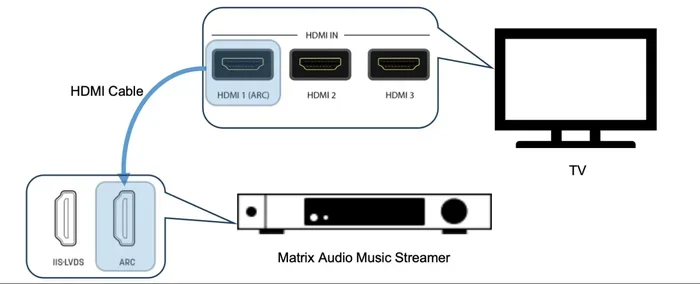
Not all HDMI ports on your TV are the same. Some ports support ARC or eARC, and some do not. Look for a port labeled “ARC” or “eARC” on the back of your TV. If you plug your audio device into a standard HDMI port, the audio return channel feature will not work.
Most TVs have at least one HDMI port designated for ARC. On many models, it is HDMI port 3 or HDMI 1. Check your TV manual if you are unsure. Using the correct port is one of the most common mistakes people make when setting up HDMI audio.
Adjusting Audio Format Settings
Your TV lets you choose the audio format it sends out through HDMI. Common options include PCM, Bitstream, and Auto. Here is what each means:
- PCM: The TV decodes the audio and sends uncompressed sound. This works well with most speakers and soundbars.
- Bitstream (Passthrough): The TV sends the raw audio signal to your receiver or soundbar, which then decodes it. This is best for surround sound and immersive formats like Dolby Atmos.
- Auto: The TV detects the format and chooses the best option automatically.
If you have a surround sound receiver, Bitstream or Passthrough is usually the best choice. If you are using a simple soundbar or TV speakers, PCM often works better.
Transferring Sound Through HDMI to External Speakers and Soundbars
Connecting external speakers or a soundbar through HDMI is one of the best upgrades you can make to your home entertainment system. It delivers richer, clearer sound than your TV’s built-in speakers ever could. Let us look at the different ways to do this.
Connecting a Soundbar via HDMI ARC
Soundbars are one of the most popular ways to improve TV audio. Most modern soundbars support HDMI ARC. To connect one, simply plug an HDMI cable from the ARC port on your TV to the ARC port on your soundbar. Then go into your TV settings and set the audio output to HDMI.
Once connected, your soundbar should turn on automatically when you power on your TV. This is thanks to HDMI CEC. You can also control the soundbar volume with your TV remote in most cases. It is a seamless experience that makes your setup feel like one unified system.
Connecting an AV Receiver via HDMI
An AV receiver is the heart of a home theater system. It takes audio and video signals from multiple sources and distributes them to your speakers and TV. Connecting an AV receiver through HDMI is simple:
- Run an HDMI cable from your source device (cable box, gaming console) to the AV receiver.
- Run another HDMI cable from the AV receiver to your TV.
- The receiver processes the audio and sends the video to your TV.
This setup gives you the most flexibility. You can connect multiple devices to the receiver and switch between them easily. The receiver also handles all the audio decoding, which means better sound quality overall.
Using HDMI with Multiple Speakers
If you have a multi-speaker setup, an AV receiver or a compatible soundbar manages the audio distribution for you. HDMI supports multi-channel audio, which means you can get surround sound through a single cable from your source to the receiver. The receiver then splits the audio into separate channels for each speaker in your setup.
This is far cleaner than running individual audio cables to each speaker. HDMI keeps your wiring simple and your sound quality high.
HDMI Audio vs. Other Connection Types
HDMI is not the only way to transfer audio. There are other connection types that people use, and each has its pros and cons. Let us compare HDMI to the most common alternatives.
HDMI vs. Optical Audio
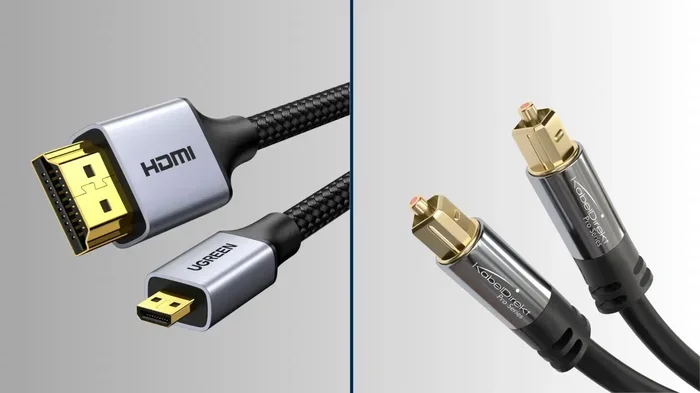
Optical audio (also called TOSLINK) uses a fiber optic cable to send digital audio. It has been around for a long time and still works well. But HDMI has several advantages:
- Bandwidth: HDMI supports higher audio bandwidth than optical. This means it can carry lossless formats like Dolby TrueHD and DTS-HD Master Audio.
- Video too: Optical cables only carry audio. HDMI carries both video and audio in one cable.
- ARC support: Optical cables do not support ARC or eARC. HDMI does.
HDMI vs. 3.5mm Aux
A 3.5mm aux cable is the standard headphone jack connector. It is simple and works with almost everything. But it only carries analog stereo audio. You lose the digital quality and multi-channel capabilities that HDMI offers. For anything beyond basic stereo sound, HDMI is the better choice.
HDMI vs. RCA (Analog Audio)
RCA cables are the old red and white audio connectors. They carry analog stereo sound. Like aux, they do not support digital audio formats or surround sound. HDMI delivers vastly superior audio quality compared to RCA cables.
Quick Comparison Table
Here is a side-by-side look at how HDMI stacks up against other audio connections:
- HDMI: Carries video and audio, supports multi-channel digital formats, supports ARC/eARC, highest quality.
- Optical: Carries audio only, supports compressed surround sound, no ARC, good quality but limited bandwidth.
- 3.5mm Aux: Carries analog stereo only, no surround sound, simple and universal but lower quality.
- RCA: Carries analog stereo only, no surround sound, older technology, decent quality for basic setups.
As you can see, HDMI wins in almost every category. It is the all-in-one connection that handles both your video and audio needs with ease.
Common HDMI Audio Problems and How to Fix Them
Even though HDMI audio is reliable, you may run into issues from time to time. Here are the most common problems and how to solve them.
No Sound Through HDMI
This is the most frequent complaint. If your TV shows a picture but there is no sound, try these steps:
- Check that the HDMI cable is firmly plugged in at both ends.
- Go to your TV audio settings and make sure the output is set to HDMI, not internal speakers or optical.
- Make sure you are using an HDMI port that supports ARC if you are trying to use that feature.
- Try a different HDMI cable. A damaged cable can cause audio failures.
- Restart both devices. A simple reboot often fixes temporary glitches.
Audio and Video Are Out of Sync
Sometimes the sound and picture do not match. The dialogue comes a split second before or after the lips move. This is called audio latency. To fix it:
- Check if your TV has an “Audio Delay” or “Lip Sync” setting. Adjust it until the sound matches the video.
- Make sure your HDMI cable is not too long. Longer cables can introduce slight delays.
- Update the firmware on your TV and connected devices. Manufacturers often release updates that fix sync issues.
HDMI ARC Not Working
If ARC is not sending audio from your TV to your soundbar, here is what to check:
- Make sure both the TV and the soundbar support ARC.
- Plug the HDMI cable into the ARC-labeled port on your TV.
- Enable ARC in your TV settings menu. It is sometimes turned off by default.
- Make sure CEC is enabled on your TV.
- Try unplugging the HDMI cable and plugging it back in.
Poor Audio Quality or No Surround Sound
If your audio sounds flat or you are not getting surround sound, the issue is often in the settings:
- Check your TV audio output format. Set it to Bitstream or Passthrough if you want surround sound.
- Make sure your soundbar or receiver is set to the correct input mode.
- Verify that your content actually supports surround sound. Not all shows and videos are in surround format.
Expert Tips for the Best HDMI Audio Experience
Getting great sound through HDMI is not just about plugging in a cable. A few extra steps can make a big difference in your audio quality.
Use High-Quality HDMI Cables
Not all HDMI cables are created equal. A cheap or damaged cable can limit your audio quality or cause connection issues. Look for cables labeled “High Speed HDMI” or “Premium High Speed HDMI.” For the latest HDMI 2.1 features, make sure the cable is certified for that standard.
Keep Your Devices Updated
Firmware updates for your TV, soundbar, and other devices often include improvements to HDMI audio handling. Check for updates regularly. A simple update can fix audio bugs you did not even know existed.
Label Your HDMI Cables
If you have multiple HDMI devices connected, it helps to label your cables. Use small tags or colored tape to mark which cable goes to which device. This saves you time when troubleshooting audio or video issues later.
Use an HDMI Switch If You Run Out of Ports
Modern TVs have many HDMI ports, but sometimes you still run short. An HDMI switch lets you connect multiple devices and switch between them using one TV port. Just make sure the switch supports the audio formats you need, especially if you use ARC or eARC.
Enable CEC on All Devices
HDMI CEC is a powerful feature that lets your devices talk to each other. Once enabled, your TV remote can control your soundbar, your soundbar can turn on with your TV, and your gaming console can adjust your receiver’s volume. Check the CEC setting on every device in your setup and turn it on for the smoothest experience.
Conclusion
So, can you transfer sound through HDMI? Absolutely. HDMI is the most versatile and highest-quality way to move audio from one device to another. Whether you are connecting your TV to a soundbar, an AV receiver, or a multi-speaker setup, HDMI handles the job with ease. It carries video and audio in one cable, supports advanced formats like Dolby Atmos and DTS:X, and features like ARC and eARC make the setup cleaner than ever.
Understanding your options is the first step. Now that you know how HDMI audio works, how ARC and eARC differ, and how to troubleshoot common issues, you are well equipped to build a great home audio setup. Take the time to check your cable version, adjust your audio settings, and enable features like CEC. These small steps make a huge difference in the quality of sound you get every day.
Upgrade your audio experience today. Plug in that HDMI cable, tweak your settings, and enjoy the rich, immersive sound your entertainment system was meant to deliver. Once you hear the difference that HDMI audio makes, you will never go back to basic connections again.
Frequently Asked Questions
Can I use any HDMI cable for audio transfer?
Most HDMI cables will handle basic audio just fine. However, if you want to use advanced formats like Dolby Atmos or DTS:X, you need a cable that supports the right HDMI version. Look for High Speed HDMI or Premium High Speed HDMI cables for the best results.
Why is there no sound coming from my HDMI connection?
The most common reason is incorrect audio output settings on your TV. Check that your TV is set to output audio through HDMI, not internal speakers. Also make sure the HDMI cable is fully plugged in and that you are using an ARC-compatible port if you are using that feature.
What is the difference between HDMI ARC and eARC?
ARC (Audio Return Channel) lets your TV send audio back to a soundbar or receiver. It supports compressed 5.1 surround sound. eARC (enhanced Audio Return Channel) is a newer version that supports uncompressed audio and immersive formats like Dolby Atmos. eARC requires HDMI 2.1 or later.
Can I connect a soundbar to my TV using HDMI?
Yes. Most modern soundbars support HDMI ARC. Simply connect an HDMI cable between the ARC port on your TV and the ARC port on your soundbar. Then set your TV audio output to HDMI in the settings menu.
Does HDMI support surround sound?
Yes. HDMI supports multiple surround sound formats including Dolby Digital, DTS, Dolby TrueHD, Dolby Atmos, and DTS:X. The specific formats supported depend on your HDMI cable version and the devices you are using.
Can I transfer audio through HDMI to a computer monitor?
Yes. Many computer monitors have HDMI inputs that carry both video and audio. Connect your device to the monitor using an HDMI cable and check your computer or source device audio settings to make sure the output is set to HDMI.