Can You Plug A USB 30 Into A Normal USB Port Easily
Yes, you can plug a USB 3.0 device into a normal USB 2.0 port without any damage. The USB standard was designed with backward compatibility in mind, so your USB 3.0 flash drive, external hard drive, or cable will work fine in older ports. However, you will lose the high-speed benefits of USB 3.0, and your transfer speeds will drop to USB 2.0 levels.
Have you ever grabbed a USB 3.0 flash drive or external hard drive and wondered if it would work in an older computer? Maybe your laptop only has USB 2.0 ports, or you are at a friend’s house with older equipment. The good news is that you can plug a USB 3.0 into a normal USB port without any problems at all.
This is one of the great things about the USB standard. It was built to be backward compatible from the very beginning. That means newer USB devices work with older ports, and older devices work with newer ports. It is a simple plug-and-play experience that most people take for granted every day.
But just because it works does not mean it works the same way. When you connect a USB 3.0 device to a USB 2.0 port, you will notice a big difference in speed. Transferring a large file that takes seconds on USB 3.0 might take minutes on USB 2.0. Understanding how this works helps you make better decisions about your gear and your workflow.
In this article, we will walk through everything you need to know. We will cover what happens when you mix USB versions, how to tell the ports apart, what you gain and lose, and expert tips to get the best performance. Whether you are a student, a professional, or just someone who uses USB devices every day, this guide has you covered.
Key Takeaways
- Full Compatibility: USB 3.0 devices plug into USB 2.0 ports easily and work without any issues.
- Speed Reduction: When you use a USB 3.0 device in a normal USB port, your transfer speed drops from SuperSpeed to USB 2.0 rates.
- No Damage Risk: Plugging USB 3.0 into USB 2.0 will not harm your device or your computer.
- Visual Differences: USB 3.0 ports are usually blue inside, while USB 2.0 ports are black or white.
- Cable Matters: The cable you use also affects speed, not just the port type.
- Power Delivery: USB 3.0 ports deliver more power, which can help charge devices faster even in older ports.
- Simple Solutions: A USB 3.0 hub or upgrade card can help you get full speeds when needed.
📑 Table of Contents
- What Is USB 3.0 and How Does It Compare to USB 2.0?
- Can You Plug a USB 3.0 Device into a USB 2.0 Port?
- How to Identify USB 3.0 and USB 2.0 Ports
- Benefits and Limitations of Mixing USB Versions
- Common Mistakes When Using USB 3.0 in USB 2.0 Ports
- Expert Tips for Getting the Best Performance
- Frequently Asked Questions
- Conclusion
What Is USB 3.0 and How Does It Compare to USB 2.0?
Before we dive into compatibility, it helps to understand what makes USB 3.0 different from USB 2.0. Both are Universal Serial Bus standards, but they were created years apart and serve different needs.
Understanding the USB Standards
USB 2.0 came out in the year 2000. It was a huge step forward from USB 1.1 and became the standard for nearly a decade. USB 2.0 offers a maximum data transfer rate of 480 megabits per second. That is fast enough for basic tasks like moving documents, photos, and small files.
USB 3.0 arrived in 2008 and brought a massive upgrade. It is often called SuperSpeed USB because it can transfer data at up to 5 gigabits per second. That is more than ten times faster than USB 2.0. USB 3.0 also improved power delivery, which means better charging speeds for connected devices.
Since then, USB 3.1 and USB 3.2 have come along with even faster speeds. But USB 3.0 remains the most common high-speed USB standard you will find on older devices and budget equipment. When people talk about USB 3.0 compatibility, this is the standard they mean.
Speed Differences Explained
The speed gap between USB 2.0 and USB 3.0 is enormous in real-world use. Here is a simple comparison:
- USB 2.0: Up to 480 Mbps (about 60 MB per second)
- USB 3.0: Up to 5 Gbps (about 625 MB per second)
In practice, you will rarely hit the maximum speeds. But even at real-world rates, USB 3.0 is dramatically faster. A 4-gigabyte file might take 30 seconds on USB 3.0 and several minutes on USB 2.0. This difference matters a lot if you regularly move large files, back up data, or work with video.
The good news is that plugging USB 3.0 into a normal USB port still works. Your device will function perfectly. It just will not go as fast as it could.
Can You Plug a USB 3.0 Device into a USB 2.0 Port?
The short answer is yes. The USB backward compatibility design ensures that newer devices work with older ports. This is one of the strongest features of the USB standard and has been consistent across every USB generation.
The Short Answer
When you plug a USB 3.0 device into a USB 2.0 port, the connection will be established automatically. Your computer will recognize the device, and you can use it just like you normally would. There is no setup required, no special drivers, and no risk of damage.
The USB connector design itself makes this possible. A USB 3.0 Type-A plug has extra pins inside that are not present in USB 2.0. When you insert it into a USB 2.0 port, the connector simply does not make contact with those extra pins. The device falls back to USB 2.0 communication, and everything works. It is a very elegant engineering solution.
What Happens When You Mix USB Versions
When a USB 3.0 device connects to a USB 2.0 port, several things happen behind the scenes:
- The port and device negotiate the connection. They agree on the highest speed both support.
- The device switches to USB 2.0 mode. It operates at USB 2.0 speeds only.
- Data transfers happen at USB 2.0 rates. You will not get the SuperSpeed benefit.
- Power delivery adjusts. USB 2.0 ports provide up to 2.5 watts, while USB 3.0 provides up to 4.5 watts.
This process is completely automatic. You do not need to do anything special. Your USB 3.0 flash drive or external hard drive will simply work at the slower speed until you plug it into a USB 3.0 port.
How to Identify USB 3.0 and USB 2.0 Ports
Knowing which port is which on your computer or device can save you a lot of frustration. It also helps you understand why your USB 3.0 device might be running slowly.
Visual Clues to Look For
Most manufacturers follow a color-coding system for USB ports. Here are the common visual indicators:
- Blue interior: This almost always means USB 3.0 or a newer USB 3.x port. Look for a blue color inside the port.
- Black or white interior: This usually indicates a USB 2.0 port.
- SS logo: Some ports have a “SS” (SuperSpeed) symbol next to them. This confirms USB 3.0 or higher.
- USB symbol: A basic USB trident symbol without “SS” usually means USB 2.0.
These visual markers are not guaranteed on every device, but they are reliable on most computers, laptops, and desktop towers. If you are unsure, check the device manual or look up the model online.
Checking Your Port on Different Devices
Different devices use different approaches to identify their ports:
- Desktop computers: Often have both USB 2.0 and USB 3.0 ports on the back panel. Look for the color difference.
- Laptops: May have a mix of ports. Many newer laptops have dropped USB 2.0 entirely in favor of USB 3.0 or USB-C.
- Older laptops: Sometimes only have USB 2.0 ports. This is common on budget models or devices from before 2015.
- Monitors and hubs: May have USB 2.0 or USB 3.0 ports depending on the model. Check the specs if unsure.
If your device only has USB 2.0 ports and you need faster speeds, there are solutions we will cover later in this article.
Benefits and Limitations of Mixing USB Versions
Using a USB 3.0 device in a USB 2.0 port comes with both advantages and drawbacks. Understanding these helps you set realistic expectations and plan your workflow better.
What You Gain
Even though you lose speed, there are still benefits to this setup:
- Full compatibility: Your device works without any extra effort or adapters.
- No data loss: Files transfer perfectly. There is no corruption or quality loss.
- Convenience: You can use the same device across multiple computers, regardless of their USB version.
- No extra cost: You do not need to buy a new device or upgrade your computer.
- Plug and play: Everything works automatically with zero configuration.
What You Lose
The main drawback is obvious, but there are a few other things to keep in mind:
- Slower transfer speeds: This is the biggest loss. Large files take much longer to move.
- Reduced power delivery: USB 2.0 ports deliver less power, which can affect charging speed for some devices.
- No SuperSpeed features: Features that require USB 3.0 bandwidth, like streaming high-resolution video from an external drive, may stutter or lag.
- Potential bottlenecks: If you use a USB 3.0 external hard drive for backups, the USB 2.0 port becomes the bottleneck.
For simple tasks like moving documents or small photos, the speed difference might not bother you much. But for large files, video editing, or backups, the slowdown can be significant.
Common Mistakes When Using USB 3.0 in USB 2.0 Ports
Even though this process is straightforward, some common mistakes can cause confusion or frustration. Here is what to watch out for.
Assuming the Device Is Broken
Sometimes people plug a USB 3.0 flash drive into a USB 2.0 port and think the device is not working because it feels slow. The device is actually working perfectly. It is just operating at USB 2.0 speeds. Before you assume something is wrong, check which port you are using.
Using the Wrong Cable
Not all USB cables are created equal. A USB 3.0 cable has more wires inside to support the extra data lanes. If you use a USB 2.0 cable with a USB 3.0 device, your speed will be limited by the cable, not just the port. Always try to use the cable that came with your USB 3.0 device.
Ignoring Power Limitations
USB 2.0 ports provide less power than USB 3.0 ports. If you connect a power-hungry USB 3.0 device, like an external hard drive without its own power supply, it might not get enough juice. You may see error messages or the device might disconnect randomly. This is not a compatibility issue, it is a power issue.
Not Checking the Port Type
Many people assume all ports on their computer are the same. But a laptop might have two USB 3.0 ports and two USB 2.0 ports, or vice versa. Taking a moment to check the port color or markings can save you from unnecessary frustration.
Expert Tips for Getting the Best Performance
If you regularly use USB 3.0 devices and find yourself working with USB 2.0 ports, there are several things you can do to improve your experience.
Upgrade Your Computer or Add USB 3.0 Ports
If your computer only has USB 2.0 ports and you need faster speeds, consider adding a USB 3.0 expansion card. Most desktop computers have PCIe slots where you can install a USB 3.0 card. This is an affordable upgrade that gives you full SuperSpeed performance.
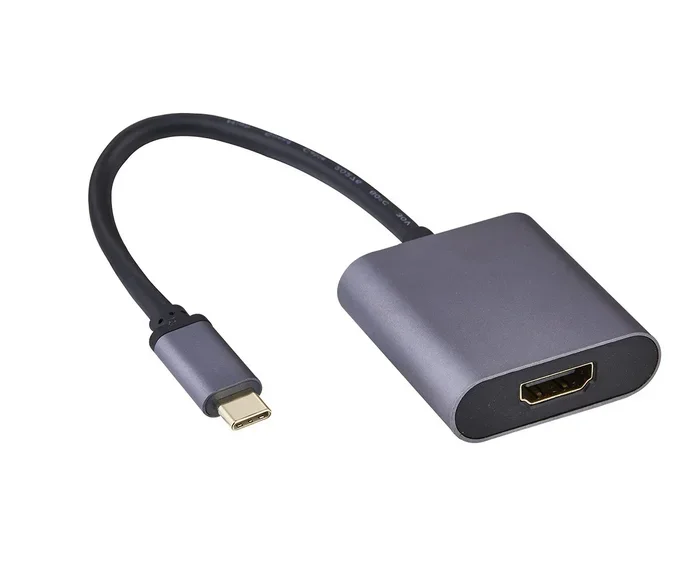
For laptops, a USB 3.0 dock or USB-C adapter can add modern ports. These devices connect to your existing port and provide new, faster ones. They are especially useful for older laptops that still work great otherwise.
Use a USB 3.0 Hub
A USB 3.0 hub is a small device that plugs into one port and gives you several more. If you plug the hub into a USB 3.0 port, all the downstream ports on the hub will also be USB 3.0. This is a great way to connect multiple USB 3.0 devices without worrying about port availability.
Choose the Right Cable
Always use a high-quality USB 3.0 cable when connecting USB 3.0 devices. Look for cables that are rated for SuperSpeed (5 Gbps). A good cable ensures you get the best possible speeds when you do have a USB 3.0 port available.
Plan Your Workflow
If you know you will be working with large files, plan ahead. Find a USB 3.0 port before you start transferring data. If you are on the go and only have USB 2.0 access, consider compressing files first or using cloud storage as an alternative. A little planning goes a long way.
Frequently Asked Questions
Can I damage my USB 3.0 device by plugging it into a USB 2.0 port?
No, you cannot. USB ports are designed to be backward compatible. Plugging a USB 3.0 device into a USB 2.0 port is completely safe. The device will simply operate at the slower USB 2.0 speed. There is no risk of damage to your device or your computer.
Why is my USB 3.0 flash drive so slow when plugged into a normal USB port?
Your flash drive is likely slow because you are using a USB 2.0 port. When a USB 3.0 device connects to a USB 2.0 port, it automatically falls back to USB 2.0 speeds. Check the port color, and if it is black or white instead of blue, that is your answer. Switch to a USB 3.0 port for faster speeds.
Do I need special drivers to use USB 3.0 in a USB 2.0 port?
No, you do not need any special drivers. USB is designed as a plug-and-play standard. Your operating system handles the connection automatically. The device will be recognized and work right away, regardless of which USB version the port supports.
Can I use a USB 3.0 cable in a USB 2.0 port?
Yes, you can. A USB 3.0 cable is physically compatible with USB 2.0 ports. The extra pins inside the USB 3.0 cable simply will not make contact in a USB 2.0 port. The connection will work at USB 2.0 speeds. Just keep in mind that using a USB 2.0 cable with a USB 3.0 device will also limit your speed.
Does the USB port version affect file safety?
No, the USB port version does not affect file safety. Files transfer the same way regardless of whether you use USB 2.0 or USB 3.0. There is no increased risk of data corruption when mixing USB versions. Always safely eject your device to avoid any issues.
How can I tell if my port is USB 3.0 or USB 2.0?
Look for visual clues first. USB 3.0 ports are usually blue inside and may have an “SS” logo. USB 2.0 ports are typically black or white. You can also check your device specifications online or look in your operating system’s device manager to see what USB version each port supports.
Conclusion
The bottom line is simple and reassuring. You can plug a USB 3.0 into a normal USB port easily and safely. The USB standard was built with backward compatibility as a core principle, and it works exactly as intended. Your USB 3.0 devices will work in USB 2.0 ports without any extra effort, special adapters, or technical knowledge.
That said, you should be aware of the trade-offs. You will lose the speed advantage of USB 3.0, and large file transfers will take longer. For everyday tasks like moving documents or photos, this might not matter much. But for heavy data work, you will want to find a USB 3.0 port or upgrade your setup.
Remember the tips we covered. Check your port colors, use the right cables, and consider a USB 3.0 hub or expansion card if you need more speed. These small steps can make a big difference in your daily workflow.
Now that you know the answer, you can confidently use any USB device with any port. The compatibility is there, and it has been for many years. Plug in, use your device, and enjoy the convenience that the USB standard was designed to provide.