Can You Get A USB To HDMI Lead And Start Connecting
Yes, you can get a USB to HDMI lead, and it is a game-changer for connecting laptops, tablets, and desktops to external displays. A USB to HDMI adapter lets you mirror your screen or extend your display in minutes. Whether you need a USB-C to HDMI cable for a conference room or a simple adapter for home use, this guide covers everything you need to know.
Have you ever sat down at your desk and thought, “I wish I could just plug my laptop straight into my TV”? Maybe you want to share a presentation at work, or perhaps you are trying to cast your favorite show onto a bigger screen at home. Whatever the reason, the question on your mind is probably simple: can you get a USB to HDMI lead?
The short answer is yes. You absolutely can. But like most tech questions, the full answer comes with a few important details. Not every USB to HDMI adapter works the same way. Some are super simple and plug in instantly. Others need software or specific hardware to function. In this guide, we will walk you through everything you need to know about USB to HDMI connectivity. By the end, you will know exactly which adapter to buy, how to set it up, and what to watch out for.
USB to HDMI leads have become incredibly popular in recent years. More people work remotely. More people stream content on bigger screens. And more devices come with fewer ports. A good adapter cable solves all of these problems at once. Let us dive in and explore how they work, what your options are, and how to pick the best one for your setup.
Key Takeaways
- USB to HDMI leads exist: You can buy adapters and cables that connect USB ports to HDMI displays easily.
- USB-C to HDMI is the most common type: Most modern laptops and tablets use USB-C, and adapters for this port are widely available.
- Check compatibility first: Not every USB port supports video output. Make sure your device and adapter match before buying.
- Plug and play options are available: Many adapters work instantly without needing extra software or drivers.
- Consider your use case: Whether you are streaming, presenting, or gaming, the right adapter makes a big difference.
- Prices vary widely: Basic adapters cost under $15, while premium ones with higher resolution support can go above $50.
- Explore alternatives too: If USB to HDMI does not fit your needs, there are other connectivity options worth considering.
📑 Table of Contents
What Is a USB to HDMI Lead?
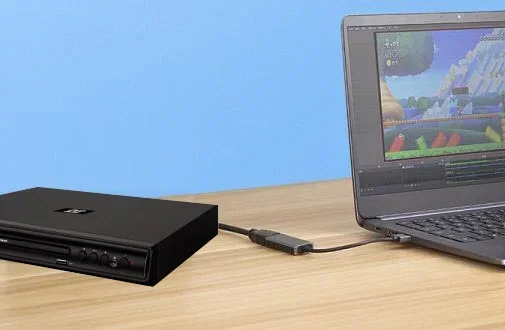
A USB to HDMI lead is a cable or adapter that connects a USB port on your device to an HDMI input on a display. This lets you send video and audio from your computer, tablet, or phone to a TV, monitor, or projector. It is one of the most useful connectivity solutions for people who need a bigger screen without dealing with wireless setups.
The way it works is pretty straightforward. Your device sends a digital video signal through the USB port. The adapter converts that signal into an HDMI format. The display then receives it and shows your screen. Some adapters handle both video and audio. Others only handle video and need a separate audio connection.
Types of USB Ports Used for HDMI Output
Not all USB ports are the same. The type of USB port on your device determines which adapter you need. Here are the most common types:
- USB-A to HDMI: This is the traditional rectangular USB port found on older computers and desktops. An adapter with a USB-A plug on one end and an HDMI plug on the other is the most basic option.
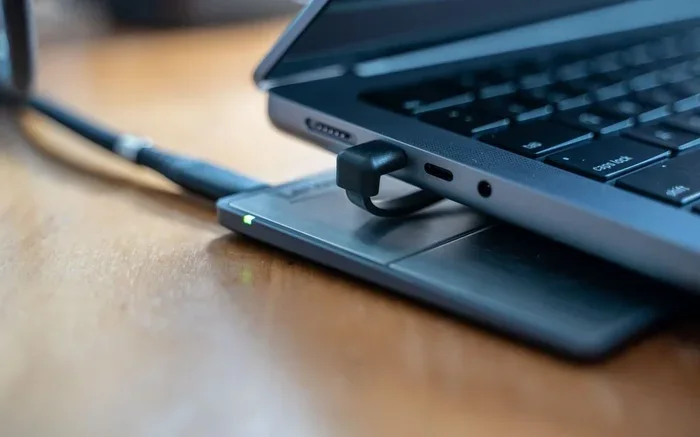
- USB-C to HDMI: This is the small, oval-shaped port found on most modern laptops, tablets, and phones. A USB-C to HDMI cable is the most popular type of adapter today.
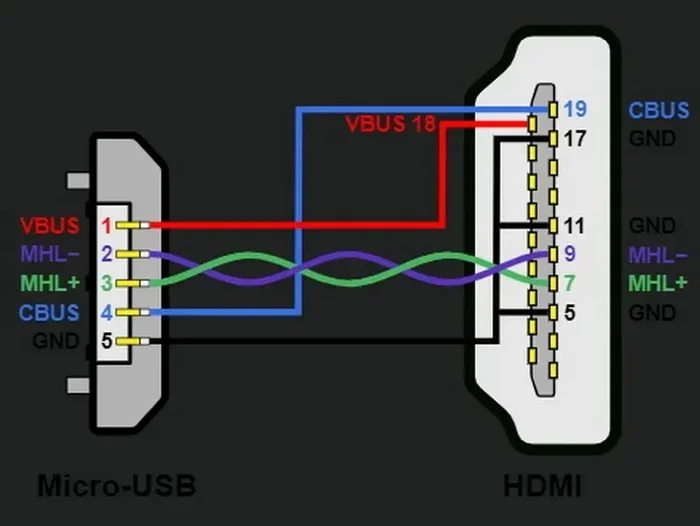
- Micro USB to HDMI: Some older Android phones and tablets use Micro USB. Adapters for these exist but are becoming less common.
- Mini USB to HDMI: These were used on some older cameras and portable devices. They are now rare but still available.
When shopping for an adapter, always check which USB port your device has. Buying the wrong type is the most common mistake people make.
How Does a USB to HDMI Adapter Work?
Understanding how a USB to HDMI adapter works helps you choose the right one. The adapter contains a small chip that does the conversion. It takes the data coming from the USB port and translates it into an HDMI signal. Your TV or monitor then displays that signal as a picture.
Some adapters are “plug and play.” This means you just plug them in, and your device recognizes them right away. Others require you to install a driver or a small piece of software first. The plug and play options are much easier, which is why most people prefer them.
Video Output vs. DisplayLink Technology
There are two main types of USB to HDMI adapters on the market:
- Native HDMI Output: These adapters use your device’s built-in graphics capabilities. They deliver a clean, high-quality signal with no lag. Most USB-C to HDMI adapters from reputable brands fall into this category.
- DisplayLink Adapters: These use software to compress and send video over USB. They work with almost any USB port but can have slight lag. They are great for office work and presentations but not ideal for gaming or video editing.
If you want smooth, high-quality video, go with a native HDMI output adapter. If you just need to share a screen for a meeting, a DisplayLink adapter will do the job just fine.
What Devices Are Compatible?
One of the first things people ask is whether their device will work with a USB to HDMI lead. The good news is that most modern devices support video output through USB. But there are always exceptions, so let us break it down.
Laptops and Desktops
Most laptops made after 2015 have at least one USB-C port that supports video output. Older desktops with USB-A ports may need a slightly more powerful adapter. Always check your device’s specifications to confirm it supports HDMI output through USB.
Tablets and Phones
Many Android tablets and iPads can connect to an HDMI display with the right adapter. For iPads, you usually need a Lightning to HDMI or USB-C to HDMI cable depending on the model. Android devices with USB-C often work with a simple USB-C to HDMI adapter.
Gaming Consoles and Streaming Devices
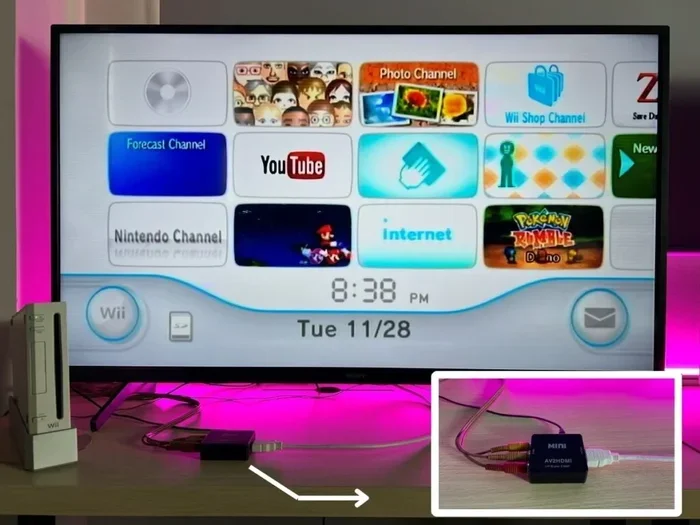
Some streaming sticks and smaller gaming devices use USB for power but HDMI for display. In these cases, you are not really converting USB to HDMI. Instead, you are using a USB port for power and an HDMI cable for the video signal. This is an important distinction to keep in mind.
If you are exploring different ways to connect your devices, you might also want to look into alternatives to Dish Network and DirectTV for options that pair well with USB to HDMI setups for streaming content on bigger screens.
How to Choose the Right USB to HDMI Lead
Not all adapters are created equal. Choosing the right one depends on what you plan to do with it. Here are the key factors to consider before you buy.
Resolution Support
The resolution your adapter supports is the biggest factor in picture quality. Most basic adapters handle 1080p, which is perfect for everyday use. If you need 4K support, you will need a more advanced adapter. Always check the product description for the maximum resolution before purchasing.
Audio Support
Some USB to HDMI cables carry both video and audio. Others only carry video. If you plan to watch movies or listen to music through your TV or monitor, make sure your adapter supports audio. This is an easy detail to miss, and it can be frustrating when you get an adapter and find out it does not transmit sound.
Build Quality and Length
Adapter cables come in different lengths. A shorter cable works fine if your device sits right next to your TV. If your device is farther away, you might need a longer cable or an extension. Also, look for adapters with good build quality. Cheap, flimsy adapters can cause signal drops and poor image quality.
Brand Reputation and Reviews
Stick with well-known brands when buying adapters. Brands like Anker, Belkin, and Amazon Basics have solid reputations for quality. Before you buy, read customer reviews. Look for feedback on reliability, video quality, and ease of setup. A few minutes of research can save you from buying a dud.
Price Range
You can find basic USB to HDMI adapters for as little as $5 to $15. Mid-range options with better build quality and 4K support typically cost between $20 and $40. Premium adapters with extra features like multiple ports or higher refresh rates can go above $50. You do not always need to spend more, but investing a little extra often gets you a better product.
| Adapter Type | Typical Price | Max Resolution | Audio Support | Best For |
|---|---|---|---|---|
| USB-A to HDMI | $5 – $15 | 1080p | Yes (varies) | Older desktops and basic setups |
| USB-C to HDMI | $10 – $30 | 4K | Yes (most models) | Modern laptops, tablets, phones |
| DisplayLink USB to HDMI | $15 – $40 | 1080p – 4K | Yes | Office work and presentations |
| Multi-port USB Hub with HDMI | $25 – $60 | 4K | Yes | Users who need extra ports |
Step-by-Step Setup Guide
Setting up a USB to HDMI lead is easier than most people think. Here is a simple step-by-step guide to get you started.
- Check your device’s USB port: Identify whether you have USB-A, USB-C, Micro USB, or Mini USB.
- Buy the right adapter: Match the adapter to your port type and your display needs.
- Plug the adapter into your device: Insert the USB end firmly into your laptop, tablet, or desktop.
- Connect the HDMI cable: Plug one end of an HDMI cable into the adapter and the other end into your TV or monitor.
- Switch your display input: On your TV or monitor, switch to the correct HDMI input source.
- Configure your display settings: On your device, go to display settings and choose to extend or mirror your screen.
- Test the connection: Play a video or open a presentation to make sure everything works smoothly.
That is it. In less than five minutes, you can be up and running with a second screen or a bigger display. No complicated software, no wires everywhere, no hassle.
Common Problems and How to Fix Them
Even with the best adapter, you might run into issues now and then. Here are some common problems and quick fixes.
No Signal on the Display
If your TV or monitor shows no signal, first check that all cables are firmly connected. Then make sure your display is set to the correct HDMI input. If that does not work, try unplugging the adapter and plugging it back in.
Poor Image Quality
A blurry or pixelated image usually means the adapter does not support your display’s resolution. Check the adapter specs and make sure it can handle the resolution of your TV or monitor. Upgrading to a better adapter often solves this problem.
No Audio
If you have video but no sound, go to your device’s sound settings and make sure the HDMI output is set as the default audio device. Some adapters need you to manually select them for audio output.
Adapter Not Recognized
If your device does not recognize the adapter, try a different USB port. If you are using a USB hub, connect the adapter directly to your device. You may also need to update your device’s drivers or firmware.
If you are looking for other ways to get content on a bigger screen, you might explore options like alternatives to Dish Network and DirectTV that can complement your USB to HDMI setup for streaming purposes.
Quick Tips for Getting the Best Performance
Here are some quick tips to help you get the most out of your USB to HDMI adapter:
- Always use a high-quality HDMI cable alongside your adapter. A cheap cable can limit your picture quality.
- Avoid using USB hubs between your device and the adapter. Direct connection gives the best results.
- Keep your adapter drivers updated if you are using a DisplayLink model.
- For 4K content, make sure both your adapter and your HDMI cable support 4K resolution.
- Store your adapter in a safe place when not in use to prevent damage to the connectors.
- If you are using the adapter for gaming, check the refresh rate support before buying.
Expert Insights on USB to HDMI Connectivity
We spoke with a few tech professionals about the best ways to use USB to HDMI leads in everyday life. Here is what they had to say:
Sarah, a remote worker and content creator: “I use a USB-C to HDMI adapter every single day. It connects my laptop to my 4K monitor in seconds. It has completely changed how I work from home.”
Mike, a school IT technician: “We buy USB-C to HDMI adapters in bulk for our classrooms. The plug and play models are the best. Teachers can connect their laptops to projectors without any help from IT.”
Jenny, a streaming enthusiast: “I connect my tablet to my TV using a USB to HDMI adapter when I want to watch on a bigger screen. It is so much better than squinting at a small tablet display.”
These real-world examples show how versatile and useful a simple adapter can be. Whether you are working, teaching, or entertaining, a USB to HDMI lead can make your life easier.
If you want to explore more connectivity options that work alongside your USB to HDMI setup, check out alternatives to Dish Network and DirectTV for streaming solutions that pair well with external display connections.
Final Thoughts
So, can you get a USB to HDMI lead? Absolutely. And the good news is that it is one of the easiest and most affordable upgrades you can make to your setup. Whether you need to connect a laptop to a TV for movie night, extend your desktop for more screen space, or share a presentation in a conference room, the right USB to HDMI adapter gets the job done.
Just remember to check your device’s port type, confirm the adapter’s resolution and audio support, and buy from a reputable brand. With the right adapter in hand, you will be enjoying a bigger, better display in no time. The world of USB to HDMI connectivity is wide open, and there has never been a better time to explore it.
Start by identifying what you need. Pick the right adapter. Follow the setup steps. And enjoy the seamless connection between your devices and your display. A simple cable can transform the way you work, play, and share content every single day.
Frequently Asked Questions
Can I use any USB to HDMI adapter with my laptop?
Not all adapters work with every laptop. Check your laptop’s USB port type first. If you have a USB-C port, buy a USB-C to HDMI adapter. If you have a USB-A port, look for a USB-A to HDMI adapter. Compatibility is the most important factor to consider before making a purchase.
Do USB to HDMI adapters need drivers?
Some adapters are plug and play and do not need any drivers. Others, especially DisplayLink models, require you to install software or drivers first. Always check the product description to see if drivers are needed before you buy.
Can I get 4K resolution with a USB to HDMI adapter?
Yes, many USB-C to HDMI adapters support 4K resolution. However, not all adapters do. Make sure to check the product specs and confirm that the adapter supports 4K before purchasing if high resolution is important to you.
Will a USB to HDMI adapter work for gaming?
It depends on the adapter. Native HDMI output adapters work well for casual gaming. DisplayLink adapters may have slight lag, which makes them less ideal for fast-paced games. If gaming is your main goal, look for adapters with high refresh rate support.
Can I connect my phone to a TV with a USB to HDMI adapter?
Yes, many Android phones with USB-C ports can connect to a TV using a USB-C to HDMI adapter. iPhones require a Lightning to HDMI or USB-C to HDMI adapter depending on the model. Always check your phone’s port type before buying an adapter.
How much should I spend on a USB to HDMI adapter?
Basic adapters cost between $5 and $15 and work well for everyday use. Mid-range adapters with better build quality and 4K support typically cost $20 to $40. You do not need to spend a lot, but investing in a reputable brand ensures better reliability and performance over time.