Can You Install A Brother Printer Without The Cd Easily
Yes, you can absolutely install a Brother printer without the CD. Modern printers support USB, wireless, and web-based driver downloads that make installing a Brother printer without the CD faster and easier than ever. Whether you use Windows or Mac, this guide walks you through every method step by step.
Key Takeaways
- CD-Free Setup Is Standard: All modern Brother printers support driver downloads and wireless setup without needing a CD.
- Multiple Installation Methods: You can use USB, Wi-Fi, or a web browser to get your printer running.
- Drivers Are Free Online: Brother’s official website offers all printer drivers at no cost.
- Wireless Setup Is Simple: The Brother printer wireless setup process takes just a few minutes.
- Troubleshooting Is Easy: Most common issues have quick fixes you can do yourself.
- Firmware Updates Matter: Keeping your printer updated ensures the best performance.
- Any Brother Model Works: Whether you have an HL, MFC, or DCP series, the process is the same.
📑 Table of Contents
- Yes, You Can Install A Brother Printer Without The Cd
- What You Need Before You Start
- Method 1: Install Using USB Connection
- Method 2: Install Wirelessly Without A Cd
- Method 3: Download Drivers From The Brother Website
- Common Problems And How To Fix Them
- Expert Tips For A Smooth Installation
- Why CD-Free Printer Setup Is the Future
- Final Thoughts
Yes, You Can Install A Brother Printer Without The Cd
If you just bought a new Brother printer and realized you do not have the installation CD, do not worry. You are not alone. Many people today buy printers online or receive them without any discs at all. The good news is that installing a Brother printer without the CD is not only possible but also the preferred method for most users.
Brother has made great strides in making CD-free printer setup simple and straightforward. You can connect your printer using a USB cable, set it up over Wi-Fi, or download the drivers directly from Brother’s website. Each method works well, and you do not need any special technical skills to get started.
The days of fumbling with a CD drive and hoping the disc works are long gone. Today, Brother printer driver download options are built right into your computer’s operating system. Windows and Mac both come with basic printer drivers that can get you printing in minutes. But for the full experience, downloading the official Brother software is the way to go.
In this guide, we will cover every method you can use to set up your Brother printer without a CD. We will also share tips, common mistakes to avoid, and troubleshooting steps if something goes wrong. By the end, you will have your printer up and running with confidence.
So grab your printer, your computer, and a few minutes of your time. Let us get started with the easiest way to set up your Brother printer without a CD.
What You Need Before You Start
Before you begin the installation process, make sure you have everything ready. Having the right tools and information saves time and prevents frustration. Here is a quick checklist of what you need.
- A Brother printer: Any model from the HL, MFC, DCP, or QL series will work with these methods.
- A computer or laptop: Whether you use Windows or Mac, both platforms support Brother printer installation.
- A USB cable (optional): If you plan to connect via USB, have a standard USB cable ready.
- A Wi-Fi network: For wireless setup, you need access to your home Wi-Fi with the network name and password.
- Internet access: You will need the internet to download drivers and software from Brother’s website.
- Your printer model number: This is usually printed on the front or back of the printer. Write it down before you start.
Why Your Printer Model Number Matters
When you download printer drivers, you need the exact model number. Brother makes dozens of models, and each one may have slightly different drivers. Using the wrong driver can cause errors or prevent your printer from working correctly. Find your model number on the label sticker on the back or bottom of the printer.
Method 1: Install Using USB Connection
The USB method is the most straightforward way to set up a Brother printer. It works well if your computer is close to the printer and you want a wired connection. This method gives you a stable and fast connection right from the start.
Step-by-Step USB Installation
- Unbox your printer and remove all packaging materials and tape.
- Plug in the power cable and turn on the printer.
- Install the ink cartridges and load paper into the tray.
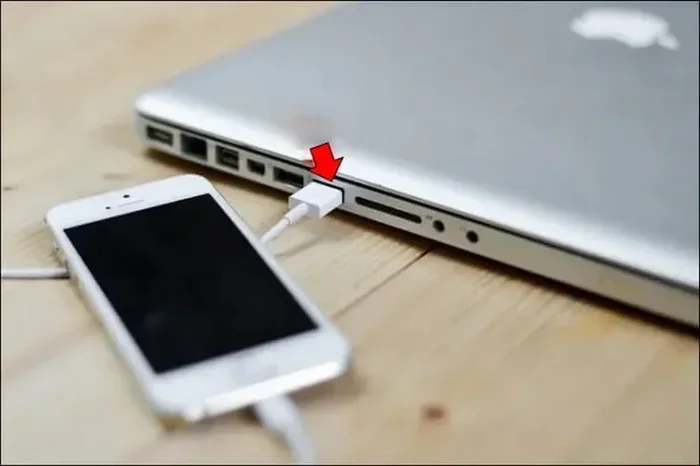
- Connect the USB cable from the printer to your computer.
- Wait for your computer to detect the printer. Windows usually shows a notification that a new device is found.
- Go to Settings > Devices > Printers & Scanners on Windows, or System Settings > Printers & Scanners on Mac.
- Click Add a Printer and select your Brother printer from the list.
- Follow the on-screen prompts to complete the installation.
Once the basic driver is installed, you can print a test page to confirm everything works. If you want full features like scanning, you should still download the Brother software from the website for the complete package.
Quick Tips for USB Setup
- Use a USB cable that is under 6 feet long for the best signal quality.
- Avoid USB hubs or extenders. Plug the cable directly into your computer.
- If your computer does not detect the printer, try a different USB port.
- Make sure your printer is turned on before connecting the USB cable.
Method 2: Install Wirelessly Without A Cd
Wireless setup is the most popular way to connect a Brother printer today. It lets you print from any device in your home without cables. Brother printer wireless setup is designed to be simple, and most modern Brother printers come with a screen that walks you through the process.
Setting Up Wireless Connection
Here is how to connect your Brother printer to your Wi-Fi network:
- Turn on the printer and make sure it is ready.
- Press the Wi-Fi button on the printer control panel. The Wi-Fi light will start blinking.
- Use the printer screen to navigate to Network Settings.
- Select Wireless LAN Setup and choose your home network from the list.
- Enter your Wi-Fi password using the printer keypad or touchscreen.
- Wait for the connection to establish. The Wi-Fi light will stop blinking and stay solid.
- On your computer, go to printer settings and add the printer by its name.
Some Brother models also support Wi-Fi Protected Setup (WPS). This lets you connect with the push of a button on your router. Check your printer manual or the Brother website for WPS instructions specific to your model.
Connecting From a Phone or Tablet
You are not limited to computers. You can also set up a Brother printer wirelessly from a smartphone or tablet. The Brother iPrint&Scan app is available for both iOS and Android. Simply download the app, make sure your phone is on the same Wi-Fi network as the printer, and follow the prompts to connect.
Method 3: Download Drivers From The Brother Website
This is the most comprehensive method because you get the full suite of Brother software. It includes the printer driver, scanner driver, and useful utilities like Brother Utilities and the printer status monitor. This method works whether you are using USB or Wi-Fi.
How to Download and Install Brother Printer Software
Follow these steps to get the full Brother software package:
- Go to the Brother support website at support.brother.com.
- Enter your printer model number in the search bar.
- Select your operating system (Windows 10, Windows 11, macOS, etc.).
- Click the Download button for the full driver and software package.
- Open the downloaded file once the download is complete.
- Follow the installation wizard and accept the terms and conditions.
- Choose your connection type (USB or Wireless) when prompted.
- Wait for the installation to finish and restart your computer if asked.
After the installation is complete, try printing a test page. You should see your Brother printer listed as an available printer in your print dialog. If you want to scan documents, the scanner driver will also be installed during this process.
Comparison of Installation Methods
| Method | Speed | Features | Best For |
|---|---|---|---|
| USB Connection | Fast | Basic printing | Quick setup, wired reliability |
| Wireless Setup | Moderate | Printing from any device | Home or office with multiple devices |
| Driver Download | Moderate | Full software suite, scanning, utilities | Complete feature access |
Common Problems And How To Fix Them
Even with the easiest setup, you might run into a few hiccups along the way. Most problems are simple to fix. Here are the most common issues people face when setting up a Brother printer without a CD and how to solve them.
Printer Not Found by the Computer
If your computer does not detect the Brother printer, try these steps:
- Check the USB cable connection or make sure both devices are on the same Wi-Fi network.
- Restart the printer and the computer. A simple reboot often fixes detection issues.
- Temporarily disable your firewall or antivirus software. Sometimes these block printer discovery.
- Run the Brother printer troubleshooting tool from the Brother support website.
Driver Installation Fails
If the driver download does not install correctly, try the following:
- Make sure you downloaded the correct driver for your specific printer model and operating system.
- Uninstall any partial installations through your computer’s control panel before trying again.
- Run the installer as an administrator by right-clicking the file and selecting Run as Administrator.
- Check your internet connection to make sure the download was not interrupted.
Poor Print Quality After Setup
If your prints come out faint or streaky after installation:
- Run the printer head cleaning utility from the Brother software on your computer.
- Check the ink levels and replace any empty cartridges.
- Make sure you are using the correct paper type setting in your print preferences.
- Update the printer firmware through the Brother website for the latest improvements.
Wireless Connection Keeps Dropping
If your wireless printer loses connection frequently:
- Move the printer closer to your Wi-Fi router to improve signal strength.
- Restart your router and the printer to refresh the connection.
- Avoid placing the printer near microwaves or other electronics that can interfere with Wi-Fi signals.
- Update your router firmware for better compatibility.
Expert Tips For A Smooth Installation
Setting up a new printer should be a breeze, not a headache. These expert tips will help you avoid common pitfalls and get the best performance from your Brother printer right from day one.
Always Download the Latest Drivers
Brother regularly releases driver updates that fix bugs and improve performance. When you download printer drivers from the Brother website, you always get the latest version. Do not rely on the drivers built into your operating system for the best experience.
Keep Your Printer Firmware Updated
Firmware updates can add new features and fix known issues. You can check for firmware updates through the Brother printer menu or the Brother Support Center online. Keeping your firmware current ensures printer compatibility with the latest computers and operating systems.
Use the Brother Printer Setup Wizard
Many Brother printers include a built-in setup wizard on the control panel screen. This wizard guides you through network setup, driver installation, and initial configuration. It is one of the easiest ways to get started without a CD.
Register Your Printer Online
After setup, take a few minutes to register your printer on the Brother website. This gives you access to warranty support, firmware updates, and helpful resources. It also makes Brother printer support much faster if you ever need help.
Save Your Driver Download Link
Bookmark the driver download page for your specific model. If you ever need to reinstall the software or set up the printer on a new computer, you will have the link ready to go. This is a great habit for CD-free printer setup convenience.
Why CD-Free Printer Setup Is the Future
Printer manufacturers have moved away from CDs for good reason. CDs can get scratched, lost, or stuck in drives that modern computers no longer include. A CD-free printer setup is faster, more reliable, and always gives you access to the latest software.
Brother has been at the forefront of this shift. Their website makes it easy to find drivers for every model. And their wireless setup tools are designed with regular users in mind, not just tech experts. You do not need to know anything about network settings or driver files to get started.
As operating systems continue to evolve, CD-based installation will become even more outdated. Embracing Brother printer driver download and wireless setup methods now means you are always ready for the next computer or operating system update. It is a future-proof approach to printer setup.
Final Thoughts
Can you install a Brother printer without the CD? Absolutely yes. You have at least three reliable methods to choose from: USB connection, wireless setup, or downloading drivers directly from the Brother website. Each method is free, straightforward, and gets your printer working quickly.
The key is to have your printer model number ready and your internet connection stable. Follow the steps in this guide, and you will have your Brother printer up and running in no time. If you run into any issues, the troubleshooting tips above will help you get back on track.
Do not let a missing CD hold you back. With today’s technology, installing a Brother printer without the CD is actually the easier and better way to go. Give it a try and enjoy your new printer right away.
Frequently Asked Questions
Do I really need a CD to install a Brother printer?
No, you do not need a CD at all. Brother printers can be installed using a USB cable, Wi-Fi connection, or by downloading drivers from the Brother website. All modern operating systems support these CD-free methods.
Can I set up a Brother printer wirelessly without any software?
Yes, you can connect your Brother printer to Wi-Fi using the printer’s control panel without installing any software first. However, downloading the full Brother software package from the website gives you access to all features including scanning and printer utilities.
What if my computer does not recognize the Brother printer after USB setup?
Try unplugging the USB cable and plugging it back in. You can also restart both the printer and computer. If the issue persists, download the latest driver from the Brother support website and install it manually.
Is it safe to download Brother printer drivers from the website?
Yes, it is completely safe. The Brother support website (support.brother.com) is the official source for all printer drivers and software. Always make sure you are downloading from the official Brother website to avoid any security risks.
Can I install a Brother printer on both Windows and Mac without a CD?
Yes, Brother provides drivers for both Windows and Mac on their website. You simply select your operating system when downloading the driver package, and the installation process is the same for both platforms.
How long does it take to install a Brother printer without a CD?
The USB setup takes about 5 to 10 minutes. Wireless setup may take 10 to 15 minutes depending on your network. Downloading and installing the full software package typically takes 15 to 20 minutes. Overall, the entire process is quick and straightforward.
=== CONCLUSION ===
Installing a Brother printer without the CD is simple, fast, and completely free. You have multiple reliable methods to choose from, whether you prefer a USB cable, a wireless connection, or downloading drivers directly from Brother’s website. Each method is designed with the user in mind, so you do not need any technical background to succeed.
Remember to keep your printer model number handy, download the latest drivers, and follow the step-by-step instructions in this guide. If you ever encounter an issue, the troubleshooting tips will help you resolve it quickly. With a little patience and the right approach, your Brother printer will be ready to go in under 20 minutes.
Now that you know how easy CD-free printer setup can be, there is no reason to wait. Start setting up your Brother printer today and enjoy printing, scanning, and copying right away.