How Do I Scan A Document And Email It As A Pdf File
Learning how to scan a document and email it as a PDF is simpler than you think. This guide covers every method from desktop scanners to mobile phone apps. You will find clear step-by-step instructions for Windows, Mac, iPhone, and Android devices. Whether you need to send contracts, receipts, or forms, we show you the fastest and easiest ways to get it done right.
Have you ever needed to send an important paper document but did not know how to get it into your inbox? Maybe it is a signed contract, a receipt, or a form that someone needs right away. The good news is that scanning a document and emailing it as a PDF is a skill everyone should have. It takes just a few minutes once you know the steps.
In this guide, we walk you through every method you can use. Whether you have a desktop scanner at home, an iPhone, or an Android phone, we have you covered. We also share tips on how to make your scans look great and how to avoid common problems like huge file sizes. By the end of this article, you will feel confident sending any document digitally.
Key Takeaways
- Multiple Methods Available: You can scan and email PDFs using a desktop scanner, your phone camera, or online tools.
- PDF Is the Best Format: PDF files keep your document formatting intact and are universally accepted by email providers.
- Phone Scanning Is Super Convenient: Apps like Adobe Scan and Microsoft Lens turn your smartphone into a powerful document scanner.
- File Size Matters: Compress large PDFs before emailing to avoid attachment size limits and delivery problems.
- Quality Settings Are Important: Choosing the right scan resolution ensures your document looks sharp without creating huge files.
📑 Table of Contents
- Why You Should Scan Documents and Email Them as PDFs
- How to Scan a Document on a Desktop Scanner
- How to Scan a Document Using Your Phone
- How to Email the Scanned Document as a PDF
- Comparison: Scanning Methods at a Glance
- Common Scanning Mistakes and How to Avoid Them
- Expert Tips for Better Scans and Faster Sharing
- Frequently Asked Questions
- Conclusion
Why You Should Scan Documents and Email Them as PDFs
You might wonder why PDF is the go-to format for sharing scanned documents. The answer is simple. PDF files keep your layout, fonts, and images exactly as they appear on the original page. No matter what device the recipient uses, the document will look the same.
The Benefits of PDF Format
- Universal Compatibility: PDFs open on almost every device and email program without special software.
- File Security: PDFs can be password-protected, which adds a layer of safety for sensitive documents.
- Small File Size: Compared to image files like JPEG, PDFs are often smaller and easier to email.
- Professional Look: PDFs give your scanned documents a clean, polished appearance.
- Searchable Text: Many PDF scanners use OCR technology, making the text in your scanned document searchable.
When You Need to Scan and Email
There are countless situations where you need to scan files to email quickly. Job applications often require scanned IDs or diplomas. Landlords may need signed lease agreements. Tax offices need receipts and financial forms. Healthcare providers might need insurance cards. In all these cases, knowing how to scan and send a document saves time and stress.
How to Scan a Document on a Desktop Scanner
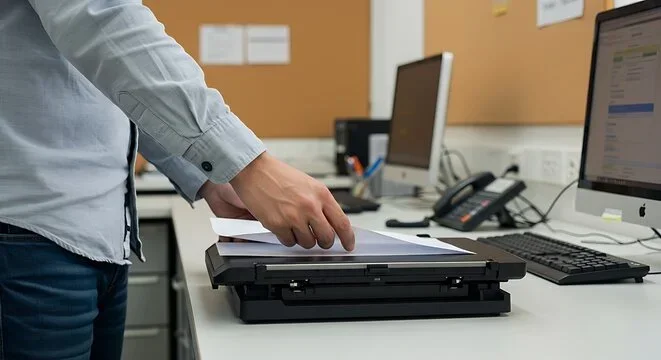
A desktop scanner gives you the best quality for your scanned documents. Most modern printers come with a flatbed scanner built in. If you have a standalone scanner, the process is very similar. Let us walk through the steps for both Windows and Mac users.
Using Windows Built-In Scanning Tools
Windows 10 and Windows 11 have a built-in scanning app called Windows Scan. It is free and easy to use. Here is how to get started:
- Place your document face-down on the scanner glass.
- Open the Start menu and search for “Windows Scan.”
- Click the app to open it.
- Choose your scanner from the dropdown menu.
- Set the file type to PDF.
- Adjust the color mode. Choose color for photos or colored documents. Choose grayscale for black-and-white pages. Choose black and white for simple text documents.
- Click the Scan button and wait for the process to finish.
- Save the file to your computer.
Once the scan is complete, open your email client. Click the attach button and select the PDF file you just saved. Hit send, and you are done.
Using Mac Preview for Scanning
Mac users have a great built-in tool called Preview. Here is how to use it for document scanning:
- Place your document on the scanner.
- Open Preview from your Applications folder.
- Go to the File menu and select Import from Scanner.
- Choose your scanner from the list.
- Select PDF as the output format.
- Click Scan and wait for the process to finish.
- Save the file to your desired location.
Preview also lets you adjust the scan quality before you save. Higher quality means sharper text but larger file sizes. For most emails, a medium quality setting works perfectly.
How to Scan a Document Using Your Phone
Your phone might be the fastest way to scan a document and email it as a PDF. Almost everyone carries a smartphone these days, and the cameras on modern phones are incredibly good. You do not need a physical scanner at all. Let us look at the best options.
Best Mobile Scanning Apps
Several free apps turn your phone into a powerful document scanner. Here are the top choices:
- Adobe Scan (iOS and Android): This app is free and very popular. It automatically detects document edges, crops the image, and converts it to a PDF. The OCR feature makes text searchable. It is one of the best options for mobile scanning.
- Microsoft Lens (iOS and Android): Formerly called Office Lens, this app works great with Word and PowerPoint. It has modes for documents, whiteboards, and business cards.
- Google Drive (Android): The Google Drive app has a built-in scan feature. Open the app, tap the plus button, and select Scan. It saves directly to your Google Drive account.
- Apple Notes (iOS): iPhone users can use the Notes app. Open a new note, tap the camera icon, and select Scan Documents. It automatically detects and captures the page.
Step-by-Step Phone Scanning Guide
Here is a simple process you can follow with any scanning app:
- Download a scanning app from your app store if your phone does not have a built-in option.
- Place your document on a flat surface with good lighting.
- Open the app and point your phone camera at the document.
- Hold your phone steady above the document. Most apps will automatically detect the edges.
- Tap the capture button when the document is framed correctly.
- If you have multiple pages, repeat the process for each page.
- The app will combine all pages into a single PDF file.
- Save the PDF to your phone or cloud storage.
Now you are ready to email the file. Open your email app, tap the attach icon, and select the PDF you just created.
How to Email the Scanned Document as a PDF
Once you have your PDF file ready, sending it is straightforward. But there are a few things to keep in mind to make sure your email goes through without problems.
Attaching PDFs to Emails
The process is similar across most email services. Here is the basic workflow:
- Open your email provider (Gmail, Outlook, Yahoo, or your work email).
- Click the Compose button to start a new message.
- Fill in the recipient’s email address.
- Add a subject line that describes the document.
- Write a brief message if needed.
- Click the paperclip or attach icon.
- Navigate to where you saved the PDF file.
- Select the file and click Open.
- Click Send.
That is it. The recipient will receive your pdf attachment and can open it with any PDF reader. The document will look exactly as you scanned it.
Compressing Large PDF Files
Sometimes scanned PDFs can be quite large, especially if you scanned multiple pages at high resolution. Most email providers have a limit of 25 megabytes per attachment. If your file is too big, here is what you can do:
- Lower the scan resolution: Scanning at 300 DPI is usually enough for documents. You do not need 600 DPI unless you are scanning photos.
- Use a PDF compressor: Websites like SmallPDF and iLovePDF let you compress PDF files for free online.
- Save as a reduced-size PDF: In Adobe Acrobat, go to File and select Save As Other, then choose Reduced Size PDF.
- Use cloud links: Upload the PDF to Google Drive or Dropbox and share a link instead of attaching the file directly.
Comparison: Scanning Methods at a Glance
Not sure which method is best for you? Here is a quick comparison of the three main ways to scan and email documents.
| Method | Quality | Speed | Cost | Best For |
|---|---|---|---|---|
| Desktop Scanner | Excellent | Medium | Requires equipment | High-volume scanning, important documents |
| Phone Scanning App | Very Good | Fast | Free | Quick scans, on-the-go needs |
| Online Scanning Service | Good | Slow | Free or paid | When you do not have a scanner or phone |
For most people, a phone scanning app is the fastest and easiest option. Desktop scanners are better when you need to scan many pages or very high-quality documents.
Common Scanning Mistakes and How to Avoid Them
Even with the right tools, mistakes can happen. Here are the most common problems people face when they scan document and email as pdf and how to fix them.
Resolution and Quality Settings
One of the biggest mistakes is choosing the wrong scan resolution. If you set it too low, the text will be blurry and hard to read. If you set it too high, your file will be enormous and hard to email. Here is a quick guide:
- 100 DPI: Good for rough drafts or documents you do not need to read closely.
- 200 DPI: Fine for simple text documents that just need to be readable.
- 300 DPI: The sweet spot for most documents. Text is clear and files are manageable.
- 600 DPI: Best for photos, graphics, or documents you need to archive at high quality.
File Size Problems
If your email will not send because the file is too large, do not panic. Try these quick fixes:
- Use an online PDF compressor before attaching the file.
- Reduce the number of pages if possible.
- Upload to cloud storage and share a link instead.
- Split the PDF into smaller files using a free online tool.
Crooked or Dark Scans
Poor lighting and angled phone shots can make your scans look unprofessional. Always place your document on a flat surface in a well-lit area. Hold your phone directly above the document, not at an angle. Most scanning apps have edge detection that will straighten the image automatically, but you get better results when the camera is straight.
Expert Tips for Better Scans and Faster Sharing
After helping hundreds of people learn how to scan and send documents, we have gathered some pro tips that make a big difference.
Quick Tips for Perfect Scans
- Always clean the scanner glass before scanning. Fingerprints and dust show up clearly on scanned documents.
- Use a consistent file naming convention. Name files like “Invoice_March_2024.pdf” so you and the recipient can find them easily.
- Save a copy of every scanned document to a cloud folder. This gives you a backup in case you need it later.
- Check the scanned document before you send it. Open the PDF and make sure every page is clear and complete.
- Use the B&W (black and white) mode for text-only documents. It creates the smallest file size and the sharpest text.
Pro Advice from Scanning Experts
Experienced users recommend scanning documents in batches. If you have five pages to scan, place them all on the scanner and scan them at once. Most scanning software lets you add pages to the same PDF file. This saves a lot of time compared to scanning one page at a time.
Another expert tip is to always scan in color first. You can always convert a color scan to grayscale or black-and-white later, but you cannot add color to a grayscale scan. This gives you the most flexibility for future use.
For people who scan documents frequently, investing in a good wireless scanner is worth it. Wireless scanners let you send scans directly to your email or cloud storage without plugging in any cables. Brands like Epson, Canon, and Brother make excellent options at various price points.
Quick Tips for Perfect Scans
- Always clean the scanner glass before use.
- Use consistent file naming like “DocumentName_Date.pdf.”
- Save copies to cloud storage for backup.
- Review the PDF before sending it.
- Use black-and-white mode for text-only pages.
- Scan in color first for maximum flexibility.
- Consider a wireless scanner for regular use.
Frequently Asked Questions
Can I scan a document and email it as a PDF without a scanner?
Yes, absolutely. You can use your phone’s camera with a scanning app like Adobe Scan or Microsoft Lens. These apps capture the document, crop it, and convert it to a PDF automatically. You can then attach the PDF directly to an email from your phone. It works just as well as a physical scanner for most everyday documents.
What is the best free app to scan documents on a phone?
Adobe Scan is widely considered the best free scanning app for both iPhone and Android. It has excellent edge detection, automatic cropping, and built-in OCR to make text searchable. Microsoft Lens is another great free option, especially if you already use Microsoft Office products. Both apps produce high-quality PDFs that are easy to email.
Why does my scanned PDF look blurry when I email it?
Blurry scans usually happen when the scan resolution is set too low. Try scanning at 300 DPI for the best balance of quality and file size. Blurriness can also happen if the document was not placed flat on the scanner or if the camera was angled when scanning with a phone. Always keep the scanner glass clean and hold your phone directly above the document for the sharpest results.
Is there a size limit for PDF attachments in email?
Most email providers limit attachments to 25 megabytes. If your PDF is larger than that, the email will not send. To fix this, you can compress the PDF using a free online tool like SmallPDF or iLovePDF. Another option is to upload the file to Google Drive or Dropbox and share a link in the email instead of attaching the file directly.
Can I scan multiple pages into one PDF file?
Yes, you can. Desktop scanning software like Windows Scan and Mac Preview both have a multi-page scanning mode. You simply scan each page one by one, and the software combines them into a single PDF. Phone scanning apps like Adobe Scan do the same thing. Just keep scanning pages, and the app adds each one to the same document. When you are finished, save the file and email it as one attachment.
How do I make sure my scanned document is secure when emailing it?
To keep your scanned documents secure, consider encrypting the PDF with a password. Adobe Acrobat and many free online tools let you add password protection to PDF files. You can also share the document through a secure cloud link with restricted access instead of attaching it directly to an email. This adds an extra layer of protection for sensitive information like tax documents or medical records.
Conclusion
Scanning a document and emailing it as a PDF is a simple process that anyone can learn. Whether you use a desktop scanner, a phone app, or an online tool, the steps are straightforward and fast. The key is to choose the right method for your situation, use the correct settings, and always check your scan before sending it.
We covered everything from choosing the best scanning app to compressing large files and avoiding common mistakes. With the tips in this guide, you can confidently send any document digitally. No more running to a copy shop or waiting for a physical scanner. Your phone or computer has everything you need to get the job done.
Start practicing today. Pick a document you need to send, follow the steps in this guide, and you will see how easy it really is. Once you do it a few times, scanning and emailing PDFs will become second nature. Happy scanning!