Can You Go From Hdmi To Usb C Here Is Everything You Need
Yes, you can go from HDMI to USB C using the right adapter or cable. This guide covers USB C to HDMI adapters, Thunderbolt compatibility, and step-by-step setup tips. Whether you are connecting a laptop to a monitor or streaming content, HDMI to USB C solutions make it simple and affordable.
You have a device with a USB C port and a screen with an HDMI input. You want to connect them. But can you go from HDMI to USB C? The short answer is yes. The longer answer is that it depends on your device, your adapter, and what you want to achieve. This guide breaks it all down in simple terms.
USB C has become the go-to port for laptops, tablets, and phones. It is small, reversible, and fast. But HDMI is still the standard for TVs, monitors, and projectors. So how do you bridge the gap? The answer lies in adapters, cables, and a technology called DisplayPort Alt Mode. Let us walk through everything you need to know about HDMI to USB C connections.
Key Takeaways
- USB C to HDMI adapters work with most modern devices: Laptops, tablets, and phones with USB C ports can output HDMI signals easily.
- DisplayPort Alt Mode is the key technology: Many USB C ports support video output through this built-in feature.
- Thunderbolt 3 and 4 ports offer the best performance: They handle 4K and even 8K video output with ease.
- Active vs passive adapters matter: Knowing the difference helps you pick the right one for your setup.
- Check your device compatibility first: Not all USB C ports support video output, so always verify before buying.
- USB C hubs expand your connectivity: They add HDMI ports along with USB, SD card slots, and more.
📑 Table of Contents
- What Is HDMI to USB C and Why Does It Matter?
- Can You Go From HDMI to USB C? Yes, Here Is How
- Active vs Passive Adapters: What Is the Difference?
- How to Set Up Your HDMI to USB C Connection
- Common Problems and How to Fix Them
- USB C Hubs vs Dedicated Adapters: Which Is Right for You?
- Final Thoughts on Going From HDMI to USB C
What Is HDMI to USB C and Why Does It Matter?
HDMI to USB C refers to the process of sending a video signal from a USB C port to an HDMI display. This is also known as USB C to HDMI connectivity. You might need this when you want to mirror your laptop screen on a TV or connect your tablet to a projector for a presentation.
The USB C port on your device is not just for charging. Many modern USB C ports support video output alongside data transfer and power delivery. This makes them incredibly versatile. But not every USB C port is created equal, which is why understanding the basics matters.
How USB C Ports Handle Video
Here is how USB C connectivity works for video. When your device supports a feature called DisplayPort Alt Mode, it can send a video signal through the USB C port. This signal can then be converted to HDMI using an adapter or cable. The result is a clean video connection from your device to a larger screen.
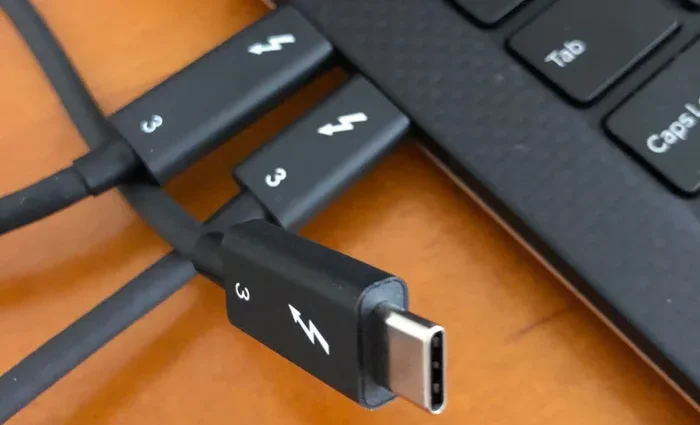
Some USB C ports also support Thunderbolt 3 or Thunderbolt 4. These are even more powerful. They carry video, data, and power all through a single cable. If your device has a Thunderbolt port, you have even more flexibility for cable conversion and device compatibility.
Quick Tip: Check your device manual or look up your model online to confirm whether your USB C port supports video output. This one step saves you from buying the wrong adapter.
Can You Go From HDMI to USB C? Yes, Here Is How
The big question is simple: can you go from HDMI to USB C? Yes, you can. But the method you choose depends on what devices you are working with and what you want to accomplish. Let us look at the main options available.
USB C to HDMI Adapters
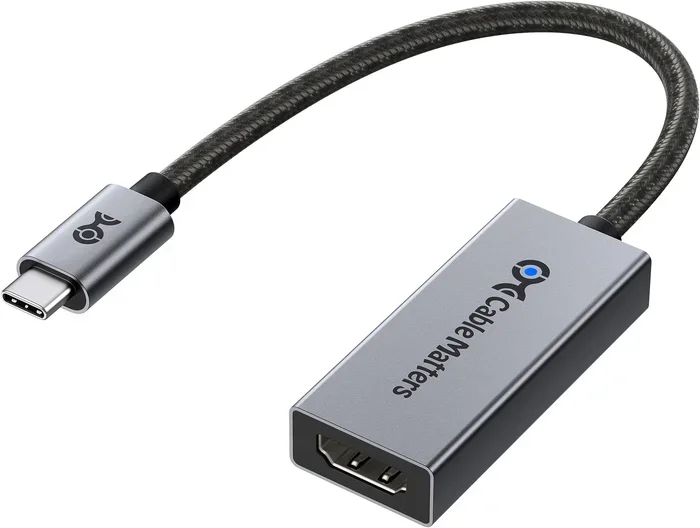
An adapter is the most common way to connect a USB C device to an HDMI display. These small dongles plug into your USB C port and provide an HDMI output. You then connect a standard HDMI cable from the adapter to your TV or monitor.
Most active adapters handle the signal conversion for you. They take the digital signal from the USB C port and convert it to the HDMI format. This process is seamless and works with most modern devices. Brands like Anker, Belkin, and Cable Matters make reliable options.
When shopping for an adapter cable, look for these features:
- 4K resolution support: Make sure the adapter can handle the resolution you need.
- HDMI 2.0 compatibility: This ensures smooth video at higher refresh rates.
- Plug and play design: You should not need to install drivers or software.
- Build quality: A well-built adapter lasts longer and provides a stable connection.
USB C to HDMI Cables
Another option is a USB C to HDMI cable. This is a single cable with a USB C connector on one end and an HDMI connector on the other. It works just like an adapter but in a more compact form. You plug the USB C end into your device and the HDMI end into your display.
USB C to HDMI cables are great for travel because they are short and simple. There is no extra dongle to lose. However, they may not offer the same range of features as a full adapter with extra ports.
USB C Hubs with HDMI Ports
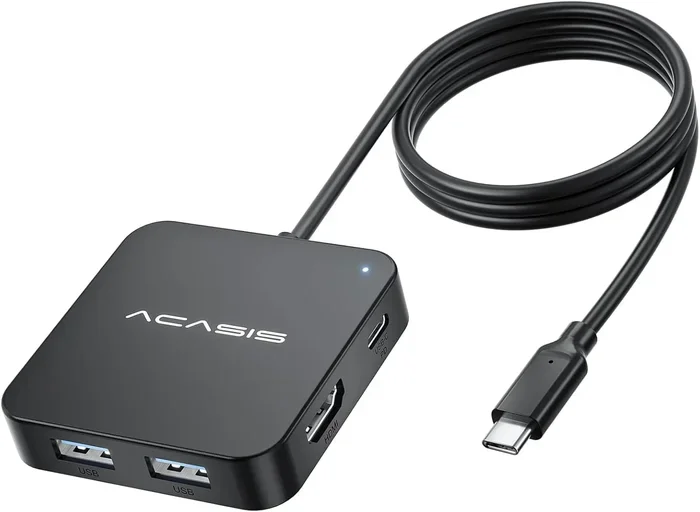
If you need more than just HDMI output, a USB C hub is the way to go. A USB C hub expands your connectivity by adding multiple ports in one device. Most hubs include an HDMI port, USB A ports, SD card slots, and sometimes even Ethernet.
A USB C docking station works similarly but is usually larger and designed for desk use. These are perfect for creating a permanent workstation. You plug one cable into your laptop and instantly have access to a monitor, keyboard, mouse, and more.
If you are cutting the cord and looking for alternatives to Dish Network and DirectTV, a USB C hub with HDMI output can help you connect your streaming stick or device to a larger screen without any hassle. It is a simple setup that works with most modern TVs.
Active vs Passive Adapters: What Is the Difference?
Not all HDMI to USB C adapters are the same. They fall into two categories: active and passive. Understanding the difference helps you choose the right one for your needs.
Active Adapters
An active adapter has its own chip that handles the signal conversion. It takes the video signal from the USB C port and converts it to HDMI format. Active adapters work with most devices and do not require any external power source in most cases.
These adapters are ideal for everyday use. They work with laptops, tablets, and phones that support DisplayPort Alt Mode. Most USB C to HDMI adapters on the market are active.
Passive Adapters
A passive adapter does not convert the signal. Instead, it simply passes it through. These are less common for HDMI conversion because most USB C devices output a different signal than what HDMI expects.
You will usually only need a passive adapter in specific scenarios, such as connecting a Thunderbolt device to a DisplayPort monitor. For most HDMI to USB C needs, an active adapter is the right choice.
| Feature | Active Adapter | Passive Adapter |
|---|---|---|
| Signal Conversion | Yes | No |
| Works with HDMI | Yes | Rarely |
| External Power Needed | Usually No | No |
| Best For | USB C to HDMI | DisplayPort to HDMI |
| Price Range | $10 to $50 | $5 to $20 |
How to Set Up Your HDMI to USB C Connection
Setting up a HDMI to USB C connection is straightforward. Follow these steps and you will be up and running in minutes.
Step 1: Check Your Device Compatibility
Before buying anything, confirm that your device supports video output through USB C. Look for terms like DisplayPort Alt Mode or Thunderbolt in your device specifications. If you are unsure, search online for your device model and check the port capabilities.
Step 2: Choose the Right Adapter or Cable
Pick an adapter or cable that matches your needs. If you just need to connect to a TV once in a while, a simple USB C to HDMI cable works great. If you need multiple ports, go for a USB C hub or USB C docking station.
Make sure the adapter supports your desired resolution. If you want 4K resolution at 60Hz, check that the adapter specifically lists 4K support. Budget adapters may only handle 1080p.
Step 3: Connect and Test
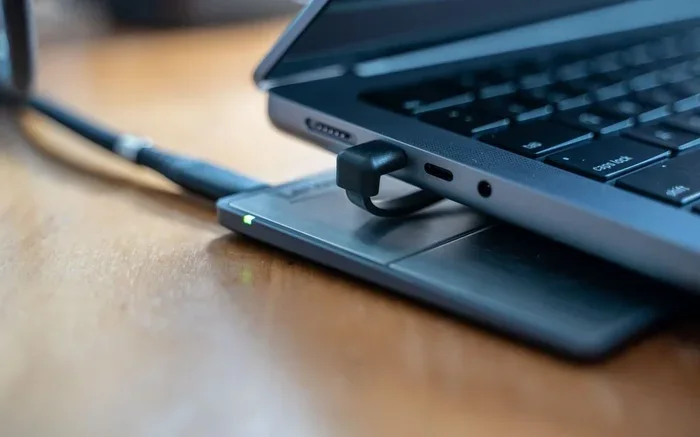
Plug the adapter into your device’s USB C port. Connect an HDMI cable from the adapter to your TV or monitor. Switch your display to the correct HDMI input. Your screen should mirror or extend to the external display.
Quick Tip: If the display does not show up, try unplugging the adapter and plugging it back in. Sometimes the device needs a moment to recognize the new display.
Step 4: Adjust Display Settings
Once connected, go to your device display settings. You can choose to mirror your screen or extend it as a second display. Adjust the resolution and orientation to match your external screen for the best viewing experience.
For those who rely on streaming services or want to explore alternatives to Dish Network and DirectTV, connecting a streaming device via USB C to HDMI is a clean and simple solution. You get a big-screen experience without the clutter of multiple cables and devices.
Common Problems and How to Fix Them
Even with the right gear, you might run into issues. Here are the most common problems and their solutions.
No Signal on the External Display
This is the most common issue. Try these fixes:
- Unplug the adapter and plug it back in firmly.
- Check that the HDMI cable is connected properly on both ends.
- Switch your TV or monitor to the correct HDMI input.
- Restart your device and try again.
Low Resolution or Flickering Screen
If your display looks blurry or flickers, the adapter may not support your desired resolution. Check the adapter specifications and make sure it handles the resolution of your external display. Updating your device drivers can also help in some cases.
Adapter Gets Hot
Some active adapters generate heat during use. This is normal. However, if the adapter gets uncomfortably hot, disconnect it and let it cool down. Avoid using the adapter in enclosed spaces where airflow is limited.
Audio Not Working
Sometimes video comes through but audio does not. Check your device audio settings and make sure the HDMI output is set as the audio device. On most systems, this happens automatically, but it is worth checking.
Expert Insight: If you frequently switch between devices, invest in a high-quality USB C hub with multiple ports. This saves you from carrying several adapters and makes your setup more versatile.
USB C Hubs vs Dedicated Adapters: Which Is Right for You?
Both USB C hubs and dedicated adapter cables have their place. Here is how to decide which one fits your needs best.
When to Choose a USB C Hub
A USB C hub is ideal if you need multiple connections at once. It gives you HDMI output, USB ports, and sometimes even Ethernet or SD card slots. If you work at a desk and connect to a monitor, keyboard, and mouse regularly, a hub is the smarter choice.
Hubs also future-proof your setup. As new devices adopt USB C, your hub will continue to work. It is a one-time investment that saves money over buying individual adapters.
When to Choose a Dedicated Adapter
A dedicated adapter cable is best for simple, on-the-go connections. If you just need to hook up your laptop to a hotel TV or present in a meeting room, a compact adapter is all you need. It is lightweight, affordable, and easy to keep in your bag.
Dedicated adapters also tend to have fewer points of failure. With fewer connections, there is less chance of something coming loose or breaking.
Final Thoughts on Going From HDMI to USB C
So, can you go from HDMI to USB C? Absolutely. With the right USB C to HDMI adapter or cable, you can connect any USB C device to any HDMI display. The key is to understand your device capabilities and choose the right accessory for your needs.
Whether you are setting up a home office, connecting to a TV for movie night, or exploring alternatives to Dish Network and DirectTV with a streaming stick, the right adapter makes all the difference. HDMI to USB C technology has made it easier than ever to share your screen on a bigger display.
Start by checking your device specs. Pick an adapter that supports your desired resolution. And if you need more than just HDMI, consider a USB C hub that expands your connectivity options. With the right setup, your devices work together seamlessly.
The world of USB C connectivity is evolving fast. New standards bring faster speeds, better video quality, and more power delivery. Staying informed helps you make smart choices. Now you have the knowledge to connect any device to any display with confidence.
Frequently Asked Questions
Can any USB C port support HDMI output?
Not all USB C ports support video output. You need a port that has DisplayPort Alt Mode or Thunderbolt capability. Check your device specifications to confirm before buying an adapter.
Do I need a special cable to go from HDMI to USB C?
You need either a USB C to HDMI adapter or a USB C to HDMI cable. Both work well, but a cable is more compact while an adapter often offers extra ports.
Can I connect a USB C device to an older HDMI TV?
Yes, you can. As long as the TV has an HDMI input, any USB C to HDMI adapter or cable will work. The adapter handles the signal conversion for you automatically.
Does Thunderbolt 3 make HDMI to USB C better?
Yes, Thunderbolt 3 and Thunderbolt 4 ports offer superior video output capabilities. They support higher resolutions, faster refresh rates, and more reliable connections than standard USB C ports.
Why does my USB C to HDMI adapter not work sometimes?
This can happen if the adapter does not support your device’s resolution or if the connection is loose. Try unplugging and replugging the adapter, and make sure it supports your display’s resolution.
Can I use a USB C hub instead of a dedicated adapter?
Yes, a USB C hub with an HDMI port works just as well as a dedicated adapter. A hub is a better choice if you need multiple connections like USB ports, Ethernet, and HDMI all at once.
=== CONCLUSION ===
Going from HDMI to USB C is simple once you know what to look for. The right adapter or cable opens up a world of connectivity options for your devices. Whether you are a student, a professional, or a home entertainment enthusiast, USB C to HDMI solutions give you the flexibility to connect anything to any screen.
Remember to check your device compatibility, choose the right type of adapter, and do not hesitate to invest in a USB C hub if you need more ports. With the tips and insights in this guide, you are now equipped to make the best choice for your setup. Start connecting with confidence today.