Can You Do Hdmi To Iphone Here Is Everything You Need
Yes, you can absolutely do HDMI to iPhone using the right adapter or cable setup. Whether you want to mirror your iPhone screen to a TV or output video directly, this guide covers every method, compatible devices, and step-by-step instructions. You will learn about Lightning to HDMI adapters, USB-C solutions, and common troubleshooting tips.
Can you do HDMI to iPhone? The short answer is a strong yes. You can plug your iPhone directly into a TV or monitor using an HDMI adapter and enjoy your favorite content on a bigger screen. Whether you are sharing photos with family, streaming a movie, or giving a presentation, connecting your iPhone via HDMI opens up a world of possibilities.
Many people assume this kind of connection is complicated or only works with certain devices. The truth is much simpler. Apple has built support for HDMI output into iOS for years, and the process is easier than most people think. This guide walks you through every method, every compatible device, and every tip you need to get it working right.
You will also learn about common mistakes, the best adapters to buy, and how to troubleshoot when things do not go as planned. Let us dive in and get your iPhone connected to a screen that matters.
Key Takeaways
- You can connect iPhone to HDMI: Using Apple’s official Lightning or USB-C Digital AV Adapter, or third-party alternatives that work reliably.
- Screen mirroring is straightforward: Most iPhones support wired HDMI output with minimal setup and no extra software needed.
- Not all iPhones use the same port: Older models use Lightning while newer ones use USB-C, so check your device first.
- Third-party adapters work but vary in quality: Cheap adapters may cause lag, low resolution, or connection drops.
- Audio and video both transmit: HDMI sends both sound and picture from your iPhone to your TV or monitor.
- Troubleshooting is simple: Most HDMI-to-iPhone issues resolve with a cable reset, adapter replacement, or software update.
📑 Table of Contents
- What Is HDMI and Why Connect It to Your iPhone
- How HDMI to iPhone Works: The Adapter Method
- Step-by-Step Guide to Connecting Your iPhone to HDMI
- Which iPhones Support HDMI Output
- Best HDMI Adapters for iPhone
- Common Problems and How to Fix Them
- Quick Tips for the Best HDMI Experience
- Expert Insights on iPhone HDMI Connections
- Key Takeaways
What Is HDMI and Why Connect It to Your iPhone
HDMI stands for High-Definition Multimedia Interface. It is a standard cable connection that carries both video and audio through a single cable. Almost every modern TV, monitor, and projector uses HDMI as its primary input. So being able to send your iPhone content to an HDMI display makes a lot of sense.
When you connect your iPhone to HDMI, you are essentially turning your small screen into a large display. This is incredibly useful for many situations. You might want to watch a Netflix show on a bigger TV. You might need to present slides at work. Or you might just want to share vacation photos on a 55-inch screen with the whole family.
The connection works through a digital signal, which means the picture quality stays crisp and clear. There is no signal degradation like you might get with older analog cables. As long as you use a good adapter and a standard HDMI cable, the output looks excellent.
How HDMI to iPhone Works: The Adapter Method
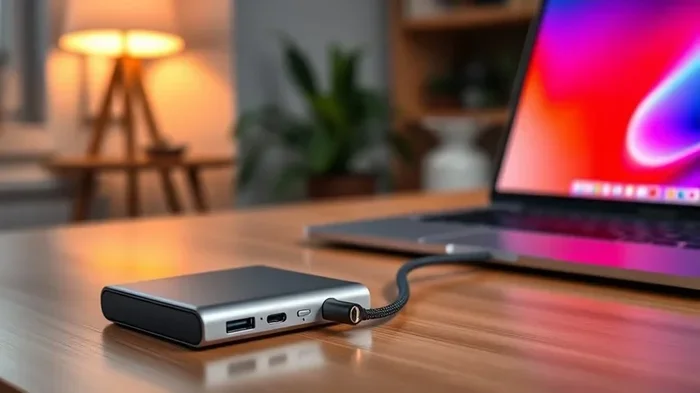
The most common way to do HDMI to iPhone is by using a digital AV adapter. Apple makes its own official adapter, and several trusted third-party brands offer compatible options. These adapters plug into your iPhone’s charging port and have an HDMI output on the other end.
Lightning to HDMI Adapters
If you own an iPhone 14 or older model, it likely uses a Lightning charging port. For these devices, you need a Lightning to HDMI adapter. Apple sells its own version called the Lightning to Digital AV Adapter. It costs around $49 and works flawlessly with all Lightning-equipped iPhones.
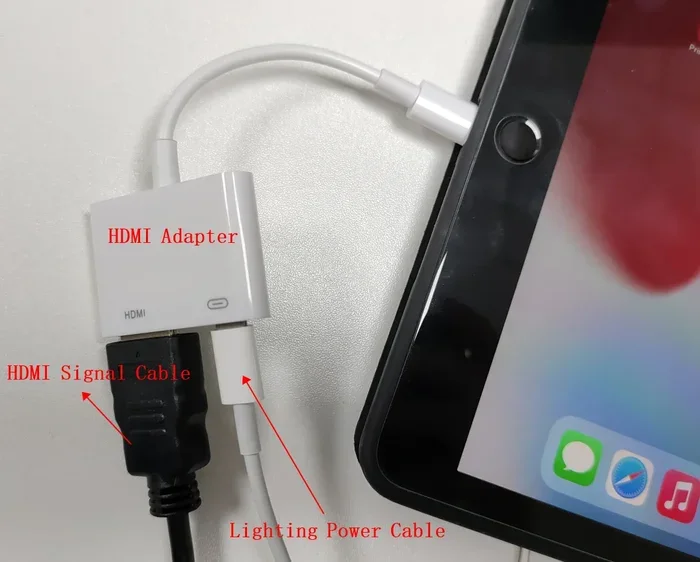
The adapter has a Lightning plug on one side and an HDMI port on the other. You connect your standard HDMI cable to the adapter, then plug the HDMI cable into your TV. That is really all there is to it. Your iPhone screen mirrors to the TV instantly.
USB-C to HDMI Adapters
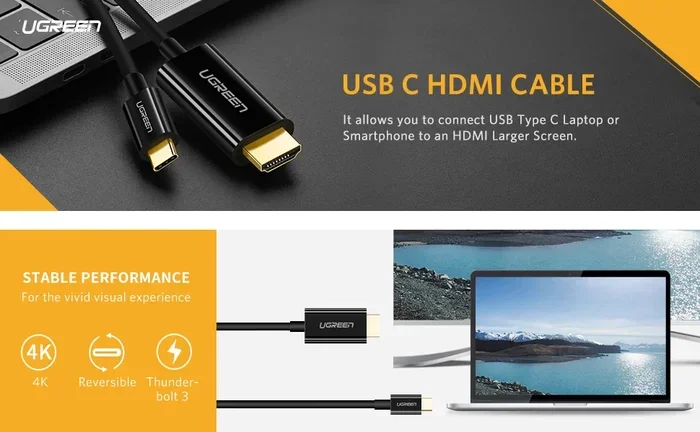
Newer iPhones like the iPhone 15 and iPhone 16 series use USB-C instead of Lightning. For these models, you need a USB-C to HDMI adapter or cable. Apple offers the USB-C Digital AV Adapter as well, and many other brands produce reliable USB-C to HDMI options at lower prices.
USB-C to HDMI adapters work the same way. Plug the adapter into your iPhone, connect an HDMI cable, and your TV displays your iPhone screen. The process is just as simple as the Lightning method.
Wireless HDMI Alternatives
While wired HDMI is the most reliable method, some people prefer wireless options. Devices like AirPlay-enabled TVs or streaming sticks like Apple TV let you mirror your iPhone without any cables. However, wireless methods can introduce lag or lower resolution compared to a direct wired HDMI connection.
If you are looking for alternatives to traditional cable setups, you might also explore options like alternatives to Dish Network and DirectTV that pair well with iPhone casting features for cord-cutters who want big-screen streaming.
Step-by-Step Guide to Connecting Your iPhone to HDMI
Setting up an HDMI connection to your iPhone takes only a few minutes. Follow these steps and you will be watching on the big screen in no time.
Step 1: Check your iPhone model. Determine whether your iPhone uses Lightning or USB-C. iPhone 14 and older use Lightning. iPhone 15 and newer use USB-C. This determines which adapter you need.
Step 2: Get the right adapter. Buy either a Lightning to HDMI adapter or a USB-C to HDMI adapter. We recommend the Apple official adapter for best compatibility, but reputable third-party brands like Belkin and Anker also work great.
Step 3: Gather your cables. You need a standard HDMI cable in addition to your adapter. Most people already have one lying around from a gaming console or streaming device. If not, any decent HDMI cable will do the job.
Step 4: Connect everything. Plug the adapter into your iPhone. Connect the HDMI cable to the adapter. Plug the other end of the HDMI cable into your TV or monitor.
Step 5: Switch your TV input. Use your TV remote to select the HDMI port you plugged into. Your TV should now display your iPhone screen.
Step 6: Trust the device if prompted. On some iPhones, you may see a prompt asking you to trust the connected device. Tap Trust and enter your passcode if needed.
Which iPhones Support HDMI Output
Most iPhones support HDMI output through an adapter. Here is a quick breakdown of compatibility.
- iPhone 15 and 16 series: Use USB-C to HDMI adapters. Full HDMI output support with 4K capability.
- iPhone 14 and older (Lightning models): Use Lightning to HDMI adapters. Support up to 1080p output.
- iPhone SE (all generations): Compatible with Lightning to HDMI adapters.
- iPad models: Most iPads also support HDMI output using the same adapters.
Almost every iPhone made in the last decade can output to HDMI. The only difference is the type of adapter you need. As long as you have the right one, HDMI output works consistently across all models.
Best HDMI Adapters for iPhone
Not all adapters are created equal. Here are some of the best options available right now.
| Adapter | Type | Price Range | Best For |
|---|---|---|---|
| Apple Lightning to Digital AV Adapter | Lightning to HDMI | $49 | Reliability and Apple ecosystem |
| Apple USB-C Digital AV Adapter | USB-C to HDMI | $49 | iPhone 15 and 16 users |
| Belkin Lightning to HDMI | Lightning to HDMI | $35-$45 | Budget-friendly Lightning option |
| Anker USB-C to HDMI | USB-C to HDMI | $15-$25 | Affordable USB-C solution |
| AmazonBasics USB-C to HDMI | USB-C to HDMI | $12-$20 | Everyday casual use |
Apple adapters tend to cost more but offer the most consistent performance. Third-party adapters from brands like Belkin and Anker provide excellent value and work well for most users. Avoid the cheapest no-name adapters on the market. They often cause connection issues, low resolution, or audio problems.
Common Problems and How to Fix Them
Sometimes HDMI connections to iPhone do not work right away. Here are the most common issues and their solutions.
No Signal on the TV
If your TV shows no signal, first check that the HDMI cable is firmly connected on both ends. Try unplugging and replugging the cable. Also make sure your TV is set to the correct HDMI input channel. Sometimes the TV defaults to the wrong input after you unplug and replug things.
Black Screen or Flickering
A black screen usually means the adapter is not properly seated. Remove the adapter from your iPhone, wait a few seconds, and plug it back in. If flickering continues, try a different HDMI cable. Cheap or damaged cables often cause flickering issues.
No Audio Output
If you get video but no sound, check your TV audio settings. Make sure the TV is not muted and the volume is up. Also go to Settings on your iPhone, then Sounds & Haptics, and ensure the ringer and alerts are not set to silent. Sometimes the audio route needs a moment to switch over after connecting.
Adapter Not Recognized
If your iPhone does not recognize the adapter, try restarting your iPhone first. A simple reboot often fixes recognition issues. Make sure your iOS is up to date as well, since older software versions can sometimes cause compatibility problems with newer adapters.
Quick Tips for the Best HDMI Experience
Follow these simple tips to get the best results when connecting your iPhone to HDMI.
- Use a short HDMI cable. Longer cables can sometimes cause signal loss. Keep your cable under 6 feet for the best performance.
- Keep your iPhone charged. HDMI output can drain your battery faster. Plug your iPhone into a power source while streaming long content.
- Update your iOS. Apple regularly improves HDMI compatibility through software updates. Keep your iPhone running the latest iOS version.
- Buy official or name-brand adapters. They cost a bit more but save you from frustration and compatibility headaches.
- Test before important events. If you are using HDMI output for a presentation or movie night, test everything the day before.
Expert Insights on iPhone HDMI Connections
From a technology standpoint, HDMI output on iPhone is remarkably well-implemented. Apple designed the digital AV adapter to handle both video and audio encoding internally, which means your iPhone does very little processing work. This results in a smooth, lag-free experience for most use cases.
One thing many people do not realize is that HDMI output on iPhone supports different resolutions depending on the model. Newer iPhones can push 4K output through their adapters, while older Lightning models max out at 1080p. For most TV viewing, 1080p is more than sufficient anyway.
The wired HDMI method also has a major advantage over wireless screen mirroring: latency. With a direct wired connection, there is virtually no delay. This makes it ideal for gaming, presentations, and any situation where timing matters. Wireless methods like AirPlay always have some degree of delay, which can be noticeable during fast-moving content.
If you are considering setting up a home entertainment system where your iPhone plays a central role, understanding HDMI connectivity is essential. It gives you flexibility to use any display with an HDMI input, from budget TVs to high-end projectors.
Key Takeaways
- HDMI to iPhone works easily: You just need the right adapter and an HDMI cable to mirror your screen to any TV.
- Lightning and USB-C adapters serve different iPhone models: Check your port type before buying an adapter.
- Apple adapters are the most reliable: Third-party options from Belkin and Anker are good budget alternatives.
- Most HDMI problems have simple fixes: Check cable connections, restart your device, and update iOS.
- Wired HDMI beats wireless for quality: You get better resolution, no lag, and more reliable performance.
- Almost every iPhone supports HDMI output: From older Lightning models to the latest USB-C iPhones.
Frequently Asked Questions
Can you connect an iPhone to a TV with HDMI without an adapter?
No, you need an adapter to connect your iPhone to HDMI. iPhones do not have a built-in HDMI port. You must use either a Lightning to HDMI adapter or a USB-C to HDMI adapter depending on your iPhone model. The adapter bridges the connection between your iPhone and the HDMI cable.
Does HDMI to iPhone support 4K output?
Yes, but only on newer iPhone models. iPhone 15 and later models that use USB-C can output 4K resolution through a USB-C to HDMI adapter. Older Lightning models max out at 1080p output. For most TV viewing, 1080p is still excellent quality.
Can I use any HDMI cable with my iPhone adapter?
Yes, you can use any standard HDMI cable with your iPhone adapter. There is no special iPhone-specific HDMI cable. Any HDMI cable that fits your TV or monitor will work. Just make sure the cable is in good condition and not damaged for the best results.
Why is there no sound when I connect my iPhone to HDMI?
No sound usually means the TV audio settings need adjusting. Check that your TV is not muted and that the volume is turned up. Also go to your iPhone Settings, tap Sounds & Haptics, and make sure nothing is set to silent. Sometimes simply unplugging and replugging the adapter fixes audio routing issues.
Are third-party HDMI adapters safe for iPhone?
Most third-party adapters are safe and work well, especially from reputable brands like Belkin, Anker, and Amazon Basics. Avoid very cheap no-name adapters, as they may cause compatibility issues, poor video quality, or connection drops. Stick with trusted brands for the most reliable experience.
Can I charge my iPhone while using an HDMI adapter?
It depends on the adapter design. Some Lightning to HDMI adapters have a pass-through charging port that lets you plug in a charger simultaneously. However, most standard adapters do not support charging while outputting HDMI. If you need both, look for adapters specifically designed with a charging port built in.
=== CONCLUSION ===
So can you do HDMI to iPhone? Absolutely yes. With the right adapter and a simple HDMI cable, you can turn any TV into an extension of your iPhone screen. Whether you are watching movies, sharing photos, or giving a presentation, the process is quick and straightforward.
The key is knowing which adapter your iPhone needs. Check your port type first, then pick a reliable adapter from Apple or a trusted third-party brand. Follow the simple setup steps, and you will be connected in minutes. Most issues that come up have easy fixes, and the wired HDMI method delivers the best quality and reliability compared to wireless options.
Now that you have all the information you need, go ahead and try it out. Connect your iPhone to your TV and enjoy the bigger screen experience. Once you see your favorite content displayed on a large display, you will wonder how you ever managed without it. Happy connecting.