Can You Connect A Usb To A Tv And See What You Can Do
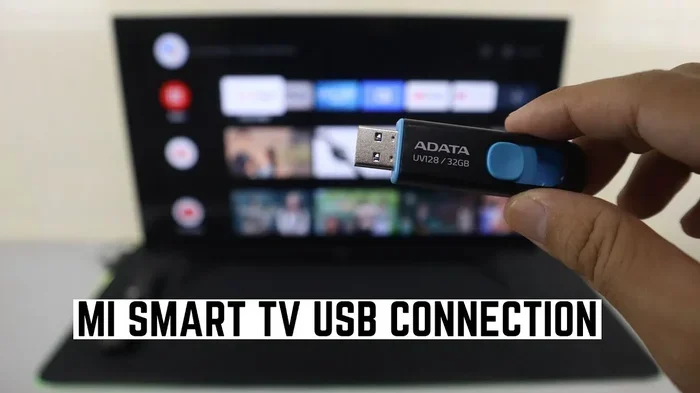
Yes, you can connect a USB to a TV, and the possibilities go far beyond what most people realize. Modern TVs come with USB ports that let you play movies, view photos, and even extend your storage. Whether you want to watch your own files on the big screen or troubleshoot a connection issue, this guide covers everything you need to know about connecting a USB to your TV and making it work seamlessly.
You have a USB drive sitting in a drawer. Maybe it holds vacation photos, a collection of movies, or work files. And your TV has a USB port right there on the back. So why not just plug it in and see what happens?
The truth is that connecting a USB to a TV opens up a world of possibilities that go way beyond what most people ever explore. You can watch your own media on a big screen, share photos with the family, and even use your TV as a digital picture frame. Best of all, the process is usually simple and requires no technical expertise.
In this guide, we will walk through everything you need to know. From the basics of plugging in a drive to advanced uses and troubleshooting, you will find practical tips that make the experience smooth. Let us dive in and explore what your TV’s USB port can really do.
Key Takeaways
- Universal Compatibility: Most TVs made after 2010 support USB connections for media playback and file access.
- Simple Setup: Plugging in a USB drive takes seconds and requires no extra equipment in most cases.
- File Format Matters: FAT32 and NTFS are the most widely supported formats for USB TV playback.
- Creative Uses Abound: You can use USB for firmware updates, screen mirroring accessories, and even mobile charging.
- Troubleshooting Is Easy: Most USB TV issues stem from format incompatibility or cable problems.
- Cable Alternatives Exist: A USB setup can reduce or replace some cable and satellite needs.
📑 Table of Contents
What Happens When You Plug a USB Into a TV
When you insert a USB drive into your TV, the screen typically displays a notification or a file browser. Your TV recognizes the drive and lists the files stored on it. From there, you can navigate through folders, select media files, and start playback.
The exact experience depends on your TV brand and model. Samsung, LG, Sony, and TCL TVs all handle USB connections a little differently. But the core process remains the same across most modern sets. You plug in the drive, and the TV reads the content.
Here is what you can generally expect when you connect a USB device to your television:
- Media Playback: Watch videos, listen to music, and view photos directly from the USB drive.
- File Browsing: Navigate through folders and subfolders just like you would on a computer.
- Firmware Updates: Some TVs use USB ports to receive software and firmware updates.
- Recording Storage: Certain models let you record live TV directly to a USB drive.
- Power Delivery: Some TV USB ports can charge small devices like phones or tablets.
Does Every TV Have a USB Port?
Most TVs manufactured in the last decade include at least one USB port. However, very old models or budget smart TVs from lesser-known brands might skip this feature entirely. Before you try to plug anything in, check the back or side panel of your TV for a rectangular port labeled “USB.”
If your TV does not have a USB port, you are not completely out of luck. You can use a USB-to-HDMI adapter to connect external storage devices. This small accessory bridges the gap and lets you access USB content through your TV’s HDMI input. It is an affordable solution that works with almost any television.
How to Connect a USB to Your TV
Setting up a USB connection to your TV is straightforward. You do not need any special tools or technical knowledge. Follow these simple steps, and you will be watching your content in minutes.
Step-by-Step Connection Guide
- Locate the USB port on your TV. It is usually on the back panel or along one side. Some TVs also have front-facing USB ports for easier access.
- Check your USB drive. Make sure it is formatted correctly and contains media files your TV can read.
- Insert the USB drive gently into the port. Do not force it. The connection should feel snug but not tight.
- Turn on your TV if it is not already on. Use your remote to navigate to the input source or media player.
- Select the USB input. Your TV may display a pop-up asking what you want to do. Choose “Browse Files” or “Play Media.”
- Navigate and play. Open folders, select your files, and enjoy your content on the big screen.
That is really all there is to it. The entire process takes less than a minute once you know the steps. If your TV does not recognize the drive, do not worry. We will cover troubleshooting in a later section.
What Type of USB Drive Works Best?
Not all USB drives are created equal when it comes to TV compatibility. Here are some tips for choosing the right one:
- Stick with standard flash drives. They are small, reliable, and widely compatible.
- Avoid powered USB hubs unless your TV specifically supports them. Many TV USB ports do not supply enough power for hubs.
- Choose a drive with ample storage. A 16GB or 32GB drive handles most media collections comfortably.
- Look for USB 2.0 or 3.0 compatibility. USB 3.0 drives work in USB 2.0 ports but at slower speeds. The reverse is not true.
What File Formats Work Best for USB TV Playback
One of the most common reasons a USB drive fails to work with a TV is file format incompatibility. Your TV can only read certain types of files, and if your media is saved in an unsupported format, it simply will not play.
Supported Video Formats
Most TVs support the following video formats for USB playback:
- MP4: The most universally supported format. Works on virtually every TV.
- AVI: Widely compatible but tends to produce larger file sizes.
- MKV: Supported by many modern TVs but not all older models.
- WMV: Works well on Samsung and Microsoft ecosystem TVs.
- MOV: Apple’s format. Some TVs play it, others do not.
Supported Audio Formats
For music and audio files, your TV typically supports these formats:
- MP3: The gold standard for audio compatibility across all devices.
- WMA: Works on most TVs, especially Windows-oriented models.
- AAC: Supported by many modern smart TVs.
- FLAC: High-quality audio. Only supported by select TV models.
Supported Image Formats
If you want to use your TV as a digital photo frame, these image formats usually work:
- JPEG: The most reliable and widely supported image format.
- PNG: Supported by most modern TVs.
- BMP and GIF: Hit or miss depending on the TV model.
File System Compatibility
Beyond file formats, your TV also needs to recognize the file system on your USB drive. The two most compatible systems are:
- FAT32: Works with virtually every TV. However, it has a 4GB file size limit, which means you cannot store large video files on a FAT32 drive.
- NTFS: Supported by most modern TVs and allows much larger file sizes. Some older TVs may not recognize NTFS drives.
- exFAT: A newer format that combines the best of both worlds. Support varies by TV brand.
If your USB drive uses a format your TV does not support, you will need to reformat it. Be aware that reformatting erases all data on the drive, so back up your files first.
Common USB TV Problems and How to Fix Them
Even though connecting a USB to a TV is usually hassle-free, things do not always go smoothly. Here are the most common issues and simple fixes for each one.
TV Does Not Recognize the USB Drive
This is the number one complaint people have. If your TV does not detect your USB drive, try these steps:
- Unplug and replug the drive. Sometimes a loose connection is all it takes.
- Try a different USB port. If your TV has multiple ports, test another one.
- Check the file system. Switch to FAT32 if your TV is older.
- Use a different USB drive. Some drives draw too much power for TV ports.
- Restart your TV. A simple reboot can refresh the USB detection system.
Video Files Will Not Play
If your TV recognizes the drive but refuses to play certain video files, the format is likely the culprit. Try converting your files to MP4 using a free tool like HandBrake. This format works on almost every TV and delivers excellent quality.
Audio and Video Are Out of Sync
This issue usually happens with high-bitrate video files. Your TV’s processor may not be powerful enough to keep up. Try playing lower-resolution files or converting your videos to a more TV-friendly format.
USB Port Is Not Providing Power
Some TV USB ports only supply enough power for data reading, not for charging or powering external devices. If your USB drive needs external power, use a powered USB hub connected to the TV port.
Quick Tips for Smooth USB TV Playback
- Always safely eject your USB drive before removing it.
- Keep your USB drive clean and free of dust.
- Use short, high-quality USB cables if you are using an extension.
- Organize your files into clear folders for easier navigation on your TV.
- Update your TV firmware regularly for the best USB compatibility.
Creative Ways to Use USB With Your TV
Beyond playing movies and photos, there are several creative uses for a USB connection on your TV that most people never explore. These ideas can help you get more value out of your setup.
Use Your TV as a Digital Picture Frame
Load a folder with your favorite family photos onto a USB drive. Plug it into your TV, and set your TV to display a slideshow. Many smart TVs have a built-in photo slideshow feature that cycles through images automatically. It is a wonderful way to enjoy memories on a large, vibrant screen.
Watch Offline Streaming Downloads
Some streaming services allow you to download content for offline viewing. You can transfer those downloaded files to a USB drive and play them on your TV. This works great for long flights, road trips, or situations where internet access is limited.
Run a Home Media Server
With a large-capacity external hard drive connected via USB, your TV can become a personal media center. Store your entire movie and music library on the drive and access it anytime. This is especially useful if you want to cut back on subscription costs and explore alternatives to Dish Network and DirectTV by building your own entertainment library.
For those looking to reduce cable expenses, check out our full guide on alternatives to Dish Network and DirectTV for more ideas on building a budget-friendly entertainment setup.
Update Your TV Software
Some TV manufacturers distribute firmware updates via USB. You download the update file from the brand’s website, save it to a USB drive, and plug the drive into your TV. The TV detects the file and guides you through the installation process. This is a simple way to keep your TV running smoothly and gain access to new features.
Use USB for Screen Mirroring Accessories
Certain screen mirroring devices and dongles connect to your TV’s USB port for power while using HDMI for video output. These small accessories let you mirror your phone or tablet screen onto the TV. A USB port provides the convenient power source so you do not need an extra wall outlet.
Can a USB Connection Replace Cable or Satellite?
The short answer is: it depends on what you watch. A USB setup alone cannot replace a full cable or satellite subscription if you rely on live channels and on-demand programming from providers. However, USB playback works beautifully for personal media files and offline content.
If your goal is to reduce or eliminate cable costs, a USB drive combined with free streaming services and antenna-based local channels can get you surprisingly far. You can store movies, documentaries, and educational content directly on a USB drive and watch it whenever you want. No monthly fees, no contracts, no hidden costs.
For viewers who want more flexibility, consider pairing a USB setup with free over-the-air channels and free streaming platforms. This combination gives you a robust entertainment experience without the high price tag of traditional cable or satellite packages.
Final Thoughts
So, can you connect a USB to a TV and see what you can do? Absolutely. The answer is a resounding yes, and the range of things you can do is impressive. From simple media playback to creative uses like digital photo frames and firmware updates, your TV’s USB port is a versatile tool that deserves more attention.
Connecting a USB to your TV is one of the easiest and most rewarding upgrades you can make to your home entertainment setup. It costs nothing extra if you already have a USB drive lying around. The process is simple, the results are immediate, and the possibilities are wide open.
Take a few minutes today to plug in that USB drive sitting in your drawer. You might be surprised by what you discover. Whether you are watching your favorite movies, sharing family photos, or exploring new ways to use your TV, the USB connection makes it all possible.
Start experimenting. Try different file formats. Organize your media library. Share content with family and friends. The more you use your TV’s USB port, the more you will realize how much value it adds to your everyday entertainment. Your big screen is ready, and all it takes is a simple plug-in to unlock a whole new world of possibilities.
Frequently Asked Questions
Can I plug any USB drive into my TV?
Most USB flash drives work with modern TVs, but compatibility depends on file format and file system. FAT32 and NTFS formatted drives have the best chance of working. If your TV does not recognize a drive, try reformatting it or using a different drive.
What is the best USB format for TV playback?
FAT32 is the most universally compatible format for TV USB playback. It works with nearly every TV model. However, it has a 4GB file size limit. NTFS is a good alternative for larger files and is supported by most modern smart TVs.
Can I watch movies from a USB on a smart TV?
Yes, smart TVs can play movies from a USB drive. Simply plug in the drive, navigate to the media player or file browser, and select your video file. Make sure your movies are saved in a supported format like MP4 for the best results.
Why does my TV not recognize my USB device?
Several factors can cause this issue. The USB drive may be formatted in an incompatible file system, the file format may not be supported, or the drive may need more power than the TV port can supply. Try reformatting to FAT32, using a different port, or testing with another USB drive.
Can a USB port on a TV charge my phone?
Some TV USB ports can charge phones and other small devices, but not all of them. The charging capability depends on the TV model and the power output of the USB port. Check your TV manual for details on USB power specifications before relying on it for charging.
What video formats are most compatible with TV USB ports?
MP4 is the most compatible video format for TV USB playback. It works on virtually every modern TV. Other widely supported formats include AVI and WMV. If a file does not play, converting it to MP4 using a free tool like HandBrake usually solves the problem.
=== CONCLUSION ===
Connecting a USB to a TV is simple, affordable, and incredibly useful. From playing your personal media collection to updating your TV software and creating a digital photo frame, the USB port on your television is a gateway to a richer entertainment experience.
Remember the key points: use compatible file formats, keep your drive formatted correctly, and troubleshoot problems with the simple fixes we covered. The more you experiment with your USB connection, the more you will appreciate the convenience and versatility it brings to your home.
So go ahead, plug in that USB drive, and explore everything your TV can do. You will be glad you did.