Can You Connect 2 HDMI Switches Together For Better Setup
Yes, you can connect two HDMI switches together to expand your input options and simplify your entertainment setup. This guide explains exactly how daisy-chaining HDMI switches works, what to watch out for, and when it makes sense to use this setup. You will learn practical steps, common mistakes, and expert tips to get the best results from your HDMI switch chain.
If you have ever stared at a pile of HDMI cables and devices and thought, “There has to be a better way,” you are not alone. Many home entertainment setups involve more devices than available ports on your TV or monitor. The idea of connecting two HDMI switches together sounds like a simple fix. But does it really work? And if it does, how do you do it without pulling your hair out?
The short answer is yes, you can connect two HDMI switches together. This technique, often called daisy-chaining, lets you expand the number of devices you can connect to a single display. However, it comes with caveats. Signal quality, resolution limits, and compatibility issues all come into play. In this article, we will walk you through everything you need to know about connecting two HDMI switches for a better setup.
Whether you are a gamer with multiple consoles, a home theater enthusiast, or someone who just has too many streaming devices, this guide will help you make informed decisions. We will cover how it works, step-by-step instructions, common problems, and smarter alternatives. By the end, you will know exactly whether daisy-chaining HDMI switches is the right move for your setup.
Key Takeaways
- Daisy-chaining works: You can connect two HDMI switches together, but there are important limitations to know first.
- Signal quality matters: Each switch in the chain can slightly reduce signal strength, especially at higher resolutions.
- EDID handshake issues: Connecting two switches may cause display recognition problems that need troubleshooting.
- HDMI matrix switches offer a better alternative: For complex setups, a matrix switcher eliminates the need for chaining.
- Cable quality is critical: Using high-quality HDMI cables reduces the risk of signal loss in a daisy-chained setup.
- Power supply matters: Both switches need reliable power to work properly when connected together.
- Know your limits: Two switches can handle many devices, but three or more usually cause problems.
📑 Table of Contents
- What Is an HDMI Switch and Why Would You Need One?
- Can You Actually Connect 2 HDMI Switches Together?
- How to Connect Two HDMI Switches Together (Step by Step)
- Common Problems When Connecting Two HDMI Switches Together
- Alternatives to Daisy-Chaining Two HDMI Switches
- Quick Tips for a Better Setup
- Expert Insights on Signal Routing with Multiple HDMI Switches
- Key Takeaways
- Conclusion
What Is an HDMI Switch and Why Would You Need One?
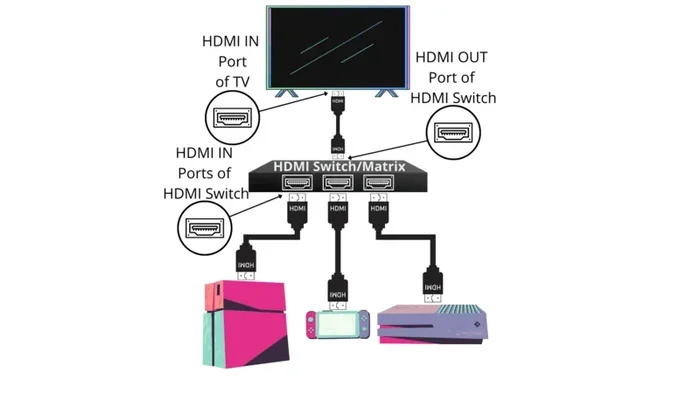
An HDMI switch is a small device that lets you connect multiple HDMI sources to a single display. Think of it like a power strip, but for audio and video signals. You plug in your gaming console, Blu-ray player, streaming stick, and cable box into the switch. Then you use one cable from the switch to your TV or monitor.
Most HDMI switches come with 3, 5, or 7 input ports. They usually have one output port that goes to your display. A remote control or button on the device lets you toggle between inputs. Some switches also support 4K HDMI signals and HDR content, which is important for modern setups.
You need an HDMI switch when your TV or monitor does not have enough ports. A typical modern TV has three to four HDMI inputs. But many people own more than four devices. A soundbar, game console, streaming stick, cable box, laptop, and Blu-ray player can all compete for those limited ports. An HDMI switch solves this problem neatly.
How Does an HDMI Switch Work?
An HDMI switch receives signals from multiple sources and routes one of them to the output. It does not mix or combine signals. It simply selects one input at a time and passes it through to your display. The switch handles the EDID handshake, which is the communication between your source device and your TV that tells them what resolution and format to use.
Good quality switches maintain full signal integrity. They pass through audio video signals without noticeable loss. Cheaper switches, however, may degrade the signal or cause flickering. This is why choosing a reputable brand matters a lot.
Can You Actually Connect 2 HDMI Switches Together?
So, can you connect 2 HDMI switches together? The answer is technically yes, but it is not always straightforward. When you daisy-chain two switches, you connect the output of the first switch to the input of the second switch. This creates a longer chain of signal routing. The result is more available inputs for your display.
However, this setup introduces potential problems. Each switch in the chain adds a point where the signal can degrade. The HDMI passthrough quality depends on the build quality of both switches. At higher resolutions like 4K or 8K, signal loss becomes more noticeable. You might experience flickering, no signal errors, or audio sync issues.
When Does Daisy-Chaining Two HDMI Switches Make Sense?
Daisy-chaining works best in specific situations. If you have a moderate number of devices and both switches support your desired resolution, it can work well. For example, connecting a 5-input switch to a 3-input switch gives you up to 15 possible input combinations. That is plenty for most home setups.
This approach also makes sense when you need to expand inputs temporarily. Maybe you are setting up a presentation or a gaming tournament. A daisy-chained setup gives you flexibility without buying a more expensive matrix switch right away.
When Does It Not Work Well?
There are clear situations where connecting two HDMI switches together causes trouble. Long cable runs are one of them. Each switch adds resistance to the signal path. If you also have long HDMI cables, the cumulative effect can be significant. High-resolution content like 4K at 60Hz or 4K with HDR is most vulnerable to signal degradation.
Another problem arises with devices that have strict EDID requirements. Some gaming consoles and streaming devices do not handle signal chaining well. They may fail to recognize the display or default to a lower resolution. This can be frustrating, especially when you have set up your system for the best picture quality.
How to Connect Two HDMI Switches Together (Step by Step)
If you have decided to try daisy-chaining, here is a clear, step-by-step guide to help you do it right. Following these steps reduces the chance of signal problems and ensures a smoother experience.
Step 1: Check Your Equipment
Before you start, make sure both switches support the same HDMI version. Look for labels like HDMI 2.0 or HDMI 2.1 on the packaging or product specs. Both switches should support the same maximum resolution. Mismatched versions can cause compatibility issues.
Also, check the power requirements. Some switches need external power adapters, while others draw power from the HDMI cable itself. Make sure both switches are properly powered. A poorly powered switch is one of the most common causes of signal problems.
Step 2: Connect the First Switch to Your Devices
Plug your HDMI source devices into the first switch. This includes things like your gaming console, Blu-ray player, or streaming stick. Use good quality HDMI cables for these connections. Short, high-quality cables perform better than long, cheap ones.
Once all your devices are connected, use a single HDMI cable to run from the output port of the first switch. This cable goes to the input port of the second switch. Keep this intermediate cable as short as possible to minimize signal loss.
Step 3: Connect the Second Switch to Your Display
Run an HDMI cable from the output port of the second switch to your TV or monitor. This is the final connection in the chain. Again, use a high-quality cable. The last cable in the chain carries the combined signal from all your devices, so it matters.
Power on both switches and your display. Use the remote controls to toggle between inputs on each switch. Test every device to make sure it works properly. Check for any flickering, resolution drops, or audio issues.
Step 4: Test and Troubleshoot
After everything is connected, test each source device thoroughly. Play a 4K video or start a game to check for any signal issues. If you see problems, try these fixes:
- Replace the intermediate cable between the two switches with a shorter, higher-quality one.
- Check that both switches are set to the same HDMI version in their settings.
- Power cycle all devices by unplugging them for 30 seconds and plugging them back in.
- Try a different port on the second switch.
- Update the firmware on your switches if available.
Common Problems When Connecting Two HDMI Switches Together
Daisy-chaining HDMI switches is not without its challenges. Many users run into issues that can be confusing and frustrating. Understanding these problems helps you troubleshoot them faster.
No Signal or Black Screen
The most common issue is a black screen or “no signal” error. This usually happens because of an EDID handshake failure. When two switches are in the chain, the display and source device have to agree on signal parameters twice instead of once. Sometimes this negotiation fails, and you get no picture.
To fix this, try power cycling all devices. Unplug the cables, wait a minute, and reconnect them. Also, make sure the second switch is set to the correct input before powering on the display.
Resolution Drops or Flickering
Another common problem is the display dropping to a lower resolution than expected. For example, your 4K content might show as 1080p. This happens because one of the switches in the chain does not properly pass through the high-resolution signal.
Flickering is often caused by poor-quality cables or insufficient power supply. Try using shorter cables and make sure both switches are plugged into reliable power sources. If flickering persists, one of the switches may not be compatible with your resolution requirements.
Audio Sync Issues
Sometimes the video works fine but the audio is out of sync. This is less common but still happens in daisy-chained setups. Audio sync issues usually stem from signal processing delays in the switches. Each switch adds a small amount of processing time. When two switches are chained, these delays can add up.
If you experience audio sync problems, try switching to a different HDMI port on one of the switches. You can also try reducing the audio format in your source device settings. For example, switching from Dolby Atmos to stereo Dolby Digital sometimes fixes sync issues.
Remote Control Conflicts
If both switches use the same infrared frequency, their remotes can interfere with each other. This makes it hard to switch between inputs. Some switches come with RF remotes or programmable buttons that avoid this problem. Look for switches with unique remote codes if you plan to daisy-chain.
Alternatives to Daisy-Chaining Two HDMI Switches
While connecting two HDMI switches together works in some cases, there are often better alternatives. These options give you more inputs without the signal quality risks of chaining.
HDMI Matrix Switch
An HDMI matrix switch is the most powerful alternative. It lets you connect multiple inputs to multiple outputs. You can route any input to any display independently. A 4×2 matrix switch, for example, gives you four inputs and two outputs. This means you can show different sources on two TVs or use both TVs with any combination of devices.
Matrix switches handle signal routing much better than daisy-chained switches. They maintain full signal quality and support higher resolutions. The downside is cost. A good matrix switch can be expensive, especially for 4K or 8K models.
HDMI Splitter with EDID Management
An HDMI splitter with built-in EDID management can also solve input shortage problems. While a splitter duplicates one signal to multiple displays, some models also feature input expansion. These hybrid devices combine splitting and switching functions in one box.
This option is usually cheaper than a matrix switch and easier to set up. However, it may not offer the same level of flexibility for complex setups.
Upgrade Your Display
If you are constantly running out of ports, it might be time to upgrade your TV or monitor. Modern displays often come with four to six HDMI ports. Some even include HDMI 2.1 ports with 4K 120Hz support. A new display with more ports can eliminate the need for switches altogether.
Use a Home Theater Receiver
If you have a home theater system, your AV receiver likely has multiple HDMI inputs. Many modern receivers have five or more HDMI ports. They also handle audio processing, which means you get better sound quality. Using a receiver as your central hub can replace the need for multiple switches.
Quick Tips for a Better Setup
Here are some quick tips to help you get the best results when using multiple HDMI switches:
- Always use high-speed HDMI cables rated for 4K or higher. Cheap cables are the number one cause of signal problems.
- Keep intermediate cables between switches as short as possible, ideally under 3 feet.
- Place your switches in a well-ventilated area. Some switches get warm during use, and overheating causes signal drops.
- Label your cables at both ends so you can quickly identify which device is connected to which port.
- Test each device individually before connecting the full chain. This helps you isolate problems faster.
- Buy switches from reputable brands with good customer reviews. The price difference is worth the reliability.
- Keep firmware updated on all your HDMI switches. Manufacturers often release updates that fix compatibility issues.
Expert Insights on Signal Routing with Multiple HDMI Switches
AV professionals generally advise against daisy-chaining more than two switches. The signal degradation compounds with each additional switch in the chain. For most home setups, a single quality switch or a small matrix switcher provides the best results.
Experts also emphasize the importance of signal integrity. Every connection point is a potential weak spot. Each HDMI connector, cable, and switch adds a small amount of resistance. When you chain two switches, you double the potential failure points. This is why using high-quality components at every stage matters so much.
Another expert tip is to always check the HDMI version compatibility across all your devices. If your switch supports HDMI 2.1 but your cable only supports HDMI 2.0, you will not get the full benefit. Every link in the chain is only as strong as its weakest component.
For complex setups with many devices, professionals often recommend a centralized AV rack. This keeps all your switches and cables organized in one place. It also makes troubleshooting much easier when problems arise. A clean, organized setup is not just better for signal quality. It is also easier to maintain and expand over time.
Key Takeaways
- Daisy-chaining works: You can connect two HDMI switches together, but there are important limitations to know first.
- Signal quality matters: Each switch in the chain can slightly reduce signal strength, especially at higher resolutions.
- EDID handshake issues: Connecting two switches may cause display recognition problems that need troubleshooting.
- HDMI matrix switches offer a better alternative: For complex setups, a matrix switcher eliminates the need for chaining.
- Cable quality is critical: Using high-quality HDMI cables reduces the risk of signal loss in a daisy-chained setup.
- Power supply matters: Both switches need reliable power to work properly when connected together.
- Know your limits: Two switches can handle many devices, but three or more usually cause problems.
Conclusion
So, can you connect 2 HDMI switches together for a better setup? Yes, you absolutely can. It is a practical solution for expanding your input options without buying new hardware. However, it is not a magic fix. Signal quality, resolution support, and compatibility all play a role in whether the setup works smoothly for you.
The key is to go in with realistic expectations. Use quality components, keep cables short, and test thoroughly. If you run into problems, the troubleshooting steps in this guide will help you find solutions quickly. For most people, a single good HDMI switch or an HDMI matrix switch will provide a cleaner, more reliable experience.
Ultimately, the best setup is the one that works reliably and looks great. Whether you choose to daisy-chain two switches or invest in a matrix switcher, the goal is the same. You want to enjoy your devices without technical headaches. With the right approach and the right equipment, you can achieve exactly that.
Take the time to plan your setup before buying anything. Count your devices, check your TV ports, and choose the right solution for your needs. A little planning goes a long way toward a smooth, enjoyable home entertainment experience.
Frequently Asked Questions
Can you connect 2 HDMI switches together without losing quality?
You can connect two HDMI switches together, but some quality loss is possible. Each switch adds a point where the signal can degrade. Using high-quality switches and short, premium cables minimizes this risk. For 4K content at lower resolutions like 1080p, the quality loss is usually negligible.
What is the best way to connect two HDMI switches together?
The best way is to connect the output of the first switch to an input on the second switch. Use short, high-quality HDMI cables for the intermediate connection. Make sure both switches support the same HDMI version and resolution. Power both switches properly and test every device after setup.
Will connecting two HDMI switches together cause lag?
Some lag is possible because each switch processes the signal. This is usually not noticeable for most content. However, for fast-paced gaming or competitive play, the added processing delay might be noticeable. A quality switch with low latency is important for gaming setups.
How many HDMI switches can you chain together safely?
Most experts recommend chaining no more than two switches. Three or more switches in a row significantly increases the risk of signal problems. The cumulative signal degradation, EDID handshake issues, and power demands make longer chains unreliable for most setups.
Do HDMI switches work with 4K and HDR content when daisy-chained?
It depends on the quality and specifications of both switches. Switches rated for HDMI 2.0 or higher can handle 4K content. However, daisy-chaining two switches increases the chance of HDR compatibility issues. Test your specific setup with HDR content before relying on it for daily use.
Is an HDMI matrix switch better than connecting two HDMI switches together?
For most setups, yes. A matrix switch provides cleaner signal routing, better resolution support, and fewer compatibility issues. It eliminates the need for daisy-chaining and gives you more flexibility. The trade-off is cost, but for serious home theater setups, the investment is worth it.