Can I Print From My Chromebook Everything You Need to Know
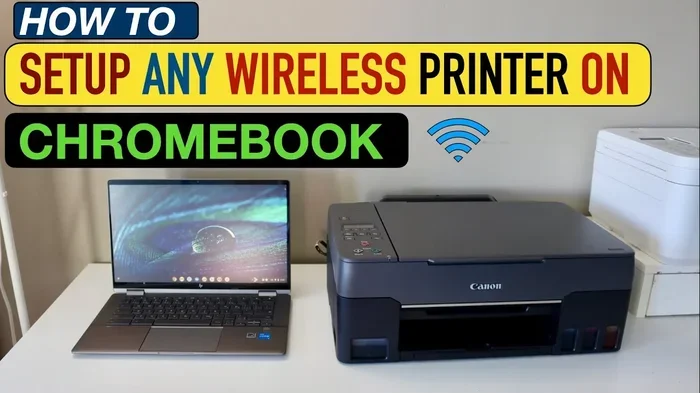
Yes, you can absolutely print from your Chromebook, and the process is simpler than most people think. Whether you use wireless printing, a USB cable, or cloud-based services, your Chromebook supports multiple ways to get documents on paper. This guide covers everything from initial setup to troubleshooting common issues.
Have you ever sat down at your Chromebook, ready to print an important document, and thought, “Can I print from my Chromebook?” You are not alone. Many people who switch to Chromebooks wonder about printing. The good news is that printing from a Chromebook is easy, fast, and works with most printers you already own.
Chrome OS has built-in printing support, which means you do not need to download fancy software or hire a tech expert. Whether you want to print a school assignment, a work report, or a fun photo, your Chromebook can handle it. This guide walks you through every step of the process. You will learn how to set up your printer, fix common problems, and discover the best wireless printing options available.
By the end of this article, you will feel confident about printing from your Chromebook. No more confusion, no more frustration. Just simple, clear instructions that actually work. Let us dive in and make your Chromebook printing experience smooth and stress-free.
Key Takeaways
- Easy Setup: Printing from a Chromebook is straightforward and works with most modern wireless printers.
- Multiple Methods: You can print via Wi-Fi, USB, Wi-Fi Direct, or cloud printing services.
- Wide Compatibility: HP, Epson, Canon, and Brother printers all work well with Chrome OS.
- Troubleshooting Is Simple: Most printing issues have quick fixes you can do at home.
- No Special Software Needed: Chrome OS has built-in printing support, so you don’t need extra downloads.
- Mobile Printing Apps Help: Apps like HP Smart and Epson Connect add extra features for Chromebook users.
📑 Table of Contents
How Printing Works on a Chromebook
The Basics of Chromebook Printing
Chrome OS is designed to be simple. Google built printing right into the operating system. When you connect your Chromebook to a printer, the system detects it automatically. You do not need to install drivers the way you would on a Windows laptop.
The printing process on a Chromebook relies on a technology called IPP (Internet Printing Protocol). This is a standard protocol that allows your Chromebook to talk to your printer over a Wi-Fi network. It works in the background without you needing to do anything complicated.
Most modern printers support this protocol. If your printer was made in the last five to seven years, there is a very good chance it will work with your Chromebook right out of the box. Older printers might need a bit more setup, but they can still work in many cases.
Why Chromebook Printing Is Different
Printing on a Chromebook feels different from printing on a Windows PC or a Mac. There is no control panel full of confusing options. Instead, Chrome OS keeps things clean and simple. You click the menu, select print, choose your printer, and hit print.
This simplicity is by design. Google wants the experience to be easy for everyone. Whether you are a student, a professional, or someone who just prints occasionally, the process is the same every time. You do not need to be a tech wizard to get your documents on paper.
One thing to keep in mind is that Chrome OS updates automatically. These updates can sometimes change how printing works. Usually, the changes are small and improve the experience. But it is good to know that your printer settings might shift slightly after a system update.
Setting Up Your Printer with a Chromebook
Connecting via Wi-Fi (The Easiest Method)
The most common way to print from a Chromebook is through a Wi-Fi connection. Both your Chromebook and your printer need to be on the same Wi-Fi network. Once they are connected, your Chromebook will find the printer automatically.
Here is how to do it step by step:
- Make sure your printer is turned on and connected to your Wi-Fi network.
- On your Chromebook, click the clock in the bottom-right corner of the screen.
- Click the gear icon to open Settings.
- Scroll down and click on “Advanced” to expand more options.
- Look for the “Printing” section and click on it.
- Your Chromebook will search for available printers on the network.
- When your printer appears, click on it to add it.
That is it. Your printer is now ready to use. The whole process takes less than two minutes in most cases.
Setting Up USB Printing
If your printer does not support Wi-Fi or you prefer a wired connection, you can use a USB cable. Chromebooks support USB printing, but there are a few things to know first.
Not all printers work well with USB on a Chromebook. Most modern printers do, but some older models might not be recognized. Before you start, check your printer’s manual or the manufacturer’s website to confirm USB support.
To set up USB printing:
- Connect your printer to your Chromebook using a USB cable.
- Wait for your Chromebook to detect the printer.
- Go to Settings and find the “Printing” section.
- Your printer should appear in the list of available devices.
- Select it and follow any on-screen prompts.
USB printing is reliable and fast. It is a great option if your Wi-Fi signal is weak or if you are printing large documents that need a stable connection.
Using Wi-Fi Direct for Printing
Wi-Fi Direct is another handy option. It lets your Chromebook connect directly to your printer without needing a Wi-Fi router. This is perfect for situations where you do not have access to a network or your router is not working.
To use Wi-Fi Direct, you need a printer that supports this feature. Most modern printers from brands like HP, Epson, and Brother include Wi-Fi Direct. Check your printer’s settings menu to turn it on.
Once Wi-Fi Direct is enabled on your printer:
- On your Chromebook, go to Settings and then the “Printing” section.
- Click “Add Printer.”
- Your Chromebook should detect the printer via Wi-Fi Direct.
- Select the printer and complete the setup.
Wi-Fi Direct is especially useful when you are printing from a hotel room or a location without a shared Wi-Fi network.
Wireless Printing Options for Chromebooks
Google Cloud Print and Its Alternatives
Google used to offer a service called Google Cloud Print. It allowed you to print from your Chromebook to any printer connected to the internet. However, Google discontinued this service in 2020. Do not worry, though. There are excellent alternatives that work just as well.
Today, the best wireless printing option for Chromebook users is the built-in IPP printing support. Chrome OS handles everything natively. You do not need a third-party cloud service to print remotely. As long as your printer is connected to the internet, you can print from anywhere.
Some printer manufacturers also offer their own cloud printing solutions. For example, HP has HP Smart, and Epson has Epson Connect. These apps let you print from your Chromebook using your phone’s data connection or from anywhere in the world. They are free to download and easy to set up.
AirPrint and Mopria Support
Two popular wireless printing standards are AirPrint and Mopria. AirPrint is Apple’s printing protocol, and it works on many printers that also support Chromebook printing. Mopria is an industry standard backed by major printer brands.
Many modern printers support both AirPrint and Mopria. If your printer supports these standards, you can print from your Chromebook without any extra setup. The Chromebook will detect the printer automatically, just like it does with standard Wi-Fi printers.
When shopping for a new printer, look for models that list AirPrint and Mopria support. These printers tend to work seamlessly with Chromebooks and other devices. Brands like HP, Canon, Epson, and Brother offer many models with these features.
Mobile Printing Apps for Chromebook Users
Printer manufacturers have created dedicated apps that make printing from a Chromebook even easier. These apps offer extra features like scanning, ink level checking, and photo printing.
Here are some popular options:
- HP Smart: Works with HP printers. It lets you print, scan, and manage ink levels from your Chromebook.
- Epson Connect: Supports Epson printers. It offers remote printing and scanning features.
- Canon PRINT: Works with Canon printers. It provides easy access to printing and scanning tools.
- Brother iPrint&Scan: Compatible with Brother printers. It supports wireless printing and scanning.
These apps are free and available in the Chrome Web Store or as Android apps. Since Chromebooks support Android apps, you can install these directly on your device. They add a layer of convenience that the built-in printing tools might not offer.
Compatible Printers for Chromebook Users
Top Printer Brands That Work with Chromebooks
Most major printer brands are compatible with Chromebooks. You do not need to buy a special “Chromebook printer.” Any modern printer from a reputable brand will likely work. Here are the brands that are known for excellent Chromebook support:
- HP: HP printers are among the most compatible with Chrome OS. Models from the HP Envy, HP OfficeJet, and HP DeskJet lines all work well.
- Epson: Epson offers strong Chromebook compatibility. Their EcoTank and Expression lines are popular choices.
- Canon: Canon printers work smoothly with Chromebooks. The PIXMA and MAXIFY series are great options.
- Brother: Brother printers are reliable and Chromebook-friendly. Their laser and inkjet models both support wireless printing.
What to Look for When Buying a Printer for Your Chromebook
If you are shopping for a new printer to use with your Chromebook, keep these factors in mind:
- Wi-Fi Connectivity: Choose a printer that connects to Wi-Fi. This makes setup on a Chromebook much easier.
- Cloud Printing Support: Look for printers that support cloud printing standards like IPP, AirPrint, or Mopria.
- Android App Support: Printers that work with Android apps give you more flexibility on a Chromebook.
- Driver Availability: Check that the manufacturer provides Chrome OS drivers or mentions Chromebook compatibility.
- Print Quality: Consider whether you need photo-quality printing or just standard document printing.
You do not need to spend a lot of money to get a good Chromebook-compatible printer. Many affordable models from HP and Epson offer everything you need for everyday printing.
Printers That May Not Work Well with Chromebooks
While most modern printers work with Chromebooks, some older or niche models might not. Printers that only support proprietary software or older connection standards can cause problems. If you have a very old printer, check the manufacturer’s website to see if Chrome OS is listed as a supported operating system.
Some specialty printers, like certain label printers or thermal printers, may not have Chrome OS support. Before buying a printer specifically for your Chromebook, always verify compatibility. A quick search on the manufacturer’s website will save you time and frustration.
Troubleshooting Common Printing Problems
Printer Not Showing Up on Chromebook
If your printer does not appear when you try to add it, do not panic. This is one of the most common printing issues, and it usually has a simple fix.
Start by checking your Wi-Fi connection. Make sure both your Chromebook and your printer are connected to the same network. Sometimes a router restart is all it takes. Unplug your router, wait 30 seconds, and plug it back in.
If that does not work, try these steps:
- Turn your printer off and back on again.
- On your Chromebook, go to Settings and remove the printer from the list.
- Re-add the printer by clicking “Add Printer” and letting your Chromebook search again.
- Check for any available Chrome OS updates. Go to Settings, click “About Chrome OS,” and run an update.
In most cases, one of these steps will resolve the issue. If the printer still does not appear, it may be a compatibility problem with your specific model.
Print Jobs Stuck in the Queue
Sometimes a print job gets stuck and will not print. This can happen if the printer is offline or if there is a paper jam. Here is what to do:
- Check that your printer is turned on and has paper and ink.
- Look at the print queue on your Chromebook. Go to Settings, then “Printing,” and see if there are any pending jobs.
- Cancel any stuck print jobs and try printing again.
- Restart both your Chromebook and your printer.
Stuck print jobs are annoying but usually easy to fix. A simple restart of both devices clears the queue in most situations.
Poor Print Quality Issues
If your prints look faded, streaky, or blurry, the problem is usually with the printer itself, not your Chromebook. Try these fixes:
- Check the ink or toner levels. Replace any low cartridges.
- Run a printer cleaning cycle. Most printers have a maintenance or cleaning option in their settings menu.
- Make sure you are using the right paper type for your print job.
- Check the print settings on your Chromebook. Make sure the quality is set to “High” if you want better results.
Regular maintenance keeps your printer in good shape. Cleaning the print heads every few weeks prevents most quality issues.
Wi-Fi Connection Problems Between Chromebook and Printer
Wi-Fi issues are the number one cause of printing problems on Chromebooks. If your printer keeps disconnecting or will not connect, try these solutions:
- Move your printer closer to your Wi-Fi router.
- Restart your router and printer.
- Check if other devices can see the printer on the same network.
- Update your printer’s firmware. Check the manufacturer’s website for instructions.
- Try using Wi-Fi Direct as a temporary workaround.
A strong Wi-Fi signal makes a big difference. If your printer is far from your router, a Wi-Fi extender can help. These small devices boost your signal and improve connectivity for all your wireless devices.
Tips and Tricks for Better Chromebook Printing
Save Ink and Paper With Smart Print Settings
You can save money on ink and paper by adjusting your print settings. Before you hit the print button, take a moment to review the options. Here are some smart choices:
- Print in Draft Mode: This uses less ink and is perfect for documents you do not need to look fancy.
- Print on Both Sides: If your printer supports duplex printing, use it. It cuts your paper usage in half.
- Print Multiple Pages Per Sheet: This is great for reading documents or handouts.
- Preview Before Printing: Always use the print preview to avoid wasting paper on mistakes.
These small changes add up over time. You will notice less ink usage and fewer wasted pages.
Use the Print Preview Feature
The print preview on a Chromebook is a powerful tool. Before you print anything, click “Print” and then look at the preview screen. You can see exactly how your document will look on paper. This helps you catch errors before you waste ink or paper.
In the preview, you can also change the number of copies, the page range, and the layout. These options give you control over your print jobs without needing to open any extra software.
Set a Default Printer
If you have more than one printer, you can set a default printer on your Chromebook. This saves time because you do not need to select your printer every time you print. To set a default printer, go to Settings, find the “Printing” section, and choose your preferred printer from the list.
This is especially helpful if you have a home printer and an office printer. Setting the right default means you always print to the right device without thinking about it.
Keep Your Chromebook and Printer Updated
Regular updates keep everything running smoothly. Chrome OS updates automatically, but your printer may need manual firmware updates. Check the manufacturer’s website or use their app to keep your printer’s software current.
Updates often include bug fixes and new features. They can improve print speed, fix connection issues, and add support for new file types. A few minutes spent updating can save you hours of frustration later.
Expert Insight: The Best Way to Handle Everyday Chromebook Printing
Keeping your Chromebook and printer on the same Wi-Fi network is the single most important thing you can do for a smooth printing experience. Most issues stem from network problems, not from the devices themselves. Make sure your router is in a central location and that your printer stays connected.
Also, do not ignore the print preview. It is a simple habit that saves paper, ink, and time. Taking ten seconds to review your document before printing can prevent mistakes and wasted resources.
Conclusion
So, can you print from your Chromebook? Absolutely. The answer is a resounding yes. Printing from a Chromebook is simple, fast, and works with most modern printers. Whether you connect via Wi-Fi, USB, or Wi-Fi Direct, your Chromebook makes the process easy and straightforward.
You have learned how to set up your printer, troubleshoot common issues, and choose the right printer for your needs. You know about wireless printing options, mobile apps, and smart tips to save ink and paper. With this knowledge, you are ready to print anything you need from your Chromebook.
The key is to keep your devices updated, stay on the same Wi-Fi network, and use the built-in printing tools. Chrome OS was designed to make printing simple, and it does a great job. If you run into any issues, the troubleshooting tips in this guide should help you resolve them quickly.
Now that you know everything about printing from your Chromebook, go ahead and try it. Print that document, that photo, or that assignment. You will find that it is easier than you ever expected. Happy printing!
Frequently Asked Questions
Can I print from my Chromebook to any printer?
Most modern printers work with Chromebooks, especially those made in the last five to seven years. Printers from major brands like HP, Epson, Canon, and Brother are all compatible. Very old printers or specialty printers may not support Chrome OS, so always check compatibility before buying.
Do I need to install software to print from my Chromebook?
No. Chrome OS has built-in printing support, so you do not need to install any special software. The system detects compatible printers automatically. You can optionally download manufacturer apps like HP Smart or Epson Connect for extra features, but they are not required.
Can I print from my Chromebook without Wi-Fi?
Yes, you can print without Wi-Fi using a USB cable or Wi-Fi Direct. USB printing connects your Chromebook directly to the printer with a cable. Wi-Fi Direct lets your Chromebook connect to the printer without a router. Both methods work well when a standard Wi-Fi network is not available.
Why can’t my Chromebook find my printer?
The most common reason is that your Chromebook and printer are not on the same Wi-Fi network. Make sure both devices are connected to the same network. If the problem continues, try restarting your router, printer, and Chromebook. You can also remove the printer from your settings and re-add it to refresh the connection.
Is Chromebook printing free?
Yes, printing from a Chromebook is free in terms of software. Chrome OS does not charge for printing features. You will still need to pay for ink, toner, and paper as usual. Some printer manufacturers offer apps with extra features, but the core printing functions are included at no extra cost.
Can I print photos from my Chromebook?
Yes, you can print photos from your Chromebook. You can use the built-in print function in the Chrome browser or use a manufacturer’s app like HP Smart or Epson Connect for better photo print settings. For the best results, use a photo-quality printer and select the highest print quality setting on your Chromebook.