Can I Connect My Phone To The TV With USB To HDMI Cable
Yes, you can connect your phone to the TV with a USB to HDMI cable using the right adapter. This simple setup lets you mirror your screen, stream videos, and share photos on a bigger display. Whether you have an Android or iPhone, this guide walks you through every step clearly.
This is a comprehensive guide about Can I Connect My Phone To The Tv With Usb To Hdmi.
Key Takeaways
- USB to HDMI adapters work with most modern phones: You just need the correct adapter for your device type.
- MHL and SlimPort are key technologies: These standards enable wired screen mirroring from phone to TV.
- Not all phones support video output: Check your device specs before buying an adapter.
- USB-C to HDMI is the most common setup today: Newer phones and tablets use USB-C ports.
- Wired connections offer stable, lag-free streaming: Unlike wireless options, USB to HDMI gives reliable performance.
- Troubleshooting is simple: Most issues come from incompatible cables, wrong ports, or missing drivers.
[FEATURED_IMAGE_PLACEHOLDER]
Can I Connect My Phone To The TV With USB To HDMI Cable?
You want to watch your favorite shows on a bigger screen. Maybe you want to share photos with family on the living room TV. Or perhaps you need to present something from your phone during a meeting. Whatever the reason, the question keeps coming up: can I connect my phone to the TV with USB to HDMI cable?
The short answer is yes. Most modern phones support some form of wired connection to a television set. You just need the right USB to HDMI adapter and a basic understanding of how the connection works. This guide breaks everything down in simple terms. You will learn what adapters you need, which phones work, and how to set things up in minutes.
Wired connections have a big advantage over wireless options. They offer stable video and audio without lag or buffering. You do not need Wi-Fi. You do not need to worry about signal drops. A USB to HDMI cable gives you a direct, reliable link between your phone and your TV screen.
Let us walk through everything you need to know about connecting your phone to the TV with a USB to HDMI cable. By the end of this article, you will feel confident setting up your own wired connection.
How USB To HDMI Connections Work
Understanding how this connection works helps you choose the right gear. It also helps you troubleshoot when things do not go as planned. The process is simpler than most people think.
The Role of the USB to HDMI Adapter
Your phone does not have a full-sized HDMI port. So you need a small adapter that bridges the gap. The USB to HDMI adapter plugs into your phone’s charging port. Then an HDMI cable connects the adapter to your TV. The adapter takes the video signal from your phone and converts it into a format your TV can read.
Think of the adapter as a translator. Your phone speaks one language. Your TV speaks another. The adapter makes them understand each other. This is the core idea behind display output from mobile devices.
MHL and SlimPort Technologies
Two main technologies power wired phone-to-TV connections. The first is MHL, which stands for Mobile High-Definition Link. MHL was developed by a group of electronics companies. It allows compatible phones to send high-definition video and audio to a TV through a USB port.
The second is SlimPort. SlimPort works similarly but uses a different connector design. Both technologies serve the same purpose: they enable video output from your phone to a larger display. Many older Android devices used MHL or SlimPort support. Newer phones have moved toward USB-C directly.
Here is a quick look at how these technologies compare:
- MHL: Works with Micro USB and some USB-C phones. Requires MHL-compatible adapters. Supports full HD video.
- SlimPort: Uses a micro connector. Works without needing MHL support on the phone. Also supports full HD and 4K in some cases.
- USB-C Alt Mode: The newest standard. Built directly into many modern phones. No extra chip needed in the adapter for basic use.
USB-C to HDMI vs Micro USB to HDMI
The type of port on your phone determines which adapter you need. Most phones made after 2018 use USB-C ports. Older phones often use Micro USB. Here is how they differ:
- USB-C to HDMI adapters are the most common today. They work with Samsung Galaxy phones, Google Pixel devices, and many others. They also support charging while you display content.
- Micro USB to HDMI adapters are for older devices. They are still useful if you have an older phone or tablet lying around.
Always check your phone’s port type before buying an adapter. Using the wrong type means the connection will not work.
Which Phones Support USB To HDMI Connections?
Not every phone can connect to a TV with a USB to HDMI cable. Support depends on your phone’s hardware and software. Let us look at the main categories.
Android Phones That Work
Most Android phones released in the last five years support some form of wired display output. Here are some popular examples:
- Samsung Galaxy phones (Galaxy S series and Note series from 2018 onward) support USB-C to HDMI connections.
- Google Pixel phones work well with USB-C to HDMI adapters. They support native display output.
- OnePlus devices generally support USB-C video output through compatible adapters.
- Xiaomi and Motorola phones also work with USB to HDMI adapters in most cases.
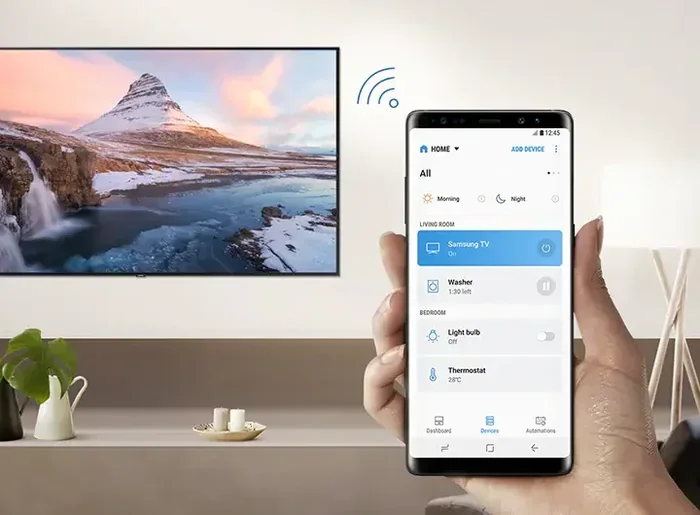
If you are unsure whether your phone supports mobile device connection to TV, check your phone’s settings. Look for options like “Cast,” “Screen Mirroring,” or “HDMI Output.” Some phones also list display output support in their technical specifications online.
iPhone and Apple Devices
Apple takes a different approach. iPhones do not use USB-C for video output (except the iPhone 15 and 16 models). Older iPhones use Lightning ports. Apple offers its own Lightning to HDMI adapter for wired connections. The iPhone 15 and newer models use USB-C, so standard USB-C to HDMI adapters work with them.
Here is a quick comparison of iPhone connection options:
- iPhone 14 and older: Use Apple’s Lightning to HDMI Digital AV Adapter.
- iPhone 15 and 16: Use a standard USB-C to HDMI cable or adapter.
- iPad models: Many support USB-C to HDMI or Lightning to HDMI depending on the model.
Phones That Do Not Support Wired HDMI Output
Some budget phones and very old models do not support wired display output. If your phone lacks this feature, you will need to use wireless alternatives. These include screen mirroring apps, Chromecast, or Smart TV built-in casting features. However, if you want a wired connection for stable streaming, you may want to consider upgrading to a phone that supports it.
What You Need to Get Started
Setting up a USB to HDMI connection is straightforward. You need a few items, and the total cost is usually quite low. Here is everything you need to get started.
Essential Equipment
- USB to HDMI adapter: This is the most important piece. Make sure it matches your phone’s port type. USB-C to HDMI adapters are the most popular choice today.
- HDMI cable: You need a standard HDMI cable to connect the adapter to your TV. Most people already have one at home.
- A TV with an HDMI port: Nearly every modern TV has at least one HDMI port. If your TV is older, you may need an HDMI converter.
- Your phone: Make sure it supports video output through its USB port.
Optional but Helpful Accessories
- A USB power adapter: Some adapters need power to work. Plugging in a wall charger while using the adapter can prevent issues.
- A high-speed HDMI cable: For 4K video, make sure your HDMI cable supports high bandwidth.
- Phone case removal: Thick phone cases can sometimes block the adapter from fitting properly.
Quick Tips Before You Buy
Before you purchase any adapter, keep these tips in mind. First, buy from a reputable brand. Cheap knockoff adapters often cause display issues or do not work at all. Second, check reviews before buying. Third, make sure the adapter supports your phone model. Fourth, look for adapters that support the resolution you need, such as 1080p or 4K.
These small steps save you time and money. They also ensure your phone screen on TV setup works smoothly from day one.
Step-by-Step Setup Guide
Now let us walk through the actual setup process. The steps are simple and take less than five minutes. Follow along carefully and you will have your phone displayed on your TV in no time.
Step 1: Plug the Adapter Into Your Phone
Take your USB to HDMI adapter and plug it into your phone’s charging port. Make sure it fits snugly. If you are using a USB-C adapter, align the connector properly and push it in gently. Do not force it.
Step 2: Connect the HDMI Cable
Take your HDMI cable and plug one end into the adapter. Plug the other end into an available HDMI port on your TV. Use a port that is easy to remember, like HDMI 1 or HDMI 2.
Step 3: Switch Your TV to the Correct Input
Use your TV remote to switch to the HDMI input you plugged the cable into. Press the “Input” or “Source” button on your remote. Select the HDMI port you used. Your TV screen should now show your phone’s display.
Step 4: Adjust Settings on Your Phone
Some phones automatically mirror the screen. Others require you to enable display output in the settings. Check your phone’s display settings for options like “HDMI output” or “Screen mirroring.” On Samsung phones, you may need to pull down the notification panel and tap “Smart View” or “Screen Mirroring.”
Step 5: Test and Enjoy
Open a video or photo on your phone. It should now appear on your TV screen. Adjust the volume using your TV remote or your phone. You are all set to enjoy content on the big screen.
Here are some common issues and quick fixes:
- No picture on TV: Check that the HDMI cable is firmly connected on both ends. Try a different HDMI port on your TV.
- No sound: Go to your TV audio settings and make sure the HDMI input is selected as the audio source.
- Black screen: Remove the adapter and plug it back in. Restart your phone if needed.
- Low resolution: Check your phone’s display settings. Some phones default to a lower resolution when connected via HDMI.
Benefits of Using USB To HDMI for Phone-to-TV Connection
Wired connections offer several clear advantages. These benefits make USB to HDMI a popular choice for many users.
Stable and Lag-Free Performance
Wireless screen mirroring can suffer from lag and stuttering. A USB to HDMI cable provides a direct, stable connection. You get smooth video playback with no delays. This is especially important for gaming or watching fast-paced content.
No Wi-Fi Required
Wired connections do not depend on your home network. You can set up your phone-to-TV connection anywhere. This is great for travel, presentations, or homes with weak Wi-Fi signals.
High-Quality Video and Audio
A good USB to HDMI adapter supports full HD or even 4K resolution. You get crisp, clear video and digital audio through the same cable. The quality is often better than what you get from wireless casting.
Simple and Reliable
There are no apps to install. No complicated setup steps. No firmware updates needed. Just plug in the adapter, connect the cable, and go. This makes USB to HDMI one of the easiest ways to share your phone screen on a TV.
Works for Multiple Uses
You can use this setup for many things. Watch streaming videos on the big screen. Play mobile games with better visuals. Share family photos during gatherings. Give presentations at work or school. The possibilities are wide open with a reliable cable connectivity solution.
Common Mistakes to Avoid
Even with a simple setup, people make mistakes that cause frustration. Here are the most common ones and how to avoid them.
Buying the Wrong Adapter
This is the number one mistake. Not all USB to HDMI adapters are the same. Some only support Micro USB. Others only work with USB-C. Some do not support audio. Always check that the adapter matches your phone model and port type.
Using a Low-Quality Cable
A cheap HDMI cable can cause signal problems. It might not support the resolution you want. Invest in a good-quality cable from a trusted brand. Your picture and sound quality will be much better.
Ignoring Power Requirements
Some adapters need external power to work properly. If your screen goes black or flickers, try plugging the adapter into a wall charger. This provides the extra power some adapters need for stable performance.
Not Checking Phone Compatibility
Do not assume every phone supports wired display output. Check your phone’s manual or the manufacturer’s website. Look for terms like “MHL support” or “USB-C display output.” If your phone does not support it, no adapter will make it work.
Forgetting to Switch TV Input
It sounds obvious, but many people plug everything in and wonder why nothing shows up. Always use your TV remote to switch to the correct HDMI input. This simple step solves many “no signal” problems.
Expert Insights on Phone-to-TV Wired Connections
Technology experts agree that wired connections remain the most reliable way to mirror your phone to a TV. While wireless options like screen mirroring and casting have improved, they still depend on network quality and can introduce delays. A USB to HDMI adapter bypasses all of that.
Experts also recommend checking for firmware updates on both your phone and your TV. Sometimes, display output issues are caused by outdated software. A simple update can fix the problem and improve compatibility.
Another expert tip is to keep your adapter and cables in good condition. Dust and debris can build up in the ports over time. A quick wipe with a dry cloth before connecting can prevent many issues. Store your cables coiled and loose to avoid internal wire damage.
For users who frequently connect their phone to a TV, having a dedicated adapter on hand is a smart move. Keep one at home and one in your travel bag. This way, you are always ready for a big-screen experience wherever you go.
Key Takeaways
- USB to HDMI adapters make wired phone-to-TV connections simple and reliable.
- Most modern Android phones and newer iPhones support this type of connection.
- You need the right adapter for your phone’s port type, plus a standard HDMI cable.
- Wired connections offer better stability and quality than wireless alternatives.
- Avoid common mistakes like buying the wrong adapter or skipping TV input switching.
- Keep your cables and adapters in good condition for the best performance.
Conclusion
So, can I connect my phone to the TV with USB to HDMI cable? Absolutely yes. With the right USB to HDMI adapter and a standard HDMI cable, you can turn any TV into a bigger screen for your phone content. The setup takes just a few minutes. The results are stable, high-quality, and lag-free.
Whether you want to watch movies, share photos, or give a presentation, this wired connection method delivers. It works with most modern Android phones and newer iPhones. The key is choosing the correct adapter for your device and following the simple steps outlined in this guide.
Do not let confusion about ports and adapters stop you. The process is much easier than it seems. Once you set it up, you will wonder how you ever managed without it. Grab the right USB to HDMI cable and adapter, follow the steps, and enjoy your phone content on the big screen today.
Start with the essentials. Buy a quality adapter. Check your phone compatibility. Follow the setup guide. You will be streaming and sharing on your TV in no time. A better viewing experience is just one cable away.
Can I Connect My Phone To The TV With USB To HDMI Cable If I Have an iPhone?
Yes, but it depends on your iPhone model. iPhone 15 and newer use USB-C, so a standard USB-C to HDMI adapter works. Older iPhones with Lightning ports need Apple’s official Lightning to HDMI Digital AV Adapter. Third-party Lightning adapters also work but may have compatibility issues.
Do I Need a Special Adapter for Samsung Phones?
Most Samsung Galaxy phones from the S8 onward support USB-C to HDMI connections. You just need a standard USB-C to HDMI adapter. Samsung phones do not require any special or proprietary adapters for wired display output.
Will a USB to HDMI Adapter Work With Any TV?
As long as your TV has an HDMI port, the adapter will work. Nearly all TVs made after 2010 include at least one HDMI port. If your TV is older and only has other types of inputs, you may need an HDMI converter.
Can I Charge My Phone While Using USB to HDMI?
Many USB-C to HDMI adapters support pass-through charging. This means you can plug in a charger while the adapter is connected. Check your adapter’s specifications to confirm it supports this feature. It is very helpful for long streaming sessions.
Why Is There No Sound When I Connect My Phone to the TV?
This usually happens when the TV audio settings are not set to the HDMI input. Use your TV remote to switch the audio output to HDMI. On some phones, you may also need to enable audio output through the display settings or pull down the notification panel.
Can I Use a USB to HDMI Adapter for Gaming on My TV?
Yes, you can. Wired connections offer low latency, which is great for gaming. The stable connection means less lag between your phone and the TV screen. Just make sure your adapter supports the resolution and frame rate you need for smooth gameplay.
Frequently Asked Questions
What is Can I Connect My Phone To The Tv With Usb To Hdmi?
Can I Connect My Phone To The Tv With Usb To Hdmi is an important topic with many practical applications.