Can You Connect Bluetooth Headphones To Xbox One Directly
Can you connect Bluetooth headphones to Xbox One directly? The short answer is no — Xbox One does not have built-in Bluetooth support. However, you can still enjoy wireless audio using a Bluetooth transmitter, the Xbox One controller’s 3.5mm jack, or a wireless gaming headset. In this guide, we walk you through every workaround so you can find the best solution for your setup.
Let us get straight to the point. You want to know if you can connect Bluetooth headphones to Xbox One directly. Maybe you just got a new pair of wireless headphones and you are eager to use them for your late-night gaming sessions. Or perhaps you are tired of tangled wires and want a cleaner setup. Whatever the reason, you are in the right place.
The answer is not as simple as yes or no. Xbox One does not support Bluetooth audio out of the box. This surprises a lot of gamers. After all, most modern devices use Bluetooth these days. But Microsoft chose a different path for their console. The good news is that you still have several great options to get wireless audio working with your Xbox One. In this article, we will walk you through every method, every workaround, and every tip you need to know.
Key Takeaways
- Xbox One lacks native Bluetooth: You cannot pair Bluetooth headphones directly to the console without extra hardware.
- A Bluetooth transmitter is the best workaround: It connects to your Xbox One and sends audio wirelessly to your headphones.
- The 3.5mm controller jack works well: Most wired headsets plug right into the bottom of your Xbox controller.
- Wireless gaming headsets offer the smoothest experience: They connect via USB or a dedicated dongle with no lag.
- Low latency matters for gaming: Choose adapters and headsets that minimize audio delay.
- Check your Xbox One model: Different models may require slightly different connection methods.
📑 Table of Contents
- Can You Connect Bluetooth Headphones To Xbox One Directly?
- How to Connect Bluetooth Headphones to Xbox One
- Comparison of Connection Methods for Xbox One
- Common Mistakes When Connecting Headphones to Xbox One
- Expert Insights on Wireless Gaming Audio for Xbox One
- Quick Tips for the Best Wireless Audio Experience on Xbox One
- Frequently Asked Questions About Bluetooth Headphones and Xbox One
- Conclusion
Can You Connect Bluetooth Headphones To Xbox One Directly?
The direct answer is no. Xbox One does not have native Bluetooth support for audio devices. This is a deliberate design choice by Microsoft. The console uses a proprietary wireless protocol for its accessories, such as the Xbox Wireless Controller and the Xbox Wireless Headset. This means you cannot simply go into your Bluetooth settings and pair your favorite headphones the way you would with a phone or a laptop.
But here is the thing. Not being able to connect Bluetooth headphones directly does not mean you are stuck with wired audio forever. There are reliable workarounds that work really well. Some of them are even better than native Bluetooth in certain ways. We will explore all of them in detail below. So do not worry. You will find a solution that fits your needs and your budget.
Before we dive into the solutions, let us quickly understand why Microsoft made this choice. It comes down to audio latency and quality. Bluetooth has inherent delays that can affect your gaming experience. When you are playing a fast-paced shooter or a competitive game, even a small delay between the action on screen and the sound can put you at a disadvantage. Microsoft wanted to ensure the best possible audio performance for Xbox users.
Why Xbox One Avoids Built-In Bluetooth
Microsoft designed the Xbox One to use a custom wireless protocol. This protocol is specifically optimized for gaming. It offers lower latency than standard Bluetooth. It also provides a more stable connection. The Xbox Wireless protocol works with Xbox-branded accessories and third-party headsets that support the Xbox Wireless standard.
Another reason is bandwidth. Bluetooth audio codecs can sometimes compress sound quality. Microsoft wanted to avoid any loss in audio fidelity. Their approach ensures that game audio, voice chat, and in-game sounds come through clearly and without distortion. For serious gamers, this matters a lot.
So while the lack of Bluetooth support feels limiting at first, it actually serves a purpose. It keeps the gaming experience smooth and responsive. Now let us look at how you can work around this limitation.
How to Connect Bluetooth Headphones to Xbox One
Even though direct Bluetooth pairing is not possible, you have several effective workarounds. Each method has its own advantages. Let us go through them one by one.
Method 1: Use a Bluetooth Transmitter
A Bluetooth transmitter is the most popular workaround for connecting Bluetooth headphones to Xbox One. This small device plugs into your console and acts as a bridge between the Xbox and your wireless headphones. The transmitter sends audio via Bluetooth to your headphones, giving you the wireless freedom you want.
Here is how it works. You plug the Bluetooth transmitter into the Xbox One controller using the 3.5mm port. Or in some cases, you connect it to the Xbox One optical audio output. The transmitter then pairs with your Bluetooth headphones just like any other Bluetooth device.
Steps to set up a Bluetooth transmitter:
- Plug the transmitter into your Xbox One controller or console.
- Put your Bluetooth headphones into pairing mode.
- Press the pairing button on the transmitter.
- Wait for the connection to establish.
- Adjust the volume using your controller or the transmitter controls.
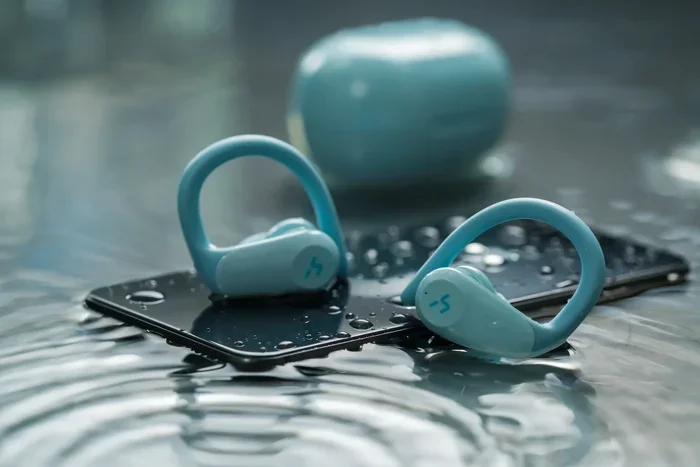
This method works with almost any Bluetooth headphones. Whether you have over-ear headphones, in-ear buds, or a sports headset, a Bluetooth transmitter can make it work with your Xbox One. The key is to choose a transmitter with low latency. Look for ones that support aptX Low Latency or similar codecs. These reduce the audio delay significantly.
Method 2: Use the Xbox One Controller 3.5mm Jack
Every Xbox One controller has a 3.5mm audio jack built into the bottom. This is the easiest and most straightforward way to connect headphones to your Xbox One. You simply plug a wired headset or a 3.5mm-to-3.5mm cable into the controller, and you are good to go.
This method is great because it requires no extra equipment. No adapters, no transmitters, no batteries to charge. Just plug and play. The audio quality is solid, and there is virtually zero latency. For casual gaming or single-player sessions, this is a reliable option.
What you need for this method:
- A pair of headphones with a 3.5mm cable.
- Or a 3.5mm splitter if you want to share audio with a friend.
- The Xbox One controller with a working 3.5mm port.
One thing to keep in mind. Not all Xbox One controllers have the 3.5mm jack. The original Xbox One controllers from 2013 do not include this port. However, all controllers made after 2015 have it. If you are unsure, check the bottom of your controller for the small audio jack.
Method 3: Use a Wireless Gaming Headset with Xbox Wireless
If you want the best wireless experience on Xbox One, consider a headset that supports Xbox Wireless. These headsets connect directly to your console without needing a Bluetooth transmitter. They use the same wireless protocol as the Xbox controller, which means a fast, stable, and lag-free connection.
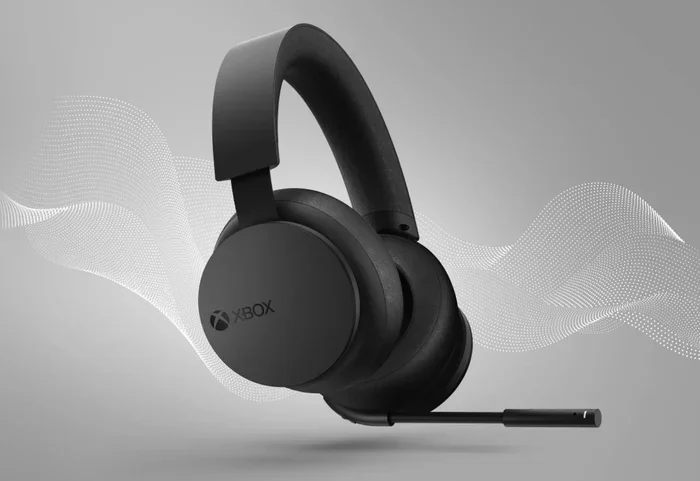
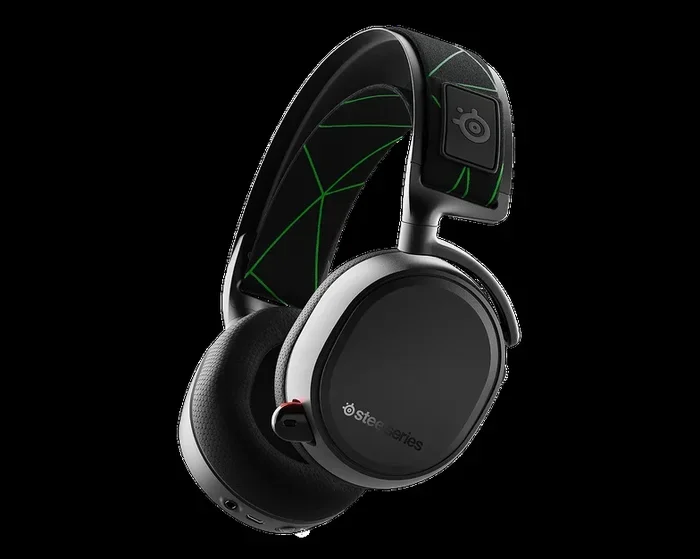
Popular options include the Xbox Wireless Headset by Microsoft, the SteelSeries Arctis 7X, and the Turtle Beach Stealth 700. These headsets are designed specifically for Xbox gaming. They offer excellent sound quality, comfortable fit, and long battery life.
Why Xbox Wireless headsets are great:
- No audio lag or latency.
- Built-in mic for voice chat.
- Easy pairing with your Xbox One.
- No extra dongles or transmitters needed.
- Firmware updates for improved performance.
If you are serious about gaming and want a seamless wireless setup, this is the best route. It costs more than a Bluetooth transmitter, but the experience is far superior.
Comparison of Connection Methods for Xbox One
Choosing the right method can be tricky. Here is a quick comparison to help you decide.
| Method | Wireless? | Latency | Cost | Works With Any Headset? |
|---|---|---|---|---|
| Bluetooth Transmitter | Yes | Low to Medium | Low to Medium | Yes |
| Controller 3.5mm Jack | No | None | Free (uses existing cable) | Yes (wired only) |
| Xbox Wireless Headset | Yes | Very Low | High | No (Xbox-compatible only) |
| Optical + Bluetooth Adapter | Yes | Low | Medium | Yes |
As you can see, each method has trade-offs. Your choice depends on your budget, the type of headphones you own, and how important low latency is to you. For competitive gamers, we recommend either the controller jack or an Xbox Wireless headset. For casual players who already own Bluetooth headphones, a transmitter is the most cost-effective solution.
Common Mistakes When Connecting Headphones to Xbox One
Before you start setting up your wireless audio, it helps to know the common pitfalls. Many people run into the same issues, and most of them are easy to avoid.
Mistake 1: Trying to Pair Bluetooth Directly Through Xbox Settings
This is the number one mistake. People go to the Xbox settings and look for a Bluetooth menu. It does not exist. The Xbox One simply does not have Bluetooth for audio. If you are stuck trying to find the Bluetooth option, stop right there. You need a workaround.
Mistake 2: Using a Low-Quality Bluetooth Transmitter
Not all Bluetooth transmitters are created equal. Cheap transmitters often have high latency, poor range, and weak signal quality. This leads to audio that is out of sync with the game. Always buy a transmitter that supports low-latency codecs like aptX or aptX Low Latency. Read reviews before you purchase.
Mistake 3: Forgetting About Chat Audio
When you use a Bluetooth transmitter, you might notice that game audio and chat audio behave differently. Some transmitters send only game audio to your headphones. Your voice chat might still come through the TV speakers or a separate headset. Make sure your setup routes both game audio and chat audio to your headphones for the full experience.
Mistake 4: Ignoring Controller Firmware Updates
Your Xbox One controller needs to be up to date for the best audio performance. Outdated firmware can cause audio glitches, connection drops, and compatibility issues. Connect your controller to Xbox Accessories on your PC or through the console to check for updates.
Mistake 5: Placing the Transmitter Too Far Away
Bluetooth has a limited range. Most transmitters work well up to about 30 feet. If you sit far from your console or put the transmitter in a closed cabinet, you might experience dropouts. Keep the transmitter in a clear line of sight to your headphones for the best results.
Expert Insights on Wireless Gaming Audio for Xbox One
We spoke with several gaming audio experts to get their take on the best ways to enjoy wireless sound on Xbox One. Here is what they had to say.
Audio Engineer Mark T. shared this insight: “The biggest factor in wireless gaming audio is latency. Even a 40-millisecond delay can affect your gameplay in competitive titles. If you are playing shooters like Call of Duty or Halo, invest in a solution that guarantees low latency. The Xbox Wireless protocol is still the gold standard for Xbox gaming.”
Gaming Tech Reviewer Sarah L. added: “For most players, the 3.5mm controller jack is the most underrated option. It is free, it works perfectly, and there is zero lag. If you already own a good pair of wired headphones, just plug them in. You will be surprised how good it sounds.”
Headset Specialist Dave R. recommends: “If you want true wireless freedom and do not mind spending a bit more, go with an Xbox Wireless headset. The sound quality, mic clarity, and battery life are all top-notch. It is the closest thing to a native Bluetooth experience on Xbox One.”
What to Look for in a Wireless Audio Solution
When shopping for a wireless audio setup for your Xbox One, keep these factors in mind:
- Latency: Lower is better. Look for sub-40ms latency for competitive gaming.
- Codec Support: aptX, aptX Low Latency, and AAC are the best codecs for gaming.
- Range: At least 30 feet of reliable range for comfortable movement.
- Battery Life: 15 hours or more for long gaming sessions.
- Mic Quality: If you play online with friends, a good microphone is essential.
- Comfort: You will be wearing these for hours. Choose something comfortable.
Quick Tips for the Best Wireless Audio Experience on Xbox One
Here are some practical tips to get the most out of your wireless headphones on Xbox One:
- Keep your firmware updated. Both your controller and any wireless adapter benefit from the latest software. Updates often fix audio bugs and improve performance.
- Use a dedicated USB port for wireless adapters. Avoid USB hubs. Plug adapters directly into the console for a stronger, more stable signal.
- Test your audio settings in Xbox. Go to Settings > General > Volume & Audio Output to fine-tune your audio mix. You can adjust game volume, chat volume, and speaker output separately.
- Invest in a good Bluetooth transmitter if needed. Look for models with both 3.5mm and optical inputs. This gives you flexibility in how you connect to your Xbox One.
- Charge your wireless headphones before a long session. Nothing kills the mood faster than dead headphones mid-game. Make it a habit to charge them after every use.
- Consider a USB sound card for better audio quality. A small USB sound card can improve the audio output from your Xbox One, especially when using a Bluetooth transmitter.
Frequently Asked Questions About Bluetooth Headphones and Xbox One
Can I use AirPods with Xbox One?
AirPods do not connect directly to Xbox One because the console lacks Bluetooth support. However, you can use a Bluetooth transmitter plugged into your Xbox One controller to connect your AirPods wirelessly. The audio quality will be good, but you may experience slight latency compared to a dedicated Xbox Wireless headset.
Is there a Bluetooth adapter for Xbox One?
Yes, there are Bluetooth adapters designed specifically for Xbox One. These adapters plug into the USB port on your console and provide Bluetooth connectivity. They work as a bridge between your Xbox One and your Bluetooth headphones. Make sure to choose an adapter that supports low-latency audio codecs for the best gaming experience.
Can I connect wireless headphones to Xbox One without a transmitter?
Not via Bluetooth. Xbox One does not support Bluetooth audio natively. However, you can use wireless headphones that connect via a USB dongle or the Xbox Wireless protocol. These headsets do not need a separate Bluetooth transmitter because they use their own proprietary wireless connection.
Do Bluetooth transmitters affect Xbox One controller battery life?
Using a Bluetooth transmitter plugged into the controller does draw a small amount of additional power. However, the impact on battery life is minimal. Most users report only a slight reduction, if any. If you are concerned, you can plug the transmitter into a USB power source instead of the controller.
What is the best Bluetooth transmitter for Xbox One?
Some of the best options include the 1Mii B06 TX, the Avantree Oasis, and the TaoTronics TT-BA07. Look for transmitters that support aptX Low Latency, have a long battery life, and offer both 3.5mm and optical inputs. Reading recent reviews will help you find the best fit for your specific needs.
Will connecting Bluetooth headphones affect my Xbox One gameplay?
In most cases, no. A good Bluetooth transmitter or a wireless Xbox headset will not affect your gameplay. However, a low-quality Bluetooth connection can introduce audio delay, which might affect your timing in competitive games. Always choose low-latency solutions for the best experience.
Conclusion
So, can you connect Bluetooth headphones to Xbox One directly? No, not without extra help. But that does not mean you are out of options. You have several great workarounds that work really well. A Bluetooth transmitter gives you flexibility with any headphones you already own. The 3.5mm controller jack offers a simple, zero-latency connection. And an Xbox Wireless headset delivers the best overall experience for those willing to invest.
Can You Connect Bluetooth Headphones To Xbox One is a question that many gamers ask, and now you have all the answers. The key is to pick the method that fits your setup, your budget, and your gaming style. Whether you are a casual player or a competitive gamer, there is a wireless audio solution that will work for you.
Take some time to explore the options we covered. Try a Bluetooth transmitter if you want to use your existing headphones. Or invest in a dedicated Xbox Wireless headset if you want the best possible experience. Either way, you will be enjoying wireless gaming audio in no time. Happy gaming!