How Do I Connect Bluetooth Speaker To PC Without Bluetooth
You can absolutely connect a Bluetooth speaker to your PC even if your computer lacks Bluetooth. Using a USB Bluetooth adapter, a 3.5mm audio cable, or a wireless audio transmitter, you can enjoy wireless sound from any speaker. This guide walks you through every method so you can get your audio flowing fast.
Key Takeaways
- USB Bluetooth Adapter: The easiest and most popular way to add Bluetooth to any PC.
- 3.5mm Audio Cable: A simple wired option that works with almost any speaker and computer.
- Wireless Audio Transmitter: Lets you stream audio from your PC to a Bluetooth speaker without built-in Bluetooth.
- Audio Jack and RCA Connections: Old-school but reliable methods for older speakers.
- Compatibility Matters: Always check your speaker and PC ports before buying an adapter.
- Multiple Options Exist: Whether you have a desktop or laptop, there is a solution for you.
📑 Table of Contents
- How Do I Connect Bluetooth Speaker To PC Without Bluetooth
- Why Would You Connect a Bluetooth Speaker to a PC Without Bluetooth?
- Method 1: Use a USB Bluetooth Adapter
- Method 2: Connect Using a 3.5mm Audio Cable
- Method 3: Use a Wireless Audio Transmitter
- Method 4: Use an Audio Interface or DAC
- Method 5: Use a Bluetooth Receiver with a 3.5mm or RCA Input
- Comparison of Methods
- Common Mistakes to Avoid
- Expert Insights
- Frequently Asked Questions
- Conclusion
How Do I Connect Bluetooth Speaker To PC Without Bluetooth
So you just got a Bluetooth speaker and you are ready to enjoy some great sound. But then you realize your PC does not have Bluetooth. Bummer, right? Not at all. You have options, and they are simpler than you think.
Connecting a Bluetooth speaker to PC without Bluetooth is something thousands of people do every day. Whether you have an older desktop or a laptop that skipped the Bluetooth feature, you can still get wireless audio flowing. This guide will show you exactly how to do it in a few easy steps.
The good news is that you do not need to be a tech expert. Most methods involve plugging in a small adapter or using a simple cable. We will cover every option so you can pick the one that fits your setup best. Let us dive right in.
Why Would You Connect a Bluetooth Speaker to a PC Without Bluetooth?
There are many reasons your PC might not have Bluetooth. Maybe you have an older desktop tower. Perhaps your laptop came with basic ports only. Or maybe your Bluetooth chip stopped working after an update. Whatever the reason, the solution is the same: find an alternative connection method.
Bluetooth speakers are popular because they are portable and deliver solid sound. But they are not useless just because your PC lacks wireless support. With the right audio adapter or cable, your speaker works just like any other output device.
If you have ever wondered about wireless speaker connectivity or how to set up PC audio output without the usual wireless options, you are in the right place. This guide covers everything from USB adapters to simple audio cables. You will be playing music in no time.
Method 1: Use a USB Bluetooth Adapter
What Is a USB Bluetooth Adapter?
A USB Bluetooth adapter is a small dongle that plugs into your PC’s USB port. It adds Bluetooth capability to your computer instantly. Think of it as a tiny wireless bridge between your PC and your speaker.
This is by far the most popular method for adding Bluetooth connectivity to a PC that does not have it built in. The adapters are cheap, easy to use, and work with almost every version of Windows and macOS.
Step-by-Step Setup
Here is how to get your Bluetooth speaker connected using a USB adapter:
- Buy a USB Bluetooth adapter. Look for one that supports Bluetooth 4.0 or higher. Brands like TP-Link, ASUS, and Avantree make reliable options.
- Plug the adapter into a USB port on your computer. Wait for Windows or macOS to recognize it.
- Download or install drivers if prompted. Most modern adapters install automatically.
- Turn on your Bluetooth speaker and put it in pairing mode.
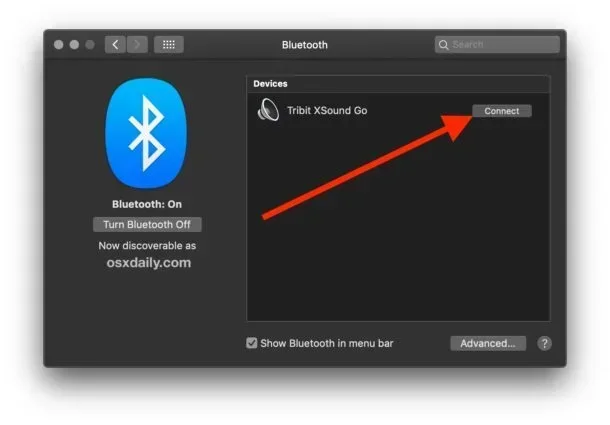
- Go to your PC’s Bluetooth settings. On Windows, click Start > Settings > Devices > Bluetooth. On macOS, go to System Preferences > Bluetooth.
- Click “Add a device” or “Pair.” Your PC will search for nearby Bluetooth devices.
- Select your speaker from the list and wait for the connection to complete.
That is it! You now have wireless audio streaming from your PC to your speaker. If you run into issues, try moving the adapter closer to the speaker or updating your drivers.
Quick Tips for USB Bluetooth Adapters
- Choose an adapter with a range of at least 30 feet for the best experience.
- If your PC has a USB 3.0 port, use it for better power and stability.
- Some adapters come with an extension cable. Use it if your USB port is hard to reach.
- Keep your adapter away from USB hubs that share power, as this can cause interference.
Method 2: Connect Using a 3.5mm Audio Cable
The Simple Wired Option
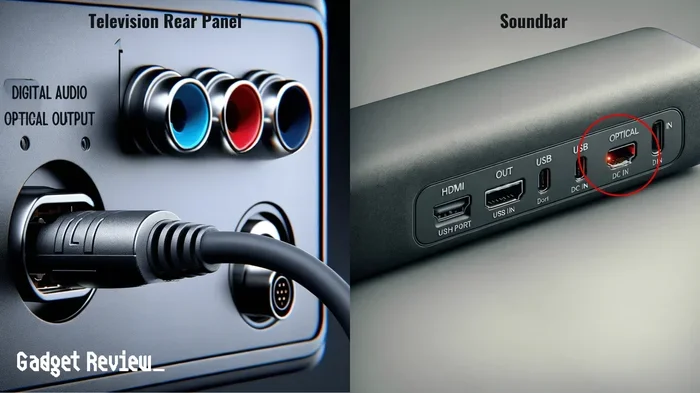
Not every connection needs to be wireless. A 3.5mm audio cable is the oldest and most reliable way to connect a speaker to a PC. Almost every computer has a headphone jack, and most Bluetooth speakers have an AUX input.
This method works great if you do not want to buy extra adapters. It is also the best option if you want zero latency. There is no delay between the audio and what you hear, which makes it perfect for video calls and gaming.
If you are looking for speaker connectivity without any fuss, the 3.5mm cable is your best friend. You can also check out how to plug speakers into a laptop for more wired options.
How to Set It Up
- Grab a 3.5mm aux cable. You need one with a 3.5mm jack on both ends.
- Plug one end into your PC’s audio output jack. This is usually the green-colored port on the back of a desktop or the headphone jack on a laptop.
- Plug the other end into your speaker’s AUX input. Look for a port labeled “AUX” or “Line In.”
- Turn on your speaker and set the volume to a low level.
- On your PC, go to Sound Settings. Make sure the output is set to your speaker or the correct audio device.
- Play some audio and adjust the volume to your liking.
Using a 3.5mm audio cable is simple and effective. You do not need drivers, software, or any technical knowledge. Just plug and play.
When to Use This Method
- You want the lowest possible audio delay.
- You are in a small room and do not need wireless range.
- You do not want to buy an extra adapter.
- Your speaker supports AUX input but your PC does not have Bluetooth.
Method 3: Use a Wireless Audio Transmitter
What Is a Wireless Audio Transmitter?
A wireless audio transmitter is a small device that sends audio from your PC to your Bluetooth speaker using radio frequency or Bluetooth. It acts as a bridge. Your PC connects to the transmitter through a cable or USB, and the transmitter sends the signal wirelessly to your speaker.
This method is perfect if you want the freedom of wireless audio but your PC does not support Bluetooth connectivity. The transmitter handles the Bluetooth side so your PC does not have to.
Types of Wireless Transmitters
There are two main types you should know about:
- Bluetooth Transmitters: These plug into your PC’s audio output and broadcast audio to your Bluetooth speaker. They are small and easy to set up.
- RF Transmitters: These use radio frequency to send audio to a receiver connected to your speaker. They work well over longer distances.
How to Set Up a Bluetooth Transmitter
- Plug the transmitter into your PC’s audio output jack. Use a 3.5mm or RCA connection depending on the transmitter.
- Power on the transmitter. Some models use batteries, while others need a USB cable for power.
- Put your Bluetooth speaker in pairing mode.
- Pair the transmitter with your speaker. Follow the transmitter’s instructions for pairing mode.
- Set your PC’s audio output to the transmitter. Go to Sound Settings and select the transmitter as your default audio device.
A wireless audio transmitter gives you the best of both worlds. Your PC stays wired for a stable connection, and your speaker gets the wireless signal it needs. This is a great option if you want reliable wireless connectivity without replacing your hardware.
Method 4: Use an Audio Interface or DAC
What Is an Audio Interface or DAC?
An audio interface or DAC (Digital-to-Analog Converter) is a device that converts digital audio from your PC into analog signals your speaker can understand. Some audio interfaces also include Bluetooth transmitters built in.
This method is popular among people who care about audio quality. If you want high-fidelity sound from your Bluetooth speaker, an audio interface can make a real difference.
When to Choose This Option
- You want better audio quality than a basic adapter can provide.
- You are a music producer or audio enthusiast.
- Your speaker supports wired input and you want to upgrade the sound.
- You already own an audio interface and want to use it as a bridge.
Some popular options include the Creative Sound Blaster series and the Fiio K5 Pro. These devices connect to your PC via USB and often support Bluetooth output as well.
Method 5: Use a Bluetooth Receiver with a 3.5mm or RCA Input
This method is very similar to the USB Bluetooth adapter but works slightly differently. A Bluetooth receiver connects to your speaker’s audio input (AUX or RCA) and receives the Bluetooth signal from your PC.
Here is how it works:
- Plug the Bluetooth receiver into your speaker. Use the AUX or RCA input depending on the receiver.
- Power on the receiver. Some receivers need a USB cable for power.
- Pair your PC with the receiver. Your PC sends the Bluetooth signal to the receiver, which then passes it to the speaker.
This method is great if your speaker does not have a built-in Bluetooth chip but has an AUX port. It is also a good option if you want to keep your speaker portable and not tethered to your PC.
Comparison of Methods
Not sure which method is right for you? Here is a quick comparison:
| Method | Wireless? | Ease of Setup | Audio Quality | Cost |
|---|---|---|---|---|
| USB Bluetooth Adapter | Yes | Very Easy | Good | $10-$30 |
| 3.5mm Audio Cable | No | Very Easy | Excellent | $3-$10 |
| Wireless Audio Transmitter | Yes | Easy | Good | $15-$40 |
| Audio Interface / DAC | Sometimes | Moderate | Excellent | $50-$200 |
| Bluetooth Receiver | Yes | Easy | Good | $10-$35 |
As you can see, each method has its strengths. The USB Bluetooth adapter is the most convenient for most users. The 3.5mm cable is the cheapest and most reliable. Choose based on your budget and what matters most to you.
Common Mistakes to Avoid
Even with the right method, mistakes can happen. Here are some common ones to watch out for:
- Forgetting to put the speaker in pairing mode. Most speakers need you to hold a button to enter pairing mode. Without this, your PC will not find it.
- Using the wrong audio output on your PC. Make sure your PC is sending audio to the correct device. Go to Sound Settings and check your output.
- Ignoring driver updates. If you are using a USB adapter, outdated drivers can cause connection problems. Keep them updated.
- Placing the adapter too far from the speaker. Bluetooth has a limited range. Keep the adapter and speaker within 30 feet of each other.
- Using a low-quality cable. A cheap 3.5mm cable can cause static or weak audio. Invest in a decent cable for the best results.
Avoiding these simple mistakes will save you a lot of frustration. Most connection issues come down to basic setup errors, not hardware problems.
Expert Insights
According to audio professionals, the best way to connect a Bluetooth speaker to a PC without Bluetooth depends on your use case. For casual listening, a USB Bluetooth adapter or a 3.5mm cable is all you need. For audiophiles, a DAC or audio interface delivers the best sound quality.
If you are dealing with connectivity issues, check out how to connect your computer without a cable for general wireless troubleshooting tips. Also, if you are looking to extend your wireless range, you might want to learn about extending WiFi range with a wired connection for broader network stability.
One thing audio experts always recommend is to keep your firmware and drivers updated. Whether you are using a Bluetooth adapter or a wireless transmitter, software updates can fix bugs and improve performance.
Frequently Asked Questions
Can I connect any Bluetooth speaker to any PC?
Yes, you can connect almost any Bluetooth speaker to any PC as long as you have the right adapter or cable. The key is matching the connection type. Most speakers use standard Bluetooth or a 3.5mm AUX input, which works with virtually every computer.
Do I need to buy expensive equipment?
Not at all. A basic USB Bluetooth adapter costs between $10 and $30. A simple 3.5mm audio cable costs even less. You do not need to spend a lot of money to get your speaker connected to your PC.
Will using a Bluetooth adapter cause audio delay?
Some audio delay, or latency, is normal with Bluetooth connections. Modern Bluetooth 5.0 adapters have very low latency. If you need zero delay for gaming or video editing, a wired connection is your best bet.
Can I use my Bluetooth speaker with a PC that has a broken Bluetooth chip?
Yes. A USB Bluetooth adapter bypasses your PC’s broken Bluetooth chip entirely. It adds fresh Bluetooth capability through the USB port. This is the most reliable fix for a damaged Bluetooth chip.
What is the best Bluetooth adapter for PC?
Some of the best options include the TP-Link UB500, the ASUS USB-BT500, and the Avantree DG40S. These adapters are affordable, easy to set up, and work with most versions of Windows and macOS.
Can I connect multiple Bluetooth speakers to one PC?
Yes, in most cases. Windows 10 and 11 support audio mirroring, which lets you connect multiple Bluetooth speakers to one PC. You can also use some adapters that support multi-point connections. Check your adapter’s specifications to confirm.
Conclusion
Connecting a Bluetooth speaker to your PC without Bluetooth is easier than you think. Whether you choose a USB Bluetooth adapter, a 3.5mm audio cable, or a wireless transmitter, there is a method that fits your needs and budget. Each option gives you a reliable path to great sound.
Start with the simplest method that works for your setup. If you want wireless freedom, grab a USB Bluetooth adapter. If you want the best audio quality with zero delay, use an audio cable. You do not need to be a tech expert to get this right.
Remember to check your connections, update your drivers, and keep your devices within range. With the right approach, your Bluetooth speaker and your PC will work together beautifully. Now go enjoy your music, podcasts, and videos with the sound quality you deserve.