How Do I Connect A Device To Bluetooth Step By Step
Connecting a device to Bluetooth is simple once you know the steps. This guide walks you through the entire process from turning on Bluetooth to pairing your device. You will learn quick tips, common fixes, and how to keep your Bluetooth connection strong.
You want to connect a device to Bluetooth and you are not sure where to start. Maybe it is your new wireless headphones. Maybe it is a speaker or a keyboard. Whatever the device is, the good news is that connecting a device to Bluetooth is easier than you think. You do not need to be a tech expert. You just need a few simple steps and a little patience. In this guide, we will walk you through the entire process. We will cover preparation, pairing, troubleshooting, and best practices. By the end, you will feel confident connecting any Bluetooth device.
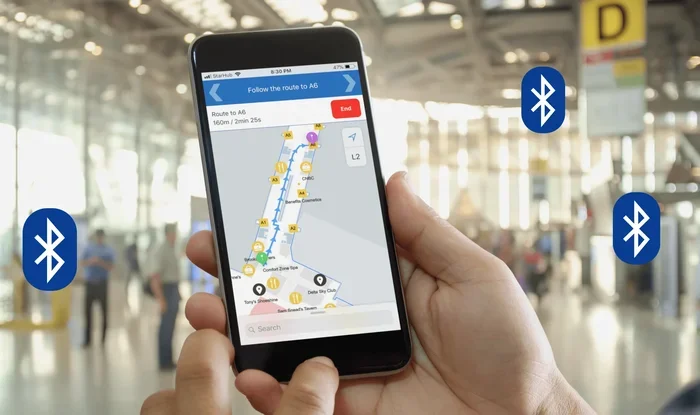
Bluetooth is a wireless technology that lets devices talk to each other without cables. It has been around for a long time and it works on almost everything. Phones, laptops, tablets, speakers, headphones, and even car systems use Bluetooth. The beauty of Bluetooth connectivity is that it is fast, simple, and does not need a Wi-Fi network. You just turn it on, find the device, and pair them together. It is like magic but it is really just radio waves doing the work behind the scenes.
Now, let us get into the meat of the guide. Whether you are pairing wireless headphones, a Bluetooth speaker, a keyboard, or anything else, this article has you covered. We will break it down into clear, easy-to-follow steps. No jargon. No confusing tech talk. Just simple instructions that anyone can follow.
Key Takeaways
- Bluetooth pairing is easy: Most devices need only a few steps to connect wirelessly.
- Keep your devices close: Bluetooth works best within 30 feet of each other.
- Restart often: A simple restart fixes most Bluetooth connection problems.
- Check compatibility: Make sure both devices support the same Bluetooth version.
- Update your software: Fresh updates keep Bluetooth drivers working smoothly.
- Forget old pairings: Removing old connections can solve stubborn pairing issues.
📑 Table of Contents
What Is Bluetooth and How Does It Work
Before you dive into the steps, it helps to understand the basics. Bluetooth is a wireless connection standard that uses short-range radio waves. It replaces cables with invisible signals between devices. Think of it as a digital handshake between two gadgets.
How Bluetooth Pairing Works
When you pair devices, they exchange a small amount of data. This data includes a shared key. That key keeps the connection secure. After the handshake, the devices remember each other. Next time, they connect automatically. This is why your phone connects to your car stereo without asking every time.
Bluetooth Versions and What They Mean
Bluetooth has evolved over the years. Older versions like Bluetooth 2.0 and 3.0 are slow and have shorter range. Newer versions like Bluetooth 5.0 and 5.3 offer faster speeds, longer range, and better battery life. Most modern devices use Bluetooth 4.0 or higher. When you connect a device to Bluetooth, having newer versions helps. It means a smoother and more reliable experience.
How Far Can Bluetooth Reach
Bluetooth typically works within about 30 feet. Some devices can go further. Class 1 Bluetooth devices can reach up to 300 feet. But most everyday devices are Class 2 and stay within that 30-foot range. Walls, furniture, and other electronics can weaken the Bluetooth signal. Keep this in mind when you place your devices.
How to Prepare Your Device for Bluetooth Pairing
Before you start pairing, a little preparation goes a long way. Skipping this step is one of the biggest reasons people face Bluetooth troubleshooting headaches later. Take five minutes to get ready.
Step 1: Check That Your Device Is Bluetooth Enabled
First, make sure your device supports Bluetooth. Almost all modern phones, laptops, and tablets do. But older devices might not. Go to your settings and look for the Bluetooth option. On most phones, you will find it in the quick settings menu. On a laptop, check the system settings or control panel.
Step 2: Turn On Bluetooth
Toggle the Bluetooth switch to on. You should see a Bluetooth icon appear in your status bar or menu bar. This tells you that your device is Bluetooth enabled and ready to search. If you do not see the option, your device might not have Bluetooth hardware built in. In that case, you may need a Bluetooth adapter.
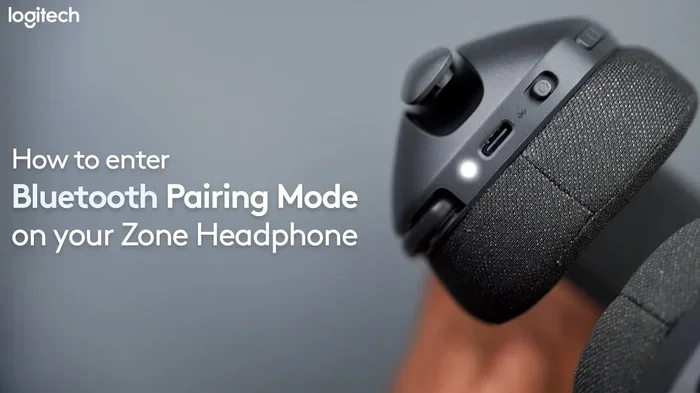
Step 3: Put Your Device in Pairing Mode
This is the step many people miss. Your device will not show up in the search list unless it is in pairing mode. How you do this depends on the device. For headphones, hold down the power button for a few seconds. For speakers, look for a dedicated Bluetooth button. The device should flash a light or speak a confirmation. This means it is ready to be found.
Step 4: Keep Your Devices Close
Place the devices within a few feet of each other. The closer they are, the stronger the initial connection. Once paired, you can move further apart. But during setup, proximity helps a lot. Wireless technology works best when there are few obstacles between the devices.
Step-by-Step Guide to Connect A Device To Bluetooth
Now that you are prepared, let us walk through the actual pairing process. These steps work for most devices including phones, laptops, tablets, and more.
Step 1: Open Bluetooth Settings
On your phone, go to Settings and tap Bluetooth. On a Windows laptop, open Settings and click Devices. On a Mac, open System Preferences and select Bluetooth. Make sure Bluetooth is turned on. You should see a list of available devices appearing on your screen.
Step 2: Search for New Devices
Tap or click the option to scan for new devices. Your phone or computer will now search for Bluetooth enabled devices nearby. This might take a few seconds. Be patient. The device you want to connect should appear in the list. If it does not, make sure it is in pairing mode.
Step 3: Select the Device You Want to Connect
Tap on the name of the device from the list. You might be asked to enter a PIN. The most common default PIN is 0000 or 1234. Some devices do not need a PIN at all. They just ask you to confirm the connection on both sides. Read the prompt carefully and accept it.
Step 4: Wait for the Connection
After you confirm, the devices will connect. You should see a message saying the device is connected. On headphones, you might hear a tone. On a phone, the device name will appear under the Bluetooth settings as connected. Now you can start using your device wirelessly.
Step 5: Test the Connection
Always test the connection right away. Play some music through your headphones. Try typing on your Bluetooth keyboard. If everything works, you are all set. If not, do not worry. We will cover troubleshooting in the next section.
Some people also like to pair Bluetooth headphones to their LG TV or use Bluetooth headphones with Roku for streaming. The same basic steps apply. You go into the TV or Roku settings, find Bluetooth, and pair your headphones. The process is very similar across all smart devices.
Common Bluetooth Problems and How to Fix Them
Even with the best preparation, things sometimes go wrong. Bluetooth can be finicky at times. Here are the most common problems and how to fix them fast.
Device Not Showing Up in the List
If your device does not appear, it might not be in pairing mode. Turn it off and on again. Then try entering pairing mode once more. Also, make sure Bluetooth is turned on your phone or computer. Sometimes simply toggling Bluetooth off and back on fixes this issue.
Connection Keeps Dropping
A weak or dropping connection is frustrating. The most common cause is distance. Move closer to the device. Also, check for interference. Microwaves, baby monitors, and other wireless devices can disrupt the Bluetooth signal. Moving away from these can stabilize your connection.
Paired But No Sound or Data Transfer
This happens more than you would think. The devices connect but nothing happens. First, check the volume on both devices. Second, make sure the correct output device is selected. On a phone or laptop, go to sound settings and choose the Bluetooth device as the output. Sometimes the connection is there but the audio is routed elsewhere.
Device Will Not Forget and Reconnect
If a device keeps trying to connect but fails, you may need to remove it. Go to your Bluetooth settings, find the device, and choose to forget or unpair it. Then start the pairing process fresh. This is a powerful fix that solves many stubborn connection issues.
For those using Bluetooth on hearing aids, the same principles apply. Keep your hearing aid and phone close during setup. If you face issues, removing and re-pairing the device usually works. Also check that your hearing aid app is up to date.
Best Practices for Strong Bluetooth Connections
Once your devices are paired, you want the connection to stay strong. Follow these simple habits to keep everything running smoothly.
Keep Your Devices Updated
Software updates often include fixes for Bluetooth connectivity issues. Keep your phone, laptop, and peripherals updated. On Windows, go to Settings and click Update. On a Mac, open System Preferences and click Software Update. On phones, the update is usually in the general settings.
Limit the Number of Connected Devices
Bluetooth has a limit on how many devices it can handle at once. If you have too many devices connected, performance can drop. Disconnect devices you are not using. This frees up bandwidth and keeps your active connection strong.
Charge Your Devices
Low battery can cause Bluetooth problems. When a device battery is low, it may struggle to maintain a connection. Keep your headphones, speakers, and keyboards charged. A full battery ensures the best wireless connection performance.
Restart Devices Regularly
A good old restart fixes more problems than you might expect. If Bluetooth is acting up, restart both devices. This clears temporary glitches and refreshes the Bluetooth module. It is the simplest and often most effective fix.
Avoid Interference From Other Wireless Devices
Wi-Fi routers, USB 3.0 ports, and other wireless devices can interfere with Bluetooth. Keep your Bluetooth devices away from these sources when possible. This simple step can improve connection quality significantly.
For those who want to extend their Bluetooth range, you might also look into how to extend your Wi-Fi to about 300 feet outside your home. While that is about Wi-Fi and not Bluetooth directly, the same principles of reducing interference and optimizing signal apply.
Devices You Can Connect Using Bluetooth
Bluetooth is incredibly versatile. Almost any device that needs a wireless connection can use Bluetooth. Here are some of the most popular categories.
- Headphones and Earbuds: The most common Bluetooth device. From AirPods to over-ear wireless headphones, they all use Bluetooth for audio.
- Speakers: Portable Bluetooth speakers let you play music anywhere. They connect to phones, tablets, and laptops easily.
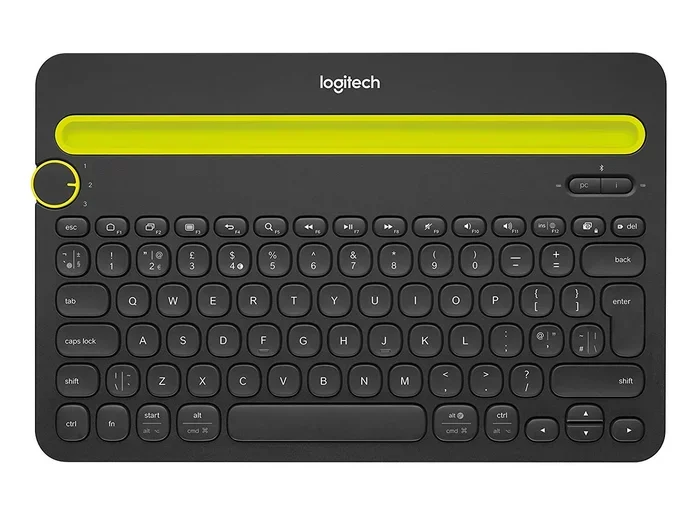
- Keyboards and Mice: Wireless keyboards and mice use Bluetooth to stay cable-free. This is great for a clean desk setup.
- Game Controllers: Many game controllers connect via Bluetooth. You can use them with phones, tablets, and smart TVs.
- Smartwatches and Fitness Trackers: These devices sync data to your phone using Bluetooth.
- Car Audio Systems: You can pair your phone to a projector or connect your phone to your car stereo for hands-free calling and music.
- Printers: Some printers support Bluetooth for wireless printing from your phone or laptop.
The process to connect a device to Bluetooth is the same across all these categories. You turn on Bluetooth, put the device in pairing mode, find it on your host device, and confirm the connection. Once you have done it once, you will find it becomes second nature.
It is also worth noting that Bluetooth security matters. Always pair devices in a private space. Avoid pairing in crowded public places. Use strong PINs when prompted. These small habits keep your wireless connection safe from unauthorized access.
Now you know the full process. From preparation to pairing to troubleshooting and best practices, you are equipped to handle any Bluetooth connection task. Whether you are connecting wireless headphones for the first time or setting up a new Bluetooth speaker, the steps are the same. Turn on Bluetooth, find the device, pair them, and enjoy your wireless freedom.
The beauty of Bluetooth technology is that it keeps getting better. Each new version brings faster speeds, longer range, and lower power use. As more devices adopt Bluetooth, our lives become less tangled in cables. Embrace the wireless lifestyle. Start connecting today.
Conclusion
Connecting a device to Bluetooth does not have to be complicated. Follow the steps in this guide and you will be paired and streaming in minutes. Remember to prepare your devices, keep them close, and put them in pairing mode. If problems arise, the troubleshooting tips will help you get back on track. Keep your devices updated, limit connected devices, and restart when needed. With these habits, your Bluetooth connections will be strong and reliable. Now go ahead and connect your devices. Enjoy the freedom of going wireless.
Frequently Asked Questions
How do I put my Bluetooth device in pairing mode?
The method varies by device. For most headphones and speakers, hold down the power button for five to ten seconds. Look for a flashing light or hear a voice prompt. This means the device is ready to be found. Check your device manual if you are unsure.
Why is my Bluetooth device not showing up in the list?
The device might not be in pairing mode. Try turning it off and on again. Also make sure Bluetooth is turned on your phone or computer. Moving closer to the device can help too. Sometimes restarting both devices fixes the issue.
How far can Bluetooth devices be from each other?
Most Bluetooth devices work within 30 feet. Walls and other electronics can reduce this range. Bluetooth 5.0 and newer versions offer better range and stronger signal. Keep devices close during initial pairing for the best results.
Can I connect multiple devices to Bluetooth at once?
Yes, most devices support multiple connections. However, too many connected devices can slow things down. Disconnect devices you are not using. This keeps your active connection fast and stable.
Is Bluetooth safe to use for personal devices?
Yes, Bluetooth is generally safe. It uses encrypted signals to keep data secure. Avoid pairing in crowded public places. Use strong PINs when prompted. These simple steps keep your Bluetooth connection private and secure.
What should I do if the Bluetooth connection keeps dropping?
First, move closer to the device. Check for interference from other wireless devices. Restart both the host device and the Bluetooth device. If the problem continues, remove the device from your Bluetooth list and pair it again. Updating your device software can also help.