How Do I Cast Chrome To My Tv Screen With Ease Today
Casting Chrome to your TV is simpler than most people think. You can wirelessly share your Chrome browser screen to any TV using built-in casting features, a Chromecast device, or third-party tools. This guide walks you through every method so you can start casting Chrome to your TV in minutes, whether you use a laptop, desktop, or mobile device.
Have you ever wanted to watch something from your Chrome browser on a bigger screen? Maybe you found a great video, a slideshow, or a website that looks way better on your TV. Casting Chrome to your TV lets you do exactly that. It opens up a whole new way to enjoy content you already love.
The good news is you do not need to be a tech expert. Whether you have a smart TV, a Chromecast stick, or just a regular TV with an HDMI port, there is a way to get your Chrome browser on that screen. This guide covers every method in simple steps. You will learn how to cast Chrome to TV using built-in features, external devices, and even without Wi-Fi in some cases.
Let us walk through it together. By the end of this article, you will know exactly how to cast Chrome to your TV screen with ease. You will also pick up some handy tips to avoid common problems along the way.
Key Takeaways
- Built-in Chrome casting: Use Chrome’s native Cast feature to mirror any tab or your entire desktop to a compatible TV.
- Chromecast makes it easy: A Chromecast device turns any TV with an HDMI port into a smart casting display in seconds.
- Multiple methods work: You can cast using Wi-Fi, wired connections, or even without a dedicated casting device.
- Troubleshooting is simple: Most casting issues fix quickly with basic steps like checking Wi-Fi, updating Chrome, or restarting devices.
- You don’t need expensive gear: Free tools and built-in features handle most casting needs without extra cost.
📑 Table of Contents
- What Does It Mean to Cast Chrome to Your TV?
- How to Cast Chrome to TV Using Built-In Chrome Features
- Using a Chromecast Device to Cast Chrome
- Casting Chrome to TV Without Wi-Fi
- Troubleshooting Common Chrome Casting Problems
- Advanced Tips for Better Chrome Casting
- Comparing Different Methods to Cast Chrome to TV
- Conclusion
What Does It Mean to Cast Chrome to Your TV?
Screen casting means sending what is on your computer or phone screen to a TV wirelessly. When you cast Chrome, you are basically telling your TV to display whatever you see in your Chrome browser. This works through a technology called Google Cast, which lets devices talk to each other over your home network.
There are two main types of casting you should know about. The first is tab casting, which sends just one Chrome tab to your TV. The second is desktop casting, which mirrors your entire computer screen. Tab casting is great for streaming videos or showing a single webpage. Desktop casting is perfect when you want to share your full screen, like during a presentation or when showing multiple tabs at once.
You might also hear people call this wireless screen mirroring or browser casting. They all mean the same thing. Your browser sends a signal to your TV, and your TV displays it in real time. It feels like magic, but it is just smart technology working behind the scenes.
Why People Love Casting Chrome to TV
There are many reasons people choose to cast from Chrome instead of using other methods. Here are some of the top benefits:
- Bigger screen viewing: Watch videos, read articles, or view photos on a much larger display.
- Easy sharing: Show websites or presentations to a group without passing around a single device.
- No extra apps needed: Chrome has built-in casting, so you do not need to download special software.
- Works with many TVs: Whether you have a smart TV or a basic TV with an HDMI port, casting works.
- Free and simple: Most casting methods cost nothing and take just a few minutes to set up.
How to Cast Chrome to TV Using Built-In Chrome Features
The easiest way to cast Chrome to your TV uses Chrome’s own built-in Cast feature. This method works on both computers and mobile devices. You just need a Chrome browser and a TV or casting device on the same Wi-Fi network.
Step-by-Step: Casting from a Computer
Follow these simple steps to cast Chrome from your laptop or desktop:
- Open Google Chrome on your computer.
- Click the three dots in the top-right corner of the browser.
- Select “Cast…” from the dropdown menu.
- Choose your TV from the list of available devices.
- Pick what you want to cast: a single tab, your desktop, or a specific file.
- Click “Share” and your screen appears on the TV.
That is it. Your Chrome browser is now showing on your TV. You can keep using your computer normally while the content displays on the big screen. If you want to stop casting, just click the Cast icon again and select “Stop casting.”
Step-by-Step: Casting from a Phone or Tablet
You can also cast from your mobile device. Here is how:
- Open Chrome on your phone or tablet.
- Tap the three dots in the top-right corner.
- Tap “Cast” from the menu.
- Select your TV from the list.
- Choose the tab you want to share.
- Your content appears on the TV screen.
This method works great for showing a single webpage or video. It is quick, simple, and does not require any extra equipment. If you have ever wondered how to mirror iPhone to TV with HDMI, this wireless method is a great alternative that skips the cables entirely.
Using a Chromecast Device to Cast Chrome
A Chromecast is a small device that plugs into your TV’s HDMI port. It connects to your Wi-Fi network and lets you cast content from your phone, tablet, or computer. Chromecast is one of the most popular ways to cast Chrome to TV because it is affordable and works flawlessly.
Setting Up Chromecast for Chrome Casting
Setting up your Chromecast takes just a few minutes. Here is what to do:
- Plug the Chromecast into your TV’s HDMI port.
- Connect it to power using the USB cable.
- Switch your TV to the correct HDMI input.
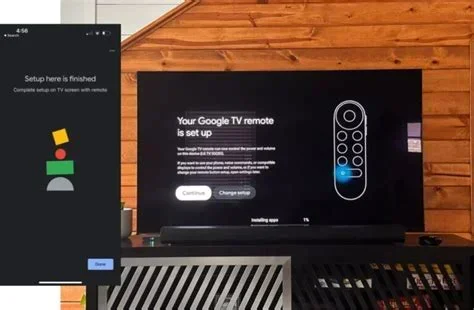
- Download the Google Home app on your phone.
- Follow the on-screen setup instructions to connect Chromecast to your Wi-Fi.
- Open Chrome on your device and look for the Cast icon.
Once Chromecast is set up, casting Chrome is just as easy as the built-in method. The big advantage of Chromecast is that it works with any TV that has an HDMI port. You do not need a smart TV. Even an older television can become a casting-ready display with this small device.
Chromecast vs. Built-In Casting
Both methods use Google Cast technology, so the experience is very similar. The main difference is that Chromecast gives you a dedicated casting device. Built-in casting relies on your TV having native Cast support. Many modern smart TVs include this feature, but older models may not. If your TV does not support casting natively, a Chromecast device is an affordable fix.
If you are exploring options for connecting your devices to your TV, you might also consider how to mirror your Mac to your TV without Apple TV. This is another popular casting method that works well for Chrome users who use macOS devices.
Casting Chrome to TV Without Wi-Fi
Not everyone has a reliable Wi-Fi connection, or maybe you want to cast in a location without wireless access. The good news is you can still cast Chrome to your TV without Wi-Fi in several situations.
Using a Wired Connection
One of the most reliable ways to cast without Wi-Fi is through a wired connection. You can use an HDMI cable to connect your computer directly to your TV. This method gives you a stable, high-quality connection with no lag or buffering.
Here is how to do it:
- Get an HDMI cable long enough to reach from your computer to your TV.
- Plug one end into your computer’s HDMI port (or use an adapter if needed).
- Plug the other end into your TV’s HDMI port.
- Switch your TV to the correct HDMI input.
- Open Chrome and your screen is now on the TV.
This method works perfectly for presentations, movie watching, or sharing any web content. It also solves the problem of extending your Wi-Fi range with a wired connection since the HDMI cable handles the display connection directly.
Using a Mobile Hotspot
Another option is to create a mobile hotspot from your phone and connect your computer to it. This creates a small local network that both devices can use for casting. It is not as seamless as a home Wi-Fi network, but it works in a pinch.
Keep in mind that using a hotspot may use your mobile data, so keep an eye on your data usage if you go this route. This method is best for short casting sessions or when you are away from your home network.
Troubleshooting Common Chrome Casting Problems
Casting Chrome to your TV usually works smoothly, but sometimes things go wrong. Do not worry. Most common issues have simple fixes. Here are the problems you might run into and how to solve them.
TV Not Showing Up in the Cast List
If your TV does not appear when you try to cast, the first thing to check is your Wi-Fi connection. Both your casting device and your TV need to be on the same network. Try these steps:
- Restart your router by unplugging it for 30 seconds.
- Check that your TV and computer are on the same Wi-Fi network.
- Make sure your TV’s casting feature is turned on in the settings menu.
- Update Chrome** to the latest version.
- Restart both devices and try again.
If you are having trouble connecting to your network, you might want to check how to connect to Wi-Fi without a security key as a reference for resolving network connection issues.
Video Stuttering or Lagging
Buffering or lag during casting can be frustrating. This usually happens when your Wi-Fi signal is weak or your internet speed is too slow. Here is what helps:
- Move closer to your router to get a stronger signal.
- Check your Wi-Fi signal strength using your device’s settings.
- Reduce the number of devices using your network at the same time.
- Lower the video quality if you are streaming content.
- Use a wired connection for a more stable experience.
Audio and Video Are Out of Sync
Sometimes the sound and video on your TV do not match up. This is a common casting issue and usually easy to fix. Try restarting both your casting device and your TV. Also, make sure your Chrome browser is up to date. Clearing your browser cache can sometimes resolve sync issues too.
Screen Not Displaying Correctly
If the cast screen looks stretched, blurry, or cut off, check your TV’s display settings. Make sure the resolution matches your TV’s native resolution. You can also try adjusting the scaling settings on your computer. Sometimes simply toggling between tab casting and desktop casting fixes display issues.
Advanced Tips for Better Chrome Casting
Once you get the basics down, these advanced tips will help you get the most out of casting Chrome to your TV.
Use the Chrome Flag for Better Performance
Chrome has a hidden feature called “flags” that can improve casting performance. Type chrome://flags in your address bar and look for Cast-related settings. Enabling certain flags can reduce latency and improve video quality during casting. Be careful though, as changing flags can sometimes cause instability. Only change settings you understand.
Cast Specific Windows Instead of Entire Tabs
When you click the Cast icon, you can choose to cast a specific window instead of your entire desktop. This is great for keeping other work private while sharing one application or browser window. It also uses less bandwidth than full desktop casting, which means smoother performance.
Optimize Your Network for Casting
For the best casting experience, make sure your home network is optimized. Use a 5 GHz Wi-Fi band instead of 2.4 GHz for faster speeds. If your router supports it, enable QoS (Quality of Service) settings to prioritize casting traffic. You can also extend your Wi-Fi range with a wired connection to ensure strong signal coverage in the room where your TV is located.
Keep Your Devices Updated
Regular updates keep your casting running smoothly. Make sure Chrome, your TV firmware, and your Chromecast (if you have one) are all running the latest versions. Updates often include bug fixes for casting issues and improvements to performance. Checking for updates takes just a minute but can save you from many frustrating problems.
Explore Voice Control Options
If you have a smart speaker or voice assistant, you can use voice commands to control casting. Some devices let you start, stop, or pause casting using voice. This adds a hands-free convenience that makes the whole experience smoother. You can even use Alexa as a Bluetooth speaker for your TV to enhance your audio setup while casting content.
Comparing Different Methods to Cast Chrome to TV
There are several ways to cast Chrome to your TV, and each has its own strengths. Here is a quick comparison to help you choose the best method for your needs.
| Method | Requires Wi-Fi | Equipment Needed | Ease of Use | Best For |
|---|---|---|---|---|
| Built-in Chrome Cast | Yes | Smart TV or Chromecast | Very Easy | Quick tab or desktop casting |
| Chromecast Device | Yes | Chromecast + HDMI port | Easy | Non-smart TVs and reliable casting |
| HDMI Wired Connection | No | HDMI cable | Easy | Stable, lag-free casting |
| Mobile Hotspot | No (uses data) | Phone with hotspot | Moderate | Casting on the go |
| Third-Party Apps | Varies | App + compatible TV | Moderate | Advanced features and older TVs |
For most people, the built-in Chrome Cast feature or a Chromecast device will be all you need. These methods are free, simple, and work great for everyday use. If you need a connection without Wi-Fi, a wired HDMI setup is your best bet.
Conclusion
Casting Chrome to your TV is one of the simplest and most useful things you can do with your devices. Whether you want to watch videos on a bigger screen, share a presentation, or just enjoy a website in a more comfortable setting, casting makes it happen in minutes. You now know how to cast using Chrome’s built-in features, a Chromecast device, wired connections, and even without Wi-Fi when needed.
Remember to keep your devices updated, use a strong Wi-Fi connection, and try the troubleshooting steps if anything goes wrong. The tips and tricks in this guide will help you get the best experience every time. Start casting today and enjoy your favorite Chrome content on the big screen. Once you try it, you will wonder how you ever lived without it.
Frequently Asked Questions
Can I cast Chrome to any TV?
Yes, you can cast Chrome to most TVs. If your TV is a smart TV with built-in Chromecast support, it works directly. For older TVs without smart features, you can use a Chromecast device or a simple HDMI cable connection. Both methods turn any TV with an HDMI port into a casting-ready display.
Do I need Chromecast to cast Chrome to my TV?
No, you do not need a Chromecast if your TV supports Google Cast natively. Many modern smart TVs have built-in casting capabilities. However, if your TV does not support casting, a Chromecast device is an affordable and easy solution. You can also use a wired HDMI connection as an alternative.
Why can’t I find my TV when trying to cast Chrome?
This usually happens when your casting device and TV are not on the same Wi-Fi network. Make sure both devices are connected to the same network. Also try restarting your router, updating Chrome, and ensuring your TV’s casting feature is enabled in its settings menu.
Can I cast Chrome to my TV without an internet connection?
You can cast without Wi-Fi using a wired HDMI connection. This creates a direct link between your computer and TV with no internet needed. You can also use a mobile hotspot to create a temporary local network for casting. However, full wireless casting without any network connection is not possible.
Is casting Chrome to TV free?
Yes, casting Chrome to your TV is completely free. Chrome’s built-in Cast feature costs nothing to use. A Chromecast device is a one-time purchase with no monthly fees. The only cost you might encounter is an HDMI cable if you do not already have one.
Can I cast Chrome to multiple TVs at once?
Chrome’s native casting feature sends content to one device at a time. However, you can cast to multiple TVs if they are all connected to the same Chromecast group or if you use third-party casting software that supports multi-screen output. For most home users, casting to one TV at a time covers their needs perfectly.