How Can I Connect To Bluetooth Speaker Step by Step
Connecting to a Bluetooth speaker is simple once you know the steps. This guide walks you through pairing your device, fixing common issues, and getting the best sound quality from your wireless speaker setup. You will learn how to connect Bluetooth speakers to phones, TVs, and laptops with ease.
So you just got a new Bluetooth speaker and you want to start playing your favorite music. Maybe you are trying to set up a wireless speaker for a backyard party or connect your device to a speaker in the living room. Either way, you are in the right place. This guide will show you exactly how to connect to a Bluetooth speaker, step by step. We will cover everything from the first pairing to fixing common problems. You will also learn tips to improve your wireless audio streaming and get the best sound quality possible.
Bluetooth speakers are everywhere now. They are portable, easy to use, and they give you freedom from wires. But the first time you try to pair a speaker, it can feel a little confusing. The good news is that it is not hard at all. Once you understand the basic process, you will be able to connect any Bluetooth device in seconds. Let us dive in and make it easy for you.
Key Takeaways
- Pairing Mode Is Key: Always put your speaker in pairing mode before searching for it on your device.
- Distance Matters: Keep your Bluetooth device within 30 feet for the strongest connection.
- Check Compatibility: Make sure both devices support Bluetooth and are charged before pairing.
- Troubleshooting Helps: Restarting both devices solves most connection problems quickly.
- Multiple Devices Work: Many modern speakers support multipoint, so you can switch between devices easily.
- Audio Quality Varies: Bluetooth 5.0 offers better range and sound than older versions.
📑 Table of Contents
- What Is a Bluetooth Speaker and How Does It Work
- How to Connect to a Bluetooth Speaker Step by Step
- Common Bluetooth Speaker Connection Problems and How to Fix Them
- How to Connect a Bluetooth Speaker to Different Devices
- Tips to Get the Best Sound Quality from Your Bluetooth Speaker
- Bluetooth Speaker vs. Wi-Fi Speaker: Which Should You Choose
- How to Keep Your Bluetooth Speaker Running at Its Best
- Frequently Asked Questions
- Final Thoughts
What Is a Bluetooth Speaker and How Does It Work
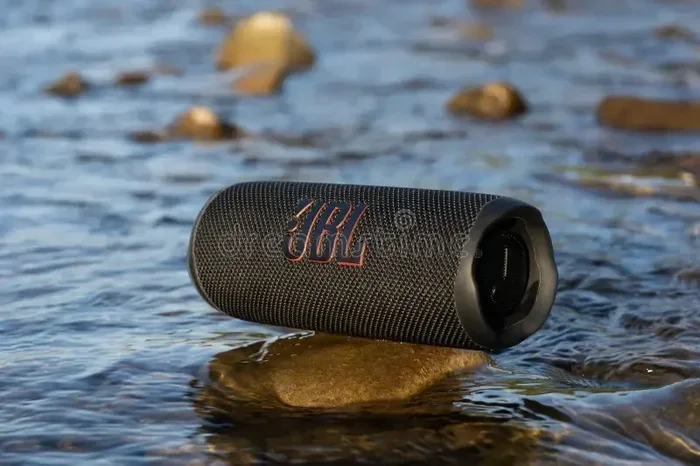
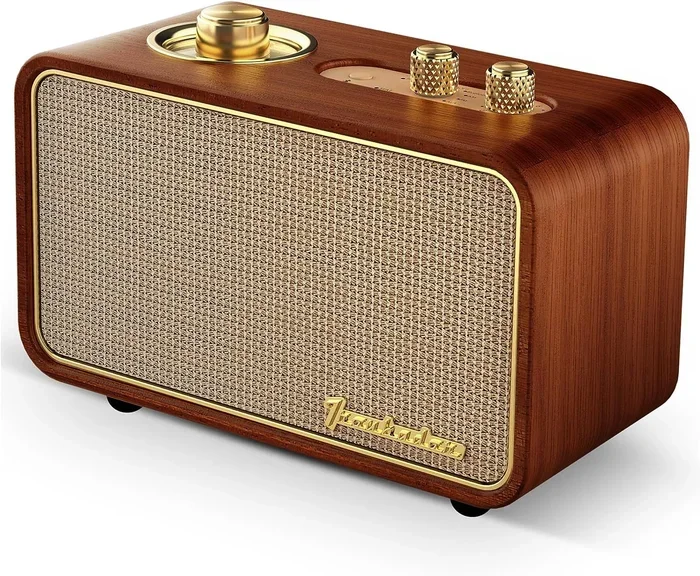
A Bluetooth speaker is a portable wireless speaker that connects to your phone, tablet, or laptop using Bluetooth technology. Instead of using a cable, it sends audio through the air using radio waves. This means you can carry your speaker anywhere and play music without being tied to a wall outlet or a cord.
Most modern speakers use Bluetooth 5.0, which offers a longer range and stronger connection than older versions. The typical Bluetooth range is about 30 feet. But walls and other obstacles can reduce that distance. When you want to connect a speaker to your phone, both devices need to have Bluetooth turned on. One device acts as the sender and the other acts as the receiver. The sender sends audio data, and the receiver plays it through the speaker.
Many people also wonder whether they can use Bluetooth on other devices like hearing aids or TVs. For example, you might ask, can I use Bluetooth on my hearing aid? The answer is yes, many modern hearing aids support Bluetooth. Similarly, if you want to know whether you can make your TV Bluetooth compatible, check out our guide on can I make my TV have Bluetooth. These connections work on the same basic principle as connecting a speaker.
How to Connect to a Bluetooth Speaker Step by Step
This is the core of the guide. Follow these steps carefully and you will have your speaker playing in no time. The process is almost the same whether you use an iPhone, Android phone, laptop, or tablet.
Step 1: Charge Your Bluetooth Speaker
Before you do anything, make sure your speaker has enough battery. A low battery can cause connection problems or prevent pairing altogether. Plug your speaker into a charger and wait until the battery indicator shows it is full. Some speakers turn off automatically when the battery is very low. If your speaker does not turn on, charge it for at least 30 minutes first.
Step 2: Turn on Bluetooth on Your Device
Go to the settings on your phone or computer and find the Bluetooth option. Toggle it on. On most phones, you can swipe down from the top of the screen to access Bluetooth quickly. On a laptop, you can usually find it in the system settings or control panel. Make sure Bluetooth is not just turned on but also set to be visible to other devices. This is sometimes called “discoverable mode.”
Step 3: Put Your Speaker in Pairing Mode
This is the step most people miss. Your speaker needs to be in pairing mode before it can connect. Usually, you press and hold a button labeled “Bluetooth,” “Pair,” or “Power” for a few seconds. The speaker will flash a light or say a voice prompt to let you know it is ready. Check your speaker manual if you are not sure how to do this. Every brand is a little different.
Step 4: Find the Speaker on Your Device
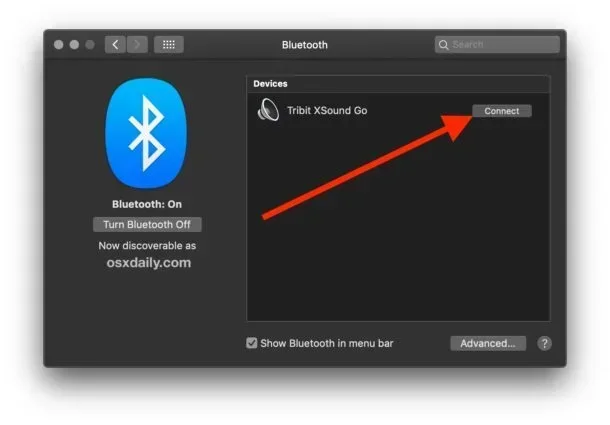
Now go back to your phone or computer and look for available Bluetooth devices. You should see your speaker listed. Tap on it to select it. Some devices will ask you to confirm a pairing code. If so, simply tap “Pair” or “Connect.” Within a few seconds, your device and speaker should be linked.
Step 5: Play Your Audio
Once the connection is made, you can start playing music, podcasts, or any audio on your device. The sound will now come through the speaker. If the volume is too low, use the volume buttons on your device or on the speaker itself. You are now connected and ready to enjoy your wireless audio.
Common Bluetooth Speaker Connection Problems and How to Fix Them
Sometimes things do not go as smoothly as we hope. Maybe your speaker will not connect, or the audio keeps cutting out. These problems are very common and usually easy to fix. Here are the most frequent issues and what you can do about them.
Speaker Not Showing Up on Your Device
If you cannot find your speaker in the Bluetooth list, try these things. First, make sure the speaker is in pairing mode. The light should be flashing, usually blue or red. Second, turn Bluetooth off and back on your device. Third, move closer to the speaker. If none of that works, restart both your device and the speaker. This clears the temporary memory and often fixes the problem.
Audio Keeps Cutting Out
Interrupted audio is usually a distance or interference issue. Bluetooth works best when there are no walls or large objects between the speaker and your device. Stay within 30 feet of the speaker. Also, keep away from Wi-Fi routers and microwaves because they can cause interference on the same frequency. If you are trying to extend my Wi-Fi to about 300 feet outside my home, the same interference principles apply to Bluetooth. Other wireless signals can disrupt your connection.
Paired But No Sound Comes Out
This is a common problem and it is usually easy to fix. First, check that the speaker is selected as the audio output device. On your phone, go to Bluetooth settings and make sure the speaker is connected. On a laptop, click the speaker icon in the taskbar and select your Bluetooth speaker as the output. Also, check the volume on both your device and the speaker. It sounds simple, but it is the cause more often than you would think.
Speaker Will Not Turn Off Pairing Mode
Some speakers stay in pairing mode and will not connect to anything until you reset them. Try turning the speaker off and back on. If that does not work, look for a reset button or a combination of buttons to press. Check the user manual for your specific model. Resetting the speaker clears old pairings and lets you start fresh.
How to Connect a Bluetooth Speaker to Different Devices
The basic pairing process is the same for most devices. But there are a few differences depending on what you are connecting to. Here is how to handle the most common scenarios.
Connecting to a Phone or Tablet
Phones and tablets are the easiest devices to connect to a Bluetooth speaker. Both iOS and Android follow a very similar process. Open your settings, turn on Bluetooth, and look for your speaker. Tap to connect and you are done. Most speakers remember your device and will reconnect automatically the next time you turn them on.
Connecting to a Laptop or Desktop Computer
Connecting a speaker to a computer works the same way but the settings might be in a slightly different place. On Windows, go to Settings, then Devices, then Bluetooth. On a Mac, open System Preferences and click Bluetooth. Make sure your computer is set to allow audio output through Bluetooth. Some older computers may need a Bluetooth adapter if they do not have built-in Bluetooth.
Connecting to a TV
Want to use your Bluetooth speaker with your TV? Not all TVs support Bluetooth natively. If your TV does not have Bluetooth, you can use a Bluetooth transmitter. Simply plug the transmitter into your TV’s audio output and pair it with your speaker. If you are wondering whether you can use Alexa as a Bluetooth speaker for your TV, the answer depends on your setup. You can find more details in our guide on can I use Alexa as a Bluetooth speaker for my TV. Also, if you want to learn how to add Bluetooth to a TV that does not have it, check out our article on can I make my TV have Bluetooth. Both of these resources can help you set up wireless audio from your TV easily.
Connecting to a Roku Device
Roku devices do not support direct Bluetooth audio output in most cases. However, you can use a Bluetooth transmitter to connect your speaker to a Roku. This is similar to the TV setup. If you are interested in using Bluetooth headphones with Roku instead, we have a detailed guide on can I use Bluetooth headphones with Roku. The principles are the same for any Bluetooth audio device you want to connect to a streaming box.
Tips to Get the Best Sound Quality from Your Bluetooth Speaker
Now that you know how to connect, let us talk about how to get the best experience. A few simple tips can make a big difference in the sound quality you get from your wireless speaker.
First, keep your speaker and device close together. The closer they are, the stronger the signal and the better the sound. Second, keep your speaker away from walls and corners. Sound bounces off surfaces and can make your music sound muddy. Placing your speaker in the open gives you the clearest audio.
Third, update your device software. Bluetooth improvements come with software updates. Your phone, laptop, or tablet may have updates that improve Bluetooth performance. Fourth, check if your speaker supports Bluetooth multipoint. This feature lets your speaker connect to two devices at the same time. You can switch between your phone and your laptop without having to disconnect and reconnect each time.
Fifth, avoid using your speaker at maximum volume all the time. Playing at full volume can distort the sound and damage the speaker over time. Keep the volume at about 70 to 80 percent for the best balance of clarity and power. Finally, if you notice static or buzzing, move away from other wireless devices. Wi-Fi signals, microwaves, and even baby monitors can interfere with your Bluetooth connection.
Bluetooth Speaker vs. Wi-Fi Speaker: Which Should You Choose
When you are shopping for wireless speakers, you will come across two main types: Bluetooth speakers and Wi-Fi speakers. Both play music wirelessly, but they work differently. Understanding the difference helps you pick the right one for your needs.
A Bluetooth speaker connects directly to your device. It does not need a Wi-Fi network to work. This makes it very portable. You can take it to the beach, the park, or a friend’s house and play music right away. The downside is that Bluetooth has a limited range and the audio quality is slightly lower than Wi-Fi.
A Wi-Fi speaker connects to your home network. It can stream music from the cloud or from services like Spotify and Apple Music without needing your phone nearby. The range is much better and the sound quality is often higher. But it needs a Wi-Fi network and it is not as portable as a Bluetooth speaker.
If you want a speaker for on-the-go use, go with Bluetooth. If you want a speaker for home use with the best sound quality, consider a Wi-Fi speaker. Some speakers support both Bluetooth and Wi-Fi, giving you the best of both worlds.
| Feature | Bluetooth Speaker | Wi-Fi Speaker |
|---|---|---|
| Portability | Very portable | Less portable |
| Range | About 30 feet | Depends on Wi-Fi range |
| Sound Quality | Good | Better |
| Needs Wi-Fi | No | Yes |
| Setup Difficulty | Very easy | Moderate |
| Price Range | $20-$200 | $50-$500+ |
How to Keep Your Bluetooth Speaker Running at Its Best
Taking care of your Bluetooth speaker helps it last longer and sound better. Here are some simple maintenance tips you should follow.
Always charge your speaker before the battery dies completely. Lithium-ion batteries last longer when you do not let them drain all the way. Store your speaker in a cool, dry place. Heat and moisture can damage the internal components. Clean the speaker grille regularly with a soft cloth to remove dust and lint. This keeps the sound clear and prevents blockages.
If you are not going to use your speaker for a while, charge it to about 50 percent and store it in a drawer. This keeps the battery healthy during long periods of inactivity. Also, keep your speaker’s firmware updated if the manufacturer offers updates. Firmware updates can fix bugs and improve Bluetooth performance.
One more thing to keep in mind: the Bluetooth range can be affected by the environment. Outdoors with no walls, you may get the full 30 feet. Indoors with several walls between the devices, you might only get 15 feet. Understanding this helps you place your speaker in the best spot for a strong connection.
If you ever need to connect your speaker to a device without a standard cable or network, remember that Bluetooth is a wireless alternative that works without any cables at all. For example, if you are wondering how to connect your PC to the internet without an Ethernet cable, Bluetooth is not the answer for internet, but it is perfect for audio. Similarly, if you need to connect devices without a cable, Bluetooth is your go-to solution for audio streaming.
Frequently Asked Questions
How do I put my Bluetooth speaker in pairing mode?
Most speakers have a dedicated Bluetooth or Pair button. Press and hold it for about 3 to 5 seconds until a light starts flashing or you hear a voice prompt. The flashing light means the speaker is ready to connect. Check your speaker manual if you are unsure about the exact method for your model.
Why won’t my Bluetooth speaker connect to my phone?
There are a few common reasons. First, make sure your speaker is in pairing mode. Second, check that Bluetooth is turned on your phone. Third, move closer to the speaker. Fourth, try restarting both devices. If none of that works, forget the speaker from your phone’s Bluetooth list and try pairing again from scratch.
Can I connect my Bluetooth speaker to more than one device at a time?
Some speakers support a feature called Bluetooth multipoint, which allows them to connect to two devices simultaneously. However, most standard Bluetooth speakers can only connect to one device at a time. Check your speaker’s specifications to see if it supports multipoint connectivity.
What is the range of a Bluetooth speaker?
The typical Bluetooth range is about 30 feet in open space. Walls, furniture, and other obstacles can reduce this distance significantly. Bluetooth 5.0 offers better range and stability compared to older Bluetooth versions. For the best experience, stay within 30 feet of your speaker.
How do I disconnect my Bluetooth speaker from a device?
Go to your device’s Bluetooth settings and find the speaker in the list of connected devices. Tap on it and select “Disconnect” or “Forget Device.” You can also simply turn off Bluetooth on your device, which will disconnect all paired speakers. To reconnect later, just turn Bluetooth back on and the devices will pair automatically if they are set to remember each other.
Can I use a Bluetooth speaker without Wi-Fi?
Yes, absolutely. Bluetooth does not need a Wi-Fi connection to work. Bluetooth speakers connect directly to your device using wireless radio signals. This is one of the biggest advantages of Bluetooth speakers. You can use them anywhere, even in places without Wi-Fi like the beach, a park, or a cabin in the woods.
Final Thoughts
Connecting to a Bluetooth speaker is easier than you think. Once you know the steps, you can pair any speaker to any device in under a minute. The key is to make sure both devices have Bluetooth turned on, put the speaker in pairing mode, and select it from your device’s Bluetooth list. If you run into problems, restarting both devices almost always fixes them.
Take care of your speaker, keep it charged, and place it in a good spot for the best sound. Whether you are listening to music at home, hosting a backyard gathering, or taking your speaker on a trip, a Bluetooth connection gives you the freedom to enjoy your audio anywhere. Now that you know how to connect to a Bluetooth speaker, you are ready to get the most out of your wireless audio experience. Enjoy the music!