Can You Use Any Bluetooth Mouse With Your iPad Today
Yes, you can use most Bluetooth mice with your iPad, but not every mouse works perfectly. iPadOS supports standard Bluetooth input devices, yet some mice need extra steps or may have limited features. This guide walks you through Bluetooth mouse compatibility, setup, troubleshooting, and the best options for your iPad.
Using a Bluetooth mouse with your iPad can change the way you work, browse, and play. Whether you are at home, in a coffee shop, or at the office, a wireless mouse gives you more control and comfort than tapping the screen all day. But here is the big question: can you use any Bluetooth mouse with your iPad? The short answer is yes, but there are some important details you need to know before you buy.
iPads have come a long way in recent years. They are no longer just devices for watching videos or scrolling through social media. People use iPads for real work, from writing emails to editing photos and even coding. A good Bluetooth mouse makes all of that easier and faster. In this guide, we will walk you through everything you need to know about using a Bluetooth mouse with your iPad. We will cover compatibility, setup, the best options, and how to fix common problems.
Key Takeaways
- Most Bluetooth mice work with iPad: iPads running iPadOS 13 or later support a wide range of Bluetooth input devices.
- Not all mice are equal: Some Bluetooth mice may have limited button support or need third-party software to work fully.
- Pairing is simple: You can connect a Bluetooth mouse to your iPad through the Settings app in just a few taps.
- Latency and battery matter: Look for low-latency mice with good battery life for the best iPad productivity experience.
- Troubleshooting is easy: Most connection issues can be fixed by resetting Bluetooth, updating iPadOS, or re-pairing the device.
- Third-party mice are great budget options: You do not need to buy the Apple Magic Mouse to get a good experience.
📑 Table of Contents
- What Is a Bluetooth Mouse and How Does It Work With iPad
- Can You Use Any Bluetooth Mouse With iPad
- How to Connect a Bluetooth Mouse to Your iPad
- Best Bluetooth Mice for iPad
- Common Problems and How to Fix Them
- Bluetooth Mouse vs. Apple Magic Mouse for iPad
- Can You Use a Bluetooth Mouse With iPad for Productivity
- Final Thoughts
What Is a Bluetooth Mouse and How Does It Work With iPad
A Bluetooth mouse is a wireless mouse that connects to your device using Bluetooth technology. There is no USB dongle or cable needed. You simply pair the mouse with your iPad, and it works just like a wired mouse would. The iPad sends and receives signals through its built-in Bluetooth chip, which handles the wireless connection.
How Bluetooth Connectivity Works on iPad
iPad uses Bluetooth Low Energy (BLE) for most wireless accessories. This means the connection uses very little power, which helps save your iPad battery. When you pair a Bluetooth mouse with your iPad, the two devices exchange a small amount of data to establish the connection. After that, the mouse sends movement and click data wirelessly to your iPad.
The iPadOS operating system recognizes most standard Bluetooth input devices. This includes wireless mice from brands like Logitech, Microsoft, Anker, and many others. Apple also includes support for its own Magic Mouse, which is designed specifically for iPad use. But here is where things get interesting: not every Bluetooth mouse works the same way on an iPad.
Why Bluetooth Device Compatibility Matters
Just like with Bluetooth headphones and gaming consoles, not all Bluetooth devices play nice with every gadget. The same idea applies to Bluetooth mice and iPads. Some mice use Bluetooth profiles that iPadOS fully supports, while others may use profiles that iPad does not recognize. This is why you need to check compatibility before you buy a Bluetooth mouse for your iPad.
For example, some gaming mice have extra buttons and features that work great on a PC but may not function properly on an iPad. The iPad does not support the same level of customization as a desktop computer. So if you are looking for a Bluetooth mouse for basic tasks like clicking, scrolling, and navigating, most mice will work fine. But if you need advanced features, you may need to do a bit more research.
Can You Use Any Bluetooth Mouse With iPad
This is the question most people ask, and the answer is not as simple as yes or no. Most Bluetooth mice will work with iPad, but the level of support can vary. Let us break this down so you know exactly what to expect.
Mice That Work Without Any Extra Setup
The easiest Bluetooth mice to use with iPad are those that follow the standard Bluetooth Human Interface Device (HID) profile. This is the same profile used by keyboards, game controllers, and other input devices. Most modern wireless mice from well-known brands use this profile. Here are some examples of mice that typically work right out of the box:
- Logitech MX Master series – These are popular Bluetooth mice that work well with iPad.
- Microsoft Surface Mouse – Designed for Windows but works fine with iPad.
- Anker wireless mice – Affordable options that support standard Bluetooth HID.
- Apple Magic Mouse – The official Apple option, designed specifically for iPad and iPhone.
- Jelly Comb Bluetooth mice – Budget-friendly options that work with most tablets.
All of these mice connect to iPad using the standard Bluetooth pairing process. You do not need any extra software or adapters. They just work. This makes them great choices if you want a simple, hassle-free setup.
Mice That May Need Extra Steps
Some Bluetooth mice use proprietary software or custom Bluetooth profiles. These mice may not work fully on iPad without extra effort. For example, some gaming mice from Razer or SteelSeries come with companion apps that let you customize buttons and sensitivity. iPadOS does not support these apps, so those extra features will not work.
However, the basic functions of these mice usually still work. You can still move the cursor, click, and scroll. The extra buttons might do nothing, or they might perform unexpected actions. If you are okay with basic functionality, a gaming Bluetooth mouse can still be a good choice for iPad.
Also, keep in mind that some older Bluetooth mice may not work with newer iPads. iPadOS updates sometimes drop support for older Bluetooth standards. If you have an older mouse, it is a good idea to check online forums or the manufacturer website to see if it is compatible with iPadOS.
How to Connect a Bluetooth Mouse to Your iPad
Connecting a Bluetooth mouse to your iPad is a straightforward process. Follow these steps, and you will be up and running in just a couple of minutes.
Step-by-Step Setup Guide
- Turn on your Bluetooth mouse. Most mice have a power switch on the bottom or side. Flip it to the on position. Some mice may need you to press and hold a pairing button for a few seconds.
- Open Settings on your iPad. Tap the gear icon on your home screen to launch the Settings app.
- Tap Bluetooth. This will take you to the Bluetooth settings page. Make sure Bluetooth is turned on.
- Wait for your mouse to appear. Your iPad will scan for nearby Bluetooth devices. Your Bluetooth mouse should show up in the list of available devices.
- Tap on your mouse to pair. Tap the name of your mouse in the list. iPad will connect to it automatically.
- Test the connection. Move your mouse around and click to make sure everything is working smoothly.
Tips for a Smooth Pairing Process
Sometimes the pairing process does not go perfectly the first time. Here are a few tips to help things along:
- Turn Bluetooth off and on again if your mouse does not appear in the list.
- Make sure your mouse is charged. A low battery can cause pairing problems.
- Keep your mouse close to your iPad during pairing. Bluetooth range is usually about 30 feet, but being closer helps during setup.
- Restart your iPad if you are having trouble finding the mouse in the Bluetooth list.
- Remove old pairings. If your mouse was previously paired with another device, it may not show up on iPad. Reset the mouse and try again.
Much like how you might add Bluetooth capability to your TV, connecting a Bluetooth mouse to iPad is all about getting the two devices to recognize each other. Once paired, the connection is automatic and seamless.
Best Bluetooth Mice for iPad
Not all Bluetooth mice are created equal. Some are better suited for iPad use than others. Here are some of the best options you can consider, organized by category.
Best Overall: Logitech MX Master 3S
The Logitech MX Master 3S is one of the most popular Bluetooth mice on the market, and for good reason. It has a comfortable ergonomic design, excellent battery life, and smooth tracking on almost any surface. It connects via Bluetooth and also supports Logitech’s Flow feature, which lets you use one mouse across multiple devices.
The MX Master 3S works great with iPad. You get full cursor control, smooth scrolling, and customizable buttons through the Logitech Options app on a computer. On iPad itself, the basic functions work perfectly. The scroll wheel and side buttons are especially useful for navigating long documents and web pages.
Best Budget: Anker Wireless Mouse
If you do not want to spend a lot, the Anker wireless mouse is a solid choice. It is compact, lightweight, and uses a standard Bluetooth connection. It works with iPad right out of the box. The battery lasts for months on a single AAA battery, and the small size makes it easy to carry around.
For basic tasks like browsing, writing, and navigating apps, this Bluetooth mouse does the job well. It does not have all the fancy features of more expensive mice, but it is reliable and affordable.
Best Premium: Apple Magic Mouse
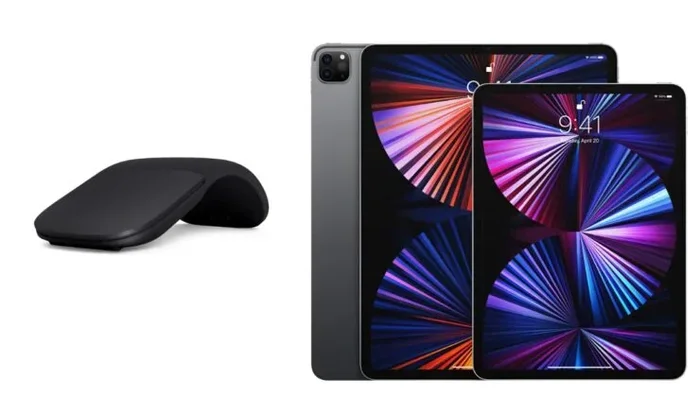
The Apple Magic Mouse is the official Bluetooth mouse for iPad. It has a sleek design and supports multi-touch gestures, just like the iPad trackpad. You can swipe between pages, scroll with two fingers, and more. It connects seamlessly with iPad through Bluetooth.
The downside is the price. The Magic Mouse is one of the more expensive options, and some users find the flat design uncomfortable for long use. It also has a touch-sensitive surface instead of physical buttons, which takes some getting used to. But if you want the most integrated iPad experience, the Magic Mouse is hard to beat.
Comparison Table
| Mouse | Price Range | Bluetooth | Battery Life | Best For |
|---|---|---|---|---|
| Logitech MX Master 3S | $90-$100 | Yes | 70 days | Power users and professionals |
| Anker Wireless Mouse | $15-$25 | Yes | 12+ months | Budget-conscious users |
| Apple Magic Mouse | $79-$99 | Yes | 1 month | Seamless Apple ecosystem users |
| Microsoft Surface Mouse | $50-$60 | Yes | 12 months | Simple and reliable use |
Common Problems and How to Fix Them
Even though connecting a Bluetooth mouse to iPad is usually easy, you may run into some issues. Here are the most common problems and how to solve them.
Mouse Not Showing Up in Bluetooth Settings
This is the most common issue. If your Bluetooth mouse does not appear in the iPad Bluetooth list, try these steps:
- Make sure your mouse is in pairing mode. Most mice have a flashing light when they are ready to pair.
- Turn Bluetooth off and back on in iPad settings.
- Restart your iPad and try again.
- Check if the mouse is already connected to another device. Disconnect it from other devices and try again.
- Make sure your iPad is running the latest version of iPadOS. Updates often fix Bluetooth connectivity issues.
Cursor Jumping or Lagging
If your cursor moves erratically or there is a delay, try these fixes:
- Move closer to your iPad. Bluetooth range can be affected by walls and other obstacles.
- Check for interference. Other wireless devices, USB 3.0 ports, and even microwaves can interfere with Bluetooth signals.
- Replace batteries. Low battery power can cause lag and erratic behavior.
- Reset the mouse. Turn it off and on again, or hold the pairing button to reset the connection.
Buttons Not Working as Expected
Some Bluetooth mice have extra buttons that do not work on iPad. This is because iPadOS does not support all mouse button mappings. If a side button does nothing or performs an unexpected action, this is normal. Unfortunately, there is not much you can do about this unless the mouse manufacturer releases an iPad-specific update.
For a deeper dive into Bluetooth troubleshooting, you might find it helpful to learn about how Bluetooth audio devices communicate with iPads, since many of the same principles apply to input devices like mice.
Bluetooth Mouse vs. Apple Magic Mouse for iPad
When it comes to using a Bluetooth mouse with iPad, many people wonder whether they should buy a third-party mouse or stick with the Apple Magic Mouse. Let us compare the two so you can make an informed decision.
The Apple Magic Mouse offers the best integration with iPadOS. It supports multi-touch gestures right out of the box, and it charges through a Lightning or USB-C cable. The design is slim and lightweight, which makes it easy to carry. However, it has no physical buttons, which some users find uncomfortable. The battery life is also shorter than most third-party options.
Third-party Bluetooth mice from brands like Logitech and Anker offer more physical buttons, better battery life, and ergonomic designs. They may not have the same level of gesture support as the Magic Mouse, but for most users, the basic functions are more than enough. Plus, they often cost less than the Apple option.
If you value simplicity and seamless integration, go with the Magic Mouse. If you want more features, better battery life, and a lower price, a third-party Bluetooth mouse is the way to go. Much like choosing between any Bluetooth headphones and specific ones for a console, the best choice depends on your needs and budget.
Can You Use a Bluetooth Mouse With iPad for Productivity
Absolutely. A Bluetooth mouse can greatly boost your iPad productivity. Whether you are writing documents, editing spreadsheets, or designing graphics, a mouse makes navigation faster and more precise. You can click exactly where you want, scroll through long pages with ease, and use keyboard shortcuts with a mouse in hand.
Many professionals use iPads as their primary work devices. A Bluetooth mouse turns an iPad into a laptop-like workstation without the bulk. You can connect your mouse, attach a keyboard, and have a full productivity setup that fits in a bag.
If you are new to using a mouse with iPad, give yourself a few days to adjust. The cursor behavior on iPad is slightly different from a computer. It disappears when you are not moving the mouse, and it appears when you tap the screen or move the mouse. This is designed to give you more screen space, and most users get used to it quickly.
For more on using Bluetooth accessories with Apple devices, you might also enjoy reading about using AirPods with Cardo devices, which covers another popular Bluetooth accessory pairing scenario.
Final Thoughts
The answer to the question can you use any Bluetooth mouse with iPad is a hopeful yes. Most modern Bluetooth mice will work with your iPad, especially if they follow the standard Bluetooth HID profile. You can connect them easily through the Settings app, and they work great for everyday tasks. While some advanced features may not be fully supported, the basic functions of clicking, scrolling, and navigating work reliably.
When choosing a Bluetooth mouse for your iPad, consider your needs and budget. If you want the best integration, the Apple Magic Mouse is a solid choice. If you want more features and better value, brands like Logitech and Anker offer excellent options. And if you run into any issues, the troubleshooting steps in this guide should help you get things working smoothly.
A Bluetooth mouse is one of the simplest and most affordable ways to make your iPad more productive and comfortable to use. So go ahead, pick one that fits your needs, and enjoy the freedom of wireless control on your iPad.
Frequently Asked Questions
Do I Need Any Special Software to Use a Bluetooth Mouse With iPad?
No, you do not need any special software. iPadOS has built-in support for standard Bluetooth input devices. You can connect most Bluetooth mice directly through the Settings app. Some mice may come with companion apps for PC or Mac, but those apps are not needed for iPad.
Can I Use a Gaming Mouse With My iPad?
Yes, you can use most gaming Bluetooth mice with iPad. The basic functions like clicking, scrolling, and moving the cursor will work. However, extra buttons and advanced features may not be fully supported since iPadOS does not support gaming mouse software. For basic use, a gaming mouse works fine.
Why Does My Bluetooth Mouse Keep Disconnecting From My iPad?
This can happen for a few reasons. Low battery is the most common cause. Interference from other wireless devices can also trigger disconnections. Try keeping your mouse charged, moving closer to your iPad, and turning Bluetooth off and on again. If the problem continues, forget the device in Bluetooth settings and re-pair it.
Is the Apple Magic Mouse Worth It for iPad Use?
It depends on your needs. The Magic Mouse offers the best integration with iPadOS and supports multi-touch gestures. However, it is expensive and has a flat design that some users find uncomfortable. If you are already in the Apple ecosystem and value seamless integration, it is worth it. Otherwise, a third-party Bluetooth mouse may offer better value.
Can I Use Multiple Bluetooth Mice With One iPad?
You can pair multiple Bluetooth mice with your iPad, but only one can be active at a time. To switch between mice, go to Bluetooth settings and disconnect one before connecting the other. This can be useful if you share your iPad with someone who prefers a different mouse.
Does a Bluetooth Mouse Work Better Than the iPad Touchscreen for Productivity?
For many tasks, yes. A Bluetooth mouse allows for faster navigation, precise clicking, and easier scrolling through long documents. It also gives you a more traditional computing experience. However, the touchscreen is still essential for tasks like drawing, typing, and certain apps. Many users find that using both together gives the best results.
=== CONCLUSION ===
Using a Bluetooth mouse with your iPad is a simple and effective way to boost your productivity and comfort. Most Bluetooth mice work with iPad right out of the box, and the setup process is quick and easy. Whether you choose a budget-friendly option or invest in a premium model, you will enjoy the benefits of wireless control on your iPad. Remember to check compatibility before you buy, follow the pairing steps carefully, and do not hesitate to troubleshoot if something goes wrong. With the right Bluetooth mouse, your iPad becomes an even more powerful and versatile tool for work and play.