Can You Transmit A Tv Signal Wirelessly Without Wires
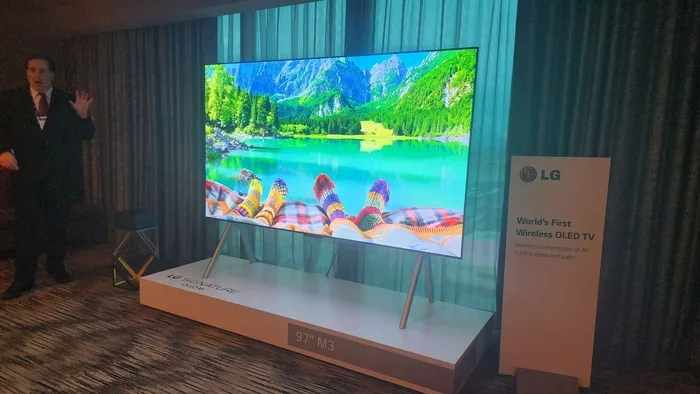
Yes, you can transmit a TV signal wirelessly without wires using technologies like wireless HDMI transmitters, screen mirroring, and Wi-Fi streaming. Whether you want to cast from your phone, mirror your laptop, or send audio to Bluetooth speakers, there are plenty of cable-free options. This guide breaks down every method so you can choose the best wireless TV setup for your home.
Have you ever looked at a tangle of cables behind your TV and thought there has to be a better way? The good news is that you absolutely can transmit a TV signal wirelessly without wires. Whether you want to stream content from your phone, mirror your laptop screen, or send audio to a speaker across the room, wireless TV technology has come a long way.
In this guide, we will walk through every method you can use to go cable-free with your TV setup. From wireless HDMI transmitters to Bluetooth audio streaming, you will find practical solutions that fit any budget and any room. Let us dive in and explore how you can ditch those messy cords for good.
Key Takeaways
- Wireless TV transmission is possible using HDMI wireless transmitters, Wi-Fi streaming, and Bluetooth connections.
- Screen mirroring lets you cast your phone or laptop screen to your TV without any cables.
- Wireless HDMI kits deliver high-quality video and audio from a source device to your TV over the air.
- Bluetooth speakers and headphones can receive TV audio wirelessly, cutting the cord on your sound setup.
- Wi-Fi streaming devices like Roku, Chromecast, and Fire Stick make wireless TV streaming simple and affordable.
- Common mistakes include choosing the wrong frequency band and ignoring interference from other devices.
📑 Table of Contents
- What Does It Mean to Transmit a TV Signal Wirelessly?
- Wireless HDMI Transmitters: The Best Way to Go Cable-Free
- Screen Mirroring and Casting: Stream From Any Device
- Using Wi-Fi Streaming Devices for Wireless TV Access
- Bluetooth Audio: Going Wireless with TV Sound
- Using a Projector Instead of a TV for Wireless Viewing
- Common Mistakes to Avoid When Setting Up Wireless TV
- Quick Tips for the Best Wireless TV Experience
- Final Thoughts: Going Wireless With Your TV
What Does It Mean to Transmit a TV Signal Wirelessly?
Transmitting a TV signal wirelessly means sending video and audio from a source device to your television without using physical cables. Instead of plugging an HDMI cord from your laptop or streaming stick into the TV, the signal travels through the air using radio frequencies or Wi-Fi.
This technology has been around for a while, but it has gotten much better in recent years. Early wireless TV solutions were slow and blurry. Today, you can get near-lossless quality with modern wireless transmitters and streaming protocols. The result is a clean, clutter-free entertainment setup that looks great and works well.
How Wireless TV Signals Work
Most wireless TV transmission uses one of three methods. The first is radio frequency (RF) transmission, which sends the signal through the air like a traditional broadcast. The second is Wi-Fi-based streaming, where your device and TV connect to the same network and share data. The third is Bluetooth transmission, which is great for audio but less common for video.
Each method has its strengths. RF transmission offers low latency and high quality. Wi-Fi streaming is flexible and widely supported. Bluetooth is simple and perfect for audio-only needs. Your choice depends on what you want to do with your wireless TV setup.
Wireless HDMI Transmitters: The Best Way to Go Cable-Free
If you want the closest thing to a wired HDMI experience without the cable, a wireless HDMI transmitter is your best bet. These kits come with a sender unit and a receiver unit. You plug the sender into your source device, and the receiver plugs into your TV. The signal travels between them wirelessly.
Most wireless HDMI kits support 1080p or even 4K resolution. Latency is usually very low, making them great for gaming and movies. You can set one up in minutes, and it works with almost any TV and source device.
Top Uses for Wireless HDMI Transmitters
- Gaming consoles: Stream gameplay from a console to a TV in another room without running cables through walls.
- Home theater setups: Place your Blu-ray player or streaming box out of sight and still get full-quality video.
- Presentations: Share your laptop screen with a projector or TV during meetings without fumbling with cables.
- Rental properties: Set up a TV quickly without leaving cables exposed or drilling holes.
If you are looking for a simple way to cast your screen to a TV, wireless HDMI transmitters deliver excellent results. They are especially useful when you want to mirror your phone or laptop to a TV in a different room. For more on mirroring, check out our guide on Can I Mirror iPhone To TV With Hdmi.
Screen Mirroring and Casting: Stream From Any Device
Screen mirroring is one of the easiest ways to transmit a TV signal wirelessly. Almost every modern smartphone, tablet, and laptop supports some form of screen mirroring. You just connect your device to the same Wi-Fi network as your TV and cast your screen.
Apple users can use AirPlay to mirror their iPhone or iPad to an Apple TV or compatible smart TV. Android users can use Google Cast or Chromecast to do the same. Windows PCs can use Miracast for wireless display streaming. Each of these methods lets you send your screen to the TV without a single cable.
How to Mirror Your Screen Step by Step
- Make sure your TV and your device are on the same Wi-Fi network.
- Open the screen mirroring or casting feature on your device.
- Select your TV from the list of available devices.
- Your screen should now appear on the TV in real time.
Screen mirroring works great for sharing photos, presenting slideshows, or streaming apps that do not have a native TV version. However, it can sometimes lag or drop frames if your Wi-Fi signal is weak. For the best experience, make sure your Wi-Fi signal is strong in the room where your TV is located. You might want to look into a Wi-Fi booster if you have dead zones in your home.
If you want to project your phone screen onto a wall or surface instead of a TV, you might be interested in our article on Can I Pair My Phone To A Projector.
Using Wi-Fi Streaming Devices for Wireless TV Access
Wi-Fi streaming devices are probably the most popular way people transmit TV signals wirelessly today. Devices like Roku, Amazon Fire Stick, Apple TV, and Google Chromecast plug into your TV’s HDMI port and connect to your Wi-Fi network. From there, you can access thousands of streaming apps and cast content from your phone.
These devices turn any TV with an HDMI port into a smart TV. You do not need a cable box or any extra hardware. Just connect the streaming device to Wi-Fi, download your favorite apps, and start watching.
Comparing Popular Wi-Fi Streaming Devices
| Device | Resolution | Price Range | Best For |
|---|---|---|---|
| Roku Ultra | 4K HDR | $50-$100 | Wide app selection and easy setup |
| Amazon Fire Stick 4K | 4K HDR | $30-$50 | Amazon ecosystem and budget-friendly |
| Apple TV 4K | 4K HDR | $130-$180 | Apple users and high-quality streaming |
| Google Chromecast | 4K HDR | $30-$50 | Google users and simple casting |
Each of these devices uses your home Wi-Fi network to receive and transmit the TV signal. They are all wireless and require no cables beyond the initial HDMI connection. If your Wi-Fi is slow or unreliable, streaming quality will suffer. That is why it helps to boost your Wi-Fi at home to ensure smooth, buffer-free viewing.
Bluetooth Audio: Going Wireless with TV Sound
While Bluetooth is not ideal for transmitting video, it works wonderfully for TV audio. Many modern TVs support Bluetooth, which lets you connect wireless headphones, speakers, or soundbars directly to your television. This is perfect for late-night watching or when you want to listen to audio in a different room.
To connect Bluetooth audio to your TV, go into your TV’s settings and look for the Bluetooth option. Put your headphones or speaker in pairing mode, and they should connect within seconds. You can then watch TV at your preferred volume without disturbing anyone else in the house.
Bluetooth audio works well for most people, but there are a few things to keep in mind. Bluetooth has a limited range, usually around 30 feet. Walls and furniture can weaken the signal. Also, Bluetooth can introduce a slight audio delay, which might be noticeable during fast-paced action scenes. For the best results, look for Bluetooth 5.0 or newer devices, which offer better range and lower latency.
If you are curious about using Bluetooth audio in unusual settings, our article on Can I Use A Bose Speaker In The Shower explores creative Bluetooth speaker uses.
Using a Projector Instead of a TV for Wireless Viewing
Another popular way to enjoy a wireless TV experience is by using a projector. You can pair your phone, laptop, or streaming device to a projector and display content on a big screen or even a blank wall. This is a great option for movie nights, gaming, or presentations.
Many modern projectors support Wi-Fi and Bluetooth connectivity. Some even have built-in streaming apps, so you do not need any external devices. You can also cast your screen wirelessly to a projector just like you would with a TV.
Projector Screen Options Without a Physical Screen
You do not need a fancy projector screen to enjoy wireless projection. A clean white wall works great in most cases. If you want a better image, you can hang a white sheet or use blackout curtains as a makeshift screen. For more ideas, check out our articles on Can I Use A Sheet As A Projector Screen and Can I Use Blackout Curtains As A Projector Screen.
Using a projector wirelessly gives you a lot of flexibility. You can set it up in any room, point it at any flat surface, and stream content from your phone or laptop. It is one of the most versatile wireless TV transmission options available today.
Common Mistakes to Avoid When Setting Up Wireless TV
Going wireless with your TV setup is exciting, but there are some common pitfalls you should watch out for. Avoiding these mistakes will save you frustration and help you get the best possible experience.
1. Ignoring Wi-Fi Band Selection
Most wireless devices use either the 2.4 GHz or 5 GHz Wi-Fi band. The 2.4 GHz band has a longer range but slower speeds. The 5 GHz band is faster but has a shorter range. If you experience lag or buffering, try switching to the 5 GHz band if your devices support it.
2. Placing the Wireless Transmitter Too Far Away
Wireless HDMI transmitters and Wi-Fi streaming devices have a limited range. Placing the sender unit too far from the receiver can cause signal drops or quality loss. Keep the devices within the recommended range for the best performance.
3. Forgetting About Interference
Other electronic devices can interfere with wireless TV signals. Microwaves, baby monitors, and even neighboring Wi-Fi networks can cause disruptions. If your wireless TV setup is acting up, try moving the transmitter away from other electronics.
4. Using Outdated Equipment
Older wireless transmitters and streaming devices may not support the latest video codecs or resolutions. If you are buying new equipment, look for devices that support 4K and HDR for the best picture quality.
Quick Tips for the Best Wireless TV Experience
- Use a wired Ethernet connection for your streaming device when possible. It provides a more stable connection than Wi-Fi alone.
- Restart your router regularly to keep your wireless network running smoothly.
- Invest in a quality wireless HDMI kit if you need zero-lag video transmission.
- Keep your devices updated with the latest firmware for the best performance and security.
- Test your setup in the actual room before mounting your TV or projector permanently.
Final Thoughts: Going Wireless With Your TV
Transmitting a TV signal wirelessly without wires is not only possible, it is also easier than most people think. Whether you choose a wireless HDMI transmitter, screen mirroring, a Wi-Fi streaming device, or Bluetooth audio, there is a solution that fits every need and budget. The days of running cables through walls and across floors are fading fast.
Wireless TV technology continues to improve every year. Newer standards bring better quality, lower latency, and longer range. If you have not tried a wireless TV setup yet, now is a great time to explore your options. Start with one method, test it out, and build from there. You will be surprised at how clean and simple your entertainment area can look without all those cables.
Take some time to experiment with the different methods we covered. Try screen mirroring from your phone, set up a wireless HDMI kit for your gaming console, or connect Bluetooth headphones for late-night viewing. Once you experience the freedom of a wireless TV setup, you will never want to go back to tangled cords again.
Frequently Asked Questions
Can I transmit a TV signal wirelessly without any special equipment?
Yes, if your TV and phone or laptop support screen mirroring or casting, you can transmit a TV signal wirelessly without any extra equipment. Both devices just need to be on the same Wi-Fi network. However, for the best quality and reliability, a wireless HDMI transmitter or streaming device is recommended.
Is wireless TV signal transmission as good as a wired connection?
Modern wireless transmission is very close to wired quality. Wireless HDMI kits can deliver 4K resolution with minimal lag. However, Wi-Fi streaming can sometimes experience buffering or lower quality if your internet connection is slow. For critical applications like gaming, a wired connection still offers the most consistent performance.
What is the best wireless TV streaming device?
The best device depends on your needs. Roku Ultra offers the widest app selection. Amazon Fire Stick 4K is the most budget-friendly. Apple TV 4K is the best choice for Apple users. Google Chromecast is ideal for simple screen casting. Each of these devices transmits your TV signal wirelessly over your home Wi-Fi network.
Can I use Bluetooth to transmit video from my TV?
Bluetooth is not well-suited for video transmission due to its limited bandwidth and range. It works great for audio, but for video, you should use Wi-Fi streaming, screen mirroring, or a wireless HDMI transmitter instead. These methods deliver much better video quality and reliability.
How far can a wireless HDMI transmitter reach?
Most wireless HDMI transmitters can reach between 30 and 100 feet depending on the model and obstacles. Walls, furniture, and other electronics can reduce the effective range. For best results, keep the sender and receiver units within the manufacturer’s recommended distance and away from interference sources.
Do I need a smart TV to transmit a TV signal wirelessly?
No, you do not need a smart TV. You can use a wireless HDMI transmitter or a streaming device like Chromecast, Roku, or Fire Stick to add wireless capabilities to any TV with an HDMI port. These devices make any TV capable of receiving wireless signals from your phone, laptop, or tablet.
=== CONCLUSION ===
Transmitting a TV signal wirelessly without wires is a practical and increasingly popular way to enjoy your favorite content. From wireless HDMI transmitters to screen mirroring and Wi-Fi streaming devices, you have many options to choose from. Each method offers different benefits, so pick the one that best fits your lifestyle and entertainment needs.
Remember to keep your Wi-Fi strong, avoid common setup mistakes, and invest in quality equipment for the best results. A wireless TV setup not only looks better but also gives you more flexibility in how and where you enjoy your content. Start exploring your options today and enjoy the freedom of a truly cable-free entertainment experience.