Can You Play Spotify On Two Bluetooth Speakers At Once
Yes, you can play Spotify on two Bluetooth speakers at once using built-in features, third-party apps, or speaker-specific modes. This guide walks you through every method so you can fill any room with rich, synchronized sound. Whether you own JBL, Sony, or any other brand, you will find a working solution here.
Have you ever wanted to turn a small room into a party space or fill your backyard with music? Playing Spotify on two Bluetooth speakers at once is one of the easiest ways to boost your audio experience. You do not need expensive equipment or technical skills. In this guide, we walk you through every method, tip, and trick to get two speakers playing in perfect sync.
Many people assume you can only connect one speaker to your phone at a time. That is no longer true. Modern smartphones, speaker brands, and apps all support multi-speaker playback. Whether you are using JBL speakers, Sony devices, or any other brand, there is a way to get both speakers playing your favorite Spotify playlist together.
The process is simpler than most people think. You can use native phone features, speaker companion apps, or even free third-party tools. We will cover each option in detail below so you can pick the one that works best for your setup.
Key Takeaways
- Spotify has a built-in feature that lets you group speakers for synchronized playback.
- Bluetooth dual audio works on many Android phones without extra apps.
- Third-party apps like AmpMe can connect multiple speakers across different brands.
- Speaker brand apps often include party modes for multi-speaker setups.
- Latency and range issues are common, but easy fixes exist.
- You do not need Wi-Fi for Bluetooth speaker pairing.
📑 Table of Contents
- What Does Playing Spotify on Two Bluetooth Speakers Mean?
- Method 1: Use Spotify’s Built-In Speaker Grouping
- Method 2: Use Android’s Dual Bluetooth Audio Feature
- Method 3: Use a Third-Party App Like AmpMe
- Method 4: Use Your Speaker Brand’s Party Mode
- Can You Connect Two Bluetooth Speakers to an iPhone?
- Tips for the Best Dual Speaker Experience
- Common Problems and How to Fix Them
- Which Method Should You Choose?
- Final Thoughts
What Does Playing Spotify on Two Bluetooth Speakers Mean?
When we say play Spotify on two Bluetooth speakers at once, we mean sending the same audio stream to two separate speakers simultaneously. Both speakers output the same track, creating a wider soundstage or louder volume. This setup is often called dual speaker mode, party mode, or speaker grouping.
The two speakers can be the same model or different brands. Some methods require both speakers to be from the same manufacturer, while others let you mix and match. The key goal is simple: one phone, one Spotify account, two speakers, and shared audio.
Why Would You Want This Setup?
There are many reasons to use two Bluetooth speakers together:
- Louder volume: One speaker often cannot fill a large room. Two speakers double the sound output.
- Better coverage: Placing speakers in different corners of a room reduces dead spots.
- Outdoor gatherings: A backyard or beach party needs more power than a single speaker can provide.
- Stereo separation: Some setups let you use one speaker for left audio and another for right audio.
- No extra wires: Bluetooth means you avoid messy cables and complicated setups.
Many people also use this setup as an alternative to a full wireless speaker system. It is affordable, portable, and surprisingly effective.
Method 1: Use Spotify’s Built-In Speaker Grouping
Spotify itself offers a native way to group speakers. This method works if both speakers support Spotify Connect. Spotify Connect lets you stream music directly to compatible speakers over your Wi-Fi network, not just through Bluetooth.
How to Set It Up
Follow these simple steps to group speakers using Spotify:
- Open the Spotify app on your phone or tablet.
- Start playing any song or playlist.
- Tap the speaker icon in the bottom player bar.
- Select the first speaker from the list of available devices.
- Once connected, tap the speaker icon again.
- Look for the Group speakers or Speaker Group option.
- Choose the second speaker you want to add.
- Both speakers will now play the same track in sync.
This method produces the cleanest audio because Spotify streams directly to each speaker. You do not lose sound quality the way you might with Bluetooth. The only requirement is that both speakers must be on the same Wi-Fi network.
Which Speakers Support Spotify Connect?
Most smart speakers support Spotify Connect. Brands like Sonos, Bose, JBL, and Sony include this feature in their apps. If your speaker has the Spotify logo on its box or in its app, it likely works with this method.
If your speakers do not support Spotify Connect, do not worry. We have other methods below that work over Bluetooth directly.
Method 2: Use Android’s Dual Bluetooth Audio Feature
If you use an Android phone, you may already have the ability to connect to two Bluetooth speakers at the same time. Android 13 and later versions include a dual audio feature that lets you pair with two Bluetooth devices simultaneously.
How to Enable Dual Audio on Android
Here is how you can turn this feature on and use it:
- Open your phone’s Settings app.
- Go to Connections or Bluetooth, depending on your phone model.
- Turn on Bluetooth and pair both speakers to your phone.
- Once both speakers are connected, open Spotify.
- Start playing music.
- The audio should automatically route to both speakers.
Not all Android phones support this feature. Samsung, Google Pixel, and OnePlus devices are the most reliable. If your phone does not have dual audio, the next method will work for any device.
One thing to watch out for: latency. Because Bluetooth audio travels wirelessly, the two speakers may not be perfectly in sync. This is more noticeable with lower-quality speakers or when the speakers are far apart from each other.
Limitations of Dual Audio
- No stereo separation: Both speakers play the same mono mix.
- Range limits: Bluetooth works best within about 30 feet of your phone.
- Connection drops: Moving too far from one speaker can cause audio to cut out.
Method 3: Use a Third-Party App Like AmpMe
When native options do not work, third-party apps come to the rescue. AmpMe is the most popular app for syncing multiple Bluetooth speakers. It works with both Android and iOS and supports speakers from any brand.
How AmpMe Works
AmpMe creates a virtual audio bridge between your phone and multiple speakers. Here is how to use it:
- Download AmpMe from the Google Play Store or Apple App Store.
- Open the app and create a free account.
- Select Host a Party from the main screen.
- Choose Spotify as your music source.
- Invite your other speakers to join the party by sharing the room code.
- All connected speakers will start playing the same track.
AmpMe is free for basic use. The premium version removes ads and adds better sync features. The app works over Wi-Fi or Bluetooth, giving you flexibility based on your setup.
Pros and Cons of AmpMe
- Pros: Works with any speaker brand, easy to set up, supports large groups.
- Cons: Requires a stable internet connection, slight audio delay possible.
Many users also ask about using their speaker with other devices. For example, you might wonder can you use Bluetooth headphones with Roku or other streaming devices. The same Bluetooth principles apply across all these scenarios.
Method 4: Use Your Speaker Brand’s Party Mode
Many speaker brands include a dedicated party mode or multi-room feature in their companion apps. This is often the easiest and most reliable way to connect two speakers.
JBL PartyBoost
JBL speakers with PartyBoost let you connect two or more compatible JBL speakers wirelessly. Simply press the PartyBoost button on one speaker, then press it on the second speaker. Both will pair instantly and play your Spotify music together.
Sony Wireless Party Chain
Sony speakers support Wireless Party Chain through the Music Center app. You can connect up to 100 Sony speakers in a chain. Open the app, select your speaker, and choose the party chain option.
Bose SimpleSync
Bose uses SimpleSync to pair Bose speakers with Bose soundbars or other Bose devices. The process is straightforward and requires no extra equipment.
Other Brands
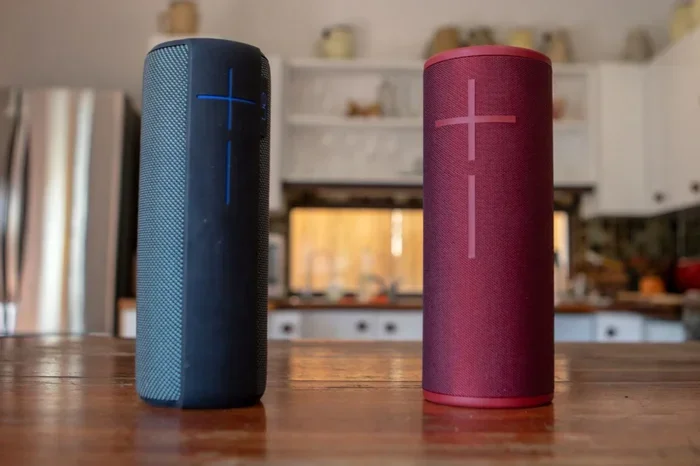
Brands like Ultimate Ears, Anker, and Marshall also offer their own multi-speaker features. Check your speaker’s app or manual for details. These brand-specific modes usually offer the best sync quality because they are built into the hardware and software.
Can You Connect Two Bluetooth Speakers to an iPhone?
iPhone users face more limitations than Android users when connecting to multiple Bluetooth speakers. Apple does not offer a native dual Bluetooth audio feature. However, you still have options.
Using AirPlay with Apple Devices
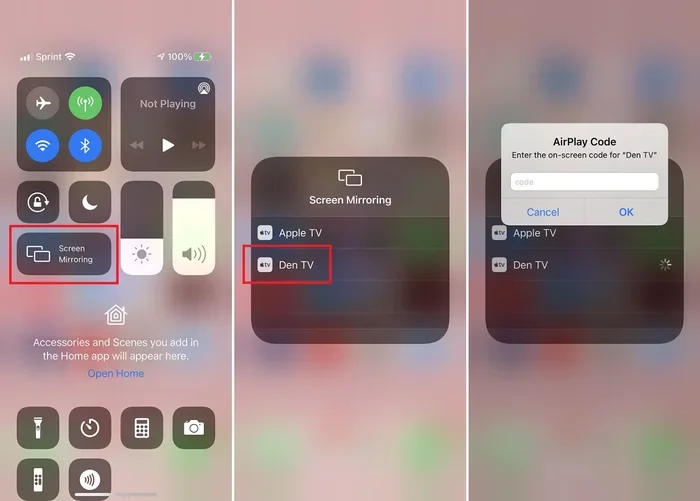
If you have an Apple TV or AirPlay-compatible speaker, you can use AirPlay to stream Spotify to multiple speakers. Open Spotify, tap the AirPlay icon, and select multiple speakers. This works over Wi-Fi and gives you the best experience on iOS.
Using a Third-Party App
Apps like AmpMe also work on iPhones. You can use the same steps we shared above to connect two or more speakers to your iPhone. The app handles the sync and audio routing for you.
Some users also ask about connecting speakers to other devices. For instance, can you plug speakers into my laptop or use them with a desktop computer. The answer is yes, and the same Bluetooth pairing principles apply.
Tips for the Best Dual Speaker Experience
Getting two speakers to play together is only half the battle. Here are proven tips to make your setup sound amazing:
1. Keep Speakers Close Together
Bluetooth range is typically 30 feet. Keep both speakers within that range of your phone for the most stable connection. If the speakers are too far apart, you will hear delays or dropouts.
2. Place Speakers Strategically
For the best sound, place one speaker on each side of the room. This creates a natural stereo effect. Avoid placing both speakers in the same corner, as that creates echo and muddiness.
3. Match Speaker Volumes
Set both speakers to the same volume level before you start playing music. If one speaker is louder than the other, the sound will feel unbalanced.
4. Use the Same Speaker Model When Possible
Matching speakers produce the most consistent sound. Different brands and models may have slightly different audio profiles. When possible, use two of the same speaker for the best results.
5. Keep Your Phone Close to Both Speakers
Your phone acts as the audio source. If it is too far from one speaker, that speaker may lose its connection. Keep your phone in the middle of the room for optimal results.
6. Update Your Apps and Firmware
Always keep your speaker firmware and Spotify app updated. Updates often fix Bluetooth sync issues and improve compatibility. Check your speaker manufacturer’s app for firmware updates.
Common Problems and How to Fix Them
Even with the best setup, you may run into issues. Here are the most common problems and their solutions:
Speakers Are Not Playing in Sync
Audio delay or lag is the most common issue with dual Bluetooth speakers. To fix this, make sure both speakers are the same model or within a few feet of each other. Using Wi-Fi-based methods like Spotify Connect or AirPlay reduces latency significantly compared to Bluetooth-only connections.
One Speaker Keeps Disconnecting
This usually happens when one speaker is too far from your phone. Move closer to the disconnected speaker or remove obstacles like walls between the devices. Also check that your phone’s Bluetooth is not set to power-saving mode, which can limit connections.
Spotify Does Not Detect the Second Speaker
Make sure both speakers are powered on and within range. Restart both speakers and your phone. Check that Spotify Connect is enabled in the Spotify settings. If you are using a third-party app, ensure both speakers are connected to the same Wi-Fi network.
Sound Quality Is Poor
Bluetooth compresses audio to save bandwidth. If sound quality is your top priority, use Spotify Connect or AirPlay over Wi-Fi instead of Bluetooth. These methods stream higher-quality audio without compression.
Some users also wonder about security when using shared connections. You might ask, can people see what you do on guest Wi-Fi. The short answer is yes, network administrators can see your traffic. For Bluetooth connections, this is not a concern since Bluetooth is a direct, private connection between devices.
Which Method Should You Choose?
The best method depends on your equipment and needs. Here is a quick comparison to help you decide:
| Method | Best For | Quality | Ease of Setup |
|---|---|---|---|
| Spotify Connect | Smart speakers on same Wi-Fi | Excellent | Very Easy |
| Android Dual Audio | Android phone users | Good | Easy |
| AmpMe App | Mixed speaker brands | Good | Easy |
| Brand Party Mode | Same-brand speaker pairs | Excellent | Very Easy |
| AirPlay | iPhone and Apple TV users | Excellent | Easy |
If you own matching speakers, use the brand’s party mode. It is the fastest and most reliable. If you have different brands, AmpMe is your best bet. For the highest audio quality, Spotify Connect over Wi-Fi wins every time.
Remember, you do not need a complicated setup to enjoy music on two speakers. Even a basic pair of portable Bluetooth speakers can create a surprisingly rich sound when paired correctly.
Many people also use Bluetooth speakers for other purposes, like connecting them to TVs or gaming consoles. You can even use Alexa as a Bluetooth speaker for your TV to expand your home audio setup in creative ways.
Final Thoughts
Playing Spotify on two Bluetooth speakers at once is easier than most people think. You have at least five different methods to choose from, and most of them are free. Whether you use Spotify Connect, Android dual audio, AmpMe, your speaker’s party mode, or AirPlay, you can create an immersive audio experience in any room.
The key is to match your method to your equipment. Smart speaker owners should use Spotify Connect or brand party modes. Android users can take advantage of dual Bluetooth audio. iPhone users will find AirPlay and AmpMe the most helpful.
Start with the method that fits your setup best. Experiment with speaker placement and volume levels. Once you find the right balance, you will never go back to single-speaker listening. Your music will sound fuller, louder, and more engaging. So grab your two speakers, open Spotify, and start enjoying your favorite tracks the way they were meant to be heard.
With the tips and methods in this guide, you are fully equipped to set up a dual-speaker Spotify experience. No expensive gear needed. No technical degree required. Just two speakers, your phone, and your favorite playlist.
Frequently Asked Questions
Can I connect more than two Bluetooth speakers to Spotify?
Yes, depending on the method you use. AmpMe supports up to six speakers in one group. Sony’s Wireless Party Chain can connect up to 100 speakers. Brand-specific party modes vary, so check your speaker’s app for the exact limit. The more speakers you add, the more important it is to use a Wi-Fi-based method for better sync.
Does playing Spotify on two speakers use more battery?
Yes, streaming to two speakers uses more battery on your phone than streaming to one. Bluetooth and Wi-Fi connections both consume power. If you plan on a long listening session, keep your phone plugged in or use a portable charger. The speakers themselves are powered independently, so they do not drain your phone’s battery.
Can I use two different speaker brands together?
Yes, but the method matters. Spotify Connect works across brands if both speakers support it. AmpMe also works with any brand that connects to Wi-Fi or Bluetooth. However, brand-specific party modes like JBL PartyBoost only work with matching JBL speakers. Always check compatibility before purchasing a second speaker.
Why is there a delay between my two Bluetooth speakers?
Bluetooth has inherent latency because it compresses and transmits audio wirelessly. This delay is more noticeable when the speakers are far apart or of different models. Using Wi-Fi-based methods like Spotify Connect or AirPlay dramatically reduces or eliminates this delay. Keeping speakers close together also helps minimize sync issues.
Do I need Wi-Fi to play Spotify on two Bluetooth speakers?
Not always. Bluetooth-only methods like Android dual audio or AmpMe do not require Wi-Fi. However, Spotify Connect and AirPlay both need a Wi-Fi connection to work. If you do not have Wi-Fi, Bluetooth methods will still get the job done, though with slightly lower audio quality.
Can I control volume independently on each speaker?
It depends on the method. Brand party modes usually let you control each speaker’s volume separately in the companion app. Spotify Connect and AirPlay let you adjust the master volume from the Spotify app. AmpMe provides a single volume control for all connected speakers. For independent volume control, check your speaker’s app settings.