Can I Display My Iphone On My Tv Without Any Cables
Can I Display My Iphone On My Tv is an essential topic that provides valuable insights.
Key Takeaways
- Understanding Can I Display My Iphone On My Tv: Provides essential knowledge
📑 Table of Contents
- Why Display Your Iphone On Your Tv Without Cables?
- Method 1: Use AirPlay To Mirror Your Iphone Screen
- Method 2: Use Chromecast To Stream From Your Iphone
- Method 3: Use Smart TV Built-In Features
- Method 4: Use Third-Party Apps For Cable-Free Streaming
- Method 5: Use A Streaming Stick Or Dongle
- Troubleshooting Common Issues
- Expert Insights On Wireless Iphone Display
- Key Takeaways
Why Display Your Iphone On Your Tv Without Cables?
There are many reasons people want to go cable-free when connecting their iPhone to a TV. First, cables can be messy and restrictive. You are tied to one spot, and you cannot move around freely. Second, cables can wear out over time. You might need to replace them often, which costs money and creates waste.
Wireless screen mirroring gives you freedom. You can sit on the couch, lie in bed, or even walk around the room while your iPhone screen appears on the TV screen. It also means no fumbling with adapters or dealing with compatibility issues. Most modern TVs and iPhones support wireless display technology out of the box.
Benefits of Going Cable-Free
- More freedom to move around your room
- No clutter from extra wires and adapters
- Quick setup without technical knowledge
- Works with most modern smart TVs
- No extra cost for most methods
Method 1: Use AirPlay To Mirror Your Iphone Screen
AirPlay is Apple’s built-in wireless streaming technology. It lets you mirror your iPhone screen directly to compatible devices. If you own an Apple TV or a smart TV with AirPlay support, this is the easiest method. You do not need to download anything extra.
How To Use AirPlay
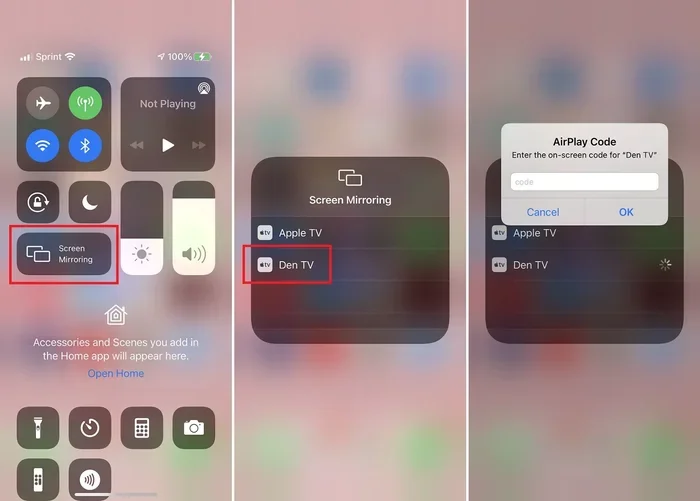
- Make sure your iPhone and your TV are on the same Wi-Fi network.
- Open the Control Center by swiping down from the top-right corner of your screen.
- Tap the Screen Mirroring icon, which looks like two overlapping rectangles.
- Select your TV or Apple TV from the list that appears.
- Your iPhone screen will now appear on your TV screen instantly.
Tips For Better AirPlay Performance
Keep your devices close to the Wi-Fi router for the best results. A strong Wi-Fi connection means smoother streaming and less lag. If you experience delays, try moving closer to your router or restarting your network equipment. Also, make sure both devices are updated to the latest iOS and TV software versions.
Quick Tip: If your TV supports AirPlay but you cannot find it in the list, restart both your iPhone and your TV. This simple step fixes most connection issues.
Method 2: Use Chromecast To Stream From Your Iphone
Chromecast is a popular device made by Google. It plugs into your TV’s HDMI port and lets you cast content from your phone to the big screen. While Chromecast was originally designed for Android, it now works well with iPhones too. You can cast videos, photos, and even your entire browser tab from your phone.
Setting Up Chromecast With Your Iphone
- Plug your Chromecast device into your TV’s HDMI port.
- Download the Google Home app from the App Store.
- Follow the on-screen instructions to connect Chromecast to your Wi-Fi network.
- Open any supported app on your iPhone and look for the Cast icon (a rectangle with Wi-Fi waves in the corner).
- Tap the icon and select your Chromecast device.
What Chromecast Can And Cannot Do
Chromecast works great for streaming content from apps like YouTube, Netflix, and Spotify. However, it does not support full screen mirroring the way AirPlay does. You can cast individual pieces of content, but you cannot mirror your entire iPhone screen directly through native Chromecast. For full mirroring, you would need a third-party app, which we will cover later.
Method 3: Use Smart TV Built-In Features
Many modern smart TVs come with built-in screen mirroring capabilities. Brands like Samsung, LG, Sony, and TCL offer wireless display features that work with iPhones. You do not need any extra devices. Your TV acts as the receiving end, and your iPhone sends the signal over Wi-Fi.
How To Find Your TV’s Mirroring Feature
- Open the Control Center on your iPhone.
- Tap Screen Mirroring or AirPlay.
- Look for your TV’s name in the list.
- If your TV appears, select it and your iPhone display will show on the TV screen.
If your TV does not appear in the list, check your TV’s settings menu. Look for options labeled Screen Mirroring, Wireless Display, or Apple AirPlay. Turn the feature on if it is disabled. Some TVs require you to enable this in the display settings before your iPhone can detect them.
Brand-Specific Tips
- Samsung TVs: Look for Smart View in your iPhone’s control center.
- LG TVs: Use Screen Share or AirPlay from the settings menu.
- Sony TVs: Enable Miracast or AirPlay depending on your model.
Method 4: Use Third-Party Apps For Cable-Free Streaming
If your TV does not support AirPlay or Chromecast, do not worry. There are many third-party apps that let you stream your iPhone screen to your TV wirelessly. These apps work by sending your screen output over your local network to your TV.
Top Apps To Try
- LetsView: A free app that supports screen mirroring to most smart TVs. It works on both iOS and Android devices.
- AirScreen: Turns your TV into an AirPlay receiver without needing an Apple TV.
- Reflector: A powerful app that allows wireless display and works well for presentations and gaming.
- Replica: A simple app for mirroring your iPhone screen to your TV with minimal setup.
How To Use These Apps
Most of these apps follow a similar process. First, download the app on your iPhone from the App Store. Second, make sure your iPhone and TV are on the same Wi-Fi network. Third, open the app and follow the prompts to connect to your TV. Fourth, start mirroring your screen. The process usually takes less than two minutes.
Quick Tip: Free versions of these apps often have ads or limited features. If you use screen mirroring regularly, consider upgrading to the paid version for a smoother experience.
Method 5: Use A Streaming Stick Or Dongle
Another great option is using a streaming stick or dongle that plugs into your TV’s HDMI port. Devices like Amazon Fire TV Stick, Roku Streaming Stick, and Google Chromecast can receive wireless signals from your iPhone. While these devices technically require plugging in, they eliminate the need for cables between your phone and TV.
Comparison Of Popular Streaming Devices
| Device | AirPlay Support | Price Range | Best For |
|---|---|---|---|
| Apple TV 4K | Full Support | $129-$149 | Apple ecosystem users |
| Amazon Fire TV Stick 4K | Limited (via app) | $30-$50 | Budget-friendly streaming |
| Roku Streaming Stick+ | Via AirPlay enabled | $50-$70 | Wide app compatibility |
| Google Chromecast with Google TV | Yes | $30-$50 | Google service users |
Each of these devices offers a different experience. Apple TV 4K provides the most seamless iPhone integration because it natively supports AirPlay. Amazon Fire TV Stick is the most affordable option and still offers decent screen mirroring through the AirScreen app. Roku and Chromecast strike a nice balance between price and functionality.
Troubleshooting Common Issues
Sometimes wireless screen mirroring does not work right away. This is completely normal. Here are the most common problems and how to fix them.
Your TV Does Not Appear In The Device List
This usually means your iPhone and TV are not on the same Wi-Fi network. Check both devices and make sure they are connected to the same network. Also, restart your Wi-Fi router if needed. Sometimes simply toggling Wi-Fi off and back on on your iPhone solves the problem.
The Screen Mirrors But With Lag
Lag or delay happens when your Wi-Fi signal is weak. Move your router closer to your TV or use a Wi-Fi extender. Reducing the number of devices connected to your network can also help. Streaming HD content requires a strong and stable wireless connection.
The Audio And Video Are Out Of Sync
This is a common issue with wireless display technology. Try lowering the streaming resolution on your iPhone. You can also restart both devices to reset the connection. If the problem persists, switch to a different mirroring method or app.
Expert Insights On Wireless Iphone Display
According to tech experts, AirPlay remains the gold standard for wireless iPhone display. It offers the lowest latency and the best video quality among all methods. However, not everyone owns an Apple TV, which is why alternatives like Chromecast and third-party apps are so valuable.
Experts also recommend using a 5 GHz Wi-Fi band instead of 2.4 GHz for screen mirroring. The 5 GHz band provides faster speeds and less interference, which means smoother video playback and less lag. If your router supports dual-band, make sure your iPhone and TV are both connected to the 5 GHz network.
Quick Tip: For the best streaming experience, close background apps on your iPhone before mirroring. This frees up processing power and bandwidth, resulting in a smoother display on your TV.
Key Takeaways
- AirPlay is the easiest method: If you have an Apple TV or AirPlay-compatible TV, use the built-in screen mirroring feature for instant results.
- Chromecast works great for casting: It is affordable and supports many popular streaming apps on your iPhone.
- Smart TVs have built-in features: Most modern TVs support wireless display without any extra hardware.
- Third-party apps fill the gaps: Apps like LetsView and AirScreen offer cable-free mirroring for TVs that lack native support.
- Streaming sticks are versatile: Devices like Amazon Fire TV Stick and Roku add wireless display capability to any TV with an HDMI port.
- A strong Wi-Fi connection is essential: Always use the 5 GHz band for the best streaming quality and minimal lag.
- Troubleshooting is simple: Most issues can be fixed by restarting devices, checking Wi-Fi connections, or updating software.
Frequently Asked Questions
Can I Display My Iphone On My Tv Without Any Cables?
Yes, you can display your iPhone on your TV without any cables. You can use AirPlay, Chromecast, smart TV built-in features, or third-party apps to achieve wireless screen mirroring. All you need is a Wi-Fi connection and a compatible device.
What Do I Need To Mirror My Iphone Screen To My Tv Wirelessly?
You need a Wi-Fi network, an iPhone running a recent iOS version, and a TV that supports AirPlay, Chromecast, or wireless display. If your TV does not support these natively, you can use a streaming stick or a third-party app to enable wireless mirroring.
Is Wireless Screen Mirroring As Good As A Wired Connection?
For most everyday uses like watching videos, sharing photos, or browsing the web, wireless mirroring works just as well as a wired connection. However, wired connections may offer slightly better video quality and zero latency. For gaming or professional presentations, a wired HDMI connection might still be preferable.
Why Is My Iphone Not Showing Up When I Try To Mirror?
This usually happens because your iPhone and TV are not on the same Wi-Fi network. Make sure both devices are connected to the same network. Also, check that screen mirroring or AirPlay is enabled on your TV. Restarting both devices often fixes this issue.
Can I Display My Iphone On A Non-Smart Tv Without Cables?
Yes, you can. You will need a streaming device like Amazon Fire TV Stick, Chromecast, or Apple TV plugged into your non-smart TV’s HDMI port. These devices add wireless display capability and let you mirror your iPhone screen without any cables between your phone and TV.
Does Screen Mirroring Affect Iphone Battery Life?
Yes, screen mirroring uses more battery than normal use. Your iPhone is continuously encoding and sending video data over Wi-Fi. To preserve battery, keep your iPhone plugged in while mirroring. You can also lower the screen brightness on your phone to reduce power consumption.
=== CONCLUSION ===
So, can you display your iPhone on your TV without any cables? Absolutely. Whether you use AirPlay, Chromecast, smart TV features, or third-party apps, going cable-free is simple and effective. Each method has its strengths, and the best one depends on your TV and your needs.
If you already own an Apple TV or a smart TV with AirPlay, you are just a few taps away from mirroring your iPhone screen. If your TV is older or less capable, a streaming stick or a free mirroring app will do the trick. The key is to ensure both devices share a strong Wi-Fi connection and are compatible with the method you choose.
Now that you know all the options, pick the one that fits your setup best and start enjoying your iPhone content on the big screen today. Wireless display technology has made it incredibly easy to share, stream, and enjoy everything from your phone without a single cable in sight.