How Do I Open A Wifi QR Code On iPhone Step By Step
Opening a WiFi QR code on your iPhone is quick, easy, and saves you from typing long passwords. This step-by-step guide shows you exactly how to scan and connect to a wireless network using your iPhone camera and settings. You will learn simple methods, common fixes, and expert tips to make WiFi QR code iPhone connections seamless every time.
Have you ever stood in a coffee shop, hotel lobby, or a friend’s house, staring at a small printed square on a wall or a piece of paper? That square is a WiFi QR code, and it holds the key to instant internet access. But if you have never used one before, it can feel confusing. You might wonder, “How do I open a WiFi QR code on iPhone?” The good news is that Apple made this process incredibly simple. Your iPhone has built-in tools that let you scan and connect in seconds. No app downloads, no password typing, no hassle. In this guide, we walk you through every step in plain, easy language. Whether you are a tech beginner or just need a refresher, you will find everything you need right here.
The iPhone WiFi QR code feature has been around for several years now, but many people still do not know it exists. Apple designed the camera app to handle QR codes natively, which means you do not need to hunt for a separate scanner app. This is one of those small features that makes a huge difference in daily life. Imagine connecting to a new network in under five seconds while your friends are still fumbling with passwords. That is the power of knowing how to open a WiFi QR code on iPhone. Let us dive into the full guide so you can start using this feature today.
Key Takeaways
- iPhone Camera Scans WiFi QR Codes: Your built-in camera app can read WiFi QR codes instantly without extra apps.
- Control Center Offers Quick Access: You can also scan QR codes from the iPhone Control Center for faster setup.
- No Password Typing Needed: QR codes store your WiFi SSID and password, so you skip manual entry.
- Troubleshooting Is Simple: Most issues with opening WiFi QR codes on iPhone have easy fixes.
- QR Code WiFi Sharing Is Growing: More businesses, hotels, and homes use wireless network QR codes for guest access.
- iOS Updates Improve QR Scanning: Keep your iPhone updated for the best QR code WiFi reader experience.
📑 Table of Contents
- What Is a WiFi QR Code and Why Should You Use It?
- How Do I Open a WiFi QR Code on iPhone: Step-by-Step Guide
- Troubleshooting: What to Do When Your iPhone Won’t Scan a WiFi QR Code
- How to Create Your Own WiFi QR Code for iPhone Users
- Benefits of Using WiFi QR Codes on iPhone
- Common Mistakes to Avoid When Scanning WiFi QR Codes
- Expert Tips for the Best WiFi QR Code Experience on iPhone
- Quick Tips for Faster WiFi QR Code Scanning
- Frequently Asked Questions
- Conclusion
What Is a WiFi QR Code and Why Should You Use It?
A WiFi QR code is a special two-dimensional barcode that stores your wireless network name and password. When someone scans it with their phone, the device reads the data and offers to connect automatically. Think of it as a shortcut for sharing internet access. Instead of shouting a long, complicated password across a room, you just print or display the QR code. Anyone with a smartphone can scan it and get online instantly.
These codes are incredibly useful in many situations. Coffee shops and restaurants use them so customers can connect to the internet without asking staff for the password. Hotels print them in rooms so guests can get online the moment they walk in. Offices use them during meetings and events. Even at home, you can stick a QR code on your fridge so visitors can jump on your network without bothering you. The QR code WiFi sharing method saves time, reduces errors, and keeps everyone connected.
How WiFi QR Codes Work
When a WiFi QR code is created, it bundles three pieces of information together: the network name (SSID), the security type (like WPA2), and the password. This data is encoded into the pattern of black and white squares you see. When your iPhone camera reads that pattern, it decodes the information and triggers the WiFi connection prompt. You simply tap “Join,” and your phone does the rest. The entire process takes just a few seconds, making WiFi QR code iPhone setup one of the fastest ways to get online.
How Do I Open a WiFi QR Code on iPhone: Step-by-Step Guide
Now that you understand what a WiFi QR code is, let us get into the actual steps. Opening and connecting to one on your iPhone is straightforward. Below, we break down the two main methods so you can pick the one that works best for you.
Method 1: Use the iPhone Camera App
The simplest and most common way to scan a WiFi QR code is through your iPhone camera. Apple built this feature directly into the camera app, so you do not need to install anything extra. Here is exactly what to do:
- Unlock your iPhone and open the Camera app. You can use either the front or rear camera.
- Point your camera at the WiFi QR code. Hold your phone steady and make sure the code fits inside the viewfinder.
- Wait for the notification to appear. Your iPhone will recognize the QR code and show a banner at the top of the screen.
- Tap the notification. This will open a screen displaying the network name and asking if you want to connect.
- Tap “Join.” Your iPhone will connect to the WiFi network automatically.
That is it. You are now online. The iPhone camera QR code scanner works on all modern iPhones running iOS 11 or later. If the notification does not appear, make sure your camera lens is clean and that you are holding the phone at a reasonable distance from the code.
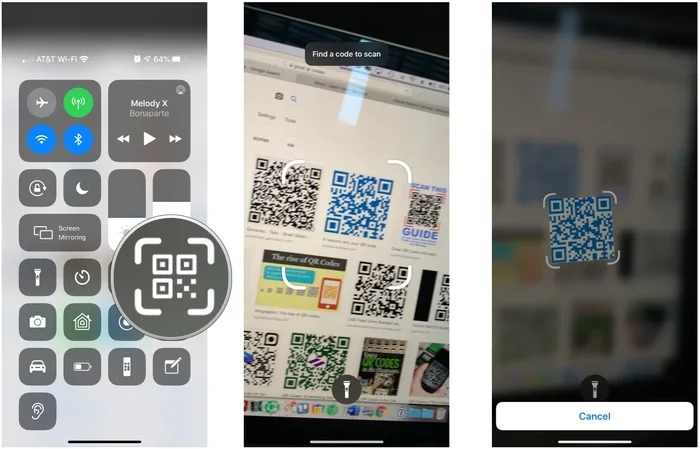
Method 2: Use the Control Center QR Scanner
If you prefer not to open the camera app, you can also scan a WiFi QR code through the Control Center. This method is especially handy if you are already in your settings and want to switch networks quickly.
- Swipe down from the top-right corner of your screen to open Control Center (on older iPhones with a Home button, swipe up from the bottom).
- Tap the QR code icon. It looks like a small square with three dots inside. If you do not see it, you may need to add it through Settings first.
- Point your camera at the WiFi QR code. Hold it steady just like you would with the Camera app.
- Tap the notification that appears and then tap “Join” to connect.
This method works just as well as using the Camera app. Some people find it faster because Control Center is always accessible. Either way, opening a WiFi QR code on iPhone takes only a few seconds regardless of which method you choose.
Troubleshooting: What to Do When Your iPhone Won’t Scan a WiFi QR Code
Sometimes things do not go as smoothly as we hope. If your iPhone fails to read a WiFi QR code, do not panic. There are several simple fixes you can try. Let us walk through the most common issues and their solutions.
Check Your Camera and Lens
Sounds obvious, but a smudgy or dirty camera lens can prevent your phone from reading QR codes properly. Wipe the lens gently with a soft cloth before scanning. Also, make sure nothing is covering the camera, like a case or your finger. Clean glass and a clear view make all the difference when scanning QR code WiFi credentials.
Make Sure You Are Close Enough
Hold your iPhone about 6 to 12 inches from the QR code. If you are too far away, the camera may not detect it. If you are too close, the entire code might not fit in the frame. Adjust your distance slowly until the code comes into focus and the notification appears.
Check Your iOS Version
Older versions of iOS might not support QR code scanning properly. Go to Settings, tap General, then Software Update, and install any available updates. Keeping your iPhone up to date ensures the best WiFi QR code scanner iPhone performance. Apple regularly improves camera and scanning features through software updates.
Restart Your iPhone
This classic fix works more often than you might think. A simple restart can clear temporary glitches that interfere with camera functionality. Hold down the side button, slide to power off, wait a few seconds, and turn your phone back on. Then try scanning the wireless network QR code again.
Check Your WiFi and Cellular Settings
Make sure WiFi is turned on in your settings. Even though you are connecting to a new network, your iPhone needs WiFi enabled to receive the connection prompt. Also, check that you have a cellular or internet connection if the QR code links to a network that requires online verification.
Try a Different QR Code Reader App
If the built-in tools fail, you can download a free QR code reader from the App Store. Search for “QR code scanner” and pick one with good reviews. While the built-in camera method is preferred, having a backup app is always smart. This is especially helpful if you frequently scan QR codes for WiFi login at work or events.
How to Create Your Own WiFi QR Code for iPhone Users
Did you know you can create a WiFi QR code for your own network? This is a great idea if you often have guests over or run a small business. Instead of memorizing and sharing your password every time, you can generate a QR code and display it prominently. Here is how to do it.
Use an Online QR Code Generator
Several free websites let you create WiFi QR codes in seconds. Sites like QR Code Generator, Beaconstac, and GoQR.me offer simple tools. You just enter your network name, select the security type (WPA2 is most common), type in your password, and the site generates a QR code instantly. You can then download the image and print it or display it on a screen.
Use a Smartphone App
If you prefer an app-based approach, many free QR code generator apps are available for both iPhone and Android. These apps often let you customize the design of your QR code, adding colors or a logo in the center. Just remember that when you create a WiFi QR code iPhone for your own network, you are sharing your password visually. Make sure you trust the people who will see it.
Best Practices for Creating WiFi QR Codes
- Use a high-contrast design. Black squares on a white background work best for scanning.
- Print the code large enough. At least 2×2 inches on paper so phones can read it easily.
- Place it in a visible spot. Near the entrance or on a table where guests can find it.
- Update the code if your password changes. Old codes will not work once you change your network password.
- Test the code before sharing. Scan it with your own iPhone first to make sure it works correctly.
Creating your own WiFi QR code for iPhone users is a small effort that pays off big time. Your guests will appreciate the convenience, and you will never have to type out your password again.
Benefits of Using WiFi QR Codes on iPhone
Using WiFi QR codes comes with several real advantages that go beyond just convenience. Let us look at why this method is worth adopting.
Speed and Efficiency
Typing a WiFi password on a small iPhone keyboard is tedious, especially if the password is long and complex. A WiFi QR code eliminates this friction entirely. One scan and you are connected. This speed matters in busy environments like offices, cafés, and events where multiple people need access quickly.
Fewer Errors
When you manually type a password, it is easy to make a mistake. One wrong character and the connection fails. QR codes remove the possibility of human error. The data is encoded precisely, so what you scan is exactly what your phone receives. This makes QR code WiFi connection far more reliable than manual entry.
Better Guest Experience
If you run a business or frequently host people at your home, offering a WiFi QR code creates a professional and welcoming experience. Guests do not have to ask for the password or struggle with the keyboard. They simply scan and get online. This small touch can make a big impression.
Security and Privacy
Some people worry about security when using QR codes. In reality, a WiFi QR code only shares your network name and password with the person who scans it. It does not give access to your personal data or files. And since the connection happens over a secure WiFi network, the data transfer is encrypted. You remain in full control of who connects to your network.
Common Mistakes to Avoid When Scanning WiFi QR Codes
Even though scanning a WiFi QR code on iPhone is simple, there are a few common mistakes that can cause frustration. Knowing what to avoid will save you time and headaches.
- Scanning a blurry or damaged QR code. If the print is faded or the screen is low on brightness, the scan may fail. Make sure the code is clear and well-lit.
- Using a third-party app when it is not needed. The iPhone camera app handles QR codes natively. Downloading unnecessary apps can slow things down or introduce security risks.
- Not checking the network name before joining. Always verify that the network name shown on your screen matches the one printed on the QR code. This prevents connecting to a fake or malicious hotspot.
- Ignoring iOS updates. Outdated software can cause compatibility issues with QR scanning. Keep your iPhone updated.
- Holding the phone too far or too close. Find the right distance for a clean scan. Too far and the camera cannot focus; too close and the entire code may not fit in the frame.
Avoiding these simple mistakes ensures a smooth iPhone WiFi QR code experience every time. A little attention to detail goes a long way.
Expert Tips for the Best WiFi QR Code Experience on iPhone
Here are some pro tips that will help you get the most out of scanning and sharing WiFi QR codes on your iPhone.
- Keep your camera app updated. Apple improves camera and scanning performance with every iOS update. The latest version will always handle QR codes best.
- Use the Notes app as a backup. If you receive a WiFi QR code as an image, you can open it in the Notes app and scan it from there. This is handy when the code is in a screenshot or email.
- Enable the QR scanner in Control Center. Go to Settings, then Control Center, and add the QR Code Reader. This gives you instant access without opening the camera first.
- Brighten your screen if the QR code is digital. If you are scanning a QR code displayed on another phone or tablet, increase the brightness for a better scan.
- Teach others how to do it. Once you master opening a WiFi QR code on iPhone, share the knowledge. Friends and family will appreciate the quick and easy method.
These tips may seem small, but they add up to a much smoother experience. You will scan codes faster, avoid errors, and feel confident every time.
Quick Tips for Faster WiFi QR Code Scanning
- Clean your camera lens before every scan.
- Make sure the QR code is well-lit and not in direct sunlight.
- Hold your iPhone steady and at arm’s length.
- Tap the notification immediately when it appears.
- Restart your phone if scanning fails more than once.
- Update to the latest iOS version for optimal performance.
- Use the Control Center QR scanner for quick access.
Frequently Asked Questions
Can I scan a WiFi QR code on any iPhone model?
Yes, you can scan WiFi QR codes on any iPhone running iOS 11 or later. This includes iPhone 5s and all newer models. The camera app has built-in QR scanning support, so you do not need any special hardware. Just make sure your iPhone is updated to the latest iOS version for the best experience with WiFi QR code iPhone connections.
Do I need to download a separate app to scan WiFi QR codes?
No, you do not need to download any app. Apple’s built-in Camera app handles QR code scanning natively. You simply open the camera, point it at the code, and tap the notification. While you can download third-party QR scanner apps if you prefer, the native camera works perfectly for QR code WiFi login and connection tasks.
Is scanning a WiFi QR code safe and secure?
Yes, scanning a WiFi QR code is generally safe. The code only contains your network name and password, and the connection happens over your encrypted WiFi network. However, you should always verify the network name before joining to make sure it matches the expected network. Avoid scanning QR codes from untrusted sources, just as you would avoid clicking on suspicious links.
What should I do if my iPhone camera does not recognize the QR code?
First, check that your camera lens is clean and free of smudges. Make sure you are holding the phone at the right distance, about 6 to 12 inches from the code. If it still does not work, try restarting your iPhone or updating your iOS. You can also try scanning the code through the Control Center QR scanner as an alternative. These steps resolve most WiFi QR code scanner iPhone issues quickly.
Can I create my own WiFi QR code to share with guests?
Absolutely. You can use free online tools like QR Code Generator or GoQR.me to create your own WiFi QR code. Simply enter your network name, security type, and password, and the site will generate a scannable code. You can print it, save it as an image, or display it on a screen. This is a great way to share QR codes for WiFi login without ever revealing your password out loud.
Will scanning a WiFi QR code save the password on my iPhone?
Yes, when you connect to a WiFi network through a QR code, your iPhone saves the network credentials automatically. You will not need to re-enter the password the next time you want to connect to that same network. The saved password is stored securely in your iPhone’s WiFi settings, just like any manually entered network.
Conclusion
Opening a WiFi QR code on iPhone is one of those simple skills that makes everyday life a little easier. Whether you are at a café, a hotel, a friend’s house, or your own home, scanning a WiFi QR code gets you online in seconds without typing a single character. We covered the two main methods, troubleshooting steps, how to create your own codes, and expert tips to improve your experience. The process is fast, secure, and built right into your iPhone. Now that you know exactly how to open a WiFi QR code on iPhone step by step, you can scan with confidence every time. Try it the next time you see a wireless network QR code, and you will wonder how you ever lived without it.