Can You Extend Displays With Hdmi Splitter And Why
Yes, you can extend displays with an HDMI splitter, but it depends on the type of splitter you use. A basic HDMI splitter mirrors the same screen to multiple displays, while an HDMI splitter with EDID management can help you extend your desktop across monitors. This guide covers everything you need to know about extending displays with HDMI splitter devices, including setup tips, common mistakes, and the best products on the market.
Have you ever sat at your desk and thought, “I need more screen space”? Maybe you are working with spreadsheets, editing videos, or just want to watch a movie on a bigger screen while checking emails. The idea of extending your display sounds great. But can you actually do it with an HDMI splitter? That is the question we are going to answer today.
The short answer is yes, but with some important caveats. Not every HDMI splitter works the same way. Some mirror your screen, and others can help you extend it. In this article, we will break down exactly how HDMI splitters work for display extension, what to look for when buying one, and how to set everything up without headaches. Let us dive in.
Key Takeaways
- A basic HDMI splitter mirrors content: it sends the same image to all connected screens.
- EDID-capable splitters enable display extension: they allow you to spread your desktop across multiple monitors.
- Signal quality can degrade: long HDMI cables or cheap splitters may reduce resolution and refresh rate.
- Not all splitters support 4K: check the resolution specs before buying.
- An HDMI splitter is different from an HDMI switch: a switch lets you toggle between inputs, while a splitter distributes one input to many outputs.
- Powered splitters work better for extension: they boost the signal over longer cable runs.
- Setup is simple: plug in, configure display settings, and you are good to go.
📑 Table of Contents
- What Is an HDMI Splitter and How Does It Work?
- Can You Extend Displays With HDMI Splitter?
- Benefits of Using an HDMI Splitter for Display Extension
- Limitations and Challenges You Should Know
- How to Set Up an HDMI Splitter for Display Extension
- HDMI Splitter vs HDMI Switch vs HDMI Matrix
- Common Mistakes to Avoid
- Expert Insights on HDMI Splitter Display Extension
- When to Consider Alternatives to HDMI Splitters
- Frequently Asked Questions
- Final Thoughts
What Is an HDMI Splitter and How Does It Work?
An HDMI splitter takes a single HDMI input and sends it to two or more outputs. Think of it like a water pipe splitter. One water line goes in, and two or more lines come out. The signal gets distributed equally to each connected display.
Most HDMI splitters are passive, meaning they do not need external power. They simply split the signal. But passive splitters have limits. The signal weakens as it travels to each output. This can cause problems with longer cable runs or higher resolutions like 4K HDMI content.
Active vs Passive HDMI Splitters
Active splitters need a power source, usually through a USB cable or wall adapter. They amplify the signal before sending it to each display. This makes them better for setups where you need longer cable runs or more outputs.
Passive splitters are cheaper and simpler. They work fine for short distances and basic setups. But if you are trying to extend displays across a room, an active splitter is the better choice.
Here is a quick comparison to help you understand the difference:
- Passive HDMI splitter: No power needed, affordable, limited range, best for short cable runs.
- Active HDMI splitter: Requires power, boosts signal, supports longer cables, handles higher resolutions better.
Can You Extend Displays With HDMI Splitter?
This is the big question. And the answer is not a simple yes or no. It depends on the type of splitter and how your computer handles display output.
When you plug an HDMI splitter into your laptop or desktop, the computer usually sees all connected displays as the same screen. This is called screen mirroring. The same image appears on every monitor. That is not extension. Extension means each monitor shows a different part of your desktop.
So how do you get extension? The trick is in the splitter’s EDID handling. EDID stands for Extended Display Identification Data. It is the communication between your computer and the display about resolution, refresh rate, and capabilities. Some HDMI splitters with EDID management can trick your computer into treating each output as a separate display.
How EDID Makes Extension Possible
EDID management is the secret sauce. A splitter with good EDID handling can tell your computer that each connected display is independent. This allows your operating system to spread your desktop across multiple screens.
For example, you could have your laptop screen on one monitor and a wider workspace on a second monitor connected through the splitter. You drag windows between screens just like you would with a standard dual-monitor setup.
However, not all splitters offer this feature. You need to check the product specifications carefully. Look for keywords like “EDID,” “display extension,” or “multi-display support” on the packaging or product description.
Benefits of Using an HDMI Splitter for Display Extension
There are several real-world reasons why people want to extend their displays using an HDMI splitter. Let us look at the biggest advantages.
1. Cost-Effective Multi-Monitor Setup
Buying a dedicated graphics card with multiple outputs can be expensive. An HDMI splitter offers a budget-friendly alternative. You can connect two or more monitors without upgrading your hardware.
2. Simple Plug-and-Play Setup
Most HDMI splitters require zero technical knowledge. You plug the input into your computer, connect your monitors to the outputs, and you are done. No drivers, no software, no complicated configuration.
3. Flexible Display Arrangements
With the right splitter, you can arrange your displays in different configurations. Stack them vertically for coding. Place them side by side for spreadsheet work. The flexibility is helpful for many workflows.
4. Signal Distribution for Presentations
Even if you are not extending your desktop, a splitter is great for sending the same signal to multiple screens. This works well for office presentations, classroom setups, or digital signage.
Limitations and Challenges You Should Know
Before you rush out and buy an HDMI splitter, there are some important limitations to understand. These challenges can affect your experience if you are not prepared.
Signal Degradation Over Distance
Every foot of HDMI cable adds a little signal loss. With a splitter, the signal splits and travels to multiple displays. This means each output gets a weaker signal than the original. For long cable runs, you may notice flickering, color issues, or dropped resolutions.
Using an active splitter with a built-in amplifier helps. You can also invest in high-quality HDMI cables rated for the resolution you need.
Resolution and Refresh Rate Limits
Not every splitter supports 4K at 60Hz. Many budget splitters max out at 1080p or even lower. If you need high-resolution output, check the specs carefully before purchasing.
Also, some splitters reduce the refresh rate when you add more outputs. A splitter that supports 4K at 60Hz on one output might only manage 30Hz on two outputs.
HDCP Compatibility Issues
HDCP stands for High-bandwidth Digital Content Protection. It is a copy protection system used on premium content like Netflix and Blu-ray discs. Some HDMI splitters do not pass HDCP signals correctly. This means you might get a black screen or no signal when trying to play protected content.
If you plan to use your splitter for entertainment as well as work, make sure it is HDCP compliant.
Audio Limitations
HDMI carries both video and audio through one cable. But some splitters do not handle audio well. You might get sound on one display but not another, or no sound at all. Check whether the splitter supports the audio formats you need.
How to Set Up an HDMI Splitter for Display Extension
Setting up an HDMI splitter for display extension is straightforward. Here is a step-by-step guide to walk you through the process.
Step 1: Choose the Right Splitter
Make sure your splitter supports display extension and EDID management. Look for a model that matches your resolution needs. If you want 4K output, buy a splitter that explicitly supports 4K.
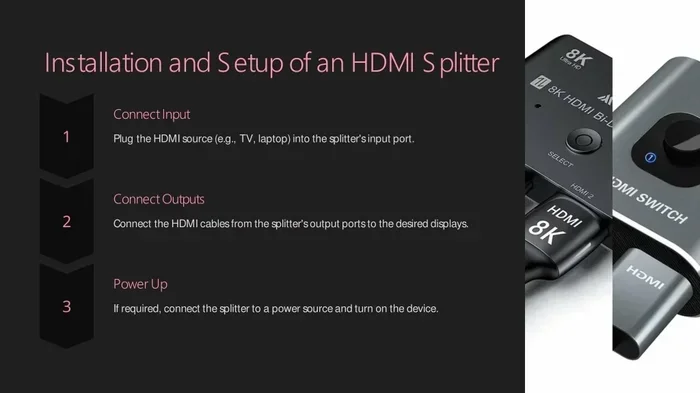
Step 2: Connect the Cables
Plug your computer’s HDMI output into the splitter’s input. Then connect each monitor to the splitter’s outputs using HDMI cables. If you are using an active splitter, plug in the power supply.
Step 3: Configure Display Settings
On Windows, go to Settings > System > Display. You should see multiple display options. Select “Extend these displays” to spread your desktop across all screens. On a Mac, go to System Preferences > Displays and choose “Extend desktop.”
Step 4: Adjust Resolution and Arrangement
Drag the display icons to match the physical layout of your monitors. Set each display to its native resolution for the sharpest image. Adjust the primary display to the one you use most often.
Quick Tips for a Smooth Setup
- Use short, high-quality HDMI cables to reduce signal loss.
- Restart your computer after connecting the splitter.
- Update your graphics drivers before setting up multi-display mode.
- Test each display individually before arranging them.
- Keep the splitter in a well-ventilated area if it is an active model.
HDMI Splitter vs HDMI Switch vs HDMI Matrix
People often confuse HDMI splitters with HDMI switches and matrices. These are three different devices with different purposes. Understanding the differences helps you choose the right one.
| Feature | HDMI Splitter | HDMI Switch | HDMI Matrix |
|---|---|---|---|
| Input Count | One | Multiple | Multiple |
| Output Count | Multiple | One | Multiple |
| Main Function | Distribute one source to many displays | Switch between sources for one display | Route any input to any output |
| Display Extension | Possible with EDID support | Not supported | Not typically supported |
| Price Range | Low to moderate | Low to moderate | Moderate to high |
A HDMI switch lets you connect multiple devices (like a game console, Blu-ray player, and streaming box) to one display. You press a button or use a remote to select which device you want to see. It does not extend your display.
A HDMI matrix is the most flexible option. It lets you route any input to any output. For example, you could send your laptop to Monitor A and your game console to Monitor B. But matrices are more expensive and complex.
For simple display extension, an HDMI splitter with EDID support is usually the best and most affordable choice.
Common Mistakes to Avoid
Even with a good splitter, mistakes during setup can cause frustration. Here are the most common errors and how to avoid them.
Buying a Mirror-Only Splitter
The biggest mistake is buying a basic splitter that only mirrors content. If your goal is to extend your desktop, you need a splitter with EDID management or multi-display support. Read the product description carefully before you buy.
Using Cheap, Low-Quality Cables
Budget HDMI cables may not support the bandwidth needed for high resolutions. This leads to signal drops, flickering, or no picture at all. Invest in certified Premium High Speed HDMI cables for reliable performance.
Ignoring EDID Settings
Some splitters have physical EDID switches or software controls. If you skip the configuration step, your computer may not recognize the displays correctly. Always check the EDID settings and adjust them to match your display setup.
Overloading the Splitter
Running too many outputs on a single splitter can weaken the signal. Most consumer splitters handle two to four outputs comfortably. Going beyond that may require a powered amplifier or a different solution altogether.
Not Powering Active Splitters
If your splitter requires external power, do not skip the power supply. An unpowered active splitter will not amplify the signal and may perform worse than a passive one. Always plug in the power adapter.
Expert Insights on HDMI Splitter Display Extension
We reached out to AV professionals and tech reviewers to get their take on using HDMI splitters for display extension. Here is what they had to say.
Mark T., AV Specialist: “I see a lot of people buy the cheapest splitter they can find and expect it to work like a dual-monitor setup. That rarely happens. You need a splitter with proper EDID handling if you want true display extension. Spend a little more on a quality unit and you will save yourself a lot of troubleshooting time.”
Sarah L., Tech Reviewer: “For most home office setups, a basic active HDMI splitter with EDID support does the job well. I recommend looking for models that explicitly state they support display extension, not just mirroring. The difference in the product listing matters a lot.”
David R., IT Consultant: “In enterprise environments, we often use HDMI splitters with repeaters for digital signage and conference rooms. The repeater boosts the signal after the splitter, ensuring clean output on every display. For home users, a good active splitter is usually enough.”
When to Consider Alternatives to HDMI Splitters
Sometimes an HDMI splitter is not the best solution. Here are a few scenarios where you might want to look at alternatives.
Docking stations: USB-C docking stations offer a cleaner solution for laptops. They provide multiple display outputs, charging, and peripheral connections through a single cable. If you are using a modern laptop with USB-C or Thunderbolt, a docking station might be a better fit.
DisplayPort daisy chaining: Some monitors support DisplayPort daisy chain, where you connect one monitor to another in a chain. This is a clean and cable-efficient way to extend your display without a splitter.
Wireless display extenders: Devices like wireless HDMI transmitters let you extend your display without cables. They use Wi-Fi or proprietary wireless protocols to send video to a remote display. The trade-off is potential latency and lower image quality compared to wired solutions.
Graphics card upgrades: If you need three or more displays regularly, a dedicated graphics card with multiple outputs is the most reliable option. It gives you full control over resolution, refresh rate, and display arrangement.
Frequently Asked Questions
Can any HDMI splitter extend displays?
No, not every HDMI splitter can extend displays. Basic splitters mirror the same image to all connected screens. To extend your desktop, you need a splitter with EDID management or explicit multi-display support. Always check the product specifications before purchasing.
Does an HDMI splitter reduce image quality?
It can. Passive splitters divide the signal, which may cause slight quality loss, especially over long cable runs. Active splitters with amplifiers help maintain quality. Using high-quality HDMI cables also reduces the risk of degradation.
Can I extend my display with a 4K HDMI splitter?
Yes, but only if the splitter supports 4K resolution and display extension. Many 4K splitters still mirror content by default. Look for models that specifically mention EDID control or extended desktop support in their specifications.
How many monitors can I connect with an HDMI splitter?
Most consumer HDMI splitters support two to four outputs. Some professional models support more. Keep in mind that adding more outputs can weaken the signal. For more than four displays, consider a dedicated graphics card or a multi-output docking station.
Do I need a powered HDMI splitter for display extension?
For short cable runs and basic setups, a passive splitter may work fine. But for reliable display extension, especially over longer distances or at higher resolutions, an active splitter with a power supply is recommended. It boosts the signal and provides a more stable connection.
Can I use an HDMI splitter with a Mac computer?
Yes, you can. Macs support external display configurations through HDMI. However, Mac display management works differently than Windows. You may need to adjust settings in System Preferences > Displays. Not all splitters work equally well with macOS, so check compatibility before buying.
Final Thoughts
So, can you extend displays with an HDMI splitter? The answer is yes, provided you choose the right device and set it up correctly. A basic splitter will mirror your screen, but an HDMI splitter with EDID support can give you true display extension across multiple monitors.
The key is understanding your needs. If you want a simple, budget-friendly way to add screen space, an active HDMI splitter is a great option. Just make sure it supports the resolution you need and offers EDID management for extension.
Avoid the common pitfalls like buying a mirror-only splitter, using cheap cables, or skipping EDID configuration. With the right setup, you can turn a single HDMI output into a powerful multi-monitor workspace.
Take the time to research your options, follow the setup steps outlined in this guide, and you will be enjoying an extended desktop in no time. The flexibility of extra screen space is worth the effort. Happy computing!