How Do I Get The QR Code For My iPhone WiFi Password
Learning how do I get the QR code for my iPhone WiFi password is easier than you think. You can quickly find your WiFi password, generate a QR code, and share your network with friends and guests in just a few simple steps. This guide covers everything you need to know about iPhone WiFi sharing and QR code WiFi setup.
Have you ever had a friend over and needed to share your WiFi password? You know the drill. You squint at your phone screen, try to read those confusing characters, and hope they type it in correctly. It is frustrating for both of you. That is where a WiFi QR code comes in handy. Instead of spelling out your password letter by letter, you simply show a QR code and your guest connects in seconds. In this guide, we will walk you through exactly how do I get the QR code for my iPhone WiFi password. We will cover everything from finding your password to generating the code and sharing it with others. By the end, you will be a pro at iPhone WiFi sharing.
The process is simpler than most people think. Apple has built useful features into iOS that make wireless password sharing straightforward. And if you need more options, there are plenty of free apps that can help. Whether you are hosting a dinner party, setting up a new smart home device, or just tired of typing your password over and over, this guide has you covered. Let us dive right in.
Key Takeaways
- Finding your WiFi password on iPhone is simple: You can access it through your iPhone settings or by checking your router.
- Generating a WiFi QR code is quick: Use built-in iPhone features or a trusted QR code generator app to create your code.
- Sharing your WiFi network has never been easier: A QR code lets anyone connect instantly without typing in long passwords.
- Several free apps make QR code creation effortless: Apps like Qrafter, WiFi Key Share, and QR Code Reader are great options.
- Common issues are easy to fix: Most problems with WiFi QR codes come from incorrect formatting or outdated apps.
- Your WiFi security stays intact: Sharing via QR code does not compromise your network when done correctly.
📑 Table of Contents
- Why You Need a QR Code for Your iPhone WiFi Password
- How to Find Your iPhone WiFi Password
- How to Generate a WiFi QR Code from Your iPhone
- Best Apps for Creating WiFi QR Codes on iPhone
- How to Share and Use Your WiFi QR Code
- Common Mistakes and Troubleshooting
- Keeping Your WiFi Network Secure When Sharing
- Conclusion
Why You Need a QR Code for Your iPhone WiFi Password
Sharing WiFi passwords the old way is tedious. You have to remember the exact combination of letters, numbers, and symbols. Then you have to type it out on someone else’s device. It is easy to make mistakes, and it takes time. A QR code WiFi setup solves all of these problems instantly.
When you create a QR code for your WiFi network, you encode all the essential details into a single image. This includes your network name, the password, and the security type. Anyone who scans the code with their phone gets connected automatically. No typing. No errors. No fuss.
Here are some real situations where a WiFi QR code saves the day:
- House guests: Friends and family can connect the moment they arrive. You just show them the QR code on your screen or print it out.
- Smart home devices: Many smart devices require WiFi setup. Scanning a QR code makes this process much faster.
- Office or business use: If you run a small business, you can display a permanent QR code for customers to use.
- Rental properties: Landlords can place a QR code in the unit so tenants connect easily.
- Events and parties: Hosting a gathering? A QR code lets everyone jump on the network without asking for the password repeatedly.
The beauty of this approach is that it works with almost any smartphone. Whether someone has an iPhone, Android, or even a basic smartphone, they can scan the code and connect. WiFi connectivity becomes seamless for everyone involved.
How QR Codes Work for WiFi Networks
A WiFi QR code is essentially a small image that contains your network information in a scannable format. The code follows a standard format that most scanning apps recognize. When you scan it, your phone reads the encoded data and prompts you to connect. The entire process takes just a couple of seconds.
The QR code typically includes your wireless network password, the SSID (network name), and the encryption type. Common encryption types include WPA, WPA2, and WEP. Most modern networks use WPA2, which offers strong WiFi security. When you generate your QR code, make sure it includes the correct encryption type so devices can connect without issues.
How to Find Your iPhone WiFi Password
Before you can create a QR code, you need to know your WiFi password. If you are already connected to the network, your iPhone can show you the password. This is the first step in the process of how do I get the QR code for my iPhone WiFi password. Let us walk through it.
Method 1: Check Your WiFi Password in iPhone Settings
Apple makes it relatively easy to view saved WiFi passwords on your iPhone. Here is how you do it:
- Open the Settings app on your iPhone.
- Tap on WiFi to view your wireless settings.
- Find the network you are currently connected to and tap the blue (i) icon next to it.
- Tap on Password or Share Password.
- You may need to authenticate with Face ID, Touch ID, or your passcode.
- The wireless network password will be displayed on your screen.
This method works great when you are connected to the network you want to share. But what if you need the password for a network you are not currently connected to? iPhones do not show passwords for saved networks that are not active. In that case, you might need to check your router directly or use iCloud Keychain on a Mac to retrieve it.
Method 2: Check Your Router for the WiFi Password
Every router has a default WiFi password printed on a sticker on the back or bottom of the device. This is often called the network key. If you have never changed it, this is the password you need. If you have changed it and forgotten, you can log into your router settings through a web browser to view or reset it.
To access your router settings:
- Open a web browser on any device connected to your network.
- Type in your router IP address. Common addresses include 192.168.1.1 or 192.168.0.1.
- Log in with your admin credentials (also found on the router sticker).
- Navigate to the wireless or WiFi settings section.
- Your WiFi network key will be displayed there.
Method 3: Use iCloud Keychain on a Mac
If you have a Mac and use iCloud Keychain, you can find your WiFi password there too. Simply go to System Preferences, then Network, then Advanced, and finally the TCP/IP or WiFi tab. Your saved iPhone WiFi details are synced across your Apple devices, making retrieval simple.
How to Generate a WiFi QR Code from Your iPhone
Now that you have your password, it is time to create the QR code. This is the core part of how do I get the QR code for my iPhone WiFi password. There are several ways to do this, and we will explore each one.
Method 1: Use a Free Online QR Code Generator
The simplest method requires no app downloads. You can use a free online QR code generator right from your iPhone browser. Here is what to do:
- Open Safari or any browser on your iPhone.
- Go to a reputable QR code generator website. Look for sites that specifically support WiFi QR codes.
- Select the WiFi QR code option.
- Enter your network name (SSID).
- Type in your wireless network password.
- Choose your encryption type (WPA2 is most common).
- Tap Generate.
- Your QR code will appear on screen. You can save it or share it directly.
Popular websites for this include QR Code Generator, GoQR, and QRCode Monkey. These tools are free, easy to use, and do not require you to create an account. They also let you customize the design of your QR code with colors and logos if you want.
Quick Tip: Always use a trusted QR code generator. Avoid sketchy websites that might collect your network credentials. Stick to well-known services with good reviews.
Method 2: Use a Dedicated QR Code App
If you generate WiFi QR codes frequently, a dedicated app is a great investment. Several excellent apps are available for iPhone that make QR code WiFi setup a breeze. We will cover the best options in the next section.
Method 3: Use the Built-in iPhone Share Feature
Apple has a built-in feature for sharing WiFi passwords between iPhones. While it does not create a traditional QR code, it allows you to share your password instantly with another iPhone user. Here is how it works:
- Make sure both phones have Bluetooth and WiFi turned on.
- Have the guest go to Settings and tap on WiFi.
- Select your network from the list.
- Your iPhone will show a prompt asking if you want to share the password.
- Tap Share Password and the guest connects automatically.
This method is convenient but limited to Apple devices. If your guest uses an Android phone, you will need to use a QR code instead. That is why creating an actual WiFi QR code is so valuable.
Best Apps for Creating WiFi QR Codes on iPhone
If you want a dedicated app to handle your WiFi QR code needs, there are several great options. These apps simplify the process and often offer extra features like saving multiple codes and customizing designs.
1. Qrafter
Qrafter is one of the most popular QR code apps for iPhone. It is free to use and supports creating WiFi QR codes in seconds. You simply input your network name and password, and the app generates a scannable code. It also lets you scan QR codes, making it a two-in-one tool for WiFi QR scanner and creator needs.
2. WiFi Key Share
This app is designed specifically for sharing WiFi passwords. It creates QR codes that other devices can scan to connect. The interface is clean and straightforward. It also supports sharing passwords with nearby devices using Bluetooth, adding another layer of convenience to iPhone WiFi sharing.
3. QR Code Reader by Scan
Scan offers both a QR reader and a generator. It is well-designed and trusted by millions of users. The WiFi QR code feature is easy to access. You enter your network details, and the app produces a high-quality QR code that you can save or share.
4. Adobe Express QR Code Generator
Adobe Express provides a free online QR code generator that works beautifully on iPhone. It is browser-based, so you do not need to install anything. The tool supports WiFi QR codes and lets you customize the appearance with your brand colors or personal style.
Quick Tip: Before downloading any app, check the reviews and ratings. Stick to apps with good feedback and a solid reputation. This protects your WiFi security and ensures a smooth experience.
| App Name | Free? | WiFi QR Code | Customization | Scan Feature |
|---|---|---|---|---|
| Qrafter | Yes | Yes | Limited | Yes |
| WiFi Key Share | Yes | Yes | No | Yes |
| QR Code Reader by Scan | Yes | Yes | Moderate | Yes |
| Adobe Express | Yes | Yes | Full | Yes |
How to Share and Use Your WiFi QR Code
Once you have generated your QR code, sharing it is incredibly easy. You can save the image to your photos and send it through text message, email, or any messaging app. You can also print it out and place it in a convenient location.
Here are some practical ways to use your WiFi QR code:
- Text it to guests: When someone is on their way over, just send them the QR code image. They can scan it as soon as they arrive.
- Print it and frame it: Create a small sign for your home or office with the QR code. This is perfect for Airbnb hosts or offices that welcome visitors.
- Add it to your digital business card: Include your WiFi QR code in your email signature or social media profile for easy access.
- Display it on a tablet: Keep a tablet near the entrance showing your WiFi QR code. Guests can scan it without ever asking for the password.
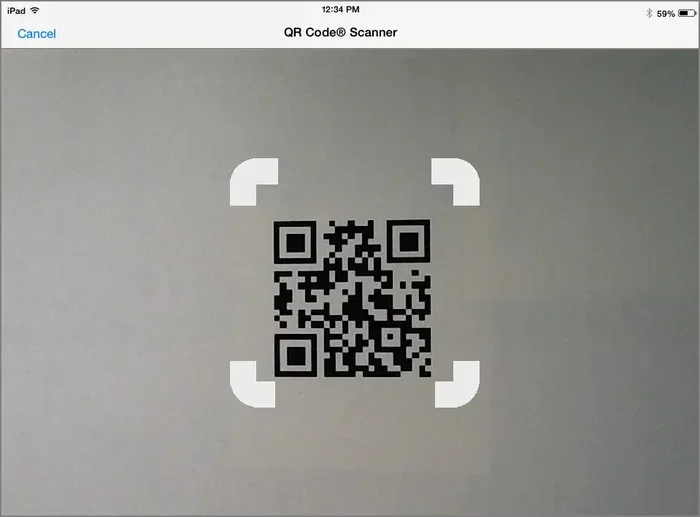
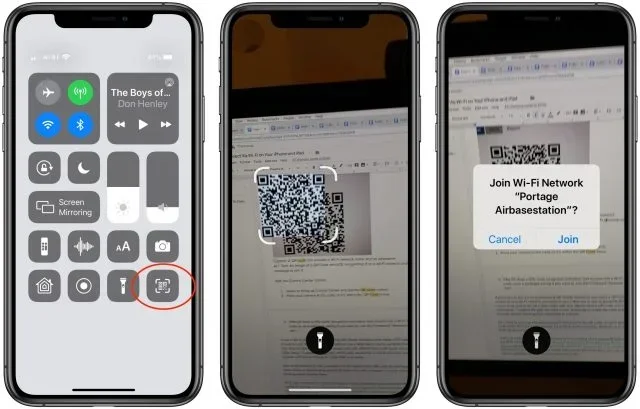
When someone scans your QR code, their phone will automatically detect the WiFi network details and prompt them to connect. They just tap Connect, and they are online. The entire process takes less than five seconds. This is why share WiFi password via QR code has become the gold standard for convenience.
Expert Insight: If you frequently host guests, consider creating a separate guest network for your home router. This keeps your main network secure while still giving visitors easy access. Most modern routers support guest networks, and setting one up takes just a few minutes in your router settings.
Tips for Creating an Effective WiFi QR Code
To get the best results with your QR code WiFi setup, keep these tips in mind:
- Use a high-resolution image: Make sure your QR code is clear and not pixelated. Blurry codes may not scan properly.
- Test before sharing: Always scan your own QR code with a phone to verify it works correctly.
- Include the correct encryption type: WPA2 is the most common and secure option. Make sure you select the right one.
- Keep it simple: Do not try to encode extra information beyond what is needed. The standard WiFi format is all you need.
- Update the code when your password changes: If you ever change your WiFi password, regenerate the QR code immediately.
Common Mistakes and Troubleshooting
Even though creating a WiFi QR code is straightforward, things can go wrong occasionally. Here are the most common issues and how to fix them.
QR Code Does Not Scan
If someone cannot scan your QR code, the first thing to check is the image quality. Make sure it is not blurry or too small. Also, ensure there is enough contrast between the QR code and the background. A dark code on a light background works best.
Another common issue is incorrect network details. Double-check that you entered the right network name and password when generating the code. Even a single wrong character will prevent a successful connection.
Connection Fails After Scanning
If the QR code scans but the connection fails, check your encryption type. If your router uses WPA3 but you selected WPA2 in the QR code, devices may not connect. Make sure the encryption type in your QR code matches your router settings.
Also, make sure the guest device has WiFi turned on and is not already connected to a different network. Sometimes phones stay connected to a previous network and ignore the new one.
QR Code Shows but Does Not Prompt Connection
Some older scanning apps do not support the WiFi QR code format. If this happens, try using a different scanning app. The built-in camera app on modern iPhones handles WiFi QR codes natively, so that is a good first choice.
Common Mistakes to Avoid:
- Using a free but untrusted QR code generator that could compromise your WiFi security.
- Forgetting to include the encryption type in the QR code.
- Sharing your main network password when a guest network would be safer.
- Not testing the QR code before sending it to others.
- Using a low-quality image that is hard to scan.
Quick Tip: If you are ever unsure about your network credentials, log into your router and check the settings there. This is the most reliable way to confirm your network name, password, and encryption type.
Keeping Your WiFi Network Secure When Sharing
Sharing your WiFi password through a QR code is convenient, but you should always think about WiFi security. Here are some smart practices to keep your network safe:
- Use a guest network: This isolates visitors from your main devices and data.
- Change your password regularly: If you suspect someone has your code, update the password and regenerate the QR code.
- Use WPA2 or WPA3 encryption: These are the most secure options available for home networks.
- Do not share your QR code publicly: Only share it with people you trust. Posting it on social media is a bad idea.
- Monitor connected devices: Most routers let you see which devices are connected. Check this periodically to spot any unauthorized access.
By following these practices, you can enjoy the convenience of share WiFi network via QR code without putting your WiFi connectivity at risk.
Conclusion
Learning how do I get the QR code for my iPhone WiFi password opens up a world of convenience. Whether you are sharing your network with guests, setting up smart devices, or just tired of typing in long passwords, a QR code makes everything effortless. You can find your password through iPhone settings, your router, or iCloud Keychain. Then you can generate a QR code using a free online tool, a dedicated app, or even your iPhone’s built-in sharing feature.
The key is to choose a trusted method, test your code before sharing, and always prioritize your WiFi security. With the right approach, iPhone WiFi sharing becomes second nature. You will wonder how you ever managed without it. So go ahead, create your WiFi QR code today, and make connecting effortless for everyone around you.
Remember, a small QR code on your wall or in your text messages can save you from the headache of repeated password sharing. It is a simple step that pays off every single day. Start using WiFi QR codes and experience the convenience yourself.
Frequently Asked Questions
Can I create a WiFi QR code on iPhone without downloading an app?
Yes, you can. You can use your iPhone browser to access free online QR code generators like QRCode Monkey or GoQR. These websites let you enter your network name and password and generate a QR code instantly. No app download is needed, making it the quickest way to get started with QR code WiFi setup.
Is sharing my WiFi password through a QR code safe?
It is generally safe as long as you take basic precautions. Always use a trusted QR code generator and avoid sharing your code publicly. For extra security, create a guest network on your router so visitors connect to a separate network that is isolated from your main devices and personal data.
Can Android phones scan a WiFi QR code generated from an iPhone?
Absolutely. WiFi QR codes follow a universal standard that works across all devices. Whether someone has an iPhone, Android phone, or even a tablet, they can scan the code and connect to your network. This makes iPhone WiFi sharing incredibly versatile for mixed-device households and offices.
What should I do if my WiFi QR code stops working?
If your code stops working, the most common cause is a change in your WiFi password. Simply regenerate the QR code with your updated wireless network password. Also check that your encryption type setting matches your router configuration. Testing the code regularly helps catch issues early.
Can I customize the appearance of my WiFi QR code?
Yes, many QR code generators and apps allow you to customize colors, add a logo, or change the design of your QR code. Just be careful not to make the code too complex, as this can interfere with scanning. Keep it clear and test it after customizing to ensure it still works properly.
How many devices can connect using a WiFi QR code?
There is no limit to how many devices can scan and connect using your WiFi QR code. Every person who scans the code will connect to your network just like they would with a manually entered password. However, if you are using a guest network, check your router settings for any device connection limits you may have set.