How Do I Connect My Boom Speaker to Bluetooth Devices
Connecting your Boom speaker to Bluetooth devices is simple and fast once you know the right steps. This guide walks you through pairing mode, device connections, and common fixes for Bluetooth connectivity issues. You will learn how to get the best wireless audio quality from your portable Bluetooth speaker every time.
Key Takeaways
- Pairing Mode is Key: Always activate pairing mode on your Boom speaker before searching for devices.
- Check Bluetooth Settings: Make sure Bluetooth is turned on and your device is within range for a strong Bluetooth connection.
- Restart Often: A simple restart of both the speaker and your device solves most Bluetooth connectivity issues.
- Multiple Devices Work: You can connect your Boom speaker to phones, tablets, laptops, and even Alexa as a Bluetooth speaker.
- Update Firmware: Keeping your Boom speaker updated ensures the best wireless audio performance and Bluetooth version compatibility.
- Distance Matters: Stay within 30 feet for the best Bluetooth speaker range and uninterrupted sound.
📑 Table of Contents
- What Is a Boom Speaker and Why Connect It via Bluetooth?
- How to Put Your Boom Speaker in Pairing Mode
- Step-by-Step Guide to Connect My Boom Speaker to Bluetooth Devices
- Common Bluetooth Connection Problems and How to Fix Them
- Tips for Getting the Best Bluetooth Audio from Your Boom Speaker
- Using Your Boom Speaker with Multiple Devices
- Maintaining Your Boom Speaker for Long-Lasting Performance
- Conclusion
What Is a Boom Speaker and Why Connect It via Bluetooth?
A Boom speaker is a portable Bluetooth speaker designed to deliver rich, powerful sound in a compact package. These speakers are popular because they are easy to carry, battery-powered, and connect wirelessly to almost any device. Whether you are at home, in the backyard, or on the road, a Boom speaker gives you wireless audio without the hassle of cords.
Connecting your Boom speaker via Bluetooth is the most convenient way to stream music, podcasts, and videos. Unlike wired connections, Bluetooth lets you move freely around your space. You do not need to worry about cable length or finding the right adapter. The Bluetooth connection between your device and the speaker happens in seconds once you know the process.
Many people also use their Boom speaker as a Bluetooth speaker for TV or a wireless speaker for laptop audio. This versatility is one of the biggest reasons these speakers are so popular. Once you pair your device, the speaker remembers it and reconnects automatically next time.
If you have ever struggled with Bluetooth pairing problems, you are not alone. The good news is that connecting a Boom speaker is straightforward. This guide will take you through every step, from initial setup to fixing common issues. By the end, you will feel confident connecting your speaker to any Bluetooth device.
How to Put Your Boom Speaker in Pairing Mode
Before you can connect any device, your Boom speaker needs to be in pairing mode. This tells the speaker to look for new Bluetooth devices nearby. The process is slightly different depending on your Boom speaker model, but the general steps are the same.
Step 1: Turn On Your Boom Speaker
Press and hold the power button until you hear a startup sound or see a light indicator. Most Boom speakers have a power LED that shows when the speaker is on. Make sure the speaker has enough battery before you start. A low battery can cause pairing failures and Bluetooth connectivity issues.
Step 2: Activate Pairing Mode
Look for a Bluetooth button on your speaker. It may have the Bluetooth symbol on it. Press and hold this button for about three to five seconds. You should hear a voice prompt or a beep that says the speaker is ready to pair. The Bluetooth light will usually start flashing, which means it is searching for devices.
Step 3: Confirm Pairing Mode
Some Boom speakers automatically enter pairing mode the first time you turn them on. If yours does not, check the user manual for model-specific instructions. You can also try pressing the Bluetooth button twice quickly on some models. The flashing light is your best indicator that the speaker is ready.
Once your Boom speaker is in pairing mode, you can move on to connecting your device. Keep the speaker close to your phone or computer during this process. The Bluetooth range for most speakers is about 30 feet, but walls and obstacles can reduce this distance.
Step-by-Step Guide to Connect My Boom Speaker to Bluetooth Devices
Now that your Boom speaker is in pairing mode, it is time to connect your device. Follow these simple steps for any Bluetooth device, whether it is a phone, tablet, or laptop.
Connecting from a Smartphone or Tablet
Open the Settings app on your phone or tablet. Tap on Bluetooth and make sure it is turned on. Your device will start scanning for available Bluetooth devices nearby. Look for your Boom speaker in the list of available devices. It may show up as “Boom Speaker” or a model-specific name.
Tap on the speaker name to pair. You may see a confirmation code on both screens. If the codes match, tap “Pair” or “Connect.” Within a few seconds, you should hear a confirmation sound from the speaker. Your Bluetooth audio streaming is now ready to go.
Connecting from a Windows Laptop
Click on the Start menu and go to Settings, then Devices, and select Bluetooth & other devices. Toggle Bluetooth on and click “Add Bluetooth or other device.” Select Bluetooth from the list of options. Your laptop will search for available devices.
Find your Boom speaker in the list and click on it. Follow any on-screen prompts to complete the pairing. Once connected, your laptop audio output will automatically switch to the speaker. You can now play music, watch videos, or join calls through your Boom speaker.
Connecting from a Mac
Click on the Apple menu and select System Preferences, then Bluetooth. Make sure Bluetooth is turned on. Your Mac will scan for nearby devices. Find your Boom speaker and click “Connect.” The connection should establish within a few seconds.
If you have trouble finding your speaker, try turning Bluetooth off and on again on your Mac. You can also check if your Bluetooth version compatibility is up to date. Most modern Macs work perfectly with Boom speakers without any issues.
Connecting from a Smart TV
Some people use their Boom speaker as a Bluetooth speaker for TV to get better sound. Go to your TV’s Settings menu, then look for Bluetooth or Sound Output options. Turn on Bluetooth and search for devices. Select your Boom speaker from the list.
Not all smart TVs support Bluetooth natively. If your TV does not have Bluetooth, you can use a Bluetooth transmitter plugged into the TV’s audio output. This small device bridges the gap and lets you connect any speaker to your TV wirelessly.
Quick Tips for First-Time Pairing
- Keep your Boom speaker within 5 feet of your device during the first pairing.
- Make sure no other Bluetooth devices are actively searching, as this can cause interference.
- Turn off other paired speakers temporarily to avoid confusion.
- Check that your device’s Bluetooth software is up to date.
- Restart both devices if the pairing does not work on the first try.
Common Bluetooth Connection Problems and How to Fix Them
Even with the best portable Bluetooth speaker, you may run into connection issues from time to time. Understanding these problems and their solutions helps you stay connected without frustration.
Boom Speaker Not Showing Up on Device
If your device cannot find the Boom speaker, the first thing to check is whether the speaker is in pairing mode. The flashing Bluetooth light is your clue. If the light is solid, the speaker is already connected to another device. Disconnect it from the other device first, then try again.
Another common cause is distance. Move your device closer to the speaker and try again. You should also make sure Bluetooth is turned on and visible on your device. Some phones have a “hidden” Bluetooth mode that prevents new devices from finding it.
Audio Stuttering or Cutting Out
Intermittent audio is usually caused by interference or distance. Wi-Fi routers, microwaves, and other Bluetooth devices can interfere with the signal. Move away from these sources and see if the audio improves.
If the problem continues, try moving closer to the speaker. The Bluetooth speaker range can be affected by walls and furniture. In open spaces, you will get a stronger and more stable wireless audio connection.
Speaker Connected but No Sound
Sometimes the speaker pairs successfully but produces no sound. Check the volume on both your device and the speaker. Also, make sure your device’s audio output is set to the Boom speaker, not the built-in speakers.
On some devices, you need to manually select the speaker as the output device. On Android phones, look for the media output icon in the quick settings panel. On Windows, right-click the volume icon and select the Boom speaker as the output device.
Speaker Keeps Disconnecting
If your Boom speaker keeps disconnecting, the battery may be low. Low battery power can cause unstable Bluetooth connectivity. Charge the speaker fully and try reconnecting.
Another cause is too many paired devices. Some Boom speakers can remember multiple devices but may struggle to maintain stable connections with all of them. Try removing old or unused pairings from your speaker and device.
When to Reset Your Boom Speaker
If none of the above solutions work, a factory reset may be the answer. Most Boom speakers have a reset button or a reset combination. Usually, you need to press and hold the power button and the Bluetooth button together for 10 seconds. The speaker will reset and forget all previous pairings.
After resetting, put the speaker back in pairing mode and reconnect your device. This fresh start often resolves stubborn Bluetooth pairing problems that nothing else can fix.
Tips for Getting the Best Bluetooth Audio from Your Boom Speaker
Once you have successfully connected your Boom speaker, you want to enjoy the best possible sound quality. A few simple tips can make a big difference in your wireless audio experience.
Keep Your Devices Updated
Software updates often include improvements for Bluetooth connectivity and audio performance. Make sure your phone, tablet, or laptop is running the latest version of its operating system. Some Boom speakers also receive firmware updates that improve Bluetooth version compatibility and fix known issues.
Check the Boom speaker app or the manufacturer’s website for available updates. Updating your devices regularly keeps everything running smoothly and prevents Bluetooth audio streaming problems.
Optimize Your Placement
Where you place your Boom speaker affects the sound quality and connection strength. Place the speaker on a flat, hard surface for the best bass response. Avoid placing it in corners or against walls, as this can muffle the sound.
For the strongest Bluetooth connection, keep the speaker in line of sight with your device. While Bluetooth can go through walls, direct line of sight gives you the best Bluetooth range and the fewest interruptions. If you are using the speaker outside, keep it within 30 feet of your device.
Manage Multiple Connections
Boom speakers can remember multiple paired devices, which is great for households with several users. However, having too many active connections can slow things down. Go through your speaker’s Bluetooth settings and remove devices you no longer use.
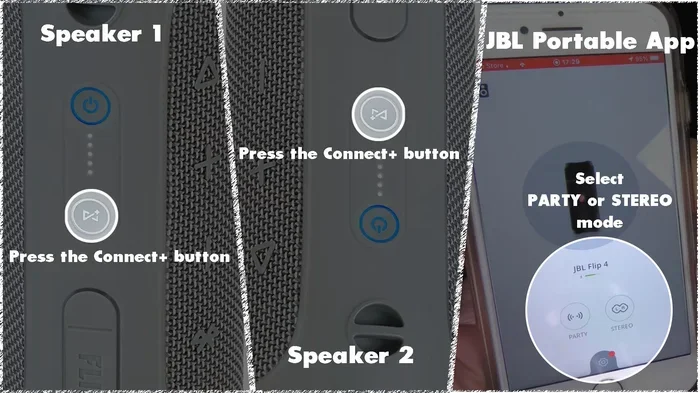
If you want to use your Boom speaker with a Bluetooth headphones setup or connect it to other audio equipment, make sure you are not overloading the connection. One active device at a time gives you the most stable wireless audio experience.
Use the Boom App When Available
Some Boom speakers come with a companion app that lets you manage connections, update firmware, and adjust settings. The app gives you more control over your Bluetooth speaker setup and can help you troubleshoot issues faster.
The app may also offer features like equalizer settings, which let you customize the sound to your liking. You can boost the bass, adjust the treble, or select preset sound profiles. These small tweaks can significantly improve your listening experience.
Using Your Boom Speaker with Multiple Devices
One of the best things about a Boom speaker is its ability to connect to multiple devices. You can switch between your phone, tablet, and laptop without re-pairing each time. Here is how to manage multiple Bluetooth device connections effectively.
Switching Between Devices
Most Boom speakers automatically connect to the last device that was paired. If you want to switch to a different device, play audio on that device while the speaker is within range. The speaker should recognize the new device and connect automatically.
For a manual switch, go to the Bluetooth settings on your current device and disconnect from the speaker. Then, play audio on the new device. The speaker will search for available devices and connect to the new one.
Using the Speaker as a Shared Audio Hub
Boom speakers are great for group settings. You can pass the speaker around and let different people connect their devices. This works well at parties, outdoor gatherings, or family events. Just make sure each person disconnects after use so the speaker stays ready for the next connection.
If you want a more permanent setup, you can also use your Boom speaker as a wireless speaker for laptop audio during work or study sessions. The Bluetooth audio streaming quality is good enough for video calls, presentations, and music breaks alike.
Can You Connect a Boom Speaker to Non-Bluetooth Devices?
Some Boom speakers come with auxiliary input options or USB ports. This lets you connect devices that do not have Bluetooth. If your Boom speaker has an aux input, you can use a standard 3.5mm cable to connect it to older devices, gaming consoles, or speakers plugged into a laptop.
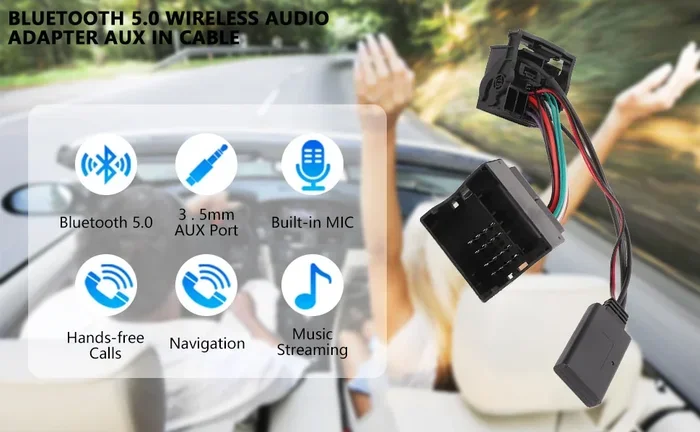
For devices without Bluetooth, you can also use a Bluetooth transmitter. This small adapter plugs into the audio output of your device and sends the signal wirelessly to your Boom speaker. This is a great solution for older TVs, desktop computers, or any device with a standard audio jack.
Some users also wonder about using Boom speakers with gaming consoles or projectors. The aux input or Bluetooth transmitter approach works well for these setups too. You get the freedom of wireless audio without being limited by your device’s built-in capabilities.
Maintaining Your Boom Speaker for Long-Lasting Performance
Taking care of your Boom speaker ensures it continues to deliver great wireless audio for years. A few simple maintenance habits go a long way in preventing Bluetooth connectivity issues and keeping the sound quality high.
- Charge Regularly: Do not let the battery drain completely before recharging. Keeping the battery between 20% and 80% extends its lifespan.
- Clean the Speaker: Wipe down the speaker regularly with a soft, dry cloth. Dust and debris can block the speakers and affect sound quality.
- Store Properly: When not in use, store the speaker in a cool, dry place. Extreme heat or moisture can damage the internal components.
- Update Firmware: Check for firmware updates regularly. These updates often include Bluetooth connectivity improvements and bug fixes.
- Reset Occasionally: A factory reset every few months clears out old pairings and keeps the Bluetooth connection running smoothly.
Following these simple tips keeps your Boom speaker in top shape. You will enjoy reliable Bluetooth audio streaming and fewer connection problems over time.
Conclusion
Connecting your Boom speaker to Bluetooth devices is easy once you understand the process. Start by putting the speaker in pairing mode, then search for it on your device. Follow the on-screen prompts to complete the pairing, and you are ready to enjoy wireless audio anywhere. If you run into issues, the troubleshooting steps in this guide should help you resolve them quickly.
Remember to keep your devices updated, manage your connections wisely, and take care of your speaker for the best long-term performance. Whether you are streaming music at home, using the speaker as a Bluetooth speaker for TV, or sharing it with friends at a gathering, your Boom speaker delivers reliable and powerful sound.
Now that you know how to connect my Boom speaker to any Bluetooth device, you can enjoy seamless wireless audio wherever you go. Put these tips into practice and experience the full potential of your Boom speaker today.
Frequently Asked Questions
Why Won’t My Boom Speaker Connect to Bluetooth?
The most common reason is that the speaker is not in pairing mode. Make sure the Bluetooth light is flashing before you search for devices. Also check that Bluetooth is turned on your device and that the speaker is within range. Restarting both devices often resolves this issue quickly.
How Far Can My Boom Speaker Be from My Device?
Most Boom speakers have a Bluetooth range of about 30 feet in open space. Walls, furniture, and other obstacles can reduce this distance. For the best wireless audio experience, keep the speaker within 15 to 20 feet of your connected device.
Can I Connect My Boom Speaker to Multiple Devices at Once?
Boom speakers can remember multiple paired devices, but they typically connect to one device at a time. You can switch between devices easily by disconnecting from one and playing audio on another. Some newer models support multi-device pairing, which allows simultaneous connections.
Do I Need to Re-Pair My Boom Speaker Every Time?
No, your Boom speaker remembers previously paired devices. When you turn on the speaker and enable Bluetooth on your device, they should reconnect automatically. If the speaker connects to a different device, you may need to manually switch the audio output back.
Can I Use My Boom Speaker with a Device That Does Not Have Bluetooth?
Yes, if your Boom speaker has an aux input, you can use a 3.5mm cable to connect it to non-Bluetooth devices. Alternatively, you can use a Bluetooth transmitter that plugs into your device’s audio output and sends the signal wirelessly to the speaker.
How Do I Update the Firmware on My Boom Speaker?
Check the Boom speaker manufacturer’s app or website for firmware updates. Some speakers update automatically when connected to Wi-Fi. Others require you to download the update manually and follow the on-screen instructions. Keeping firmware updated improves Bluetooth version compatibility and fixes known issues.