How Do I Connect My Bluetooth To My TV For Better Sound
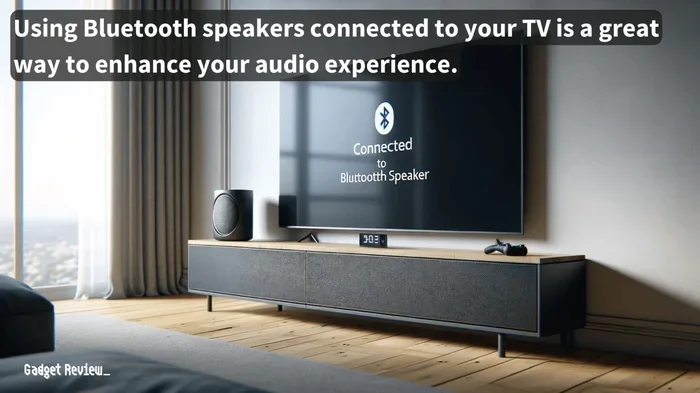
Connecting Bluetooth to your TV for better sound is easier than you think. This guide walks you through every method, from built-in Bluetooth to adapters and transmitters. You will learn how to pair devices, fix common problems, and get the best audio quality for your setup.
You are sitting on the couch. Your favorite show is playing. But the sound from your TV speakers just is not cutting it. Maybe they are too quiet, or maybe they sound flat and tinny. Whatever the reason, you want better audio. The good news is that connecting Bluetooth to your TV for better sound is one of the easiest upgrades you can make. It does not cost a lot, and you do not need to be a tech expert. In this guide, we will walk you through every step. You will learn how to pair devices, fix common problems, and get the best possible audio from your setup.
Bluetooth technology has been around for a long time now. But many people still do not know how to use it with their TV. The process is different depending on your TV brand and model. Some smart TVs have Bluetooth built right in. Others need a small adapter or transmitter to make it work. Either way, the end result is the same. You get wireless sound that sounds great. No more messy cables. No more pulling wires across the room. Just clean, simple audio that fills your space.
This guide covers everything you need to know. We will start with the basics. Then we will move into step-by-step instructions for different methods. We will also cover troubleshooting tips, common mistakes to avoid, and expert advice to get the best sound quality. By the end, you will be able to connect Bluetooth to your TV with confidence and enjoy your movies, shows, and music like never before.
Key Takeaways
- Built-in Bluetooth: Most modern smart TVs have Bluetooth already, so check your settings first.
- Bluetooth Transmitters: Older TVs can use a transmitter to add wireless sound capability easily.
- Audio Sync Matters: Delay between video and audio is common and fixable with simple tweaks.
- Multiple Connection Methods: You can connect Bluetooth headphones, speakers, soundbars, and more.
- Range and Interference: Keep your Bluetooth device within 30 feet and away from Wi-Fi routers for best performance.
- Compatibility Check: Not all TVs support all Bluetooth profiles, so verify before buying accessories.
📑 Table of Contents
- Why Connect Bluetooth to Your TV for Better Sound?
- Check If Your TV Has Built-In Bluetooth
- How to Connect Bluetooth to Your TV for Sound: Step by Step
- Best Bluetooth Devices for TV Sound
- Common Problems and How to Fix Them
- Tips to Get the Best Bluetooth TV Sound
- Expert Insights on Bluetooth TV Audio
- Frequently Asked Questions
- Conclusion
Why Connect Bluetooth to Your TV for Better Sound?
There are many reasons to go wireless with your TV audio. Let us look at the biggest benefits first.
Better Sound Quality
Most TV speakers are small and flat. They do not have the space to produce deep bass or rich highs. When you connect a Bluetooth speaker or soundbar, the sound improves dramatically. You get clearer dialogue, deeper bass, and a more immersive experience. Whether you are watching action movies or listening to music, the difference is night and day.
Freedom From Wires
Wired speakers need cables. Cables run across floors. Cables get tangled. Cables limit where you can place your TV. Bluetooth removes all of that. You can put your speaker anywhere in the room. Move it to the bedroom. Take it to the kitchen. The choice is yours. This kind of wireless audio setup gives you real flexibility.
Multiple Device Support
Once your TV is Bluetooth-ready, you can connect more than just speakers. You can pair Bluetooth headphones for late-night watching. You can connect a soundbar for room-filling audio. You can even pair multiple speakers for a makeshift surround sound setup. The possibilities are wide open.
Easy Setup
You do not need an IT degree to set this up. Most Bluetooth pairing processes take less than five minutes. We will show you exactly how to do it below. The steps are simple and repeatable, so you can set up new devices anytime.
Check If Your TV Has Built-In Bluetooth
Before you buy anything, check if your TV already supports Bluetooth. Many modern smart TVs come with it built in. Here is how to find out.
How to Check Your TV Settings
Turn on your TV. Grab your remote. Go to the Settings menu. Look for a section called Sound, Audio, or Connections. If you see a Bluetooth option there, your TV supports it. Some TVs list it under Network Settings or Bluetooth & Devices. The exact path depends on your brand.
If you have a Samsung TV, look under Sound Output. For LG TVs, check the Sound section and look for Bluetooth. Sony TVs often have it under Network & Internet. TCL and Roku TVs may list it under the Audio or Remote & Accessories menu.
What If Your TV Does Not Have Bluetooth?
No worries. Plenty of TVs do not have built-in Bluetooth. Older models especially lack this feature. But that does not mean you are out of luck. You can still add Bluetooth to your TV using a transmitter or adapter. We will cover that in detail below. And if you are curious about whether your TV can support Bluetooth at all, check out this guide on Can I Make My TV Have Bluetooth for helpful tips.
How to Connect Bluetooth to Your TV for Sound: Step by Step
Now let us get into the actual setup process. We will cover three main methods. Each one works for different types of TVs and setups.
Method 1: Using Built-In Bluetooth (Smart TVs)
This is the easiest method. If your TV has Bluetooth, follow these steps:
- Turn on your TV and go to Settings.
- Find the Bluetooth or Sound Output section.
- Turn Bluetooth on and set it to Pairing Mode.
- Put your Bluetooth speaker or headphones into pairing mode.
- Select your device from the list on your TV screen.
- Wait for the connection to complete.
That is it. Your TV should now send audio to your Bluetooth device. The first time you pair devices, it takes a little longer. After that, they usually reconnect automatically. If you are pairing Bluetooth headphones specifically, you might want to read our guide on Can I Pair Bluetooth Headphones to My LG TV for brand-specific tips that apply broadly.
Method 2: Using a Bluetooth Transmitter
A Bluetooth transmitter is a small device that plugs into your TV. It adds Bluetooth capability to any TV, even older models. Here is how it works:
- Buy a Bluetooth transmitter. They cost between 15 and 40 dollars.
- Plug the transmitter into your TV’s audio output. This could be a 3.5mm jack, RCA output, or optical port.
- Turn on the transmitter and put it in pairing mode.
- Pair your Bluetooth speaker or headphones with the transmitter.
- Set your TV audio output to the external speaker or optical out.
Bluetooth transmitters are a great solution for older TVs. They are small, affordable, and work with almost any Bluetooth speaker or headphone. Some transmitters also support aptX or aptX HD codecs, which means better audio quality and lower latency. Look for these features when shopping.
Method 3: Using a Bluetooth Soundbar
A Bluetooth soundbar is a popular choice for better TV sound. Many soundbars connect wirelessly to your TV. The setup process is similar to Method 1:
- Place your soundbar near your TV.
- Connect the soundbar to power.
- Go to your TV Settings and find Bluetooth.
- Put the soundbar in pairing mode.
- Select the soundbar from your TV’s device list.
Some soundbars connect through an HDMI ARC cable instead. This gives you better audio sync and allows you to control volume with your TV remote. If you go this route, check your TV and soundbar manuals for HDMI ARC setup steps.
Best Bluetooth Devices for TV Sound
Not all Bluetooth audio devices are the same. Some work better with TVs than others. Here are the best options to consider.
Bluetooth Speakers
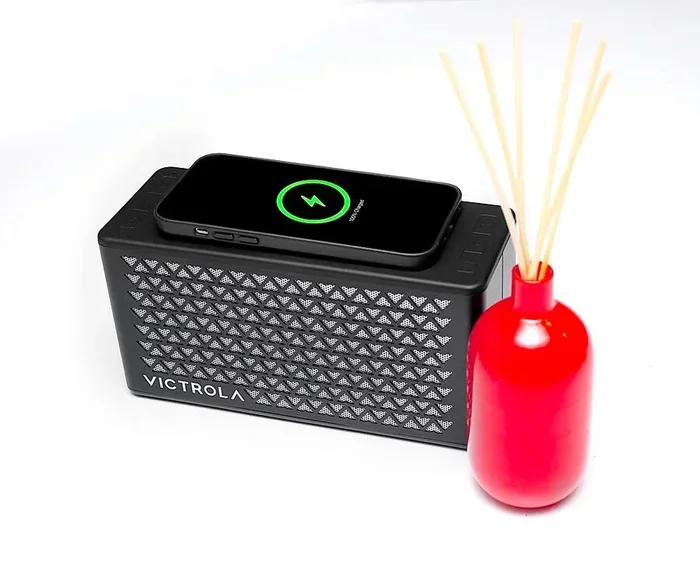
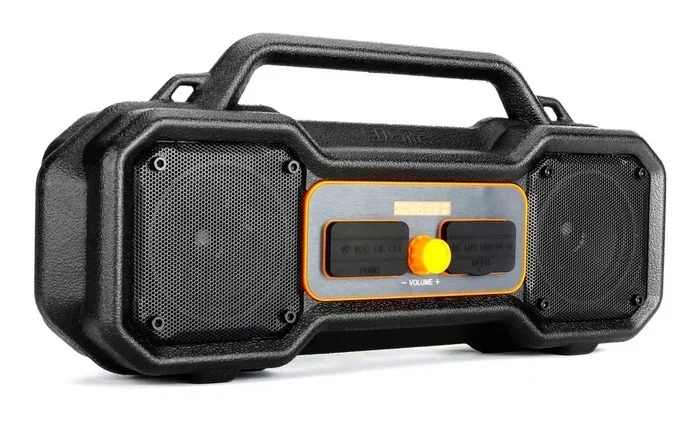
Bluetooth speakers are the most affordable option. You can find good ones for 30 to 80 dollars. They are portable and easy to set up. Brands like JBL, Bose, and Anker make reliable TV speakers. Just remember that most Bluetooth speakers are designed for personal use, not for filling a large room. If you want louder sound, consider a soundbar instead.
Bluetooth Headphones
Bluetooth headphones are perfect for late-night watching. You can enjoy your shows without disturbing anyone. Many people ask whether Bluetooth headphones work with Roku TVs, and the answer is yes, in most cases. You can also use them with other smart TV brands. Look for headphones with low latency for the best experience.
Bluetooth Soundbars
Soundbars offer the best balance of size and sound quality. They sit under your TV and deliver rich, full audio. Many soundbars also have built-in subwoofers for deep bass. If you want a serious upgrade, a Bluetooth soundbar is the way to go. You can also find soundbars that connect through Wi-Fi for even more flexibility.
Wireless Speakers (Multi-Room Setup)
If you want to go beyond your TV, consider wireless speakers that work throughout your home. Brands like Sonos and Google Nest make speakers that can connect to your TV and other rooms. This creates a whole-home audio experience. You can listen to music in the kitchen and TV audio in the living room, all from the same system.
Common Problems and How to Fix Them
Bluetooth connections are not always perfect. Here are the most common issues and how to solve them.
Audio Delay or Lag
Audio delay, also called latency, is the most common Bluetooth problem. You see the lips move, but the sound comes a second later. This is frustrating but fixable. Try these solutions:
- Check if your Bluetooth device supports aptX Low Latency.
- Move closer to your TV to strengthen the signal.
- Reduce interference from other wireless devices.
- Update your TV firmware to the latest version.
- Restart both your TV and the Bluetooth device.
Device Will Not Pair
If your device will not connect, try these steps:
- Make sure Bluetooth is turned on in your TV settings.
- Put both devices in pairing mode at the same time.
- Remove the device from your TV’s Bluetooth list and try again.
- Restart both devices.
- Check if the device is already connected to another phone or tablet.
Sometimes the issue is simple. Your TV might already be connected to a different device. Check your connected devices list and disconnect anything you are not using.
Sound Quality Is Poor
If the audio sounds muffled or distorted, try these fixes:
- Move the Bluetooth device closer to your TV.
- Remove physical obstacles between the devices.
- Check if your TV audio settings are set to the correct output.
- Update the Bluetooth device firmware.
- Switch to a different Bluetooth codec if your devices support it.
Connection Keeps Dropping
Intermittent connections are annoying. They usually happen because of range or interference. Keep your Bluetooth device within 30 feet of your TV. Avoid placing it near Wi-Fi routers, microwaves, or other wireless devices. If the problem continues, reset the Bluetooth connection on both devices.
Tips to Get the Best Bluetooth TV Sound
Want to get the most out of your Bluetooth TV setup? Here are some expert tips.
Place Your Speaker Strategically
Speaker placement matters a lot. Put your Bluetooth speaker at ear level when you are sitting in your usual spot. If you are using a soundbar, place it directly under your TV. Avoid putting speakers in corners or behind furniture. This blocks the sound and reduces quality.
Update Your Devices Regularly
Firmware updates improve Bluetooth performance and fix bugs. Check for updates on both your TV and your Bluetooth devices. Most smart TVs have an automatic update setting. Turn it on so you always have the latest improvements.
Use the Right Bluetooth Profile
Bluetooth devices use different profiles for different tasks. The most common one for audio is A2DP (Advanced Audio Distribution Profile). This profile handles music and video sound. Some devices also support AVRCP (Audio/Video Remote Control Profile), which lets you control volume with your TV remote. Make sure both devices support the profiles you need.
Reduce Wireless Interference
Bluetooth uses the 2.4 GHz frequency band. This is the same band used by Wi-Fi and microwaves. When too many devices share this band, interference happens. To reduce it:
- Move your Wi-Fi router away from your TV.
- Turn off unused wireless devices during viewing.
- Use a Bluetooth transmitter that supports the 5 GHz band if available.
Consider a Bluetooth Audio Receiver
If your TV has a 3.5mm headphone jack or RCA output, you can use a Bluetooth audio receiver. These small devices plug into your TV and act as the Bluetooth receiver. They are cheap and effective. You can find them for under 20 dollars online. This is a great option if your TV does not have built-in Bluetooth and you do not want to buy a full transmitter.
Expert Insights on Bluetooth TV Audio
We spoke with audio professionals to get their take on Bluetooth TV setups. Here is what they recommend.
Start with your TV’s built-in audio settings. Many people skip this step. But adjusting your TV’s equalizer and sound mode can make a big difference even before you add Bluetooth. Try switching between Standard, Movie, Music, and Sports modes. Find the one that sounds best for your content.
Do not cheap out on your Bluetooth device. Very cheap Bluetooth speakers often have poor range and high latency. Spending a little more gets you a much better experience. Look for devices that support aptX or AAC codecs for the best audio quality.
Test your setup in your actual viewing environment. Bluetooth performance varies based on room size, furniture layout, and wall materials. What works perfectly in a store might not work the same way in your living room. Take your time to find the best placement.
For those wondering about connecting external audio devices to their TV setup, our guide on Can I Plug Speakers Into My Laptop also covers useful audio connection concepts that apply to TV setups as well.
If you are dealing with an older TV and need help adding modern connectivity, check out our resource on How Can I Connect My PC to the Internet Without Ethernet. While it focuses on internet connections, the adapter and transmitter principles are very similar to what you need for Bluetooth TV audio.
Frequently Asked Questions
Can I Connect Any Bluetooth Speaker to My TV?
Most Bluetooth speakers can connect to any TV that supports Bluetooth. However, some TVs only support specific Bluetooth profiles. A2DP is the most widely supported profile for audio streaming. If your TV and speaker both support A2DP, they should work together. Check your TV manual or settings to confirm compatibility before purchasing.
Why Is There a Delay Between the Video and Audio When Using Bluetooth?
Audio delay, or latency, happens because Bluetooth takes time to encode and transmit audio data. This is a normal limitation of wireless technology. The delay is usually small, but it becomes noticeable during fast-action scenes or dialogue-heavy content. Using a transmitter with aptX Low Latency support can greatly reduce this delay. Placing your Bluetooth device closer to the TV also helps minimize latency.
Can I Connect Multiple Bluetooth Speakers to My TV at Once?
It depends on your TV model. Most TVs can only connect to one Bluetooth audio device at a time. Some newer smart TVs support multi-point connections or dual audio features. If your TV does not support multiple connections, you can use a Bluetooth splitter to pair two speakers with one transmitter. This creates a stereo or louder setup without needing a multi-device TV.
Does Bluetooth Affect TV Picture Quality?
No, Bluetooth does not affect your TV picture at all. Bluetooth only handles audio transmission. Your video signal stays the same whether you use Bluetooth speakers or your TV’s built-in speakers. You can switch between wired and Bluetooth audio without any change to your picture quality or resolution.
What Is the Best Bluetooth Transmitter for Older TVs?
The best Bluetooth transmitter depends on your TV’s available ports. If your TV has a 3.5mm headphone jack, get a transmitter that plugs into that jack. If your TV has optical audio output, choose a transmitter with an optical input. Look for transmitters that support aptX or aptX HD for the best sound quality. Popular brands include 1Mii, Avantree, and TaoTronics.
Can I Use Bluetooth Headphones with My TV for Private Listening?
Yes, you can use Bluetooth headphones with most TVs that support Bluetooth. This is one of the most popular uses for Bluetooth TV audio. It lets you watch shows late at night without disturbing family members. Some TVs also have a feature called “Audio Output to Headphones” in their accessibility settings. This makes it even easier to switch between speakers and headphones on the fly.
Conclusion
Connecting Bluetooth to your TV for better sound is one of the simplest upgrades you can make. It takes just a few minutes, costs very little, and makes a huge difference in your viewing experience. Whether your TV has built-in Bluetooth or needs a transmitter, the process is straightforward. You have several options to choose from, including speakers, headphones, soundbars, and transmitters.
Remember to check your TV settings first. Make sure Bluetooth is enabled and your device is in pairing mode. If you run into problems, refer back to the troubleshooting tips in this guide. Most issues are easy to fix with a simple restart or repositioning.
Take the time to find the right Bluetooth device for your needs. Consider your room size, your budget, and the type of content you watch most. With the right setup, your TV audio will sound better than ever. You will wonder how you ever watched TV without it. So go ahead, grab your Bluetooth device, and start listening to your favorite content the way it was meant to be heard.