How Do I Connect Bluetooth to My Ilive Tailgate Speaker
Connecting Bluetooth to your Ilive tailgate speaker is simple and fast when you follow the right steps. This guide walks you through pairing your wireless speaker, fixing common Bluetooth connection issues, and getting the best sound for outdoor events. You will learn how to pair Bluetooth devices, optimize your speaker Bluetooth mode, and enjoy wireless audio streaming at your next tailgate or backyard gathering.
There is nothing better than firing up your favorite playlist at a tailgate party. Your Ilive wireless tailgate speaker is built to deliver big sound in a portable package. But before you can crank up the volume, you need to connect Bluetooth to your Ilive tailgate speaker the right way.
If you have never paired a Bluetooth speaker before, do not worry. The process is straightforward and takes less than a minute once you know the steps. This guide covers everything from the initial pairing to troubleshooting common issues. By the end, you will be ready to stream wireless audio at your next outdoor gathering with confidence.
Whether you are new to the Ilive brand or have owned the speaker for a while, this article gives you practical, actionable steps. We also share tips for getting the best Bluetooth range and sound quality outdoors. Let us get your speaker connected and your party started.
Key Takeaways
- Easy Pairing Process: Most Ilive tailgate speakers connect to your phone or tablet in under a minute using Bluetooth.
- Quick Reset Fixes Most Issues: A simple reset solves the majority of Bluetooth connection problems.
- Multiple Devices Work: You can pair more than one device to your speaker for shared listening.
- Range Matters: Keep your device within 30 feet for the strongest Bluetooth connectivity.
- Outdoor Tips Help: A few small adjustments dramatically improve sound quality outside.
- Firmware Updates Help: Keeping your speaker updated ensures the best Bluetooth performance.
📑 Table of Contents
- Understanding Your Ilive Tailgate Speaker
- Step-by-Step Guide to Connect Bluetooth to Your Ilive Tailgate Speaker
- Common Bluetooth Connection Issues and How to Fix Them
- Tips for Getting the Best Bluetooth Performance Outdoors
- How to Pair Multiple Devices with Your Ilive Speaker
- Maintaining Your Bluetooth Connection for Long Tailgate Sessions
- Quick Tips for First-Time Ilive Speaker Users
- Common Mistakes to Avoid
- Expert Insights on Bluetooth Speaker Performance
- Key Takeaways
- Frequently Asked Questions
Understanding Your Ilive Tailgate Speaker
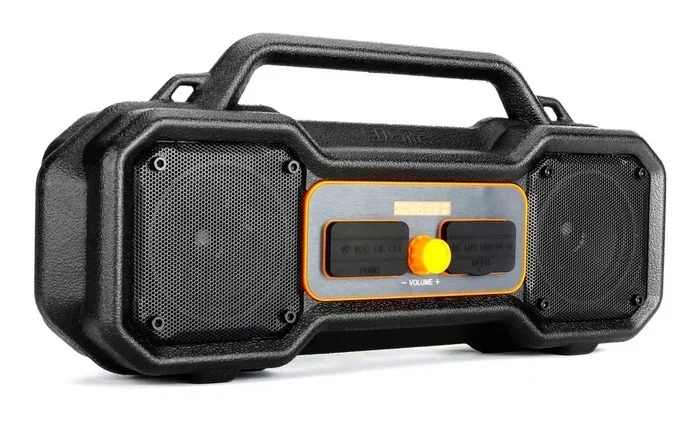
The Ilive tailgate speaker is a portable Bluetooth speaker designed for outdoor use. It is compact, lightweight, and built to handle the elements. Most models feature a rechargeable battery that lasts several hours on a single charge.
These speakers use Bluetooth technology to receive audio from your phone, tablet, or laptop. You do not need any cables to stream music. The built-in rechargeable battery means you can set up anywhere without looking for a power outlet. This makes them perfect for tailgates, beach trips, and backyard cookouts.
What Makes Ilive Speakers Different
Ilive speakers are known for their affordability and solid sound quality. They offer a strong Bluetooth range compared to some budget options. The speakers also feature a simple control layout that makes it easy to adjust volume, skip tracks, and manage calls hands-free.
Many Ilive models also include a built-in microphone. This lets you take phone calls directly through the speaker. The combination of portability, battery life, and Bluetooth connectivity makes these speakers a popular choice for outdoor entertainment.
Step-by-Step Guide to Connect Bluetooth to Your Ilive Tailgate Speaker
Now let us walk through the actual pairing process. Follow these steps carefully and you will be listening to music in no time.
Step 1: Charge Your Speaker Fully
Before you try to pair Bluetooth devices, make sure your speaker has enough charge. A low battery can cause connection problems or prevent the speaker from entering pairing mode. Plug in your speaker and let it charge fully before your first use.
Most Ilive tailgate speakers use a standard USB charging cable. A full charge typically takes two to three hours. The battery can last anywhere from eight to twelve hours depending on the volume level and model.
Step 2: Turn on the Speaker
Press and hold the power button until you hear a startup sound or see a light indicator. Most Ilive speakers have a power LED that shows the battery status. A solid light means the speaker is on and ready.
Some models also have a dedicated Bluetooth button. If yours does, press it once to activate Bluetooth mode. You should see a flashing light, which means the speaker is ready to be discovered by other devices.
Step 3: Enable Bluetooth on Your Device
Go to the settings on your phone or tablet and turn on Bluetooth. Make sure Bluetooth is set to discoverable mode. On most devices, this happens automatically when Bluetooth is turned on for the first time.
Wait a few seconds and your device should start scanning for available devices. You should see your Ilive speaker appear in the list of available devices. The name usually starts with “Ilive” followed by a model number.
Step 4: Select and Pair
Tap on your Ilive speaker name in the list of available devices. Wait for the connection to establish. You will usually hear a confirmation tone from the speaker once the pairing is complete.
Once paired, your device will automatically connect to the speaker whenever Bluetooth is turned on and the speaker is within range. This makes reconnecting fast and easy for every tailgate session.
Step 5: Test the Connection
Play a song from your music app and check the audio output. Make sure the sound is coming through the speaker and not your device’s built-in speakers. Adjust the volume on both your device and the speaker for the best balance.
If you hear music clearly, congratulations. Your Bluetooth connection is working. Now you are ready to enjoy your outdoor audio experience.
Common Bluetooth Connection Issues and How to Fix Them
Sometimes things do not go as smoothly as we hope. Bluetooth connectivity can be finicky, especially outdoors. Here are the most common problems and how to solve them.
Speaker Not Showing Up on Your Device
If your Ilive speaker does not appear in the Bluetooth device list, try these fixes. First, make sure the speaker is in pairing mode. Most models require you to hold the Bluetooth button for three to five seconds until a flashing light appears.
Second, restart Bluetooth on your phone or tablet. Turn it off, wait ten seconds, and turn it back on. This forces the device to refresh its scan for available Bluetooth devices. If that does not work, restart your phone entirely.
Also check that your speaker is not already connected to another device. Some Ilive models can remember up to two previously paired devices. If a previous device is nearby, it may automatically reconnect. Move away from other paired devices and try again.
Connection Drops Frequently
A weak or dropping connection is one of the most frustrating issues. The most common cause is distance. Bluetooth has a limited range, usually around 30 feet in open space. Walls, trees, and other obstacles reduce this range significantly.
Keep your phone close to the speaker when streaming music. If you are at a large tailgate, stay within a reasonable distance. Also, avoid placing the speaker near other wireless devices that might cause interference.
Another fix is to reduce the number of Bluetooth devices connected nearby. Too many active Bluetooth signals in one area can cause congestion and dropouts. This is similar to how Bluetooth headphones can sometimes interfere with a Roku connection when multiple wireless devices compete for the same signal.
Audio Quality Is Poor or Distorted
If the sound is crackling or distorted, check the distance between your device and the speaker. Move closer and see if the quality improves. Obstacles between the devices can weaken the Bluetooth signal and reduce audio quality.
Also check your phone’s volume settings. Some devices have separate media volume and ringtone volume controls. Make sure the media volume is turned up. You can also try lowering the volume on the speaker itself and increasing it on your device instead.
Interference from other wireless sources can also affect sound quality. Keep the speaker away from microwave ovens, baby monitors, and other wireless electronics that operate on similar frequencies.
Speaker Will Not Turn On
If your speaker will not power on, the battery may be completely dead. Plug it in and let it charge for at least 30 minutes before trying again. If the charging light does not come on, try a different USB cable or power adapter.
Some Ilive models have a reset button or a reset procedure. Check your user manual for the specific reset instructions. A reset can often fix both power and Bluetooth issues at the same time.
Tips for Getting the Best Bluetooth Performance Outdoors
Outdoor environments present unique challenges for wireless audio. Here are some practical tips to help you get the best performance from your Ilive tailgate speaker.
Keep the Speaker in a Central Location
Place your speaker in a central spot where it has a clear line of sight to your phone or other source device. Avoid tucking it behind coolers, tables, or other objects. The more open the space, the stronger and more stable the Bluetooth connection will be.
Minimize Wireless Interference
Outdoor gatherings often have multiple phones, tablets, and portable speakers all operating at the same time. This can create wireless congestion. To reduce interference, turn off Bluetooth on devices that are not actively streaming to the speaker.
If you are at a crowded tailgate with many Bluetooth devices nearby, try switching your speaker to a less crowded Bluetooth channel if your model supports it. This can significantly improve connection stability.
Protect the Speaker from the Elements
While many Ilive speakers are designed to be water-resistant, prolonged exposure to rain or direct sunlight can still cause problems. Keep the speaker in a shaded, covered area when possible. Moisture can get into the Bluetooth antenna and weaken the wireless signal over time.
Use the Speaker’s Built-in Controls
Most Ilive tailgate speakers have volume and track controls built right into the unit. Use these controls instead of your phone’s screen. This reduces the need to keep your phone unlocked and close to the speaker, which can help maintain a stable connection.
How to Pair Multiple Devices with Your Ilive Speaker
One of the great features of Ilive tailgate speakers is the ability to connect multiple devices. This is perfect for group gatherings where everyone wants to add a song to the playlist.
Switching Between Paired Devices
Most Ilive speakers can remember two or more paired devices at a time. To switch between them, simply disconnect the current device from the speaker. Then, have the other device search for and connect to the speaker.
Some models allow you to press the Bluetooth button to cycle through saved devices. Check your specific model’s manual for the exact switching process. The ability to switch devices quickly makes the speaker ideal for shared use at tailgates and parties.
Managing Connected Devices
To keep things running smoothly, disconnect devices that are not in use. Too many connected devices can slow down the Bluetooth connection and cause audio delays. Think of it like managing a pairing list on your LG TV where keeping only active devices connected ensures the best experience.
If you are having trouble connecting a new device, remove old pairings that you no longer need. This frees up memory on the speaker and can resolve connection conflicts. A clean pairing list leads to a more stable Bluetooth experience.
Maintaining Your Bluetooth Connection for Long Tailgate Sessions
A long day of tailgating means your speaker needs to perform for hours. Here is how to keep your Bluetooth connection strong throughout the event.
Monitor Battery Levels
Nothing kills a good party faster than a dead speaker. Keep an eye on the battery indicator and recharge when needed. Bring a portable power bank if you are going to be out all day. A fully charged backup battery can keep your speaker running for several additional hours.
Update Your Speaker Firmware
Ilive occasionally releases firmware updates that improve Bluetooth performance and fix connection bugs. Check the Ilive website or user manual for instructions on how to update your speaker. A simple firmware update can resolve many of the Bluetooth issues you might encounter.
Keep Devices Updated Too
Your phone or tablet also needs to stay updated for the best Bluetooth compatibility. Operating system updates often include improvements to Bluetooth connectivity and stability. Make sure your device is running the latest version before a big outdoor event.
Store the Speaker Properly
When you are done using your speaker, store it in a cool, dry place. Extreme heat or cold can damage the battery and Bluetooth components. Proper storage extends the life of your speaker and keeps the Bluetooth connectivity strong for every use.
Quick Tips for First-Time Ilive Speaker Users
- Read the manual: Even a quick read of the quick-start guide helps you avoid common setup mistakes.
- Charge overnight: A full charge before the first use ensures the best battery performance from day one.
- Keep the speaker close: Stay within 30 feet of your source device for the strongest Bluetooth signal.
- Restart before troubleshooting: A quick restart of both the speaker and your phone solves most minor issues.
- Update firmware regularly: Check for updates at least once a month to keep everything running smoothly.
Common Mistakes to Avoid
Even experienced users make mistakes that cause Bluetooth problems. Here are some common errors to avoid.
- Skipping the pairing mode step: Always make sure your speaker is in pairing mode before searching. Without this, your device will not find the speaker.
- Ignoring interference: Placing the speaker near microwaves, baby monitors, or other wireless devices can weaken the Bluetooth signal significantly.
- Overcrowding the pairing list: Too many saved devices can slow down the connection process and cause conflicts.
- Forgetting to turn off Bluetooth on unused devices: Every active Bluetooth device in the area competes for the same signal space.
- Not updating firmware: Outdated firmware can cause compatibility issues with newer phones and tablets.
Avoiding these simple mistakes can save you a lot of frustration and keep your wireless tailgating experience smooth and enjoyable every time.
Expert Insights on Bluetooth Speaker Performance
Bluetooth technology has come a long way in recent years. The latest Bluetooth versions offer faster connections, better range, and improved audio quality. When you connect Bluetooth to your Ilive tailgate speaker, you are using technology that has been refined over decades.
Bluetooth 5.0 and later versions are especially good at maintaining stable connections over longer distances. If your Ilive speaker supports a newer Bluetooth version, you will notice fewer dropouts and better performance outdoors. The improved range means you can move further away from your phone without losing the connection.
Another expert tip is to keep your phone in airplane mode when not actively using it for other tasks. This reduces background wireless activity that can interfere with your Bluetooth stream. The result is cleaner audio with fewer interruptions.
For those who enjoy streaming audio from analog devices through Bluetooth, the same principles apply. Keep the source device close, minimize interference, and ensure both devices are set to the correct Bluetooth mode for the best results.
Key Takeaways
- Simple Pairing Process: Charging your speaker, enabling Bluetooth on your device, and selecting the Ilive speaker from the list gets you connected in under a minute.
- Fix Issues with a Reset: A quick reset solves the majority of Bluetooth connection problems including non-discovery and frequent drops.
- Multiple Devices Work: You can pair and switch between several devices for shared listening at group gatherings.
- Stay Within Range: Keep your source device within 30 feet of the speaker for the strongest and most stable Bluetooth connectivity.
- Outdoor Performance Tips: Central placement, minimizing interference, and protecting the speaker from the elements all improve your experience.
- Regular Maintenance Matters: Firmware updates, battery management, and proper storage keep your speaker performing at its best.
Frequently Asked Questions
How do I put my Ilive tailgate speaker in pairing mode?
Press and hold the Bluetooth button on your speaker for three to five seconds until you see a flashing light or hear a pairing tone. The flashing light indicates the speaker is ready to be discovered by other devices. If your model does not have a dedicated Bluetooth button, check the user manual for the specific button combination to enter pairing mode.
Why won’t my phone find my Ilive speaker?
The most common reason is that the speaker is not in pairing mode. Make sure the Bluetooth light is flashing before you search on your phone. Also try turning Bluetooth off and back on your phone, or restarting your phone entirely. Distance and interference from other wireless devices can also prevent discovery, so move closer and reduce nearby Bluetooth activity.
How far can I be from my Ilive speaker while connected?
Most Ilive tailgate speakers have a Bluetooth range of about 30 feet in open outdoor spaces. Walls, trees, and other obstacles can reduce this range significantly. For the best experience, stay within a clear line of sight of the speaker. If you move too far away, the connection will drop and you will need to reconnect.
Can I connect more than one phone to my Ilive speaker at the same time?
Most Ilive speakers can remember multiple paired devices, but typically only one device streams audio at a time. To switch between phones, disconnect one device and connect the other. Some models allow you to cycle through saved devices by pressing the Bluetooth button. This makes it easy for groups to share music during tailgate parties.
How do I reset my Ilive Bluetooth speaker?
The reset process varies by model. Most Ilive speakers can be reset by holding the power button and the Bluetooth button together for about ten seconds. Some models require a specific button combination listed in the user manual. A reset clears all saved pairings and restores the speaker to factory settings, which often fixes persistent Bluetooth issues.
Why does the audio sound distorted when connected via Bluetooth?
Audio distortion usually happens when the Bluetooth signal is weak or there is interference. Move closer to the speaker and remove any obstacles between your phone and the speaker. Also check that the volume is not set too high on either device, as this can cause distortion. Reducing the number of active wireless devices nearby can also improve audio clarity.