How Do I Check The Hours On My Epson Projector Lamp
Checking your Epson projector lamp hours is simple and essential for keeping your projector running smoothly. You can find the lamp runtime directly in the projector’s menu system or on the remote control. This guide walks you through every method so you can monitor your Epson projector lamp life and avoid unexpected failures.
If you own an Epson projector, you already know how important it is to keep everything running smoothly. One of the most overlooked maintenance tasks is checking the Epson projector lamp hours. Your projector lamp has a limited lifespan, and tracking its usage helps you avoid annoying mid-movie or mid-presentation blackouts.
Whether you use your projector for home theater nights, office presentations, or classroom sessions, knowing how many hours are left on your lamp saves you from unexpected disruptions. The good news is that checking lamp hours on an Epson projector is straightforward and takes just a minute or two. In this guide, we walk you through every method so you can stay on top of your projector lamp life without any hassle.
We will also cover how to reset the timer after a replacement, what the different indicators mean, and tips to make your lamp last longer. By the end of this article, you will feel confident navigating your Epson projector menu and managing your lamp like a pro.
Key Takeaways
- Easy Access: You can check Epson projector lamp hours through the projector’s built-in menu or remote control in just a few steps.
- Multiple Methods: There are several ways to view lamp runtime, including the Info menu, the remote button, and the projector’s front panel.
- Lamp Life Indicator: The projector displays lamp hours and estimated remaining life, helping you plan replacements ahead of time.
- Reset Function: After replacing the lamp, you can reset the lamp timer to zero for accurate tracking.
- Prevent Surprises: Regularly checking lamp hours helps you avoid mid-presentation bulb failures and extends overall projector life.
- Model Variations: Different Epson models may have slightly different menu paths, but the process is generally similar across the board.
📑 Table of Contents
- Why Checking Your Epson Projector Lamp Hours Matters
- How to Check Epson Projector Lamp Hours Using the Menu
- Checking Lamp Hours on the Projector Front Panel
- Understanding Epson Projector Lamp Indicators and Warnings
- How to Reset the Epson Projector Lamp Timer
- Tips to Extend Your Epson Projector Lamp Life
- When Should You Replace Your Epson Projector Lamp?
- Common Mistakes People Make With Epson Projector Lamps
- Quick Tips for Checking Epson Projector Lamp Hours
- Conclusion
Why Checking Your Epson Projector Lamp Hours Matters
Your Epson projector lamp works hard every time you turn it on. Over time, the light output fades, and eventually the lamp burns out completely. Without tracking your projector lamp hours, you have no way of knowing when a failure might happen.
Most Epson projector lamps last between 2,000 and 5,000 hours depending on the model and usage settings. Eco mode extends lamp life significantly, while Bright mode uses more power and shortens the lifespan. By monitoring your Epson projector lamp runtime, you can plan replacements during downtime instead of dealing with emergencies.
Here are a few reasons why keeping an eye on lamp hours is so important:
- Avoid unexpected failures: Nothing ruins a movie night or a big presentation like a dead projector bulb.
- Save money: Knowing when to replace the lamp prevents you from buying replacements too early or too late.
- Maintain image quality: As a lamp ages, brightness drops. Tracking hours helps you replace the lamp before the picture gets too dim.
- Protect your projector: A worn-out lamp can overheat and potentially damage other internal components.
Think of it like checking the oil in your car. A quick glance at the projector lamp hours takes seconds but saves you from costly repairs down the road. If you want to get the most out of your Epson device, making this a habit is well worth the effort.
How to Check Epson Projector Lamp Hours Using the Menu
The most common way to check your Epson projector lamp hours is through the on-screen menu. Every Epson projector comes with a built-in menu system that displays detailed information about your device. Let us walk you through the steps.
Step-by-Step Menu Navigation
First, turn on your Epson projector and make sure it is displaying an image. Grab the remote control and press the Menu button. This opens the main menu on the screen. Use the arrow keys to navigate to the Setup or Settings section. You might also see this labeled as the Gear icon on some models.
Inside the Setup menu, look for an option called Info, Information, or Lamp Timer. Select this option, and the projector will display detailed information including:
- Total lamp hours: The cumulative runtime of your current lamp.
- Lamp life remaining: A percentage or hour estimate of how much life is left.
- Lamp hours used: The exact number of hours the lamp has been on.
- Model and serial number: Useful for warranty and replacement purposes.
The exact menu path may vary slightly depending on your Epson model. For example, older models might place this under the Extension menu, while newer models often have it on the home screen. If you are having trouble finding it, check your user manual or visit the Epson support website for your specific model.
Using the Projector Remote Control
Most Epson remotes have a dedicated Info or Lamp button that takes you straight to the lamp information screen. This is the fastest method if you just want a quick glance at your Epson projector lamp hours without digging through menus.
Simply point the remote at the projector and press the Info button. The lamp hours and remaining life will appear on the screen. On some remotes, you may need to press the Menu button first and then navigate to the Info tab. This shortcut is incredibly handy for regular checks.
Pro tip: If your remote has a freeze button, you can freeze the display so the information stays on screen while you take notes or share it with someone else. This is especially useful in office settings where multiple people need to know the lamp status.
Checking Lamp Hours on the Projector Front Panel
Not everyone uses the remote control all the time. Maybe the remote is lost, or the batteries are dead. The good news is that you can also check your projector lamp hours directly from the projector’s front panel.
On the top or side of most Epson projectors, you will find a set of buttons. Look for the Menu or Info button. Press it and use the arrow buttons to scroll through the display options. Navigate to the lamp or information section to see the runtime data.
This method works great in situations where you do not have access to the remote. It is also helpful if you are setting up your projector in a room where the remote signal might not reach. The front panel gives you full access to all the same information as the remote control.
Understanding Epson Projector Lamp Indicators and Warnings
Epson projectors are designed to communicate with you about lamp health. Understanding these indicators helps you take action before a lamp failure catches you off guard.
Lamp Hours Display
The lamp hours counter shows the total runtime of your current lamp. This number only goes up and never resets on its own. If your projector has been in use for a while, this number gives you a clear picture of how much life remains. Most Epson lamps are rated for 2,000 to 5,000 hours, so a reading of 1,800 hours means you are getting close to the end.
Lamp Warning Messages
When the lamp is nearing the end of its life, the projector will display a warning message on screen. This might say “Replace the Lamp” or “Lamp Life Expired.” Some models also flash a red indicator light on the projector body. Do not ignore these warnings. Continuing to use a lamp past its rated life can cause it to burst, which may damage the projector’s internal optics.
Dimming and Color Changes
Even before the warning appears, you might notice the image getting dimmer or colors looking less vibrant. These are signs that the lamp is wearing out. If you check your Epson projector lamp hours and see you are near the rated lifespan, it is time to order a replacement.
How to Reset the Epson Projector Lamp Timer
After you install a new lamp, you need to reset the lamp timer so the counter starts from zero again. Resetting the timer ensures accurate tracking for your new lamp and helps you know exactly when to replace it next time.
Resetting Through the Menu
Navigate to the Setup or Settings menu on your projector. Find the Lamp Timer or Reset option. Select it and choose Reset Lamp Hours. Confirm the reset when prompted. The counter will now show zero hours, and your new lamp tracking begins immediately.
Resetting Using the Remote
On many Epson models, you can also reset the lamp timer using the remote. Press the Menu button, go to Setup, find the Reset option, and select Lamp Timer Reset. This method is quick and convenient if you have the remote within reach.
Important Reset Tips
Always reset the lamp timer right after installing the new lamp, not before. If you reset before the lamp is properly seated, the counter will track the new lamp from zero even if the old lamp still has some life left. This throws off your tracking and could lead to unexpected failures.
Also, make sure you are using a genuine Epson replacement lamp or a high-quality compatible lamp. Cheap knockoff lamps may not perform well and could trigger error messages even after a reset. If you are looking for a reliable setup for your projector, consider how you connect your content to the projector. For instance, you can stream Netflix from your laptop directly to your projector for a great home theater experience while keeping an eye on your lamp hours.
Tips to Extend Your Epson Projector Lamp Life
Checking lamp hours is only half the battle. You also want to get the most life possible out of every lamp you install. Here are some practical tips to help your Epson projector lamp last longer.
Use Eco Mode
Most Epson projectors have an Eco Mode setting that reduces the lamp brightness slightly while significantly extending lamp life. In Eco Mode, a lamp rated for 3,000 hours in Normal mode can last up to 5,000 hours or more. The image quality difference is minimal and usually not noticeable in a dimly lit room.
Allow Proper Ventilation
Projectors generate a lot of heat during operation. Make sure your projector has enough space around it for airflow. Do not place it in an enclosed cabinet or stack other equipment directly on top of it. Good ventilation keeps the lamp running cooler, which directly extends its lifespan.
Avoid Frequent Power Cycling
Turning the projector on and off repeatedly puts stress on the lamp. Each power cycle creates a thermal shock as the lamp heats up and cools down. Try to minimize unnecessary on-off cycles. If you are taking a short break during a presentation, use the standby mode instead of turning the projector completely off.
Keep the Air Filter Clean
Dust buildup in the projector’s air filter restricts airflow and causes the internal temperature to rise. Check and clean the filter regularly according to your model’s maintenance schedule. A clean filter means better cooling and a happier lamp.
Store Replacement Lamps Properly
If you have a spare lamp on hand, store it in a cool, dry place away from direct sunlight. Do not remove the lamp from its packaging until you are ready to install it. Handling the lamp with clean hands or gloves prevents oil and dirt from damaging the bulb surface.
For those who use their projector setups frequently, you might also want to check your device connectivity. If you are wondering about wireless options, you can learn how to connect your PC to the internet without Ethernet to keep your projector setup clean and cable-free.
When Should You Replace Your Epson Projector Lamp?
Knowing when to replace your lamp goes beyond just watching the hours. Here are the clear signs that a replacement is needed.
- Lamp hours near the rated limit: If your Epson projector lamp hours are approaching the manufacturer’s rated lifespan, start shopping for a replacement.
- Warning messages on screen: Do not wait for the projector to shut down. Replace the lamp as soon as you see the warning.
- Noticeable brightness loss: If the image looks dim even in a dark room, the lamp may be wearing out.
- Flickering image: Intermittent flickering often signals a lamp that is about to fail completely.
- Color shifts: If colors look washed out or different from normal, the lamp could be degrading.
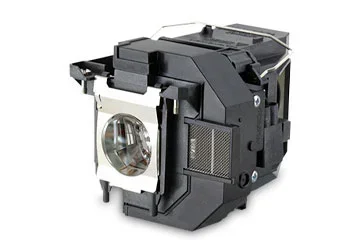
Replacing the lamp is a straightforward process on most Epson models. You open the lamp compartment on the bottom or side of the projector, release the old lamp, insert the new one, and reset the timer. If you are new to this, consider watching a quick video tutorial for your specific model before you start.
It is also worth noting that the cost of replacement lamps varies widely. Genuine Epson lamps tend to be more expensive but offer better reliability and performance. Third-party lamps can save you money but may come with trade-offs in brightness and lifespan. For the best experience, we recommend sticking with genuine Epson replacements or trusted compatible brands.
Sometimes you might want to use your projector in different environments. For example, if you are setting up outdoors or in a bright room, you may want to use blackout curtains as a projector screen to improve image contrast. This pairs well with a fresh lamp for a premium viewing experience.
Common Mistakes People Make With Epson Projector Lamps
Even experienced projector users make mistakes that shorten lamp life or cause unnecessary headaches. Here are some common errors to avoid.
Forgetting to Reset the Timer
This is the most common mistake. After installing a new lamp, if you forget to reset the timer, the projector will still show the old lamp hours. This makes it impossible to track the new lamp accurately and could lead to unexpected failures.
Using the Projector in Ventilated Spaces
Some people place their projectors in closed cabinets or tight spaces to keep them out of sight. This restricts airflow and causes overheating, which dramatically shortens lamp life. Always ensure your projector has adequate ventilation.
Ignoring Warning Signs
When the projector displays a lamp warning, some users simply hit the skip button and keep watching. This is risky. A lamp that is about to fail can burst inside the projector, causing damage to the color wheel, optics, or even the motherboard. Replace the lamp promptly when warnings appear.
Buying the Cheapest Lamp Available
While saving money is always good, extremely cheap replacement lamps are often low quality. They may have inconsistent brightness, shorter lifespans, or even leak gases. Stick with reputable brands and sellers to protect your investment.
Not Tracking Lamp Hours Regularly
Many users only think about their projector lamp when something goes wrong. Making a habit of checking your Epson projector lamp hours every few weeks keeps you informed and prepared for any upcoming replacements.
Quick Tips for Checking Epson Projector Lamp Hours
Here is a quick reference guide you can bookmark for easy access:
- Turn on the projector and display an image.
- Press the Menu button on the remote or the projector panel.
- Navigate to Setup or Settings.
- Select Info, Information, or Lamp Timer.
- Read the lamp hours and remaining life displayed on screen.
- If replacing the lamp, reset the timer immediately after installation.
Keep these steps handy and checking your lamp hours will become second nature in no time. A few seconds of attention now can save you from a major headache later.
For more projector tips and tricks, if you are looking to pair your phone for presentations, you can learn how to pair your phone to a projector for seamless wireless connectivity during your meetings or movie sessions.
Conclusion
Checking the hours on your Epson projector lamp is one of the simplest and most important maintenance tasks you can perform. It takes just a minute, requires no special tools, and gives you peace of mind knowing exactly how much life your lamp has left. Whether you use the projector menu, the remote control, or the front panel, the process is quick and easy for every Epson model.
Remember to reset the timer after every replacement, use Eco Mode when possible, and keep your projector well-ventilated. These small habits add up and help you get the best performance and longest life from your equipment. By staying proactive about your Epson projector lamp hours, you ensure that every viewing session goes smoothly without interruptions or surprises.
Make it a routine to check your lamp hours at least once a month. Your future self will thank you when you are in the middle of an important presentation or a movie night and everything is still working perfectly. Take control of your projector maintenance today and enjoy a brighter, more reliable viewing experience for years to come.
Frequently Asked Questions
How do I find my Epson projector lamp hours without the remote?
You can check the lamp hours directly from the projector’s front panel. Press the Menu or Info button on the projector body, then navigate to the Setup or Information section using the arrow buttons. The lamp hours and remaining life will be displayed on the screen.
What does it mean when my Epson projector says “Lamp Life Expired”?
This message means your projector lamp has reached or exceeded its rated lifespan. The lamp may still produce light, but its performance has degraded significantly. It is best to replace the lamp soon to avoid sudden failure and potential damage to the projector.
Can I reset my Epson projector lamp hours without replacing the lamp?
Technically yes, but it is not recommended. Resetting the lamp timer without installing a new lamp will make your tracking inaccurate. You will lose track of the actual usage hours, which could lead to using a worn-out lamp beyond its safe limit.
How often should I check my Epson projector lamp hours?
Checking once a month is a good habit for regular users. If you use your projector heavily for work or school, consider checking it every few weeks. This keeps you aware of the lamp status and gives you enough time to order a replacement before any problems arise.
Is it safe to continue using my Epson projector after the lamp warning appears?
It is not recommended. The warning indicates the lamp is near the end of its life. Continuing to use it increases the risk of the lamp bursting, which can cause internal damage to the projector. Replace the lamp as soon as possible after the warning appears.
What is the average lifespan of an Epson projector lamp?
Most Epson projector lamps last between 2,000 and 5,000 hours depending on the model and usage mode. Using Eco Mode can extend the lamp life significantly, sometimes doubling the rated hours. Check your specific model’s manual for the exact rated lifespan of the lamp.