How Do I Bluetooth Music From Youtube To Your Speaker
Bluetooth music from YouTube to your speaker is easier than you think. This guide walks you through pairing your devices, streaming audio wirelessly, and fixing common connection issues. You will learn practical tips to get the best sound quality from any Bluetooth speaker while playing YouTube content.
Key Takeaways
- Bluetooth streaming lets you play YouTube audio on any compatible speaker without cables.
- Pairing your devices takes just a few simple steps and works with most modern speakers.
- Troubleshooting common Bluetooth issues can save you time and frustration during playback.
- Using an audio Bluetooth adapter can help older speakers connect wirelessly.
- Keeping your devices close and updated ensures the best wireless music experience.
- Alternative methods like USB C audio output offer backup options when Bluetooth fails.
📑 Table of Contents
- How To Bluetooth Music From YouTube To Your Speaker
- Step-by-Step Guide To Connecting Your Speaker
- Playing YouTube Music Through Different Devices
- Troubleshooting Common Bluetooth Connection Issues
- Alternative Ways To Stream YouTube Audio Wirelessly
- Tips For The Best Bluetooth Music Experience
- How To Make Older Speakers Bluetooth Ready
- Common Mistakes To Avoid When Bluetooth Streaming
- Final Thoughts
How To Bluetooth Music From YouTube To Your Speaker
There is nothing quite like playing your favorite YouTube playlist through a good speaker. Whether you are hosting a party, cooking in the kitchen, or just relaxing on the couch, Bluetooth music from YouTube fills your space with sound without any messy cables. The process is simple, and most people can set it up in under five minutes.
Many people wonder how to get audio from YouTube flowing through their wireless speaker. The good news is that almost every modern speaker supports Bluetooth connectivity. This means you can stream music wirelessly from your phone, tablet, or laptop directly to your speaker. You do not need any special equipment in most cases.
In this guide, we will walk you through everything you need to know. From pairing your devices to troubleshooting connection problems, we have you covered. By the end, you will know exactly how to Bluetooth music from YouTube to any speaker in your home. Let us get started.
Why Bluetooth Streaming Is So Popular
Wireless audio streaming has changed the way we listen to music. Gone are the days of tangled cords and limited range. With Bluetooth connectivity, you can move freely around your room while your speaker plays audio from YouTube. This convenience is why so many people prefer wireless setups.
Another big reason is compatibility. Most speakers made in the last decade include Bluetooth support. Whether you own a portable Bluetooth speaker, a smart speaker, or even a Bose Wave radio with a Bluetooth adapter, you can connect and stream. The technology works across different brands and devices, which makes it very user-friendly.
People also love that Bluetooth does not need Wi-Fi. You can play YouTube audio even if your internet connection is weak or unavailable. Once the audio is buffered, the Bluetooth connection handles the rest. This makes it a reliable option for outdoor gatherings and areas with poor wireless coverage.
Step-by-Step Guide To Connecting Your Speaker
Setting up a wireless speaker connection is straightforward. The exact steps may vary slightly depending on your device, but the general process is the same. Follow these steps to get your Bluetooth music from YouTube playing in no time.
Step 1: Turn On Your Speaker And Enable Bluetooth
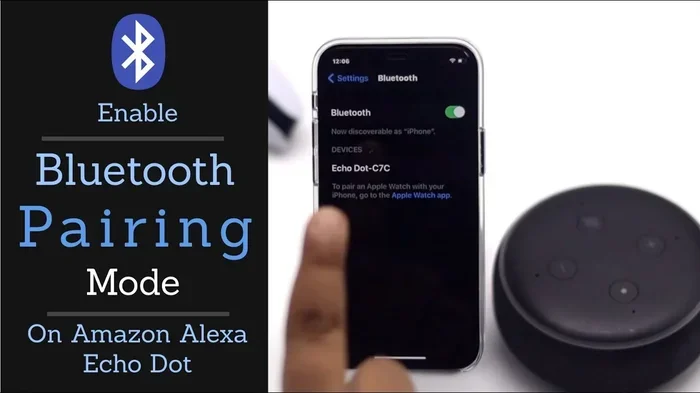
Start by powering on your speaker. Look for a Bluetooth button or a Bluetooth indicator light. On most speakers, pressing and holding the Bluetooth button puts the device into pairing mode. The light will usually flash blue or white to show it is ready to connect.
Some speakers have a dedicated app you can use. If yours does, open the app and look for a Bluetooth or pairing option. This gives you more control over your wireless audio streaming settings.
Step 2: Open Bluetooth On Your Phone Or Computer
Next, go to the Bluetooth settings on your device. On an iPhone or Android phone, you can swipe down from the top of the screen and tap the Bluetooth icon. On a laptop or desktop, go to your system settings and find the Bluetooth section.
Make sure Bluetooth is turned on. Your device will start scanning for nearby Bluetooth devices. You should see your speaker appear in the list of available devices. Tap on it to begin the pairing process.
Step 3: Pair The Devices
When you tap on your speaker, your device will try to connect. You may see a pairing request on the speaker screen. Accept it if prompted. Once connected, the speaker light will usually stay solid instead of flashing.
Now open YouTube on your phone or computer. Start playing any video or music. The audio should come through your speaker. If you do not hear sound, check the volume on both your device and the speaker. Also make sure the audio output is set to Bluetooth.
Step 4: Control Playback And Volume
Once connected, you can control playback from your device. Use the YouTube app to play, pause, or skip tracks. The speaker volume can be adjusted either from the speaker itself or from your device.
Many people find it easier to use the speaker buttons for volume control. This keeps your phone free for other tasks. Just remember that Bluetooth range is typically around 30 feet. Stay within that distance for the best experience.
Playing YouTube Music Through Different Devices
The way you Bluetooth music from YouTube can vary depending on what device you are using. Let us look at the most common setups and how each one works.
Using A Smartphone
Smartphones are the most popular device for Bluetooth streaming. Almost every modern phone has built-in Bluetooth support. To play YouTube music, simply open the YouTube app or YouTube Music app, start a video, and the audio will stream to your paired speaker.
One thing to keep in mind is background playback. Some free YouTube apps pause audio when you switch apps. Consider using YouTube Music Premium or a similar service if you want uninterrupted wireless music playback. This lets the audio continue even when your screen is off.
Using A Laptop Or Desktop Computer
Computers also work well for Bluetooth streaming. Most modern laptops have Bluetooth built in. If your desktop does not, you can add a Bluetooth adapter or use a USB Bluetooth dongle. Once connected, open YouTube in your browser and play your music.
If you are using a computer and want to explore wired options too, you might check whether you can play music through a USB C port as an alternative connection method. This can be helpful when Bluetooth is not available.
Using A Tablet
Tablets work just like smartphones for Bluetooth streaming. The process is the same. Open YouTube, start playing a video, and the audio flows to your speaker. Tablets are great because they have larger screens, making it easier to browse and select music videos.
Some tablets also support audio casting features. This lets you send audio to multiple speakers at once. Check your device settings to see if this feature is available for your setup.
Troubleshooting Common Bluetooth Connection Issues
Even though Bluetooth is reliable, you may run into problems sometimes. Here are the most common issues and how to fix them.
Speaker Not Showing Up In Bluetooth List
If your speaker does not appear in the Bluetooth list, try turning it off and back on. Make sure it is in pairing mode. Some speakers need you to hold the Bluetooth button for several seconds. Also check that the speaker is not already connected to another device.
Distance can also be a factor. Move your device closer to the speaker and try again. Walls and other electronics can interfere with the Bluetooth signal. Removing physical obstacles often solves the problem.
Audio Keeps Cutting Out
Interrupted audio is frustrating. This usually happens when you move too far from the speaker. Stay within the recommended Bluetooth range, which is typically 30 feet indoors.
Other wireless devices can cause interference. Wi-Fi routers, microwaves, and even other Bluetooth devices can disrupt the connection. Try turning off nearby wireless devices to see if that improves your Bluetooth streaming quality.
No Sound Even Though Connected
If the connection shows as paired but you hear no sound, check the audio output settings. On most phones, you can swipe down and tap the audio output icon. Select your speaker as the output device.
On computers, right-click the speaker icon in your taskbar and choose the Bluetooth speaker as your output. Sometimes the volume is muted on one of the devices. Check both your phone and speaker volume levels to make sure they are turned up.
Alternative Ways To Stream YouTube Audio Wirelessly
Bluetooth is not the only way to stream music from YouTube. Let us explore some other options that can work when Bluetooth is not ideal.
Using A Bluetooth Transmitter
A Bluetooth transmitter is a small device that sends audio wirelessly to your speaker. This is useful for older speakers that do not have built-in Bluetooth. You plug the transmitter into the speaker’s audio jack, and it creates a Bluetooth connection with your device.
These transmitors are affordable and easy to use. They work well with speakers that have a 3.5mm audio input or RCA ports. This is a great way to add wireless capability to older equipment in your home.
Using Wi-Fi And Smart Speaker Apps
Smart speakers like Amazon Echo or Google Nest can stream YouTube audio through their apps. You can use voice commands to play music, control volume, and skip tracks. This is a hands-free option that many people find convenient.
You can also use Alexa as a Bluetooth speaker for your devices. If you have an Echo device, you can pair it with your phone and stream YouTube audio directly. Just ask Alexa to connect to your speaker, and it handles the rest.
Using A USB Connection
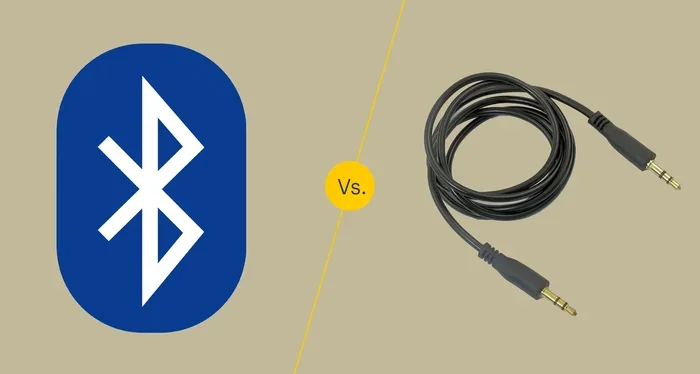
Some speakers and audio systems support USB input. You can connect your phone or computer directly using a USB cable. This provides a stable connection with no wireless interference.
If you are exploring USB audio options, check whether you can play music through a USB C connection. This is especially useful for newer devices that use USB C ports. It gives you a reliable wired alternative to Bluetooth streaming.
Tips For The Best Bluetooth Music Experience
Getting the most out of your Bluetooth setup is easy with a few simple tips. These small changes can make a big difference in sound quality and reliability.
Keep Your Devices Updated
Software updates often include improvements to Bluetooth performance. Keep your phone, tablet, and speaker firmware up to date. This ensures you have the latest Bluetooth version features and bug fixes.
On most devices, you can check for updates in the settings menu. Some speakers also have companion apps that notify you when updates are available. Taking a few minutes to update can solve many connection problems.
Position Your Speaker Well
Where you place your speaker affects sound quality and Bluetooth range. Keep the speaker in an open area away from walls and metal objects. Elevating the speaker slightly can also improve sound projection.
Avoid placing your speaker near microwaves, baby monitors, or other wireless devices. These can create interference that disrupts your wireless speaker connection. A clear line of sight between your device and speaker works best.
Manage Multiple Bluetooth Connections
If you have many Bluetooth devices in your home, they can compete for the same wireless space. This can slow down your connection and cause audio lag. Turn off Bluetooth on devices you are not using to free up bandwidth.
Some speakers support multipoint connection, which lets them stay connected to two devices at once. This is handy if you want to switch between your phone and laptop without reconnecting. Check your speaker manual to see if this feature is available.
Clean Your Speaker And Ports
Dust and debris can affect both wired and wireless connections. Keep your speaker’s Bluetooth antenna area clean. For wired connections, make sure audio ports are free of dirt and lint.
A quick wipe with a soft cloth keeps everything in good shape. This small habit can prevent connection issues and extend the life of your speaker.
How To Make Older Speakers Bluetooth Ready
Not everyone has the latest Bluetooth speaker. The good news is that you can add Bluetooth capability to older speakers with a few simple tools.
Bluetooth Adapter Options
A Bluetooth audio adapter is the easiest way to add wireless streaming to any speaker with an audio input. These small devices plug into your speaker and create a Bluetooth receiver. Your speaker gets a new lease on life without needing a full replacement.
Bluetooth adapters are available at most electronics stores. They range from basic models to advanced ones with aptX or LDAC support for higher quality audio. Look for one that matches your speaker’s input type, whether it is 3.5mm, RCA, or optical.
DIY Bluetooth Conversion
Some tech enthusiasts enjoy converting old speakers themselves. You can buy a Bluetooth module and wire it into your speaker’s amplifier. This gives you full control over the setup and can produce excellent results.
There are many online tutorials that walk you through this process step by step. If you are handy with electronics, this is a fun and rewarding project. Just make sure you follow safety guidelines when working with electrical components.
Smart Speaker Alternatives
If converting an old speaker feels too complex, consider using a smart speaker as your Bluetooth receiver. Devices like Amazon Echo or Google Nest can connect to any speaker through a 3.5mm audio cable. The smart speaker handles the Bluetooth connection and sends audio to your existing speaker.
This setup works well for people who want wireless streaming without modifying their current equipment. It is also a great way to add voice control to your music setup.
Common Mistakes To Avoid When Bluetooth Streaming
Avoiding common mistakes can save you a lot of frustration. Here are the top errors people make when setting up Bluetooth music from YouTube and how to prevent them.
Not checking volume levels on both devices. It sounds obvious, but many people forget to turn up the volume on either their phone or speaker. Always check both before assuming something is wrong.
Ignoring firmware updates. Outdated software can cause connection problems. Keep all your devices updated for the smoothest experience.
Placing the speaker too far away. Bluetooth has a limited range. Stay within 30 feet for the best connection. Walls and obstacles reduce the effective range.
Connecting to the wrong Bluetooth device. If you have multiple Bluetooth devices nearby, make sure you are connecting to the correct one. Double-check the device name before pairing.
Forgetting to disconnect from previous devices. Some speakers remember old connections and auto-connect to them. Go into your speaker settings and remove old pairings if needed.
Final Thoughts
Bluetooth music from YouTube to your speaker is a simple and rewarding way to enjoy your favorite content. Whether you are using a modern smart speaker or an older model with a Bluetooth adapter, the process is straightforward and works reliably.
Follow the steps in this guide, and you will be streaming YouTube audio through your speaker in minutes. Remember to troubleshoot common issues, keep your devices updated, and position your speaker well for the best results.
Wireless audio streaming gives you freedom and flexibility. You can move around your home, adjust your setup, and enjoy music without any cables holding you back. With the right Bluetooth setup, your speaker becomes a powerful wireless audio hub for all your YouTube content.
Start experimenting with different speakers and setups today. You might discover new ways to enjoy your favorite music and videos. The world of wireless audio is wide open, and Bluetooth music from YouTube is just the beginning of what you can do.
Frequently Asked Questions
Can I play YouTube music on any Bluetooth speaker?
Yes, most Bluetooth speakers can play audio from YouTube as long as they are paired with your device. The speaker just needs to receive the audio signal, which Bluetooth handles easily. Make sure your speaker is in pairing mode and within range of your phone or computer.
Why is there a delay when Bluetooth streaming YouTube audio?
A small delay, called latency, is normal with Bluetooth connections. This happens because the audio data takes a moment to transmit wirelessly. Newer Bluetooth versions have lower latency, so updating your devices can help reduce the delay significantly.
Do I need Wi-Fi to Bluetooth music from YouTube?
No, you do not need Wi-Fi for the Bluetooth connection itself. However, you do need internet access to load and buffer the YouTube video before streaming. Once buffered, the Bluetooth connection carries the audio independently of your Wi-Fi signal.
Can I connect multiple speakers to one device for louder sound?
Some speakers support multipoint or party mode, which lets you connect multiple speakers to one device. Check your speaker manual for this feature. Alternatively, you can use a Bluetooth transmitter that splits the signal to multiple speakers.
What is the best Bluetooth version for streaming music?
Bluetooth 5.0 and later offer the best performance for music streaming. They provide longer range, better sound quality, and lower power consumption. Most modern phones and speakers support Bluetooth 5.0 or higher.
Can I use a Bluetooth transmitter to add wireless capability to old speakers?
Absolutely. A Bluetooth transmitter plugs into your speaker’s audio input and creates a wireless connection with your device. This is one of the easiest and most affordable ways to make older speakers support Bluetooth music streaming from YouTube and other sources.