How Do I Add Wi Fi To My Ipad With This Simple Guide
Adding Wi-Fi to your iPad is quick and easy when you follow the right steps. This guide walks you through connecting your iPad to a wireless network, finding your Wi-Fi password, troubleshooting common issues, and using portable Wi-Fi options. Whether you are setting up a new iPad or fixing a stubborn connection, you will find everything you need right here.
Adding Wi-Fi to your iPad opens up a world of possibilities. You can browse the web, stream videos, download apps, and stay connected with friends and family. But if you have never done it before, the process might feel a little confusing. Do not worry. This guide makes it super simple.
How Do I Add Wi-Fi To My iPad is one of the most common questions new iPad users ask. The answer is easier than you think. Whether you have a brand-new iPad or an older model, the steps are nearly identical. You just need to know where to look and what to tap.
This guide covers everything. We will walk you through the basic setup step by step. Then we will tackle common problems and share tips to make your connection faster and more reliable. By the end, you will feel confident connecting your iPad to any wireless network.
The iPad has been a game-changer for millions of people. It is portable, powerful, and versatile. But without a Wi-Fi connection, it is just a fancy tablet. Getting online is the first thing you should do after setting up a new iPad. The good news is that Apple designed the process to be as simple as possible. You do not need to be a tech expert to get it done.
Many people assume that connecting to Wi-Fi is complicated. They think it requires special equipment or technical knowledge. That is not true at all. In most cases, you just need to open a settings menu, pick your network, and enter a password. That is it. A few minutes is all it takes.
There are also situations where the standard process does not work. Maybe your Wi-Fi password is lost. Maybe your iPad keeps dropping the connection. Maybe you are somewhere with no Wi-Fi at all. This guide covers all of those scenarios too. You will find practical solutions for every common problem.
Key Takeaways
- Easy Setup: You can connect your iPad to Wi-Fi in just a few simple steps through the Settings app.
- Password Access: Finding your Wi-Fi password is straightforward, whether it is saved on your iPhone or in your router settings.
- Portable Options: You can use a portable Wi-Fi device or mobile hotspot to get your iPad online anywhere.
- Troubleshooting Helps: Most Wi-Fi issues on the iPad can be fixed with simple resets and network refreshes.
- Signal Boosting: Small changes like router placement and band selection can greatly improve your iPad Wi-Fi experience.
📑 Table of Contents
How to Add Wi-Fi to Your iPad Step by Step
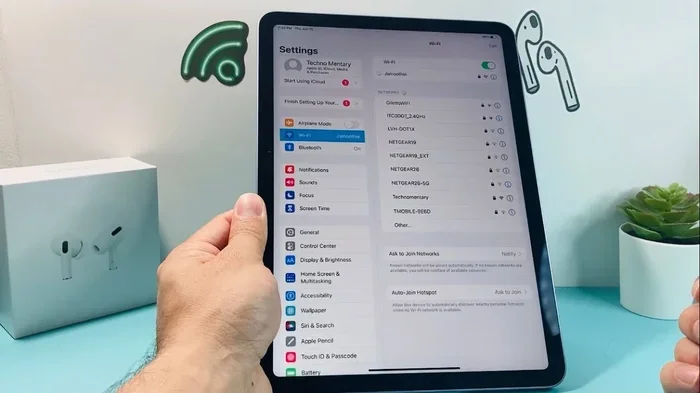
The first thing you need to do is open the Settings app on your iPad. It is the gray icon with gears. Once you tap it, you will see a list of options. Look for the one that says Wi-Fi. It should be near the top of the list.
When you tap on Wi-Fi, you will see a toggle switch at the top. Make sure it is turned on. The switch should turn green. Right below the toggle, you will see a list of available networks. These are the wireless networks in your area.
Tap on the network you want to join. If it is a secure network, you will be asked to enter a password. Type it in carefully and tap Join. Within a few seconds, your iPad should connect. You will see a checkmark next to the network name, and the Wi-Fi icon will appear at the top of your screen.
What If Your iPad Does Not Show Any Networks?
This can happen for a few reasons. First, make sure you are within range of a Wi-Fi router. Wi-Fi signals do not travel forever. If you are too far away, your iPad will not detect any networks. Try moving closer to your router and checking again.
Second, your router might be turned off or malfunctioning. Check if other devices can connect to the same network. If they cannot, the problem is with your router, not your iPad. Restarting the router often fixes this issue.
Third, your iPad’s Wi-Fi antenna might need a refresh. Try turning Wi-Fi off and back on. You can also restart your iPad entirely. This clears temporary glitches and often solves the problem right away.
Connecting to a Hidden Network
Some Wi-Fi networks are hidden. This means they do not show up in the list of available networks. If you know the name of a hidden network, you can still connect to it. Go to the Wi-Fi settings and tap Other at the bottom of the network list.
You will need to enter the network name, choose the security type, and input the password. This is a little more work, but it works just as well. Hidden networks are common in offices and public spaces where security is important.
Finding and Entering Your Wi-Fi Password
One of the biggest hurdles people face is finding their Wi-Fi password. Without the password, you cannot connect to a secure network. But do not panic. There are several ways to find it.
If you have an iPhone that is already connected to the same Wi-Fi network, you can find the password there. Open the Settings app on your iPhone, tap Wi-Fi, and tap the info icon next to your network. Scroll down and look for the Router field. This shows your router’s IP address, which you can use to log in and find the password.
Another option is to check the sticker on your router. Most routers have a label on the bottom or back that lists the default Wi-Fi name and password. If you have never changed it, the default password should still work.
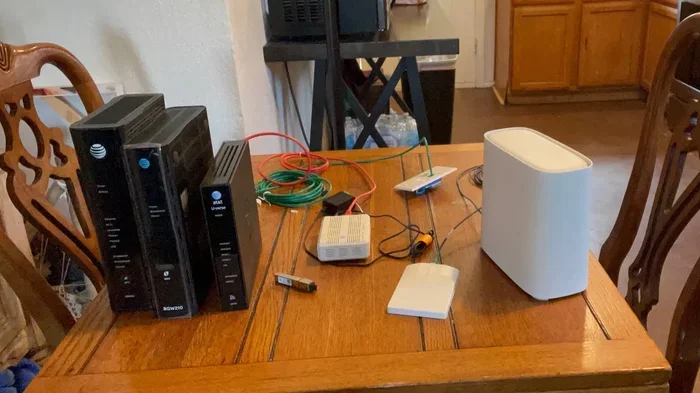
You can also log in to your router’s admin page. Type the router IP address into a web browser on any connected device. From there, you can view and change your Wi-Fi settings. If you are not sure how to do this, check your router’s manual or visit the manufacturer’s website.
Sometimes people ask, Can I Find My Wi-Fi Password In Settings on their iPad directly. The answer is yes, but only for networks your iPad has already connected to. Go to Settings, tap Wi-Fi, and tap the info icon next to a connected network. You will see a toggle for Auto-Join and other details. However, the password is hidden for security reasons. You would need to check your router settings to view it.
If none of these options work, you can reset your router to factory settings. This will restore the default password listed on the router sticker. Just be aware that this will erase all custom settings on your router. Use this as a last resort.
Using Portable Wi-Fi With Your iPad
What if you need to get your iPad online but there is no Wi-Fi available? This is where portable Wi-Fi comes in handy. A portable Wi-Fi device creates its own wireless network using a cellular data connection. It is like having a mini-router in your pocket.
Portable Wi-Fi devices are small and lightweight. You can carry one in your bag or even your pocket. They work almost anywhere there is cellular coverage. Just turn it on, connect your iPad to the network it creates, and you are online.
Many people wonder, Can I Have A Portable Wi-Fi device for their iPad. The answer is absolutely yes. Portable Wi-Fi hotspots are widely available. You can buy a dedicated device from carriers like AT&T, Verizon, or T-Mobile. Some devices are unlocked and work with multiple carriers. You just need a data plan that fits your needs.
Another option is to use your phone as a mobile hotspot. If your phone has a cellular data connection, you can share it with your iPad. Just turn on the hotspot feature in your phone’s settings. Your iPad will see the hotspot as a regular Wi-Fi network. Connect to it, enter the password, and you are good to go.
Using a portable Wi-Fi device has some clear advantages. It keeps your iPad connected without draining your phone’s battery. It also gives you a dedicated connection that is separate from your phone. This means your iPad’s internet does not slow down when you make calls or send texts.
How to Connect Your iPad to a Portable Wi-Fi Device
The process is the same as connecting to any Wi-Fi network. Open Settings on your iPad, tap Wi-Fi, and find the network name of your portable device. Tap it, enter the password, and tap Join. The connection should establish within seconds.
Make sure your portable Wi-Fi device has enough battery life. Most devices last several hours on a single charge. If you plan to use it for a long time, bring a charger or a portable battery pack. You should also check your data plan to make sure you have enough data for your needs.
Common Wi-Fi Connection Problems on iPad and How to Fix Them
Even when you follow all the steps correctly, sometimes things go wrong. Your iPad might connect to Wi-Fi but have no internet. Or it might keep disconnecting randomly. Here are the most common problems and how to solve them.
iPad Shows Connected But No Internet
This is a frustrating but common issue. Your iPad thinks it is connected to the network, but it cannot reach the internet. The first thing to try is opening a web browser and loading any page. If the page does not load, you are definitely experiencing this problem.
Try forgetting the network and reconnecting. Go to Settings, tap Wi-Fi, tap the info icon next to the network, and choose Forget This Network. Then find the network again, enter the password, and reconnect. This clears any saved settings that might be causing the issue.
Another fix is to restart your router. Unplug it, wait 30 seconds, and plug it back in. Wait for it to fully boot up, then try connecting again. This simple step solves the problem more often than you might think.
iPad Keeps Disconnecting From Wi-Fi
If your iPad keeps dropping the Wi-Fi connection, the first thing to check is your signal strength. Move closer to the router and see if the problem stops. If it does, the issue is weak signal coverage.
You can also try changing your Wi-Fi frequency band. Most modern routers broadcast on both 2.4 GHz and 5 GHz bands. The 2.4 GHz band has a longer range but slower speeds. The 5 GHz band is faster but has a shorter range. Try connecting to the band that works best for your situation.
If the problem persists, go to Settings, tap Wi-Fi, and tap the info icon next to your network. Turn off Auto-Join and then turn it back on. This resets the connection and can stop your iPad from dropping the network.
Can I Boost My Wi-Fi Signal for My iPad?
Yes, you can. There are several ways to improve your Wi-Fi signal for your iPad. Moving your router to a central location in your home is one of the easiest and most effective steps. Walls, furniture, and electronics can all weaken your Wi-Fi signal.
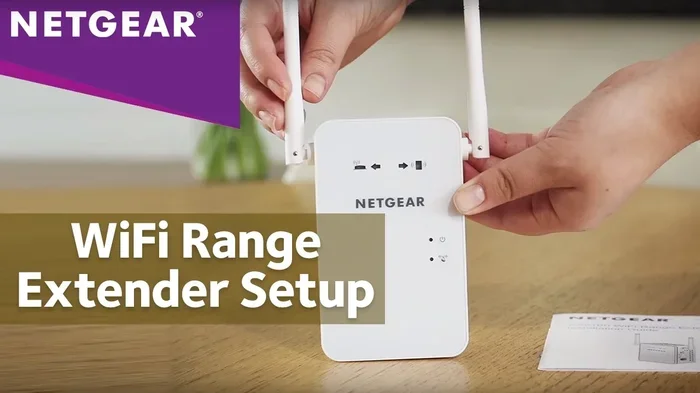
You can also try Can I Boost My Wi-Fi Signal Outside if you use your iPad in the yard or patio. Wi-Fi signals weaken as they pass through walls and windows. A Wi-Fi extender or mesh system can help spread the signal to areas where it is weak.
Another option is to add an external antenna to your router. Some routers support removable antennas. A better antenna can boost your signal strength and improve coverage throughout your home. This is especially helpful in larger homes or buildings with thick walls.
Tips to Improve Your iPad Wi-Fi Experience
Once you have your iPad connected to Wi-Fi, you want to keep it working well. Here are some practical tips to get the best performance from your wireless connection.
First, keep your iPad updated. Apple regularly releases software updates that fix bugs and improve performance. Go to Settings, tap General, and tap Software Update to check for the latest version. Staying updated ensures your iPad works well with modern Wi-Fi networks.
Second, limit the number of devices on your network. If too many devices are connected, your network can slow down. This affects every device, including your iPad. Disconnect devices you are not using to free up bandwidth.
Third, restart your iPad regularly. Just like any electronic device, your iPad benefits from a fresh start. Restarting clears temporary files and refreshes your network connections. Try to restart your iPad at least once a week for best performance.
Fourth, consider your router placement. Your router should be in an open area, away from walls and metal objects. The higher you place it, the better the signal spreads. Avoid hiding your router in a closet or behind furniture.
Fifth, if you have an older router, consider upgrading. Newer routers support the latest Wi-Fi standards and offer better speeds and coverage. A modern router can make a huge difference in your iPad’s internet experience. You can also look into Can I Connect Wi-Fi 6 Mesh to Wi-Fi 5 Router if you want to upgrade your network without replacing everything.
Quick Tips for Better Wi-Fi on iPad
- Restart your iPad once a week to keep connections fresh.
- Move closer to the router if your signal is weak.
- Forget and reconnect to networks that give you trouble.
- Keep your iPad software up to date.
- Use the 5 GHz band for faster speeds when close to the router.
- Use the 2.4 GHz band for better range when farther away.
- Avoid using your iPad in areas with many electronic devices that cause interference.
When to Contact Support
Most Wi-Fi issues can be fixed at home with the tips in this guide. But sometimes you need professional help. If you have tried everything and your iPad still will not connect, it might be time to contact support.
Start with your internet service provider. They can check if there is an outage or problem with your connection. They can also help you adjust your router settings remotely. Many ISPs offer free support over the phone or through online chat.
If the issue seems specific to your iPad, contact Apple Support. They can run diagnostics and walk you through advanced troubleshooting steps. In some cases, a hardware issue might be causing the problem. Apple can help you determine if your iPad needs service or repair.
You can also visit an Apple Store or authorized service provider. They have trained technicians who can look at your iPad in person. This is especially helpful if you suspect a hardware problem with your iPad’s Wi-Fi antenna.
Before you contact support, gather some information. Know your iPad model, your iOS version, and the exact problem you are experiencing. Having this information ready will make the support process faster and smoother.
Conclusion
Adding Wi-Fi to your iPad does not have to be complicated. With the steps in this guide, you can get connected in just a few minutes. Whether you are at home, at work, or on the go, there is always a way to get your iPad online.
Start with the basics. Open Settings, tap Wi-Fi, pick your network, and enter your password. If that does not work, try the troubleshooting tips we covered. Forget the network, restart your router, or move closer to the signal. For situations where Wi-Fi is not available, portable Wi-Fi devices and mobile hotspots are great alternatives.
Remember that maintaining a good connection is just as important as setting one up. Keep your software updated, restart your devices regularly, and place your router in a good location. These small habits make a big difference over time.
Now that you know how to add Wi-Fi to your iPad, you are ready to get the most out of your device. Surf the web, stream your favorite shows, download apps, and stay connected with confidence. Your iPad is a powerful tool, and a solid Wi-Fi connection is the key to unlocking its full potential.
Frequently Asked Questions
Can I connect my iPad to Wi-Fi without a password?
Some public Wi-Fi networks do not require a password. You can find these at cafes, airports, hotels, and libraries. Simply select the open network from your iPad’s Wi-Fi list and tap Connect. Keep in mind that open networks are less secure, so avoid entering sensitive information when using them.
Why does my iPad keep saying “Unable to Join Network”?
This error usually means your iPad cannot connect to the selected network. The password might be incorrect, the network might be full, or there could be a temporary glitch. Try forgetting the network and reconnecting with the correct password. Restarting your iPad and router can also help resolve this issue.
Can I use my iPad’s Wi-Fi while on a cellular data plan?
Yes, your iPad can switch between Wi-Fi and cellular data automatically if it has a cellular model. Go to Settings, tap Cellular Data, and make sure it is turned on. Your iPad will use Wi-Fi when available and fall back to cellular data when Wi-Fi is not in range.
How do I know if my iPad is connected to Wi-Fi?
Look at the top-right corner of your iPad screen. If you see a Wi-Fi icon (shaped like a fan or curved lines), your iPad is connected to a network. The number of bars next to the icon shows your signal strength. More bars mean a stronger connection.
Can I connect my iPad to a Wi-Fi network that another device is using?
Yes, multiple devices can connect to the same Wi-Fi network at the same time. Your router determines how many devices it can handle. Most home routers support 10 to 20 devices simultaneously. If too many devices are connected, your internet speed may slow down for everyone.
What should I do if my iPad Wi-Fi keeps disconnecting at night?
Nighttime disconnections are often caused by your router scheduling a restart or by interference from other devices. Check if your router has a scheduled restart feature and disable it. Also, make sure no one in your household is running heavy downloads or updates during the times you experience disconnections.