How Can I Tell If My Ipad Is Wifi Only Or Cellular
Figuring out whether your iPad is WiFi only or cellular is easier than you think. You can check the model number, look in the settings app, or inspect the physical device for a SIM card tray. This guide walks you through every method step by step so you never have to guess again.
Key Takeaways
- Check the model number: The model number on the back of your iPad or in settings tells you exactly which variant you own.
- Look for a SIM card tray: A physical SIM tray or eSIM support means your iPad has cellular capabilities.
- Use the Settings app: The Network settings and About section reveal your connectivity options clearly.
- Visit Apple’s official website: Enter your serial number to get full specs including WiFi vs cellular details.
- Know the model names: Certain iPad names like “A” suffix models are WiFi only, while “C” or “Cellular” variants include mobile data.
📑 Table of Contents
- How Can I Tell If My Ipad Is Wifi Only Or Cellular
- Why It Matters: WiFi Only vs Cellular iPad
- Method 1: Check the Model Number on Your iPad
- Method 2: Inspect the Hardware for a SIM Card Tray
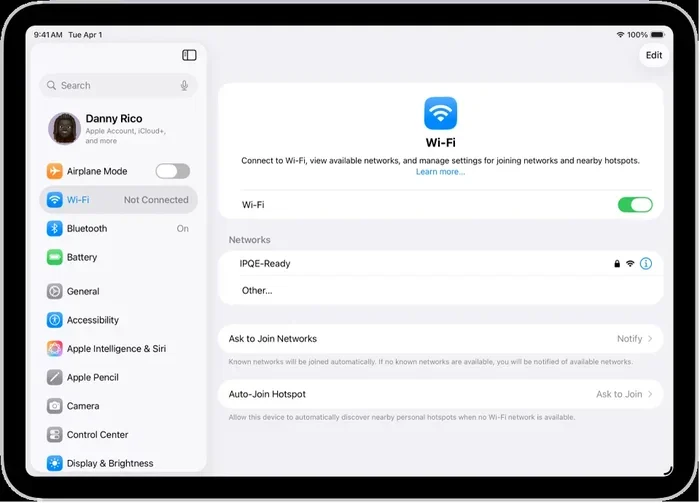
- Method 3: Check the Settings App for Network Details
- Method 4: Use Apple’s Website to Look Up Your Serial Number
- Method 5: Check the Original Packaging or Receipt
- Common iPad Model Groups and Their Connectivity
- Which iPad Type Should You Choose?
- Quick Tips to Remember
- Common Mistakes People Make
- Final Thoughts
How Can I Tell If My Ipad Is Wifi Only Or Cellular
So you grabbed an iPad secondhand, or maybe you forgot which version you bought. Either way, you are staring at the device wondering, how can I tell if my iPad is WiFi only or cellular? It is a super common question, and the good news is that you do not need to be a tech expert to figure it out.
Whether you want to use your iPad on the go without hunting for WiFi hotspots or you simply need to know what you are working with, this guide has you covered. We will walk through every reliable method to identify your iPad type. You will learn how to check the model number, inspect the hardware, dig into the settings app, and even use Apple’s website to confirm your device specs.
By the end of this article, you will know exactly what kind of iPad you have and what connectivity options are available to you. Let us get into it.
Why It Matters: WiFi Only vs Cellular iPad
Understanding the difference between a WiFi only iPad and a cellular iPad is important for a few reasons. A WiFi only iPad connects to the internet exclusively through wireless networks. You need to be near a WiFi router to browse the web, stream videos, or download apps.
A cellular iPad, on the other hand, has built-in mobile data capabilities. It works much like a smartphone. You can insert a SIM card or use an eSIM to connect to a carrier network. This means you get internet access almost anywhere there is cell coverage.
Here is why this distinction matters in everyday life:
- Portability: A cellular iPad lets you stay online in the car, on a train, or at a coffee shop without WiFi.
- Cost: Cellular iPads cost more upfront, and you also need a data plan. A WiFi only iPad has no monthly data fees.
- Use case: If you mostly use your iPad at home or in the office, a WiFi only model might be all you need.
- Flexibility: A cellular model gives you the freedom to work from anywhere without worrying about finding a WiFi network.
Now that you understand the difference, let us look at the most reliable ways to identify which type of iPad you own.
Method 1: Check the Model Number on Your iPad
This is the fastest and most accurate way to determine if your iPad is WiFi only or cellular. Every iPad has a model number printed on the back of the device. This number tells you the exact generation and variant.
Finding the Model Number on the Back of Your iPad
Flip your iPad over and look at the back surface. Near the bottom, you will see small text. It will read something like “Model A1234” or “Model A2345.” The letter and number combination is your model number. Write it down or take a photo with your phone.
Here is a quick way to interpret what you find:
- Model numbers ending in “A” or “B”: These are usually WiFi only models.
- Model numbers ending in “C” or “CA”: These typically indicate cellular variants.
For example, an iPad Pro 11-inch with model number A2018 is WiFi only. But if the model number is A2019, it is a cellular version. The difference in the last digit makes all the difference.
How to Find the Model Number in Settings
If you cannot read the tiny text on the back of your iPad, you can find the model number right in the settings. Here is how:
- Open the Settings app on your iPad.
- Tap General.
- Tap About.
- Look for the Model Number field. Tap on it once if it shows a code like “MN123LL/A.” The full model number will appear.
Once you have the model number, you can search it on Apple’s website or in a quick Google search to confirm whether it is WiFi only or cellular.
Method 2: Inspect the Hardware for a SIM Card Tray
Another easy way to tell is by looking at the physical hardware. A cellular iPad has a SIM card tray. A WiFi only iPad does not.
Where to Look for the SIM Tray
Check the sides of your iPad carefully. On cellular models, you will find a small tray on one of the long edges. It looks like a tiny oval hole, similar to what you see on an iPhone. You need a SIM ejector tool or a paperclip to open it.
If you do not see any SIM tray at all, your iPad is most likely WiFi only. Some newer iPads use eSIM technology instead of a physical SIM card. If your iPad supports eSIM, it will still be listed as a cellular model even without a visible tray.
What Is an eSIM?
An eSIM is a digital SIM card built into the device. You do not need a physical card. Instead, you activate a cellular plan directly through your carrier. Many modern iPads support eSIM, including the latest iPad Pro and iPad Air models. If your iPad has eSIM support, it is a cellular model even if there is no SIM tray to be seen.
If you want to learn more about using WiFi and cellular features together, you might find this article on how to manage multiple wireless connections on your devices helpful.
Method 3: Check the Settings App for Network Details
The Settings app on your iPad gives you a lot of information about your connectivity options. You can use it to confirm whether your device supports cellular data or is limited to WiFi only.
Step-by-Step Guide to Checking Network Settings
Follow these steps to check your network settings:
- Open the Settings app.
- Tap Cellular Data or Mobile Data (the name varies by region).
- If you see this option, your iPad has cellular capabilities. If you do not see it at all, your iPad is WiFi only.
This is one of the simplest and most direct methods. If the Cellular Data menu exists in Settings, you are holding a cellular iPad. If it is missing, you are dealing with a WiFi only model.
Checking the About Section for Carrier Information
You can also go to Settings > General > About and scroll down. Look for any mention of carrier or network settings. Cellular iPads will show carrier information and an option to set up a data plan. WiFi only iPads will not display any carrier-related options.
If you are trying to get internet working on the go, understanding your connection type is essential. You might also want to check out this guide on getting internet at home without a phone line for more options.
Method 4: Use Apple’s Website to Look Up Your Serial Number
Apple makes it very easy to check your device specs online. Every iPad has a unique serial number that you can use to pull up the full specifications.
How to Find Your Serial Number
Go to Settings > General > About and look for the serial number. It is a long string of letters and numbers. Write it down or copy it.
What to Do With the Serial Number
Head to Apple’s official support page and enter your serial number. The lookup tool will show you:
- The exact iPad model name
- The generation
- Whether it supports cellular data
- The WiFi standard it uses
- The storage capacity
This method is foolproof. You get official confirmation directly from Apple. It is especially useful if you bought the iPad used and the back label is worn or missing.
If you are exploring connectivity options for your home network, you may also want to read about boosting your WiFi signal outside to improve coverage throughout your property.
Method 5: Check the Original Packaging or Receipt
If you still have the box your iPad came in or the original purchase receipt, these can tell you a lot. The packaging usually has a sticker or label that lists the model number and whether it includes cellular capabilities.
On the receipt, look for any mention of “cellular,” “mobile data,” or “GPS + Cellular.” If those terms appear, you have a cellular iPad. If the receipt only mentions WiFi, then your iPad is WiFi only.
This method works best when you just bought the iPad and still have the paperwork. If you bought it secondhand or years ago, the box might be long gone. In that case, stick with the other methods we covered above.
Common iPad Model Groups and Their Connectivity
Different iPad models come in different connectivity options. Here is a quick breakdown of the main iPad families and what versions are available:
iPad Pro
The iPad Pro comes in both WiFi only and cellular versions. The cellular models support 5G in newer generations and LTE in older ones. If you need fast mobile data for heavy tasks like video editing or large downloads, the cellular iPad Pro is a great choice.
iPad Air
The iPad Air also comes in WiFi and cellular variants. The cellular version gives you the freedom to work from anywhere. The WiFi only version is more affordable and perfect for home or office use.
iPad (Standard)
The standard iPad is available in both WiFi and cellular options. It is the most budget-friendly iPad, and the WiFi only version is very popular for casual browsing, streaming, and light productivity.
iPad mini
The iPad mini comes in WiFi and cellular versions too. It is a compact device that is great for reading, gaming, and quick tasks on the go. The cellular model is ideal for people who want a small, portable internet device.
Which iPad Type Should You Choose?
Deciding between a WiFi only iPad and a cellular iPad depends on how you plan to use your device. Here are some quick tips to help you decide:
- Choose WiFi only if: You mostly use your iPad at home, in the office, or in places with reliable WiFi. You want to save money on the upfront cost and avoid monthly data plan fees.
- Choose cellular if: You travel frequently, work remotely, or need internet access in areas without WiFi. You are comfortable paying for a data plan and want the freedom to stay connected anywhere.
If you already have an iPad and want to add cellular connectivity, unfortunately you cannot upgrade a WiFi only model to cellular. The hardware is different. You would need to purchase a cellular iPad instead.
If you are thinking about your home internet setup and how it connects to your iPad, you might also want to check out this guide on getting WiFi without an internet provider for some creative alternatives.
Quick Tips to Remember
- Always check the model number first. It is the most reliable identifier.
- Look for the SIM tray. No SIM tray means WiFi only in most cases.
- Use the Settings app. The presence of a Cellular Data menu confirms cellular support.
- Use Apple’s serial number lookup. It gives you official, accurate specs every time.
- Keep your receipt and box. They can save you time if you ever need to verify your iPad type.
Common Mistakes People Make
Here are some mistakes people often make when trying to identify their iPad type:
- Assuming all iPads have cellular: Not true. Many iPads are WiFi only, and this is not always obvious from the name alone.
- Confusing WiFi with cellular: Just because your iPad can connect to WiFi does not mean it has cellular capabilities.
- Ignoring the model number suffix: The last letter or digit in the model number is the key to knowing the variant.
- Forgetting about eSIM: Some cellular iPads do not have a physical SIM tray but still support mobile data through eSIM.
Avoiding these mistakes will save you time and frustration. Always double-check using more than one method if you are unsure.
Final Thoughts
So there you have it. You now know exactly how to tell if your iPad is WiFi only or cellular. Whether you check the model number on the back, inspect the SIM tray, dig into the Settings app, or use Apple’s website, you have multiple reliable methods at your fingertips.
Knowing your iPad type helps you make better decisions about how to use it, what accessories to buy, and whether you need a data plan. It is a small bit of knowledge that makes a big difference in your daily experience.
Next time someone asks you, “Is your iPad WiFi only or cellular?” you will have the answer ready in seconds. Share this guide with friends or family who might be struggling with the same question. It is one of those simple things that everyone should know.
Take a moment right now to check your own iPad. Try one of the methods above. You might be surprised at how quickly you can find the answer. And if you ever need help with other tech questions, you know where to look.
Frequently Asked Questions
Can I add cellular service to a WiFi only iPad?
No, you cannot. A WiFi only iPad does not have the hardware needed for cellular connectivity. The cellular chip and SIM card tray are not present in WiFi only models. You would need to purchase a cellular iPad to get mobile data capabilities.
How much does a cellular data plan for iPad cost?
Data plans vary by carrier and the amount of data you choose. Most carriers offer plans starting around $10 to $20 per month for a limited data allowance. Unlimited plans typically cost more. Check with your carrier for current pricing and options.
Can I use a WiFi only iPad while traveling internationally?
Yes, but only where WiFi is available. You can connect to WiFi networks at hotels, cafes, airports, and public spaces. If you need internet in areas without WiFi while traveling, a cellular iPad is the better option.
What is the difference between WiFi 5 and WiFi 6 on iPad?
WiFi 6 is the newer standard and offers faster speeds and better performance in crowded areas. Newer iPads support WiFi 6, while older models may only support WiFi 5. Both provide wireless internet, but WiFi 6 is more efficient and faster.
Does a cellular iPad work without a data plan?
A cellular iPad can connect to cell towers and use GPS without a data plan. However, to access the internet through mobile data, you need an active data plan from a carrier. Without a plan, you will not be able to browse the web or use apps that require internet.
Is it worth buying a cellular iPad over a WiFi only model?
It depends on your lifestyle. If you are often on the go, travel frequently, or work in places without reliable WiFi, a cellular iPad is worth the extra cost. If you mostly use your iPad at home or in the office, a WiFi only model is more economical and practical.