How Can I Set Up A Wifi Hotspot On Any Device Easily
Setting up a wifi hotspot is simple once you know the right steps for your device. This guide shows you how to create a wifi hotspot on phones, laptops, and tablets in minutes. You will learn hotspot settings, security tips, and troubleshooting tricks to keep your connection fast and safe.
Have you ever been in a place with no wifi and needed to get online fast? The answer is simpler than you think. You can turn almost any device into a wifi hotspot and share your internet connection with others. Whether you are at home, in a hotel room, or out in the park, knowing how to set up a wifi hotspot is a skill everyone should have.
This guide walks you through the entire process step by step. We cover phones, laptops, Windows, and Mac devices so you can find what works for you. By the end, you will know exactly how to create a secure and fast personal hotspot in just a few minutes. Let us get started.
Key Takeaways
- Easy Setup: You can turn any smartphone or laptop into a wifi hotspot in just a few minutes.
- Multiple Devices: Learn how to share your mobile data or wired internet with tablets, laptops, and other devices.
- Security Matters: Always set a strong password and use WPA2 encryption to protect your hotspot.
- No Internet Provider Needed: You can get wifi without a traditional internet plan in some cases.
- Troubleshooting Tips: Common hotspot issues like slow speeds or disconnections can be fixed quickly.
- Range Matters: A wifi range extender can help boost your hotspot signal across larger areas.
📑 Table of Contents
- What Is A Wifi Hotspot And Why Do You Need One?
- How To Set Up A Wifi Hotspot On Your Phone
- How To Set Up A Wifi Hotspot On Your Laptop
- How To Optimize Your Wifi Hotspot For Best Performance
- Security Best Practices For Your Wifi Hotspot
- Troubleshooting Common Wifi Hotspot Problems
- Can You Buy A Hotspot Device Without Monthly Fees?
- Final Thoughts On Setting Up Your Wifi Hotspot
What Is A Wifi Hotspot And Why Do You Need One?
A wifi hotspot is a physical location or a device that lets you share an internet connection wirelessly. When you turn on your phone’s hotspot feature, it broadcasts a wifi signal that other devices can connect to. Think of it as a mini router living inside your phone or laptop.
There are many reasons you might need a portable hotspot. Maybe your home internet is down and you need to check an email. Perhaps you are traveling and your hotel only has wired internet. Or you are at a coffee shop and your friend needs to get online. A wireless hotspot solves all of these problems instantly.
Types Of Wifi Hotspots
Not all hotspots are the same. Here are the main types you should know about:
- Mobile Hotspot: This uses your phone’s cellular data to create a wifi network. It is the most common type and works almost anywhere.
- Laptop Hotspot: You can share your laptop’s wired or wireless connection with other devices through a built-in feature.
- Dedicated Portable Hotspot: These are small devices you can buy that connect to cellular networks and broadcast wifi. They are great for frequent travelers.
- Public Hotspot: These are the free networks you find at cafes, airports, and hotels. They are set up by businesses for their customers.
Each type has its own setup process. This guide focuses on the first three since those are the ones you can set up yourself. If you want to learn more about using wifi without a traditional provider, check out this guide on how to get wifi without an internet provider for more options.
How To Set Up A Wifi Hotspot On Your Phone
Your phone is probably the easiest device to turn into a mobile hotspot. Almost every modern smartphone has a built-in hotspot feature. You just need to find the right settings. Here is how to do it on both Android and iPhone.
Setting Up A Hotspot On Android
Android phones make it very easy to create a wifi hotspot. Follow these simple steps:
- Open your Settings app on your phone.
- Look for Network & Internet or Connections (the name varies by brand).
- Tap on Hotspot & Tethering or Mobile Hotspot.
- Toggle the Mobile Hotspot switch to turn it on.
- Tap on Set up wifi hotspot to choose a name and password.
- Select WPA2 as the security type for the best protection.
- Save your settings and your hotspot is ready to use.
Once your hotspot is on, other devices can find it in their wifi settings. Just enter the password you created and you are connected. If you want to learn more about extending your wifi range after setting up your hotspot, you can read about how to extend your wifi to a shed or other outdoor area for helpful range-boosting tips.
Setting Up A Hotspot On iPhone
iPhone users can also set up a personal hotspot in just a few taps:
- Open Settings on your iPhone.
- Tap on Personal Hotspot.
- Toggle Allow Others to Join to on.
- Set your Wi-Fi Password to something strong and unique.
- Your iPhone will now broadcast a wifi network with the name of your device.
iPhone also lets you share your hotspot through Bluetooth or USB, which can be handy in certain situations. The USB method is great because it charges your phone while sharing data. Just plug in the other device with a cable and select the iPhone as a network source.
Quick Tips For Phone Hotspots
- Always use a strong password to prevent strangers from using your data.
- Turn off your hotspot when you are not using it to save battery.
- Monitor your data usage if you are on a limited data plan.
- Keep your phone plugged in or near a charger when using it as a hotspot for long periods.
- Change the default hotspot name to something you can easily recognize.
How To Set Up A Wifi Hotspot On Your Laptop
Laptops are another great option for creating a wifi hotspot. Whether you have a wired internet connection or a wireless one, you can share it with other devices. This is especially useful when you are working from home and your phone is not nearby.
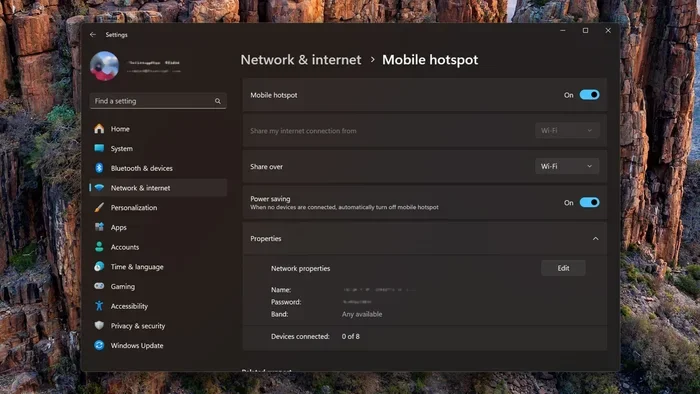
Setting Up A Hotspot On Windows 10 And 11
Windows has a built-in feature called Mobile Hotspot that makes this process simple:
- Click on the Start menu and go to Settings.
- Select Network & Internet.
- Click on Mobile Hotspot in the left sidebar.
- Choose the connection you want to share (wifi or ethernet).
- Toggle Share my internet connection with other devices to on.
- Edit the network name and password if needed.
- Your hotspot is now active and ready for other devices to connect.
Windows also lets you set up a hotspot through the command line, but the settings menu method is much easier for most users. If your laptop does not have a built-in wifi card, you might need to look into getting a wifi card for your computer to enable hotspot sharing.
Setting Up A Hotspot On Mac
Mac computers also let you share your internet connection easily:
- Open System Preferences (or System Settings on newer Macs).
- Click on Sharing.
- Select Internet Sharing from the list on the left.
- Choose the source connection you want to share (usually Ethernet or Wi-Fi).
- Check the box for Wi-Fi in the “Share your connection from” section.
- Click Wi-Fi Options to set your network name and password.
- Check the box next to Internet Sharing to turn it on.
Your Mac will now broadcast a wifi signal that other devices can connect to. Just like on Windows, you should always use a strong password and keep an eye on who connects to your wireless hotspot.
How To Optimize Your Wifi Hotspot For Best Performance
Setting up a hotspot is only half the battle. You also want it to work well and stay fast. Here are some proven ways to optimize your wifi hotspot setup.
Choose The Right Frequency Band
Most modern devices support both 2.4 GHz and 5 GHz bands. The 2.4 GHz band has a longer range but slower speeds. The 5 GHz band offers faster speeds but a shorter range. If you are close to your hotspot, use the 5 GHz band for the best performance. If you are farther away, the 2.4 GHz band will give you a more stable connection.
Limit The Number Of Connected Devices
Every device that connects to your hotspot uses your bandwidth. If too many devices are connected, the speed drops for everyone. Try to limit connections to only the devices that really need them. A good rule of thumb is to keep it under five or six devices at a time.
Place Your Device In A Central Location
If you are using your phone as a hotspot, keep it in a central spot. Walls, furniture, and other obstacles can weaken the signal. Elevating your phone also helps improve coverage. For a more permanent setup, consider using a wifi range extender to boost the signal to areas with weak coverage.
Keep Your Hotspot Software Updated
Both Android and iOS regularly release updates that improve hotspot performance and security. Make sure your phone and laptop are running the latest software. These updates often include bug fixes for connectivity issues and improvements to battery management while tethering.
Security Best Practices For Your Wifi Hotspot
A wifi hotspot is a gateway to your internet connection. If it is not secure, strangers can use your data, access your files, or even intercept your online activity. Taking a few simple security steps can protect you and your data.
Use A Strong Password
Never leave your hotspot open or use a simple password like “123456” or “password.” Use at least 12 characters with a mix of letters, numbers, and symbols. A strong password keeps unauthorized users off your network and protects your data usage from being drained by strangers.
Enable WPA2 Or WPA3 Encryption
WPA2 and WPA3 are the most secure encryption standards for wifi networks. When setting up your hotspot, always choose WPA2 or WPA3 as the security type. Avoid WEP, which is outdated and easy to crack. Most modern devices default to WPA2, so you are usually already protected.
Hide Your Network Name
You can choose to hide your hotspot’s network name (SSID) so it does not show up in the list of available networks. This adds a small layer of security because people cannot find it easily. However, anyone who knows the name and password can still connect. This is more of a privacy bonus than a strong security measure.
Monitor Connected Devices Regularly
Periodically check which devices are connected to your hotspot. If you see an unfamiliar device, change your password immediately. Most phones and laptops let you view connected devices in the hotspot settings. This quick check can prevent unauthorized use of your connection.
Troubleshooting Common Wifi Hotspot Problems
Even with the best setup, you might run into issues with your wifi hotspot. Here are the most common problems and how to fix them.
Hotspot Not Showing Up On Other Devices
If other devices cannot find your hotspot, try turning it off and back on. Restarting both your device and the connecting device can also help. Make sure your hotspot is not set to hidden if you want it to be visible. Also check that your device is not in airplane mode.
Slow Speeds On Connected Devices
Slow speeds are often caused by too many connected devices or a weak signal. Move closer to your hotspot device and reduce the number of connected devices. If you are using your phone as a hotspot, make sure it has a strong cellular signal. You can also try switching to the 5 GHz band for faster speeds.
Devices Keep Disconnecting
Frequent disconnections can be frustrating. This issue is often caused by battery optimization settings on your phone. Go to your phone’s battery settings and disable optimization for the hotspot feature. You should also make sure your phone is not going to sleep mode while the hotspot is active.
Cannot Connect To The Internet Through Hotspot
If devices connect to your hotspot but cannot access the internet, check your source connection first. Make sure your phone or laptop actually has an active internet connection. Restart your device and try again. If the problem persists, forget the network on the connecting device and reconnect with the password.
For more general tips on getting wifi working in different situations, you might find this article on getting wifi without an internet provider helpful for understanding alternative connection methods.
Can You Buy A Hotspot Device Without Monthly Fees?
Many people wonder if they can buy a wifi router or hotspot device and avoid monthly fees. The answer is yes, in some cases. You can purchase a mobile hotspot device and use a prepaid data plan without a long-term contract. Some carriers also offer pay-as-you-go data plans that work well with portable hotspot devices.
Another option is to buy a wifi router outright and connect it to a wired internet source without paying a monthly rental fee to your internet provider. This approach works well if you already have a modem from your ISP. You can check if your provider lets you buy a wifi router without paying monthly fees to see what options are available to you.
Dedicated hotspot devices from carriers like Verizon, AT&T, and T-Mobile offer portable wifi without needing a phone. These devices use SIM cards and cellular data plans just like a phone. They are compact, battery-powered, and perfect for travel or remote work.
Final Thoughts On Setting Up Your Wifi Hotspot
Setting up a wifi hotspot does not have to be complicated. Whether you are using your phone, Windows laptop, or Mac, the process is straightforward and takes just a few minutes. The key is to follow the steps carefully, set a strong password, and keep your device updated.
Remember that a good hotspot setup is about more than just connecting devices. It is about doing so safely and efficiently. Use the optimization and security tips from this guide to get the most out of your personal hotspot. With these skills in your toolkit, you will never be stuck without internet again.
Now that you know how easy it is to set up a wifi hotspot on any device, try it out today. You will be glad you learned this simple but powerful skill. Share it with friends and family who might benefit from knowing how to create their own wireless hotspot whenever they need one.
Frequently Asked Questions
Can I set up a wifi hotspot without an internet provider?
Yes, you can set up a hotspot using your phone’s cellular data without a traditional home internet provider. Your phone’s mobile data plan acts as the internet source for the hotspot. Just make sure you have enough data available on your plan before turning it on.
Is it free to use my phone as a wifi hotspot?
Using your phone as a hotspot is free if you already have a data plan. However, it does use your mobile data, so you may need to pay extra if you exceed your data limit. Check with your carrier about any hotspot-specific fees or data caps on your plan.
How many devices can connect to a wifi hotspot at once?
Most phones and laptops can support between 5 and 10 connected devices at a time. However, the more devices you connect, the slower the speeds will be for each device. Keep your connections to a reasonable number for the best performance.
Can I set up a wifi hotspot without a password?
Yes, you can leave your hotspot open without a password, but this is not recommended. An open hotspot lets anyone connect to your network, which can slow down your speeds and create security risks. Always use a strong password for your wifi hotspot.
Why does my wifi hotspot keep turning off by itself?
This usually happens because of battery optimization settings on your phone. Your device may be shutting down the hotspot to save power. Go to your battery settings and disable optimization for the hotspot feature to prevent it from turning off automatically.
What is the difference between a wifi hotspot and a wifi range extender?
A wifi hotspot creates a new network using your device’s internet connection. A range extender boosts an existing wifi signal to cover a larger area. You can use both together for the best coverage, especially if you are sharing your hotspot in a large space.
=== META DESCRIPTION ===
Learn how can I set up a wifi hotspot on any device easily with this step-by-step guide. Get tips for phone, laptop, and more for a seamless connection.