How Can I Get Better Wi Fi Signal On My Tv Right Now
Getting a better Wi Fi signal on your TV is easier than you think. You can boost your wireless connection by adjusting your router placement, using a Wi Fi extender, and switching to the right frequency band. These simple steps will eliminate buffering and give you smooth streaming every time.
Let’s face it. Nothing ruins a movie night faster than a spinning buffering wheel on your TV. You settled in, you picked the perfect show, and then your Wi Fi signal on your TV decides to betray you. It is frustrating, annoying, and more common than you think.
The good news? You do not need to be a tech expert to fix this. Whether you are dealing with a weak wireless connection, slow streaming speeds, or constant drops, there are real, practical steps you can take right now to get better Wi Fi on your TV. This guide walks you through every fix, from simple router tweaks to advanced setups that make a huge difference.
By the end of this article, you will know exactly why your TV struggles with Wi Fi, what tools can help, and how to set everything up for the best possible streaming experience. Let us dive in.
Key Takeaways
- Router Placement Matters: Moving your router closer to your TV can dramatically improve your Wi Fi signal strength.
- Use the 5GHz Band: Switching to the 5GHz frequency reduces interference and boosts streaming speeds.
- Wi Fi Extenders Work: A simple extender or mesh system can eliminate dead zones and reach your TV reliably.
- Reduce Interference: Other devices and appliances can weaken your signal. Keeping your router away from them helps.
- Update Firmware Regularly: Keeping your router updated ensures the best performance and security.
- Ethernet Is Still King: For the most stable connection, a wired setup beats wireless every time.
📑 Table of Contents
- Why Does My TV Have a Weak Wi Fi Signal?
- Quick Fixes You Can Do Right Now
- Use a Wi Fi Extender or Mesh System
- Can You Connect Wi Fi Directly to Your TV?
- Reduce Signal Interference in Your Home
- Upgrade Your Router or Add External Hardware
- Check Your Internet Speed and Plan
- Expert Tips for Long-Term Wi Fi Strength on Your TV
- Common Mistakes People Make with TV Wi Fi
- When to Call a Professional
- Final Thoughts
Why Does My TV Have a Weak Wi Fi Signal?
Before we fix the problem, we need to understand it. Your TV connects to the internet through your home wireless network. But that connection has to travel through walls, floors, furniture, and other obstacles. Every step along the way can weaken the signal.
Several factors play a role here:
- Distance from the router: The farther your TV is from the router, the weaker the signal becomes. Thick walls and multiple floors make this worse.
- Frequency band interference: Most routers broadcast on two bands: 2.4GHz and 5GHz. Each has its strengths and weaknesses.
- Network congestion: If multiple devices are streaming, gaming, or downloading at the same time, your bandwidth gets split thin.
- Physical obstacles: Microwaves, baby monitors, Bluetooth devices, and even fish tanks can interfere with your wireless signal.
- Outdated router hardware: Older routers simply cannot handle modern streaming demands as well as newer models.
Understanding these causes helps you pick the right fix. Sometimes it is one simple change. Other times, you need a combination of solutions. Either way, the fix is almost always within reach.
Quick Fixes You Can Do Right Now
Want immediate results? Try these quick fixes first. They take less than five minutes and often solve the problem completely.
Move Your Router Closer to the TV
This is the single easiest thing you can do. If your router sits in a closet, a basement, or a far corner of the house, your TV is fighting a losing battle. Move it to a more central location, ideally in the same room or one room away from where you watch TV.
Placement tips:
- Place the router on a high shelf, not on the floor.
- Keep it away from metal objects and thick walls.
- Point the antennas straight up or slightly angled toward your TV.
- Avoid placing it near microwaves or cordless phones.
Even moving the router ten feet closer can make a noticeable difference. Try it and see for yourself.
Restart Your Router and TV
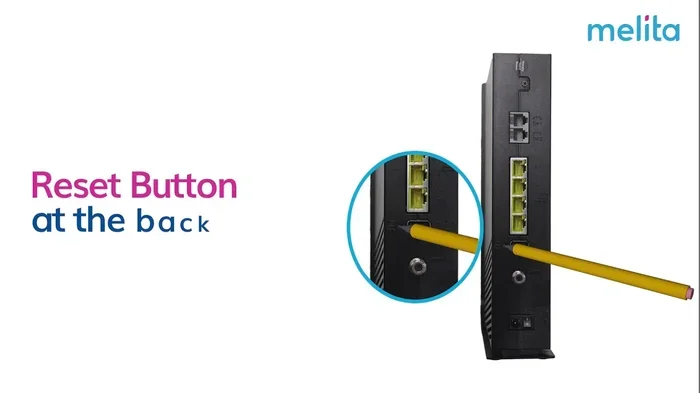
It sounds too simple, but restarting your devices clears temporary glitches and refreshes the network connection. Unplug your router for 30 seconds, plug it back in, and do the same with your TV. This alone fixes many connectivity issues.
Switch Between 2.4GHz and 5GHz Bands
Most modern routers broadcast two wireless bands. The 2.4GHz band travels farther but is slower and more crowded. The 5GHz band is faster but has a shorter range.
If your TV is close to the router, switch to the 5GHz band for better speed. If your TV is far away, the 2.4GHz band might be more stable. Check your router settings or look for separate network names in your TV’s Wi Fi menu.
Use a Wi Fi Extender or Mesh System
If moving the router does not help, it is time to expand your wireless coverage. A Wi Fi extender picks up your existing signal and rebroadcasts it to areas your router cannot reach well.
Here is how extenders work:
- The extender receives your router’s signal.
- It amplifies the signal.
- It sends the boosted signal to your TV and other devices.
Extenders are affordable and easy to set up. You plug them into a wall outlet between your router and your TV. Within minutes, your TV has a stronger connection.
For larger homes, a mesh network system is even better. Mesh systems use multiple nodes placed around your home to create seamless, whole-house coverage. Unlike extenders, mesh systems do not slow down your speed as much because they use smart routing to find the best path for your data.
Many people also look into solutions like boosting their Wi Fi signal outside the home, which uses similar principles of signal extension and placement. The same logic applies indoors when you are trying to reach your TV.
Can You Connect Wi Fi Directly to Your TV?
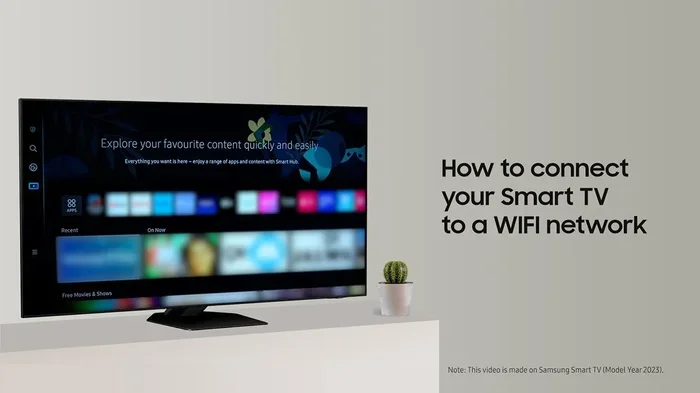
Yes, you absolutely can. Most smart TVs built in the last five years come with built-in Wi Fi. You simply go to your TV’s settings, find the network menu, and connect to your home wireless network. This is the most direct way your TV gets online.
But here is the thing. A direct connection is only as good as the signal your TV receives. If the signal is weak, the direct connection will still buffer, lag, and drop. That is why improving your overall wireless strength matters so much.
For more details on how to set up a direct connection, check out our guide on connecting Wi Fi directly to your TV. It covers the exact steps for most major TV brands.
When you connect your TV directly to Wi Fi, keep these tips in mind:
- Always choose the 5GHz network if it is available and your TV supports it.
- Avoid connecting to public or guest networks for streaming.
- Restart your TV’s network settings if you notice connection issues.
- Check for TV software updates, as they often improve wireless performance.
Reduce Signal Interference in Your Home
Your home is full of devices that compete for wireless signals. This is called interference, and it can seriously weaken your TV’s connection.
Common Sources of Interference
- Microwaves: They operate on the same 2.4GHz frequency as many routers. When you heat up popcorn, your TV might stutter.
- Bluetooth devices: Speakers, headphones, and keyboards all use the 2.4GHz band.
- Other routers: If you live in an apartment building, your neighbors’ networks can overlap with yours.
- Thick walls and mirrors: Metal and concrete block wireless signals more than drywall.
- Fish tanks and water: Water absorbs Wi Fi signals, so large aquariums near your router or TV can weaken the connection.
How to Minimize Interference
- Move your router away from microwaves and Bluetooth devices.
- Change your router’s channel to a less crowded one. You can use a free app like Wi Fi Analyzer to find the best channel.
- Keep your router away from large metal objects and water sources.
- If possible, use the 5GHz band, which is less crowded than 2.4GHz.
- Consider upgrading to a router that supports Wi Fi 6, which handles interference much better than older models.
Reducing interference alone can improve your TV’s signal strength by a noticeable margin. It is one of those hidden fixes that most people overlook.
Upgrade Your Router or Add External Hardware
Sometimes the problem is your router itself. Older routers simply cannot keep up with modern streaming demands. A 4K movie requires a strong, stable connection, and an outdated router may not deliver that.
Consider these upgrades:
Add an External Antenna to Your Router
Many routers have removable antennas. Replacing the stock antenna with a high-gain external antenna can significantly boost your signal range and strength. This is a simple, inexpensive fix that works wonders for homes with thick walls or long layouts.
For more information on this upgrade, check out our article on adding an external antenna to your router. It explains exactly what to look for and how to install one.
Extend Your Wi Fi to Hard-to-Reach Areas
If your TV is in a room that is far from your router, you might also benefit from extending your wireless coverage to that area. Solutions like powerline adapters or additional access points can bridge the gap and deliver a strong signal to rooms that normally get weak coverage.
Many homeowners also use Wi Fi extension techniques to reach detached buildings, and the same principles apply to extending coverage to a distant living room or bedroom TV.
Consider a Powerline Adapter
A powerline adapter uses your home’s electrical wiring to carry the internet signal. You plug one adapter near your router and another near your TV. It creates a wired-like connection without running cables through your walls.
Powerline adapters are a great middle ground between wireless and ethernet. They are more stable than Wi Fi and much easier to set up than running cables.
| Solution | Pros | Cons |
|---|---|---|
| Wi Fi Extender | Easy setup, affordable | May reduce speed slightly |
| Mesh System | Seamless coverage, fast | More expensive |
| Powerline Adapter | Stable, no new wires | Depends on electrical wiring quality |
| External Antenna | Boosts existing router, cheap | Only works with compatible routers |
| Ethernet Cable | Fastest and most stable | Requires running a cable |
Check Your Internet Speed and Plan
Sometimes the problem is not your Wi Fi signal at all. It is your internet plan. If your connection speed is too slow, no amount of router tweaking will fix buffering issues.
Here is what you should do:
- Run a speed test on a device near your TV. Use sites like Speedtest.net or Fast.com.
- Compare the results to what your streaming service needs.
- Upgrade your plan if your speeds are consistently below the recommended levels.
As a general rule, you need at least 25 Mbps for 4K streaming and 5 Mbps for HD streaming. If multiple people in your household stream at the same time, multiply those numbers accordingly.
Also, check if your router is limiting your speeds. Some older routers cannot handle speeds above a certain threshold, even if your internet plan delivers faster speeds. In that case, a router upgrade is necessary.
Expert Tips for Long-Term Wi Fi Strength on Your TV
Once you get your signal working well, you want to keep it that way. Here are some expert-backed habits that maintain strong performance over time.
Update Your Router Firmware Regularly
Router manufacturers release firmware updates that fix bugs, improve performance, and patch security holes. Check your router’s admin panel once a month to see if an update is available. Many modern routers also offer automatic updates.
Reboot Your Router Weekly
Just like your phone, your router benefits from a fresh start. Rebooting it once a week clears memory, refreshes connections, and prevents slow-downs that build up over time.
Limit the Number of Connected Devices
Every device connected to your network uses a portion of your bandwidth. If you have dozens of smart home devices, phones, tablets, and computers all online, your TV gets less to work with. Consider disconnecting devices you are not actively using.
Use Quality of Service (QoS) Settings
Many routers have a QoS feature that lets you prioritize certain devices or activities. Set your TV as a high-priority device so it gets the bandwidth it needs, even when other devices are using the network.
Keep Your TV Software Updated
Smart TV manufacturers release updates that improve wireless connectivity and fix bugs. Check for updates in your TV’s settings menu regularly. An outdated TV operating system can cause connection problems even when your router is working perfectly.
These habits take minimal effort but pay off big time. They keep your home network running smoothly and your TV streaming without interruptions.
Common Mistakes People Make with TV Wi Fi
Avoid these common pitfalls that make Wi Fi problems worse:
- Hiding the router in a cabinet: Cabinets block signals. Your router needs open space to broadcast effectively.
- Placing the router on the floor: Signals spread outward and upward. A floor-level router wastes signal downward into the ground.
- Ignoring the 5GHz band: Many people stick with 2.4GHz because it reaches farther. But for TV streaming, 5GHz is almost always better.
- Using the wrong Wi Fi password: Double-check that you are connecting to the correct network. Connecting to a guest network or an old network with weak signal causes frustration.
- Never restarting the router: Routers need regular restarts to perform at their best. A simple reboot once a week makes a huge difference.
Steering clear of these mistakes keeps your TV connection strong and your streaming sessions uninterrupted.
When to Call a Professional
Most Wi Fi issues can be fixed at home with the steps above. But sometimes, you need expert help. Consider calling a professional if:
- You have tried multiple fixes and still experience constant drops.
- Your home has unusual construction that blocks signals, like thick concrete walls or metal roofing.
- You want a whole-home network design with multiple access points.
- Your internet service provider has not resolved a known outage or infrastructure issue.
A professional can assess your home’s layout, recommend the right equipment, and install everything for optimal performance. It is an investment that pays off in years of reliable streaming.
Final Thoughts
Getting a better Wi Fi signal on your TV does not require expensive equipment or technical expertise. Start with the simple fixes. Move your router closer. Switch to the 5GHz band. Reduce interference. Then, if those steps are not enough, explore extenders, mesh systems, or powerline adapters.
Every home is different, so you might need a combination of solutions. The key is to start with the basics and work your way up until you find what works for your setup. Once you get it right, you will enjoy smooth, buffer-free streaming every single time.
Take action today. Pick one or two tips from this guide and try them right now. You will be surprised how much difference even a small change can make. Your TV, your movies, and your patience will all thank you.
Frequently Asked Questions
Why does my TV keep disconnecting from Wi Fi?
TVs disconnect from Wi Fi for several reasons, including weak signal strength, interference from other devices, or outdated router firmware. Try moving your router closer to the TV, switching to the 5GHz band, and restarting both your router and TV. If the problem persists, check for router firmware updates or consider using a Wi Fi extender to strengthen the connection.
Is Wi Fi or Ethernet better for TV streaming?
Ethernet provides a more stable and faster connection than Wi Fi for TV streaming. It eliminates signal interference and delivers consistent speeds. However, if running an Ethernet cable is not practical, a strong Wi Fi connection with a mesh system or extender works just as well for most streaming needs.
How can I check my TV’s Wi Fi signal strength?
Most smart TVs have a network status menu in their settings. Go to Settings, then Network, and look for signal strength information. You can also use a Wi Fi analyzer app on your phone to measure the signal strength in your TV’s location. If the signal is below three bars, consider repositioning your router or adding an extender.
Do Wi Fi extenders slow down internet speed?
Wi Fi extenders can reduce speed slightly because they receive and rebroadcast the signal. However, modern extenders and mesh systems minimize this speed loss. The trade-off is almost always worth it, as a slightly slower but stable connection is far better than a fast connection that keeps dropping.
What internet speed do I need for 4K streaming on my TV?
Most 4K streaming services recommend at least 25 Mbps for smooth playback. If you have multiple devices using the network at the same time, aim for 50 Mbps or higher. Run a speed test near your TV to see what your current connection delivers, and upgrade your internet plan if needed.
Can I improve my TV Wi Fi without buying new equipment?
Yes, you can. Repositioning your router, switching frequency bands, reducing interference, and restarting your devices are all free fixes that often solve Wi Fi problems. You do not need to spend money on new equipment to see meaningful improvements. Start with these simple steps before investing in extenders or new routers.
=== CONCLUSION ===
Improving your Wi Fi signal on your TV is one of the most rewarding upgrades you can make to your home entertainment setup. The steps in this guide give you everything you need, from quick fixes that take minutes to longer-term solutions that transform your entire network. Start today, experiment with the tips above, and enjoy the difference. Smooth, buffer-free streaming is closer than you think.