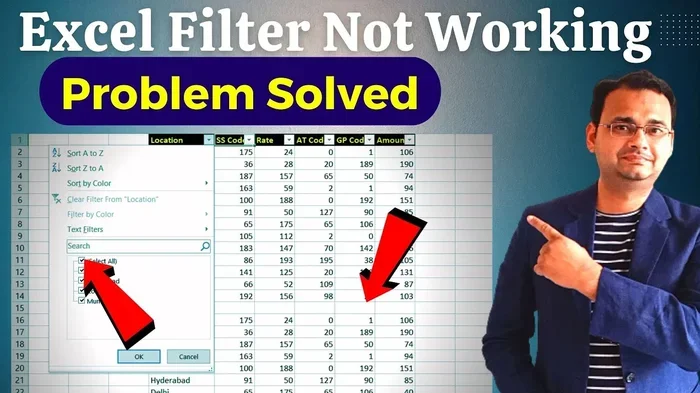
Filter Mode Is Stuck On Microsoft Excel Try This Fix
Filter Mode Is Stuck On Microsoft Excel can freeze your dropdowns and block your data view. This guide gives you simple, step-by-step fixes to unlock Excel filter mode and get your spreadsheets working again. You will learn why filter mode gets stuck, how to reset it, and how to prevent the problem from returning.
Have you ever opened an Excel file only to find that Filter Mode Is Stuck On Microsoft Excel? The filter arrows are gray, the dropdown menus do not open, and your data looks frozen. This is a common problem that can stop your work in seconds. You might be trying to sort a list, apply a criteria, or just clear a filter, but nothing happens. The good news is that you can fix this with a few simple steps. In this article, I will show you exactly how to unlock Excel filter mode and get your spreadsheet back on track. I will cover the quick fixes, the reasons it happens, and how to stop it from coming back.
When Filter Mode Is Stuck On Microsoft Excel, it usually means the autofilter feature is toggled on but not responding. You may see the little arrow icons next to your column headers, but clicking them does nothing. Or the filter button on the ribbon might be dimmed and unclickable. This can happen in any version of Excel, from Excel 2016 to the latest Microsoft 365. It does not matter if your data is in a table or a plain range. The result is the same: you cannot filter your data, and your workflow breaks. I have seen this issue many times, and I know how annoying it is. That is why I put together this complete guide with practical fixes you can use right now.
You do not need to be a tech expert to solve this. I will walk you through each fix in plain language. I will also explain why Excel gets stuck in filter mode so you can avoid the triggers in the future. By the end of this article, you will know how to clear filter mode, reset filter settings, and keep your spreadsheets running smoothly. Let us dive into the solutions.
Key Takeaways
- Use Ctrl+Shift+L to toggle Excel filter mode on and off quickly.
- Clear all filters from the Data tab to reset stuck filter arrows.
- Check for grayed-out filter buttons to spot protected sheets or add-in conflicts.
- Reset filter settings via Name Manager to fix corrupted workbook filter states.
- Avoid saving filter views in shared workbooks to prevent Excel filter mode lock.
- Keep Excel updated to reduce autofilter bugs and dropdown errors.
📑 Table of Contents
Why Is Filter Mode Stuck On Microsoft Excel?
Before you jump into the fixes, it helps to understand what is going on. Filter Mode Is Stuck On Microsoft Excel usually happens because Excel thinks the filter is still active, even when it is not. The software holds onto the filter state like a memory that will not clear. This can be caused by a simple toggle error, a corrupted setting, or a conflict with other features. Once you know the cause, the fix becomes much easier.
The Filter Toggle Button Is Grayed Out
One of the first signs is that the Filter button on the Data tab looks gray or disabled. You click it, but nothing happens. This means Excel has locked the filter mode in place. The button is there, but it is not responding to your input. This often occurs when a filter was applied and then the workbook was saved in a certain state. The next time you open the file, Excel tries to restore that filter state, but it gets stuck. You might also see the filter arrows on your column headers, but they do not drop down when you click them. This is a clear signal that your Excel filter is stuck and needs to be reset.
Excel Thinks You Are Still In Filter Mode
Another reason is that Excel has lost track of the filter state. The program thinks the filter is on, but the actual filter is not doing anything. This can happen after a crash, a sudden shutdown, or when you close a workbook while a filter is still applied. When you reopen the file, Excel tries to reload the filter, but the data connection is broken. The result is a grayed-out filter mode that will not turn off. You might also see this when you copy and paste data between workbooks. The pasted range keeps the filter mode from the source file, and it gets stuck. This is a common Excel filter not working issue that trips up many users.
Protected Sheets Or Shared Workbooks Block Filter Changes
If your worksheet is protected, Excel will not let you change the filter settings. The filter button stays locked, and you cannot toggle filter mode on or off. This is a security feature, but it can feel like a bug when you are just trying to sort your data. Shared workbooks can also cause this problem. When multiple people edit the same file, Excel sometimes locks the filter mode to prevent conflicts. The filter dropdowns may appear, but they will not respond to clicks. This is a tricky Excel filter lock situation that requires you to unprotect the sheet or stop sharing the workbook first.
Quick Fixes To Unlock Excel Filter Mode
Now let us get to the good part. Here are the fastest ways to fix Filter Mode Is Stuck On Microsoft Excel. Try these in order, and you will likely solve the problem in just a few minutes.
Fix 1: Use The Keyboard Shortcut
The quickest trick is to use the keyboard shortcut to toggle filter mode. Press Ctrl and Shift and L at the same time. This is the Excel filter mode shortcut that turns the autofilter on and off. If your filter is stuck, this shortcut can often break it free. Just make sure you have a cell selected in your data range before you press the keys. If the shortcut does not work, move to the next fix.
Fix 2: Clear All Filters From The Ribbon
Go to the Data tab on the ribbon. Look for the Sort & Filter group. Click the Clear button. This removes all active filters from your sheet. It is a simple step, but it often resets the stuck filter mode. If the Clear button is grayed out, it means no filters are currently applied in Excel’s view, even though the filter mode is on. In that case, try the next fix.
Fix 3: Restart Excel And Check Add-ins
Sometimes a simple restart is all you need. Close Excel completely, and then reopen the file. If the filter mode is still stuck, check your add-ins. Some add-ins can interfere with Excel’s filter buttons. Go to File > Options > Add-ins. At the bottom, select COM Add-ins and click Go. Uncheck any add-ins you do not need, and click OK. Restart Excel and see if the filter mode unlocks. This is a common fix for Excel filter dropdown not responding issues caused by third-party tools.
Fix 4: Toggle Filter Mode With The Mouse
If the keyboard shortcut did not work, try clicking the filter button manually. Go to the Data tab and click the Filter button once. This should turn the filter arrows on. Then click it again to turn them off. In some cases, you need to click it twice to break the stuck state. Make sure you are clicking the button, not the filter arrows on the column headers. The ribbon button controls the global filter mode for the entire sheet.
Fix 5: Check For Hidden Rows Or Outlining
Hidden rows or grouped outlines can make it look like filter mode is stuck. When rows are hidden, the filter dropdown might not show all your data. Go to the Home tab, click Find & Select in the Editing group, and choose Go To Special. Select Visible cells only and click OK. This can reveal if hidden rows are causing the filter to behave oddly. After that, try the Ctrl+Shift+L shortcut again to reset the filter mode.
Common Reasons Your Excel Filter Gets Stuck
Understanding the root causes helps you prevent the problem. Here are the most common reasons your filter mode might get locked up.
Corrupted Filter Settings In The Workbook
Every time you apply a filter and save the workbook, Excel stores that filter state. If the file becomes corrupted, those stored settings can get stuck. The next time you open the file, Excel tries to apply the saved filter, but it fails. The filter mode stays on, but the filter itself does not work. This is a frequent cause of Excel filter not working after reopening a file. You can avoid this by saving your workbooks in the latest format, such as .xlsx or .xlsm, instead of older formats like .xls.
Conflicts With Shared Workbooks Or Protected Sheets
As I mentioned earlier, shared workbooks and protected sheets can block filter changes. When a workbook is shared, Excel restricts some features to keep the data consistent. The filter mode can get stuck because Excel thinks you are trying to change a protected setting. If you are working in a team, ask the workbook owner to unprotect the sheet or stop sharing the file temporarily. Then you can clear the filter and reapply it. This is a common Excel filter lock in collaborative environments.
VBA Macros Or Add-ins Interfering With Filters
If your workbook contains macros or you have automation tools running, they might be overriding the filter settings. A VBA macro could be setting the filter mode on and then failing to turn it off. This leaves Excel stuck in filter mode. You can check for this by opening the workbook with macros disabled. Hold down the Shift key while opening Excel, or go to File > Info > Check for Issues > Inspect Document. If the filter works fine with macros disabled, you have found your culprit.
Excel Version Or Installation Bugs
Sometimes the problem is not with your file but with Excel itself. A buggy update or a corrupted Office installation can cause filter mode to behave strangely. If you recently updated Excel and the filter started acting up, you might be dealing with a software bug. Check for the latest updates through File > Account > Update Options. If the issue started after an update, you can try repairing Office through the Control Panel.
How To Reset Excel Filter Settings Completely
If the quick fixes did not work, you may need to reset your filter settings entirely. This clears any corrupted filter state and gives you a fresh start.
Reset Filter State Through The Ribbon
Go to the Data tab. In the Sort & Filter group, click Advanced. In the Advanced Filter dialog box, you can choose to copy the list to another location or filter in place. This action often resets the internal filter state. After you click OK, try toggling the filter off and on again. This method works well when the filter arrows are missing or not responding.
Delete Filter Settings From The Name Manager
Excel stores filter settings in the Name Manager under the hood. You can clear these to fix a stuck filter mode. Press Ctrl + F3 to open the Name Manager. Look for any names that start with _FilterDatabase. Select each one and click Delete. Close the Name Manager and reopen your workbook. The filter mode should now be reset. This is a powerful fix for Excel autofilter issues that persist after clearing filters from the ribbon.
Recreate The Table From Scratch
If the filter is still stuck, the table itself might be corrupted. Select all your data, including headers. Go to the Insert tab and click Table. Make sure the My table has headers box is checked. Click OK. This creates a brand new table with working filter arrows. You will lose any manual formatting, but the filter mode will be fresh and functional. This is a reliable way to fix Excel filter not applying in a damaged table.
Advanced Troubleshooting For Stubborn Filter Issues
When the basic fixes are not enough, you need to dig deeper. These advanced steps can solve even the most stubborn Excel filter mode problems.
Check For Hidden Rows Or Outlining Issues
Hidden rows can interfere with how Excel applies filters. If you have a lot of hidden rows, the filter dropdown might show incorrect counts or fail to open. To check for hidden rows, select the entire sheet by clicking the gray triangle at the top-left corner. Then right-click any row number and choose Unhide. This will reveal any hidden rows. After unhiding, try the filter again. This is a quick fix for Excel filter dropdown missing data.
Repair Office Or Reset Excel Settings
If nothing else works, you can repair your Office installation. Go to Control Panel > Programs > Microsoft Office and click Change. Select Online Repair and follow the prompts. This will repair your Office files without affecting your documents. You can also reset Excel settings by deleting the Excel registry keys, but that is a more advanced step. Only do this if you are comfortable with the registry editor.
When To Use VBA To Force Filter Mode Off
If you are comfortable with macros, you can use VBA to force Excel out of filter mode. Press Alt + F11 to open the Visual Basic Editor. Insert a new module and paste this code:
Sub TurnOffFilterMode()
ActiveSheet.AutoFilterMode = False
End Sub
Run the macro, and Excel will turn off the filter mode for the active sheet. This is a direct way to unlock Excel filter mode when the ribbon button is unresponsive. You can also assign this macro to a button on your quick access toolbar for future use.
Preventing Excel Filter Mode From Getting Stuck Again
Once you have fixed the problem, you want to make sure it does not come back. Here are some habits that keep your filter mode working smoothly.
Save Workbooks In The Correct Format
Always save your workbooks in the modern .xlsx or .xlsm format. Older formats like .xls can cause compatibility issues with filter settings. When you save in a newer format, Excel stores the filter state more reliably. This reduces the chance of filter mode getting stuck when you reopen the file.
Train Your Team On Proper Filter Usage
If you work with others, make sure everyone knows how to use filters correctly. Do not apply filters and then close the workbook without clearing them. Teach your team to use the Clear button before closing. Also, remind them not to protect sheets unless it is necessary. Clear communication about filter usage can prevent many Excel filter mode lock issues in shared files.
Keep Excel And Windows Updated
Microsoft regularly releases updates that fix bugs and improve stability. Keep your Office apps and Windows system up to date. These updates often include fixes for autofilter issues and dropdown errors. You can set Office to update automatically through the Account settings. Staying current helps prevent Filter Mode Is Stuck On Microsoft Excel problems caused by known bugs.
Avoid Copying And Pasting Filtered Data
When you copy data from a filtered range, Excel sometimes carries the filter state with it. If you paste that data into a new sheet, the filter mode might get stuck. To avoid this, copy the entire sheet without filters. Use Ctrl+A to select all cells, then copy and paste. This ensures you are pasting a clean dataset without any lingering filter mode.
Use Tables Instead Of Plain Ranges
Excel Tables handle filters much better than plain ranges. When you format your data as a table, Excel manages the filter state more reliably. Tables also make it easy to clear filters and reset the view. If you frequently work with filterable data, consider converting your ranges to tables. This is a simple habit that can save you from many filter mode issues.
Conclusion
Filter Mode Is Stuck On Microsoft Excel is a frustrating but solvable problem. You now have the tools to fix it quickly and prevent it from happening again. Start with the keyboard shortcut Ctrl+Shift+L, then move to clearing filters from the ribbon. If those do not work, reset your filter settings through the Name Manager or recreate the table. Remember to check for protected sheets, shared workbook conflicts, and add-in interference. By following the prevention tips, you can keep your Excel filter mode running smoothly. The next time your filter dropdowns stop responding, you will know exactly what to do. Take control of your spreadsheets and keep your data flowing without interruptions.
Frequently Asked Questions
Why is my Excel filter mode stuck and the arrows are gray?
This usually happens when Excel has saved a filter state that it cannot restore. The filter arrows appear, but they are not clickable. You can fix this by using the Ctrl+Shift+L shortcut or by clearing all filters from the Data tab. Restarting Excel and disabling add-ins can also unlock the grayed-out filter mode.
How do I turn off filter mode in Excel when the button is stuck?
Go to the Data tab and click the Filter button once to turn it on, then click it again to turn it off. If that does not work, press Ctrl+Shift+L to toggle the autofilter. You can also clear all filters and then turn the filter button off. This resets the filter mode and removes the stuck state.
Can a shared workbook cause filter mode to get stuck?
Yes, shared workbooks can lock the filter mode to prevent conflicts between users. If you are working in a shared file, ask the owner to unprotect the sheet or stop sharing temporarily. Once you clear the filter, you can re-share the workbook safely.
What should I do if the Excel filter dropdown is not responding?
First, make sure the filter mode is actually on by checking the Data tab. If the dropdown still does not open, try clearing all filters and then reapplying them. If that fails, reset the filter settings through the Name Manager or recreate the table from scratch. This usually fixes Excel filter dropdown not responding issues.
Is it safe to use VBA to turn off filter mode?
Yes, using a simple VBA macro to set AutoFilterMode to False is safe and effective. It directly tells Excel to turn off the filter for the active sheet. Just make sure you save your work before running any macro, and only use code from trusted sources. This is a great fix when the ribbon button is completely unresponsive.
How can I prevent filter mode from getting stuck in the future?
Save your workbooks in .xlsx or .xlsm format, keep Excel updated, and avoid protecting sheets unless needed. Train your team to clear filters before closing files, and use Excel Tables instead of plain ranges for better filter management. These habits will reduce the chance of Filter Mode Is Stuck On Microsoft Excel happening again.