Does MSI MAG B550 Tomahawk Have Wireless WiFi Built In
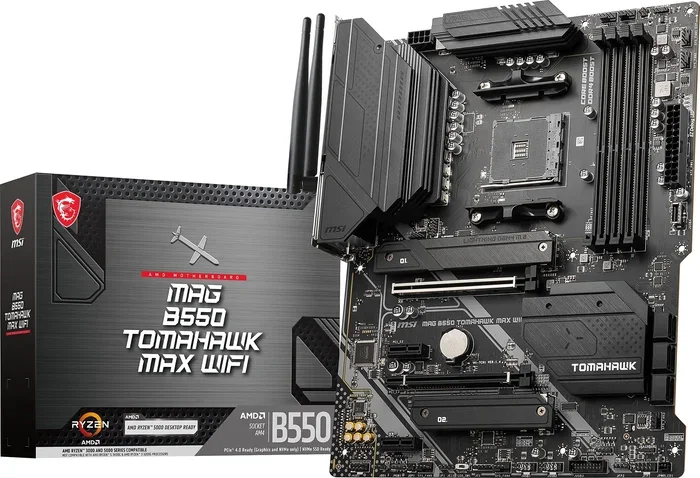
The MSI MAG B550 Tomahawk does not have wireless WiFi built in. This popular motherboard relies on a wired Ethernet connection for internet access. However, you can easily add WiFi using a PCIe WiFi card or a USB WiFi adapter. Let us walk you through everything you need to know about WiFi options for this board.
Are you thinking about building or upgrading a PC with the MSI MAG B550 Tomahawk motherboard? One question that comes up a lot is whether this board has wireless WiFi built in. The short answer is no. The MSI MAG B550 Tomahawk does not include a wireless WiFi module by default. But do not worry. There are simple and affordable ways to add wireless connectivity to this board. In this guide, we will explain everything you need to know. We will cover why the board lacks built-in WiFi, how to add it, and what options work best for different needs.
The MSI MAG B550 Tomahawk is a well-liked motherboard in the mid-range build market. It offers solid performance, good VRM cooling, and plenty of connectivity options. Many users love it for gaming rigs and workstations alike. But when it comes to wireless WiFi, you will need to take an extra step. This board gives you a wired Ethernet port right out of the box. For many users, that is enough. But if you want a wireless connection without dragging a cable across your room, you have options. Let us dive into them.
Key Takeaways
- No Built-In WiFi: The MSI MAG B550 Tomahawk does not include a wireless WiFi module out of the box.
- Easy WiFi Upgrade: You can add WiFi by installing a PCIe WiFi card or using a USB WiFi adapter.
- WiFi 6 Support: The board supports WiFi 6 adapters for fast wireless speeds.
- Ethernet Included: A built-in Gigabit Ethernet port provides a reliable wired connection.
- Bluetooth Option: Some WiFi cards also include Bluetooth 5.0 or later for wireless peripherals.
- Affordable Add-Ons: WiFi cards for this board are budget-friendly and easy to install.
- Mesh Compatible: You can pair the board with mesh WiFi systems for whole-home coverage.
📑 Table of Contents
- Does the MSI MAG B550 Tomahawk Have Built-In WiFi?
- How to Add WiFi to the MSI MAG B550 Tomahawk
- WiFi 6 and the MSI MAG B550 Tomahawk
- Wired vs Wireless: Which Is Better for the MSI MAG B550 Tomahawk?
- Common Mistakes When Adding WiFi to the MSI MAG B550 Tomahawk
- Expert Tips for the Best WiFi Experience
- Final Thoughts
Does the MSI MAG B550 Tomahawk Have Built-In WiFi?
The MSI MAG B550 Tomahawk does not come with a built-in wireless WiFi module. Unlike some higher-end motherboards that include WiFi antennas and a WiFi chip right on the board, this model keeps things wired. You get a Realtek Gigabit Ethernet controller for fast, stable internet through a cable. But there is no WiFi antenna or wireless adapter included in the box.
This is actually pretty common among mid-range ATX motherboards. Many manufacturers reserve built-in WiFi for their premium or flagship boards. The MSI MAG B550 Tomahawk sits in the sweet spot of price and performance. It gives you great value without bundling features that not everyone needs. If you do not mind using an Ethernet cable, this board has you covered. But if you want the freedom of wireless connectivity, read on.
What You Get Instead of WiFi
Even though there is no wireless WiFi on this board, it still offers strong wired networking. Here is what you get out of the box:
- Gigabit Ethernet Port: A standard RJ45 port that supports speeds up to 1 Gbps.
- Realtek RTL8111H Controller: A reliable wired network chip that handles most home and office internet needs.
- Multiple USB Ports: These can be used with external USB WiFi adapters if needed.
- PCIe Slots: Open slots where you can install a PCIe WiFi card for wireless access.
The Ethernet connection on this board is fast and stable. For gaming, streaming, and everyday browsing, a wired connection often performs better than wireless anyway. But some people need WiFi for convenience or because their router is far from the PC. That is where add-on solutions come in.
How to Add WiFi to the MSI MAG B550 Tomahawk
Adding wireless WiFi to the MSI MAG B550 Tomahawk is straightforward. You have two main options. You can install a PCIe WiFi card, or you can use a USB WiFi adapter. Both methods work well. Each has its own advantages depending on your needs and setup.
Option 1: PCIe WiFi Card
A PCIe WiFi card is the most popular way to add wireless connectivity to a desktop motherboard. You simply plug the card into an available PCIe slot on the board. Then you attach the included WiFi antenna. Your PC will recognize the card right away, and you can connect to your wireless network.
Here are some reasons why a PCIe WiFi card is a great choice:
- Better Performance: PCIe cards connect directly to the motherboard. This gives them a faster and more stable connection than USB options.
- Dedicated WiFi Chip: Most PCIe cards come with their own processor, so they do not slow down your CPU.
- WiFi 6 Support: Many modern PCIe WiFi cards support WiFi 6, which offers faster speeds and better performance in crowded networks.
- Bluetooth Built-In: Several WiFi cards also include a Bluetooth module. This lets you connect wireless mice, keyboards, and headphones without a dongle.
Popular options include the Intel AX200, AX210, and MediaTek MT7922 cards. These cards support WiFi 6 and even WiFi 6E in some cases. They are affordable and widely available. You can find them for as little as $15 to $30 for basic models. Higher-end cards with WiFi 6E or Bluetooth 5.3 may cost a bit more but offer excellent performance.
One thing to keep in mind. If you want better range and signal strength, you can look into external WiFi antennas or even set up a mesh system. For example, if your router is far away, you might wonder can I extend my wifi to my shed or another building on your property. A mesh system can help solve that problem and give you strong coverage throughout your home.
Option 2: USB WiFi Adapter
A USB WiFi adapter is the easiest way to add wireless connectivity. You simply plug it into a USB port, install the driver, and you are connected. No opening the PC case required. This makes USB adapters a popular choice for people who want a quick and simple solution.
Here is what you should know about USB WiFi adapters:
- Plug and Play: Most adapters work right out of the box with Windows. You may need to install a driver, but the process is usually simple.
- Portable: You can move a USB adapter between PCs easily. If you upgrade your motherboard, just unplug and replug.
- Compact Size: Many adapters are small enough to stay plugged in without blocking other USB ports.
- Budget-Friendly: USB WiFi adapters are often cheaper than PCIe cards, with some models available for under $15.
The downside of USB adapters is that they generally offer slower speeds and less stability than PCIe cards. They also share bandwidth with other USB devices on the same controller. For basic browsing and streaming, a USB adapter works fine. But for serious gaming or large file transfers, a PCIe card is the better choice.
If you go the USB route, look for adapters that support WiFi 5 or WiFi 6 for the best performance. Avoid older WiFi 4 (802.11n) adapters, as they are much slower and lack modern features.
WiFi 6 and the MSI MAG B550 Tomahawk
WiFi 6 is the latest mainstream WiFi standard. It offers faster speeds, lower latency, and better performance when multiple devices are connected. The MSI MAG B550 Tomahawk fully supports WiFi 6, but only through an add-on WiFi card. The board itself does not have a WiFi 6 chip built in.
When you buy a WiFi 6 PCIe card, your PC will be able to connect to WiFi 6 routers and access points. This means you get the full benefit of the latest wireless technology. Here is a quick comparison of what WiFi 6 brings to the table:
- Faster Speeds: WiFi 6 can reach speeds up to 9.6 Gbps under ideal conditions.
- Better Multi-Device Performance: WiFi 6 handles many connected devices more efficiently. This is great for smart homes with lots of IoT devices.
- Lower Latency: Gamers and streamers will notice smoother performance with WiFi 6.
- Improved Battery Life: WiFi 6 devices use less power, which helps laptops and mobile devices last longer.
If you are setting up a mesh WiFi network, you can pair a WiFi 6 card with a WiFi 6 router or mesh system. Some users ask, can I connect Wi Fi 6 mesh to wifi 5 router. The answer is yes, but you will only get WiFi 5 speeds on the older router. For the best experience, make sure your router and WiFi card both support the same standard.
Also, if you already have a mesh system and want to expand it, you might wonder can I connect deco mesh wifi to existing router. The answer depends on your specific setup, but most mesh systems are designed to work with existing routers. Just make sure your WiFi card is compatible with the mesh network band.
Wired vs Wireless: Which Is Better for the MSI MAG B550 Tomahawk?
Both wired and wireless connections have their pros and cons. Let us break down the differences so you can decide what works best for your setup.
| Feature | Wired (Ethernet) | Wireless (WiFi) |
|---|---|---|
| Speed | Up to 1 Gbps (stable) | Up to 9.6 Gbps (WiFi 6, theoretical) |
| Latency | Very low | Low to moderate |
| Reliability | Excellent | Good (varies with signal) |
| Convenience | Needs a cable | Cable-free |
| Setup | Plug in and go | Requires WiFi card or adapter |
| Interference | None | Can be affected by walls and devices |
For most users, a wired Ethernet connection is the most reliable choice. The MSI MAG B550 Tomahawk has a Gigabit Ethernet port that delivers fast and stable speeds. If you game competitively or work from home, a wired connection is hard to beat. But if you want the freedom of a cable-free desk, adding a WiFi card is the way to go.
Keep in mind that your wireless performance also depends on your router and home layout. If your WiFi signal is weak in the room where your PC sits, you might need to boost your signal. You can try moving your router closer, adding a WiFi extender, or setting up a mesh system. Some people also ask about whether certain WiFi hardware can overheat. For example, can Google wifi overheat is a common concern, and the answer is that WiFi routers can get warm but are designed to handle normal operating temperatures. The same goes for WiFi cards in your PC.
Common Mistakes When Adding WiFi to the MSI MAG B550 Tomahawk
Adding WiFi to a motherboard that does not have it built in is simple. But there are a few mistakes people make that can cause problems. Here are some common errors to avoid:
- Buying the Wrong WiFi Card: Not all WiFi cards are the same. Make sure your card matches the PCIe slot available on your motherboard. Also check that the card supports your WiFi standard (WiFi 5, WiFi 6, etc.).
- Forgetting to Install Drivers: A WiFi card will not work without the right drivers. Always download the latest drivers from the manufacturer’s website after installation.
- Ignoring Bluetooth: If you want wireless peripherals, choose a WiFi card that includes Bluetooth. Otherwise, you will need a separate Bluetooth adapter.
- Placing the Antenna Poorly: The position of your WiFi antenna matters. Place it vertically and away from metal objects for the best signal.
- Using an Old USB Adapter: Older USB WiFi adapters are slow and outdated. Stick with WiFi 5 or WiFi 6 adapters for decent performance.
Another mistake is not checking if your network adapter is properly seated in the PCIe slot. A loose card can cause intermittent connection drops. Always push the card firmly into the slot and secure it with a screw.
Expert Tips for the Best WiFi Experience
Want to get the most out of your wireless connection with the MSI MAG B550 Tomahawk? Here are some expert tips that make a real difference:
- Choose a WiFi 6 Card for Future-Proofing: WiFi 6 is becoming the standard. A WiFi 6 card ensures your setup stays fast for years to come.
- Update Your WiFi Drivers Regularly: Driver updates often include performance improvements and bug fixes. Check for updates every few months.
- Use a USB Extension for External Adapters: If you use a USB WiFi adapter, a USB extension cable can help you position the adapter away from interference from other components.
- Consider a Mesh WiFi System: If you have a large home, a mesh system can provide strong coverage everywhere. You can even change wifi for all google home devices to work seamlessly with your mesh setup.
- Keep Your Router Firmware Updated: A well-maintained router gives you the best wireless performance and security.
One more tip. If you are running security software alongside your networking setup, make sure it does not interfere with your WiFi connection. Some users wonder, can I have Microsoft firewall enabled while running avg free. The answer is generally yes, but sometimes firewall conflicts can cause connectivity issues. If you notice WiFi problems, check your firewall and antivirus settings.
Final Thoughts
The MSI MAG B550 Tomahawk is an excellent motherboard that delivers great value. The fact that it does not have built-in wireless WiFi is not a dealbreaker. Adding WiFi is easy, affordable, and takes just a few minutes. Whether you choose a PCIe WiFi card or a USB adapter, you will be connected to your wireless network in no time.
Think about what you need most. If you want the best performance and stability, go with a PCIe WiFi card. If you want simplicity and portability, a USB adapter works well. Either way, the MSI MAG B550 Tomahawk gives you the flexibility to set up your connection your way. Pair it with a good router, keep your drivers updated, and you will enjoy a fast and reliable wireless experience.
So to answer the question directly: no, the MSI MAG B550 Tomahawk does not have wireless WiFi built in. But with the right add-on, it becomes a powerful wireless-ready machine. You really cannot go wrong with this board, whether you stick with Ethernet or add WiFi later.
Frequently Asked Questions
Does the MSI MAG B550 Tomahawk have WiFi built in?
No, the MSI MAG B550 Tomahawk does not have WiFi built in. It only includes a wired Gigabit Ethernet port. To get wireless WiFi, you need to add a PCIe WiFi card or a USB WiFi adapter. This is a common feature gap on mid-range motherboards, but the fix is simple and affordable.
Can I add WiFi to the MSI MAG B550 Tomahawk after purchase?
Yes, absolutely. You can add WiFi by installing a PCIe WiFi card into one of the available PCIe slots. Alternatively, you can use a USB WiFi adapter for a quick and easy setup. Both methods are straightforward and do not require advanced technical skills.
What is the best WiFi card for the MSI MAG B550 Tomahawk?
The Intel AX210 is one of the best WiFi cards for this motherboard. It supports WiFi 6 and Bluetooth 5.2 or later. It is affordable, reliable, and offers excellent performance. The Intel AX200 is another solid option if you want a budget-friendly choice.
Can I use a USB WiFi adapter instead of a PCIe card?
Yes, you can use a USB WiFi adapter as an alternative to a PCIe card. USB adapters are easier to install and do not require opening your PC case. However, they generally offer lower speeds and less stability compared to PCIe cards. For most users, a PCIe card is the better long-term choice.
Does the MSI MAG B550 Tomahawk support WiFi 6?
The motherboard itself does not have a WiFi 6 chip, but it fully supports WiFi 6 through add-on WiFi cards. When you install a WiFi 6 PCIe card, your PC can connect to WiFi 6 routers and access points. This gives you faster speeds and better performance compared to older WiFi standards.
Will adding a WiFi card affect my motherboard warranty?
No, adding a WiFi card to the MSI MAG B550 Tomahawk does not void your warranty. PCIe cards and USB adapters are standard user-installable components. Just make sure you install the card properly and do not damage any other parts during the process.
=== CONCLUSION ===
The MSI MAG B550 Tomahawk does not include wireless WiFi built in, but that does not limit what you can do with it. Adding WiFi is simple, affordable, and takes just a few minutes. Whether you pick a PCIe WiFi card or a USB adapter, you will enjoy the freedom of a wireless internet connection. Pair your setup with a quality router, keep your drivers up to date, and you will have a fast and reliable wireless experience. This board is a great foundation for any PC build, wired or wireless.