Does Cox Have A Wifi Box Everything You Need To Know
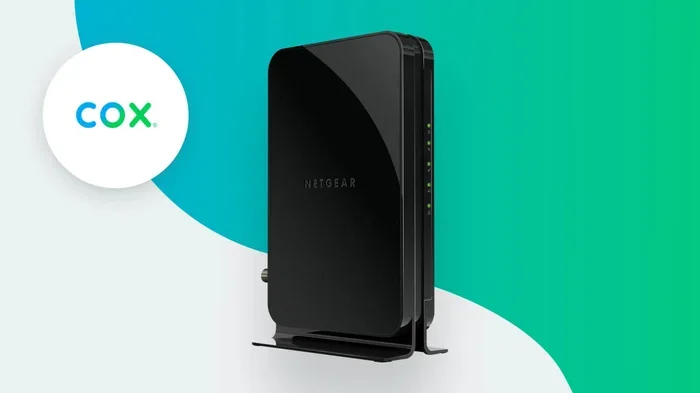
Cox offers the Panoramic WiFi box as their primary wireless router for home internet. It comes included with most Cox internet plans and delivers strong WiFi coverage for typical households. You can rent the box from Cox or buy your own compatible router to save on monthly fees.
So you are wondering does Cox have a wifi box. The short answer is yes. Cox Communications, one of the largest internet service providers in the United States, offers a WiFi box called the Panoramic WiFi. This device serves as both your modem and wireless router, giving you a complete home internet setup in one box.
If you are new to Cox internet or just curious about what equipment you need, this guide covers everything. We will walk through what the Cox WiFi box is, how it works, what it costs, and whether you should rent or buy your own. By the end, you will have a clear picture of your options.
The Cox Panoramic WiFi box is designed to make home internet easy. It handles the modem and router functions in a single device. This means fewer cables, less clutter, and a simpler setup process. Most Cox internet plans include the WiFi box as part of your service, though there are some things to keep in mind before you sign up.
Key Takeaways
- Cox Panoramic WiFi: Cox provides the Panoramic WiFi box as their main wireless router for home internet customers.
- Rental vs Purchase: You can rent the Cox WiFi box for a monthly fee or buy your own compatible router to avoid extra charges.
- Setup is Simple: Setting up the Cox WiFi box involves connecting it to your modem and following a few easy steps through the Cox app.
- WiFi Coverage: The Panoramic WiFi box offers solid coverage for most homes, but larger homes may need a WiFi extender or mesh system.
- Cost Considerations: Renting the Cox WiFi box adds to your monthly bill, so buying your own router can save money over time.
- Customer Support: Cox offers 24/7 customer service to help with WiFi box setup, troubleshooting, and account questions.
📑 Table of Contents
What Is the Cox WiFi Box
The Cox WiFi box is officially known as the Panoramic WiFi Gateway. It is a modem router combo device that Cox provides to its internet customers. The box connects directly to your cable line and broadcasts a wireless WiFi signal throughout your home.
Think of it as two devices in one. The modem part connects to the internet through your cable line. The router part takes that internet connection and sends it out wirelessly to your phones, laptops, tablets, and smart home devices. This combo design is very popular among internet providers, and Cox is no exception.
How the Cox Panoramic WiFi Works
The Panoramic WiFi box uses dual-band technology. This means it broadcasts on both the 2.4 GHz and 5 GHz frequency bands. The 2.4 GHz band covers a wider area but with slower speeds. The 5 GHz band offers faster speeds but covers a shorter range.
Most modern devices automatically connect to the best band for their needs. This helps your home network run smoothly. The box also supports WiFi 6 in newer models, which means faster speeds and better performance when multiple devices are connected at the same time.
What Comes in the Box
When Cox sends you a Panoramic WiFi box, here is what you can expect to find:
- The WiFi gateway device itself
- A power adapter and cable
- A coaxial cable for the cable connection
- A quick start guide
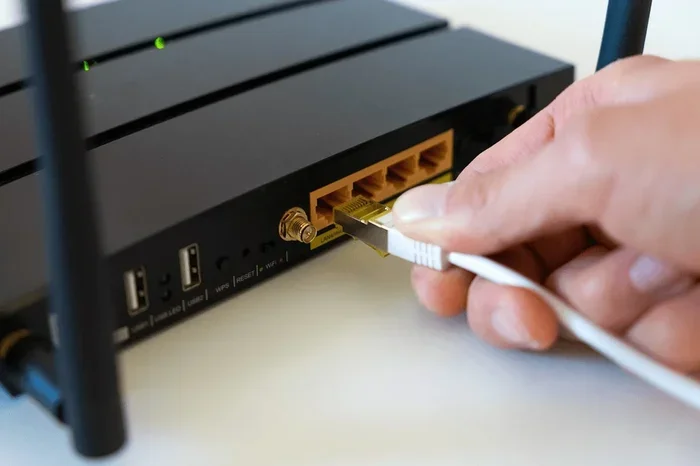
- An Ethernet cable for wired connections
That is all you need to get started. The setup process is straightforward, and most people can have their WiFi up and running in under 30 minutes.
Does Cox Offer a Free WiFi Box
Many customers want to know if they can get a Cox WiFi box for free. The answer depends on your internet plan. Most Cox internet plans include the Panoramic WiFi box at no extra cost. However, there is a catch. You are renting the device, not owning it.
When you rent the WiFi box from Cox, you pay a monthly equipment fee. This fee typically ranges from $10 to $15 per month. Over the course of a year, that adds up to $120 to $180. If you stay with Cox for several years, those fees can really add up.
Some customers wonder if they can get a free router from Optimum or another provider instead. While that is a different company, the concept is the same. Most ISPs offer equipment rental as part of their service packages.
Rental vs Buying Your Own Router
Renting the Cox WiFi box is convenient. If something goes wrong, you call Cox and they send a replacement. But buying your own router has its advantages too. Let us look at both options side by side.
| Feature | Rent from Cox | Buy Your Own |
|---|---|---|
| Monthly Cost | $10 to $15 | One-time purchase ($80 to $200) |
| Setup | Plug and play | Requires manual configuration |
| Support | Cox handles troubleshooting | You handle troubleshooting |
| Equipment Upgrades | Cox provides updates | You choose when to upgrade |
| Long Term Cost | Expensive over time | Saves money after 1 to 2 years |
| Customization | Limited | Full control over settings |
If you plan to stay with Cox for a long time, renting makes sense for the convenience. But if you are tech-savvy and want to save money, buying your own wireless router is a smart move.
How to Set Up Your Cox WiFi Box
Setting up the Cox WiFi box is pretty simple. You do not need to be a tech expert. Here is a step by step guide to get you online quickly.
- Connect the coaxial cable from your wall outlet to the cable port on the WiFi box.
- Plug the power adapter into the WiFi box and connect it to an electrical outlet.
- Wait for the lights on the box to stabilize. This usually takes about 2 to 3 minutes.
- Download the Cox Panoramic WiFi app on your phone or tablet.
- Follow the on screen instructions to set up your network name and password.
- Connect your devices to the new WiFi network using the password you created.
That is it. You should be online and ready to go. If you run into any issues, Cox customer service is available 24/7 to help. You can also check your internet connection status through the app.
Tips for a Smooth Setup
- Place the WiFi box in a central location in your home for the best coverage.
- Keep the box away from walls and metal objects that can block the signal.
- Avoid placing the box near microwaves or other electronics that cause interference.
- Use the Ethernet cable for devices that need a wired connection, like gaming consoles or desktop computers.
WiFi Coverage and Performance
The Cox Panoramic WiFi box delivers solid performance for most homes. It covers up to 2,000 square feet under normal conditions. For a small to medium sized home, this is more than enough.
However, if you live in a larger home or have many walls and floors between rooms, you might notice dead zones. These are areas where the WiFi signal is weak or does not reach at all.
How to Improve Your WiFi Coverage
If your Cox WiFi box is not reaching every corner of your home, there are several things you can do. First, try moving the box to a more central location. Sometimes just a few feet of adjustment can make a big difference.
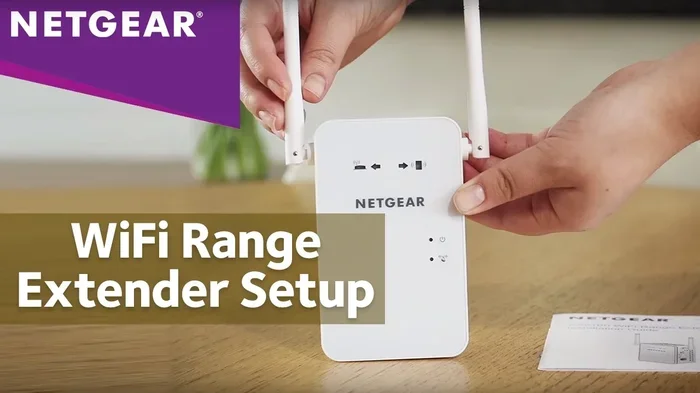
You can also add a WiFi extender to boost the signal. These devices pick up the existing WiFi signal and rebroadcast it to areas that need better coverage. If you are dealing with a larger property, you might want to look into a mesh WiFi system for whole home coverage.
Some homeowners find that they need to extend their wifi to their shed or garage. In these cases, a mesh system or a dedicated extender works best.
WiFi Speed Expectations
The speed you get from the Cox WiFi box depends on your internet plan. Cox offers plans ranging from 50 Mbps to over 1,000 Mbps. Your WiFi box needs to support the speeds you are paying for.
Here is a quick breakdown of what to expect:
- Basic Plans (50 to 100 Mbps): Fine for browsing, email, and light streaming.
- Mid Tier Plans (200 to 500 Mbps): Great for families with multiple devices and HD streaming.
- Gigabit Plans (940+ Mbps): Best for power users, gamers, and large households.
Keep in mind that the WiFi box itself can affect your speeds. Older models may not support the fastest internet plans. If you are paying for gigabit speeds but getting much less over WiFi, it might be time to check your equipment.
Troubleshooting Common Cox WiFi Issues
Like any technology, the Cox WiFi box can sometimes have issues. Here are the most common problems and how to fix them.
Slow WiFi Speeds
If your WiFi is running slow, try these steps first. Restart your WiFi box by unplugging it for 30 seconds and plugging it back in. This simple trick fixes many connectivity issues. You should also check how many devices are connected. Too many devices on one network can slow things down.
WiFi Box Not Connecting
If your box will not connect to the internet, check the cable connections. Make sure the coaxial cable is snug and secure. Also check the power cable. A loose power connection is a common cause of connectivity problems.
You can also try resetting the box to factory settings. This erases all your custom settings, so use it as a last resort. The reset button is usually on the back of the device. Hold it for about 10 seconds and wait for the lights to flash.
Interference from Other Devices
Other electronics in your home can interfere with your WiFi signal. Microwaves, baby monitors, cordless phones, and Bluetooth devices can all cause disruptions. Try moving the WiFi box away from these devices to see if your connection improves.
Cox WiFi Box vs Buying Your Own Equipment
This is one of the most debated topics among internet users. Let us break down the pros and cons of each approach so you can make the best decision for your situation.
Renting the Cox WiFi box gives you convenience and support. You never have to worry about compatibility issues. If the box breaks or needs an update, Cox handles everything. This is ideal for people who do not want to deal with technical details.
Buying your own router gives you more control and can save money over time. You can choose a router with better features, faster speeds, and stronger signal. Just make sure the router you buy is compatible with Cox internet. You can check with Cox customer service before making a purchase.
Some people worry about whether buying their own equipment will void their Cox service. Rest assured, Cox allows you to use your own router. You simply need to put their WiFi box in bridge mode so it only acts as a modem.
If you are considering this route, you might also want to explore options like getting internet without a phone line, which is a common question for Cox customers who want a clean setup without landline ties.
How to Contact Cox Support
If you are having trouble with your Cox WiFi box, help is always available. Cox offers several ways to reach their support team.
- Phone: Call 1-800-234-3993 for 24/7 customer support
- Online Chat: Visit the Cox website and start a live chat session
- Cox App: Use the Cox Panoramic WiFi app for self-service troubleshooting
- Social Media: Reach out to Cox on Twitter or Facebook for quick responses
The Cox app is especially helpful. It lets you manage your WiFi settings, check your internet speed, and restart your box from your phone. It is a great tool for everyday WiFi troubleshooting and keeping your home network running smoothly.
Final Thoughts
So does Cox have a wifi box. Yes, they do. The Panoramic WiFi box is a solid choice for most Cox internet customers. It is easy to set up, offers good coverage, and comes included with most plans. Whether you rent it from Cox or buy your own equipment depends on your budget, technical comfort level, and how long you plan to stay with the provider.
If you are new to Cox internet, renting the WiFi box is the easiest path. If you are looking to save money in the long run, buying your own compatible router is worth considering. Either way, you will have a reliable home internet connection that keeps your family connected.
Take some time to evaluate your needs. Consider your home size, the number of devices you use, and your budget. With the right setup, your Cox WiFi box can deliver fast, dependable internet for years to come.
Frequently Asked Questions
Can I use my own router with Cox internet?
Yes, Cox allows you to use your own router. You just need to put the Cox WiFi box in bridge mode so it only works as a modem. Then connect your own router to it. Make sure your router is compatible with Cox internet before purchasing.
How much does it cost to rent the Cox WiFi box?
The rental fee for the Cox Panoramic WiFi box is typically $10 to $15 per month. This fee is added to your monthly Cox bill. Over time, renting can cost more than buying your own compatible router.
What internet plans does Cox offer?
Cox offers a range of internet plans from basic speeds around 50 Mbps to gigabit plans over 940 Mbps. The plan you choose depends on your household size, number of devices, and what you use the internet for. You can check Cox’s website for the latest plan options and pricing in your area.
Can I get internet from Cox without a phone line?
Yes, Cox internet does not require a phone line. Cox uses cable infrastructure to deliver internet, so you only need a coaxial cable connection. This is different from DSL providers that rely on phone lines. If you want more details, you can explore options for getting internet without a phone line.
How do I know if my Cox WiFi box needs to be replaced?
If you experience frequent disconnections, slow speeds even after restarting, or if the box is physically damaged, it may need replacement. Contact Cox customer service and they can diagnose the issue and send a replacement if needed. Most rental equipment is covered under Cox’s equipment protection plan.
Is the Cox WiFi box compatible with WiFi 6 devices?
Yes, newer models of the Cox Panoramic WiFi box support WiFi 6. This means they can take full advantage of WiFi 6 enabled devices for faster speeds and better performance. Check the model number of your box or contact Cox to confirm if your device supports WiFi 6.