Do Samsung Smart TVs Have Bluetooth Audio Features
Yes, most Samsung Smart TVs come with built-in Bluetooth audio features that let you wirelessly connect headphones, speakers, and other audio devices. This guide covers which Samsung TV models support Bluetooth, how to pair devices step by step, and simple fixes when Bluetooth isn’t working right. Whether you want wireless headphones for late-night viewing or a Bluetooth speaker for your TV sound, you will find everything you need here.
Do Samsung Smart TVs have Bluetooth? The short answer is yes — most of them do. Samsung has been building Bluetooth audio support into their Smart TVs for years now. This means you can connect wireless headphones, portable speakers, and even soundbars without running a single cable across your living room.
But here is the thing. Not every Samsung TV is the same. Some models have full Bluetooth capability. Others do not. And some older sets need a little extra help to go wireless. This guide breaks it all down. You will learn which Samsung TVs support Bluetooth audio, how to pair your devices, and what to do when things do not work as expected.
Whether you are a casual viewer who wants to watch movies late at night with headphones or a tech enthusiast looking to set up a wireless speaker system, this article has you covered. Let us dive in and explore everything about Bluetooth on Samsung Smart TVs.
Key Takeaways
- Built-in Bluetooth: Most modern Samsung Smart TVs include Bluetooth support for audio output to headphones, speakers, and soundbars.
- Model matters: Not all Samsung TVs have Bluetooth — older and budget models may need a Bluetooth adapter to go wireless.
- Easy pairing: Connecting a Bluetooth device to your Samsung TV takes just a few steps through the Settings menu.
- Common issues are fixable: Audio lag, connection drops, and pairing failures can usually be solved with simple troubleshooting steps.
- Multiple devices: Samsung TVs support Bluetooth audio profiles, allowing you to connect headphones and speakers for different use cases.
- Alternative options exist: If your TV lacks Bluetooth, you can add it with a dongle or use wireless audio alternatives like Wi-Fi streaming.
📑 Table of Contents
- Do Samsung Smart TVs Have Bluetooth Audio Built In?
- How to Connect Bluetooth Devices to Your Samsung Smart TV
- Which Samsung TV Models Support Bluetooth Audio?
- Common Bluetooth Issues on Samsung Smart TVs and How to Fix Them
- Bluetooth vs. Other Wireless Audio Options for Samsung TVs
- Tips for Getting the Best Bluetooth Audio Experience on Samsung TVs
- Can You Use Bluetooth Headphones with Samsung Smart TVs for Gaming?
- Final Thoughts
Do Samsung Smart TVs Have Bluetooth Audio Built In?
Most Samsung Smart TVs released after 2015 come with built-in Bluetooth for audio output. This includes popular series like the QLED, The Frame, and Crystal UHD lines. Samsung uses Bluetooth to let you connect wireless audio devices directly to your TV. You do not need any extra equipment for most setups.
The Bluetooth feature on Samsung TVs supports the A2DP profile. This is the standard profile for streaming audio wirelessly. It lets you send high-quality sound from your TV to Bluetooth headphones or speakers. Some newer Samsung models also support Bluetooth Low Energy, which helps save power when you are not actively streaming audio.
Here is what you need to know about Samsung TV Bluetooth support:
- 2015 and newer models: Most include Bluetooth audio out.
- Budget and older models: Some may lack Bluetooth entirely.
- 2020 and newer models: Typically support Bluetooth 5.0 or higher for better range and stability.
- Samsung soundbars: Many connect wirelessly using Bluetooth or proprietary wireless tech.
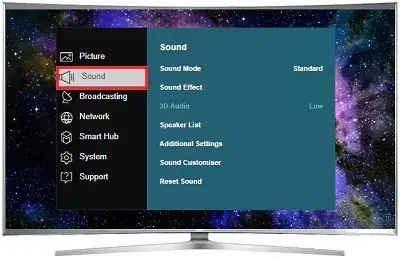
If you are not sure whether your specific Samsung TV has Bluetooth, you can check the settings menu. Go to Settings, then Sound, and look for Sound Output. If you see a Bluetooth option there, your TV supports wireless audio. You can also check the model number on Samsung’s website for the full spec list.
What Bluetooth Versions Do Samsung TVs Use?
Samsung has been updating its Bluetooth technology across TV models over the years. Newer TVs use Bluetooth 5.0 or higher. This version offers a longer range, better connection stability, and lower power consumption. Older models may use Bluetooth 4.0 or 4.2, which still work well but have a shorter range.
The version of Bluetooth your TV uses matters for a few reasons:
- Range: Bluetooth 5.0 can reach up to 80 feet. Older versions may struggle past 30 feet.
- Audio quality: Newer Bluetooth versions support better audio codecs and less compression.
- Stability: Bluetooth 5.0 handles interference from Wi-Fi and other devices much better.
For most users, the Bluetooth version does not make a huge difference in day-to-day use. But if you plan to move around your room with wireless headphones while the TV is across the space, a newer Bluetooth version will give you a smoother experience.
How to Connect Bluetooth Devices to Your Samsung Smart TV
Pairing a Bluetooth device to your Samsung TV is straightforward. Samsung keeps the process simple so anyone can do it. Whether you are connecting wireless headphones or a portable speaker, the steps are nearly the same.
Step-by-Step Pairing Guide
Follow these steps to connect your Bluetooth device to a Samsung Smart TV:
- Turn on your Bluetooth device. Put your headphones or speaker into pairing mode. Most devices have a flashing light or voice prompt when they are ready to pair.
- Open Settings on your Samsung TV. Press the Home button on your remote. Navigate to the Settings gear icon.
- Go to Sound settings. Select Sound, then choose Sound Output.
- Select Bluetooth Speaker List. Your TV will search for nearby Bluetooth devices.
- Pick your device from the list. Tap on the name of your headphones or speaker.
- Wait for the connection. The TV will pair with your device. You should hear a confirmation sound.
- Adjust the volume. Use your TV remote or the device itself to set the volume level.
That is it. Your Samsung TV is now connected to your Bluetooth device. You can start watching or listening right away. The audio will play through your wireless device instead of the TV speakers.
Connecting Multiple Bluetooth Devices
Samsung TVs can remember multiple Bluetooth devices. This is helpful if you have a pair of headphones and a speaker you use at different times. The TV stores paired devices in its Bluetooth memory. You can switch between them easily in the Sound Output menu.
Keep in mind that Samsung TVs typically support one audio output at a time. You cannot stream audio to two Bluetooth speakers simultaneously from the TV. If you need multi-room audio, consider connecting a Bluetooth receiver to your TV or using a multi-device Bluetooth hub.
Using a Bluetooth Adapter for Older Samsung TVs
If your Samsung TV does not have built-in Bluetooth, you are not out of luck. A Bluetooth adapter is an easy and affordable fix. These small dongles plug into the TV’s USB port or audio output. They add wireless Bluetooth capability to any TV, even older models.
Here are some tips for choosing a Bluetooth adapter:
- Look for Bluetooth 5.0 adapters for the best range and audio quality.
- Check compatibility with your TV model before buying.
- Choose a low-latency adapter if you watch a lot of video content. This reduces the delay between video and audio.
- Plug-in adapters are easiest — no software or setup required in most cases.
Some users also ask about making older TVs Bluetooth-ready. If you are dealing with a non-Smart TV or an older set, a Bluetooth adapter works just as well. It is one of the simplest ways to add wireless audio to any TV. You can learn more about adding Bluetooth to TVs in our article Can I Make My TV Have Bluetooth.
Which Samsung TV Models Support Bluetooth Audio?
Samsung has a wide range of TV models, and Bluetooth support varies across them. Here is a breakdown of popular Samsung TV lines and their Bluetooth capabilities.
| Samsung TV Series | Bluetooth Support | Typical Bluetooth Version | Years Available |
|---|---|---|---|
| QLED (Q60C, Q70C, Q80C, etc.) | Yes | 5.0 | 2020–2024 |
| The Frame | Yes | 5.0 | 2019–2024 |
| The Serif | Yes | 5.0 | 2019–2024 |
| Crystal UHD | Yes (most models) | 4.2–5.0 | 2018–2024 |
| TU7000 / TU8000 series | Yes (most models) | 4.2 | 2019–2023 |
| Older Full HD models (pre-2015) | No | N/A | Before 2015 |
As you can see, most Samsung TVs from the last several years include Bluetooth. The newer models use Bluetooth 5.0, which gives you better range and more stable connections. If you own a Samsung TV from 2015 or later, there is a good chance it supports wireless audio output.
It is always a good idea to double-check your specific model. Samsung’s website has detailed specs for every TV they sell. Just enter your model number, and you will see whether Bluetooth audio is listed under the connectivity features.
Common Bluetooth Issues on Samsung Smart TVs and How to Fix Them
Bluetooth on Samsung TVs works well most of the time. But sometimes things go wrong. Audio cuts out, there is a delay, or the TV will not find your device. These problems are frustrating but usually easy to fix.
Audio Lag or Delay
Audio lag happens when the sound from your TV does not match the video. You see lips move, but the voice comes a split second later. This is one of the most common Bluetooth issues with Samsung TVs.
Here is how to reduce audio lag:
- Turn off Bluetooth power saving in your TV settings. This can cause delays.
- Move your Bluetooth device closer to the TV. Walls and distance cause signal drops.
- Check for Wi-Fi interference. Bluetooth and Wi-Fi use the same 2.4 GHz band. Switching your router to 5 GHz can help.
- Update your TV firmware. Samsung releases updates that improve Bluetooth performance.
Device Not Showing Up in Pairing List
Sometimes your Bluetooth device does not appear when the TV searches for it. Try these steps:
- Make sure your device is in pairing mode. Most devices need to be held in a button for a few seconds to enter this mode.
- Turn Bluetooth off and back on both on the TV and the device.
- Restart your Samsung TV. A simple reboot clears temporary glitches.
- Remove old paired devices from the TV memory. A full Bluetooth list can slow down the search.
Audio Cuts Out Intermittently
If your Bluetooth audio keeps cutting in and out, the connection may be unstable. This often happens when other wireless devices are nearby. Try moving your TV and Bluetooth device closer together. Also, make sure your TV’s firmware is up to date. Samsung regularly patches Bluetooth connectivity bugs in firmware updates.
For more help with TV audio issues, check out our guide on Can I Play Radio Using Bluetooth for tips on improving wireless audio connections.
Bluetooth vs. Other Wireless Audio Options for Samsung TVs
Bluetooth is not the only way to get wireless audio from your Samsung TV. Let us compare Bluetooth with other popular wireless audio options.
Bluetooth vs. Wi-Fi Streaming
Wi-Fi streaming uses your home network to send audio to wireless speakers. Services like Samsung AirPlay 2 and Chromecast let you stream audio over Wi-Fi. Bluetooth connects directly between devices without needing a router.
Here is a quick comparison:
- Bluetooth: Direct connection, no router needed, works anywhere within range.
- Wi-Fi streaming: Better range, can stream to multiple speakers, but depends on network quality.
- Bluetooth latency: Usually 100–200ms, which can cause slight audio delay with video.
- Wi-Fi latency: Lower latency on good networks, better for video sync.
Bluetooth vs. HDMI ARC
HDMI ARC (Audio Return Channel) sends audio from your TV to a soundbar or receiver through an HDMI cable. It offers zero latency and the best audio quality. Bluetooth is wireless and convenient, but HDMI ARC gives you a wired, reliable connection.
Many Samsung TVs support both Bluetooth and HDMI ARC. You can use Bluetooth for wireless headphones and HDMI ARC for a soundbar at the same time. This gives you the best of both worlds — wireless freedom and high-quality audio.
Bluetooth vs. Proprietary Wireless (Samsung Wireless)
Samsung has its own wireless audio technology for connecting to Samsung soundbars and home theater systems. This proprietary connection offers lower latency than standard Bluetooth. It also supports higher audio codecs for better sound quality. If you have a Samsung soundbar, this is often the best option.
Tips for Getting the Best Bluetooth Audio Experience on Samsung TVs
Want to get the most out of your Samsung TV’s Bluetooth feature? These expert tips will help you enjoy better wireless audio every time you watch.
Keep Your Devices Close
Bluetooth works best within 30 feet of your TV. Walls, furniture, and other electronics can weaken the signal. Place your Bluetooth speaker or headphones in the same room as the TV for the strongest connection.
Update Your TV Firmware Regularly
Samsung releases firmware updates that improve Bluetooth performance. Go to Settings, then Support, then Software Update. If an update is available, install it. These updates often fix Bluetooth bugs and add new features.
Use Low-Latency Bluetooth Codecs When Possible
Some Samsung TVs support aptX and AAC Bluetooth codecs. These codecs reduce audio lag and improve sound quality. Check your TV’s Bluetooth settings to see which codecs are supported. Choosing the right codec makes a noticeable difference in your viewing experience.
Turn Off Unused Bluetooth Devices
Having multiple Bluetooth devices active near your TV can cause interference. Turn off Bluetooth on devices you are not using. This frees up the wireless spectrum and gives your TV a cleaner connection.
Reset Bluetooth Settings When Needed
If nothing seems to work, try resetting your Samsung TV’s Bluetooth settings. Go to Settings, then Sound, then Sound Output. Look for a reset or clear paired devices option. This removes all saved Bluetooth connections and starts fresh.
Consider a Bluetooth Transmitter for Better Performance
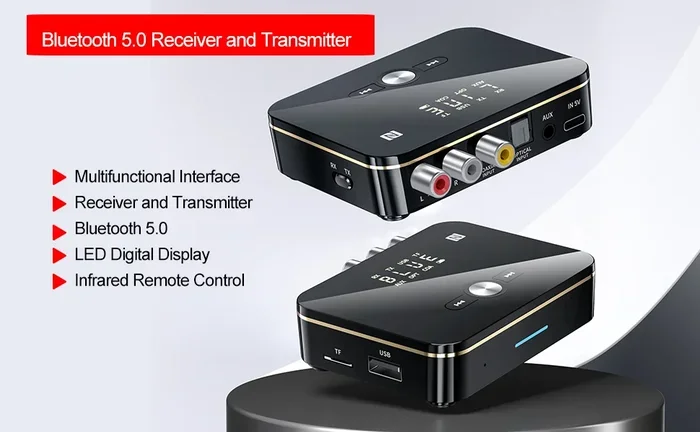
If your Samsung TV’s built-in Bluetooth is not giving you the quality you want, a Bluetooth transmitter can help. These small devices plug into your TV’s audio output and send a stronger Bluetooth signal. They often support better codecs and lower latency than built-in Bluetooth.
For more ideas on improving your TV’s wireless audio setup, you might also want to read about pairing Bluetooth headphones to a TV for general tips that apply across brands.
Can You Use Bluetooth Headphones with Samsung Smart TVs for Gaming?
Many Samsung Smart TV users want to use Bluetooth headphones while gaming. The good news is that it works. You can connect wireless headphones to your Samsung TV and enjoy game audio without disturbing anyone else in the room.
However, there is one thing to keep in mind. Bluetooth adds a small amount of latency. This means the audio might be slightly behind the action on screen. For casual gaming, this delay is barely noticeable. But for competitive or fast-paced games, it can be distracting.
If you are a serious gamer, consider using a Bluetooth transmitter with low-latency support. These devices reduce the delay significantly. Some Samsung TVs also support game mode, which optimizes audio and video timing for a better experience.
You can also explore using Bluetooth headphones with streaming devices as an alternative setup if you primarily game through a streaming stick connected to your Samsung TV.
Final Thoughts
So, do Samsung Smart TVs have Bluetooth? Yes, the vast majority do. Samsung has made wireless audio a standard feature across most of its TV lineup. From the QLED series to the more affordable Crystal UHD models, you will find Bluetooth audio support on nearly every Samsung Smart TV made in the last decade.
Connecting your wireless headphones, speakers, or soundbar to a Samsung TV is simple. The built-in Bluetooth settings make pairing quick and easy. And when issues come up, most problems have straightforward fixes. Keep your firmware updated, keep your devices close, and use the right Bluetooth codec for the best experience.
If your Samsung TV does not have Bluetooth, a Bluetooth adapter is an affordable and effective solution. It opens up a world of wireless audio possibilities for any TV. Whether you are watching movies, listening to music, or playing games, Bluetooth gives you the freedom to enjoy sound without wires.
Take a few minutes today to check your Samsung TV’s Bluetooth settings. Once you experience the convenience of wireless audio, you will wonder how you ever watched TV any other way.
Frequently Asked Questions
Do all Samsung Smart TVs have Bluetooth?
Most Samsung Smart TVs from 2015 onward include Bluetooth audio support. However, some older and budget models may not have it. Check your TV’s settings menu under Sound Output to confirm. You can also look up your model number on Samsung’s website for the full specifications.
Can I connect Bluetooth headphones to my Samsung Smart TV?
Yes, you can connect Bluetooth headphones to most Samsung Smart TVs. Go to Settings, then Sound, then Sound Output, and select Bluetooth Speaker List. Put your headphones in pairing mode and select them from the list. The audio will play through your headphones instead of the TV speakers.
Why is there a delay when using Bluetooth audio on my Samsung TV?
Bluetooth naturally introduces a small amount of latency, usually between 100 and 200 milliseconds. This can cause audio to lag behind video. To reduce this delay, use a low-latency Bluetooth codec like aptX, move closer to the TV, or consider a Bluetooth transmitter designed for low latency.
Can I use a Bluetooth speaker with my Samsung TV?
Absolutely. Samsung Smart TVs support Bluetooth audio output to speakers. Simply pair your Bluetooth speaker through the TV’s Sound Output settings. You can also connect multiple Bluetooth speakers using a hub, though the TV will only output to one speaker at a time natively.
How do I update the firmware on my Samsung Smart TV?
Go to Settings, then Support, then Software Update. Select Update Now to check for the latest firmware. Samsung releases updates regularly that improve Bluetooth performance and fix connectivity issues. Keeping your TV updated ensures the best wireless audio experience.
Can I connect a Bluetooth transmitter to my Samsung TV for better audio?
Yes, a Bluetooth transmitter can improve your Samsung TV’s wireless audio performance. These devices plug into your TV’s audio output and send a stronger, more stable Bluetooth signal. Many transmitters also support advanced codecs that reduce latency and improve sound quality compared to built-in Bluetooth.