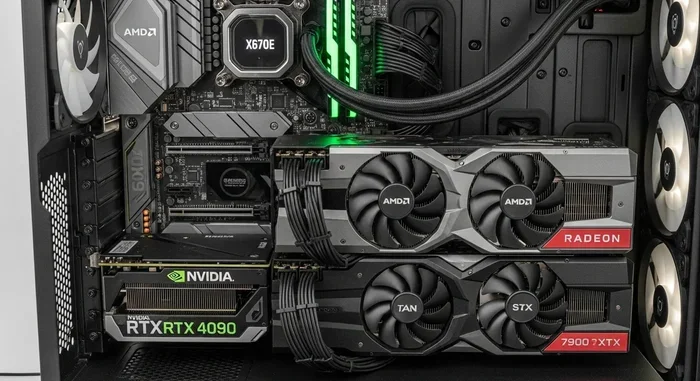
Do Amd Motherboards Work With Nvidia Graphics Cards
Yes, AMD motherboards work perfectly with Nvidia graphics cards. The PCIe standard ensures that any modern graphics card works with any modern motherboard, regardless of brand. You just need the right slot, updated drivers, and a solid power supply.
If you are building or upgrading a PC, you might wonder whether your AMD motherboard can handle an Nvidia graphics card. The short answer is yes. The longer answer is yes, and it is easier than you think.
Many people assume that motherboard brands and GPU brands need to match. That is not true at all. AMD, Intel, and Nvidia each make different parts of the puzzle. They all fit together in the same system. You do not need to buy matching brands. You just need to know what to look for.
In this guide, we will walk through everything you need to know about pairing an AMD motherboard with an Nvidia GPU. We will cover compatibility, installation steps, driver setup, and common mistakes to avoid. By the end, you will feel confident about your build.
Key Takeaways
- Full Compatibility: AMD motherboards and Nvidia GPUs work together without any issues thanks to the universal PCIe standard.
- No Brand Lock-In: Your motherboard chipset and your GPU brand are completely independent of each other.
- Driver Support Matters: Installing the latest Nvidia drivers ensures smooth performance and stability.
- Check Your PCIe Slot: Most modern AMD boards use PCIe 4.0 or 5.0, which fully supports current Nvidia cards.
- Power and Cooling Count: A strong power supply and good airflow make any GPU + motherboard combo successful.
- BIOS Updates Help: Keeping your motherboard BIOS updated prevents compatibility surprises.
📑 Table of Contents
Why AMD Motherboards and Nvidia Cards Work Together
The reason AMD motherboards and Nvidia graphics cards work together comes down to one simple standard. That standard is PCIe, which stands for Peripheral Component Interconnect Express. It is the communication pathway between your motherboard and your GPU.
The Universal PCIe Standard
PCIe is an open industry standard. It does not belong to AMD or Nvidia. Both companies use it. Your AMD motherboard has PCIe slots on it. Your Nvidia GPU plugs into one of those slots. That is all there is to it. The connection works the same way whether your board is from ASUS, MSI, Gigabyte, or any other brand.
Here is why this matters for your build:
- PCIe 4.0 and 5.0 support: Modern AMD motherboards use PCIe 4.0 or even PCIe 5.0. Current Nvidia cards like the RTX 40 series and RTX 50 series work perfectly on these slots.
- Backward compatibility: Older PCIe slots still accept newer cards, though you may lose some speed.
- No software lock-in: Neither AMD nor Nvidia blocks their hardware from working with the other brand’s components.
Chipset vs. Graphics Card
Your motherboard chipset handles CPU connections, memory, and expansion slots. Your Nvidia graphics card handles rendering images, video, and games. These two components do different jobs. They do not need to come from the same company. Think of it like a car. The engine brand does not have to match the tire brand. Both just need to fit and work together.
So when you ask, “Do AMD motherboards work with Nvidia graphics cards,” the answer is a clear yes. The chipset on your board does not care who made your GPU.
What to Check Before Buying
Even though AMD boards and Nvidia GPUs work together, you still want to check a few things before you buy. This saves time, money, and frustration.
PCIe Slot Type and Version
Most Nvidia graphics cards use a PCIe x16 slot. Your AMD motherboard should have at least one of these. Check the motherboard specs to confirm. Here is a quick look at what to expect:
- PCIe 3.0: Works with all Nvidia cards but may limit some performance on newer GPUs.
- PCIe 4.0: Found on most AMD B550, X570, and newer boards. Fully supports current Nvidia cards.
- PCIe 5.0: Found on newer AMD X670 and X670E boards. Ready for the latest and future Nvidia GPUs.
You do not need to stress about PCIe versions too much. The differences in real-world gaming performance are small. But if you want maximum speed, match your PCIe generation to your GPU generation.
Physical Space and Clearance
Nvidia cards come in different sizes. Some are compact. Some are massive three-fan models. Before you buy, check your case and motherboard layout. Make sure the card fits. Also check that it does not block other slots or ports you need.
Power Supply Requirements
Every Nvidia GPU has a power draw number. Your power supply unit (PSU) needs to meet or exceed that number. A strong PSU keeps your system stable. It also protects your AMD motherboard and Nvidia card from damage. As a rule of thumb, add up your total system power needs and add a 20 percent buffer.
Quick Tip: Use an online PSU calculator to estimate your system power needs. Input your CPU, GPU, and other components. This gives you a reliable starting point.
How to Install an Nvidia Card in an AMD Motherboard
The installation process is straightforward. You do not need special tools or advanced skills. Here is a step-by-step guide that works for almost any build.
Step 1: Prepare Your Workspace
Turn off your PC and unplug it from the wall. Work on a clean, flat surface. Use an anti-static wrist strap if you have one. Static electricity can damage sensitive components. It is a small precaution that saves big headaches.
Step 2: Open the Case and Locate the PCIe Slot
Remove the side panel of your case. Find the PCIe x16 slot on your AMD motherboard. It is usually the topmost long slot. Remove any metal bracket covers blocking it from the back of the case.
Step 3: Install the Nvidia Graphics Card
Hold the Nvidia card by its edges. Align the gold connector with the PCIe x16 slot. Press it down firmly and evenly until it clicks into place. Use the screw or bracket to secure the card to the case.
Step 4: Connect Power Cables
Nvidia cards need extra power from your PSU. Plug in the required PCIe power cables. Make sure they click in securely. Do not use adapters unless absolutely necessary. Direct connections are always safer.
Step 5: Close Up and Boot
Replace the side panel. Plug your monitor cable into the Nvidia card, not the motherboard. Power on your PC. If you see the motherboard logo and then the desktop, you are off to a great start.
Installing the Right Nvidia Drivers
Once your Nvidia card is installed, the next step is driver setup. Drivers are the software that tells your GPU how to work with your system. Without the right drivers, your card will not perform well.
Download from Nvidia’s Official Site
Go to Nvidia.com and visit the drivers section. Enter your GPU model. Download the latest Game Ready or Studio driver. Avoid third-party driver sites. They can contain outdated or harmful software.
Clean Installation
During installation, choose the “Clean Install” option. This removes old driver files that can cause conflicts. A clean install gives you the smoothest experience. It is especially important when switching from an AMD GPU to an Nvidia GPU.
Check for Updates Regularly
Nvidia releases driver updates frequently. These updates improve performance and fix bugs. Set a reminder to check for updates once a month. Your system will run better for it.
Common Mistakes to Avoid
Even though the process is simple, people still make mistakes. Here are the most common ones and how to avoid them.
Plugging the Monitor into the Motherboard
This is the number one mistake. If you plug your display cable into the motherboard instead of the Nvidia card, you will get no GPU acceleration. Your games will run slowly or not at all. Always connect your monitor to the Nvidia card’s output ports.
Using a Weak Power Supply
An underpowered PSU causes random shutdowns, crashes, and instability. It can also damage components over time. Always check the recommended PSU wattage for your Nvidia GPU and choose a reliable brand.
Skipping BIOS Updates
Your AMD motherboard BIOS controls how it communicates with all hardware. An outdated BIOS can cause issues with newer GPUs. Check the motherboard manufacturer’s website for BIOS updates before or after your build.
Ignoring Thermal Management
Nvidia cards run hot under load. If your case has poor airflow, your GPU will throttle performance. Add case fans and keep dust filters clean. Good cooling helps your entire system run better.
Mixing Incompatible RAM or CPU
While your AMD motherboard and Nvidia GPU will work together, you still need to make sure your CPU and RAM are compatible with the motherboard. Check the motherboard’s CPU and memory support lists before buying anything.
Expert Insight: PC builders often focus only on the GPU and motherboard. But your CPU, RAM, and storage all matter too. A balanced build gives you the best overall performance. Do not bottleneck your Nvidia card with a weak processor.
Performance Expectations
You might wonder if using an Nvidia card with an AMD motherboard affects performance. The answer is no. Your GPU performance depends on the card itself, not the motherboard brand. A Nvidia RTX 4070 will perform the same in an AMD system as it does in an Intel system.
Here is what actually affects your performance:
- GPU model and tier: Higher-end Nvidia cards deliver better frame rates and visuals.
- PCIe generation: PCIe 4.0 and 5.0 offer slightly better bandwidth than PCIe 3.0.
- CPU pairing: A strong AMD Ryzen CPU pairs well with Nvidia GPUs for gaming.
- RAM speed and capacity: Faster memory helps your system keep up with your GPU.
- Driver updates: Keeping Nvidia drivers current ensures peak performance.
Many gamers build systems with AMD Ryzen CPUs and Nvidia graphics cards. This combination is extremely popular and works wonderfully. You will find countless benchmarks and reviews using this exact pairing.
Does It Matter for Gaming?
For gaming, the answer is clear. Your Nvidia GPU handles all the graphics work. Your AMD motherboard provides the platform. As long as both components are compatible and properly set up, you will get excellent gaming performance.
Popular games like Cyberpunk 2077, Alan Wake 2, and Baldur’s Gate 3 run beautifully on Nvidia cards in AMD systems. The experience depends on your GPU model, not the motherboard brand.
If you are into content creation, video editing, or 3D rendering, Nvidia’s CUDA cores give you a huge advantage. These features work the same way regardless of whether your motherboard is from AMD or Intel.
Frequently Asked Questions
Do AMD motherboards support Nvidia graphics cards?
Yes, they do. AMD motherboards and Nvidia GPUs communicate through the PCIe standard, which is universal. There is no brand restriction. Any modern AMD motherboard will work with any modern Nvidia graphics card without issues.
Do I need special drivers for an Nvidia card in an AMD system?
You just need the standard Nvidia drivers. Download them from Nvidia’s official website. Choose the clean install option for the best results. Your AMD motherboard does not require any special drivers for Nvidia GPUs.
Will an Nvidia GPU work in an old AMD motherboard?
It depends on the PCIe slot. If your old AMD board has a PCIe x16 slot, the Nvidia card will physically fit and work. You may see a small performance difference if the board uses PCIe 2.0 or 3.0 with a modern GPU. But it will still function.
Can I use multiple Nvidia GPUs with an AMD motherboard?
Yes, but with caveats. Nvidia no longer supports NVLink for consumer cards. Multi-GPU setups are not common anymore. For most users, a single powerful Nvidia card is the better choice. Make sure your motherboard has enough PCIe lanes and power connectors.
Does the motherboard brand affect Nvidia GPU performance?
No, it does not. Your GPU performance is determined by the GPU itself, not the motherboard. An Nvidia RTX 4080 will perform the same in an ASUS AMD board as it does in a MSI AMD board. Focus on GPU model and system balance instead.
What should I check when pairing an AMD motherboard with an Nvidia card?
Check the PCIe slot version, physical space in your case, PSU wattage, and cooling. Also verify that your CPU and RAM are compatible with the motherboard. A balanced system gives you the best experience.
Final Thoughts
So do AMD motherboards work with Nvidia graphics cards? Absolutely. The universal PCIe standard makes this pairing seamless. You get full compatibility, great performance, and no brand restrictions.
Your build choices should focus on quality components that fit your needs and budget. Pick a strong Nvidia GPU. Pair it with a reliable AMD motherboard. Add a good power supply and solid cooling. Keep your drivers updated. That is all it takes to build a fantastic PC.
Whether you are a gamer, a creator, or a casual user, this combination delivers. You do not need to overthink compatibility. Just build with confidence and enjoy the experience. Your AMD motherboard and Nvidia graphics card will work together beautifully.
Start your build today. You will be glad you did.