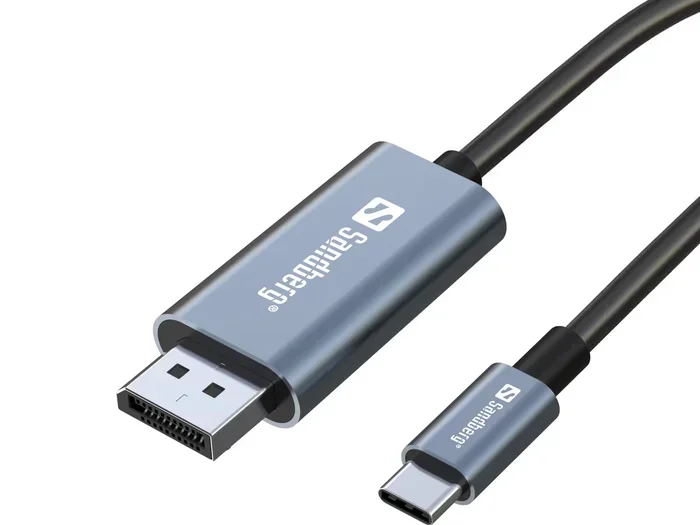
Do All Usb C Cables Support Displayport Explained Simply
Do All Usb C Cables Support Displayport? The short answer is no. Many people assume every USB-C cable can carry video signals, but that is not true. DisplayPort Alt Mode is a specific feature that must be built into the cable or device. In this guide, we break down everything you need to know about USB-C video output, cable types, and how to pick the right one for your USB-C monitor or docking station.
This is a comprehensive guide about Do All Usb C Cables Support Displayport.
Key Takeaways
- Not all USB-C cables are equal: Some carry data only, while others support video output and power delivery simultaneously.
- DisplayPort Alt Mode is the key: Your cable or device must support this feature to send video signals through USB-C.
- Thunderbolt cables always support video: Thunderbolt 3 and Thunderbolt 4 cables are fully compatible with DisplayPort over USB-C.
- Check cable specifications before buying: Look for terms like “supports DisplayPort” or “video-capable” on the packaging.
- Active and passive cables differ: Active cables have built-in chips for longer distances and higher resolutions.
- Your device matters too: Even with the right cable, your laptop or phone must support video output over USB-C.
- Wrong cables cause frustrating issues: No signal, low resolution, or flickering displays are common signs of an incompatible cable.
[FEATURED_IMAGE_PLACEHOLDER]
You plug in a USB-C cable, connect it to your monitor, and… nothing happens. The screen stays black. You wonder, do all USB C cables support Displayport? It is a question many people ask, especially with the rise of USB-C laptops, tablets, and phones. The truth is, not every USB-C cable can carry video signals. Some are designed only for charging or data transfer. Others can handle video, power, and data all at once. Understanding this difference can save you time, money, and a lot of frustration.
In this article, we will walk through everything you need to know. We will explain what DisplayPort Alt Mode is, how to check if your cable supports video, and what to look for when buying a new USB-C to DisplayPort cable. By the end, you will know exactly which cable to choose for your USB-C monitor setup, USB-C docking station, or home office.
Let us get into it. No jargon, no confusing tech speak. Just clear, practical advice that actually helps.
What Is USB-C and Why Does It Matter?
USB-C is a type of connector that has become the standard for many modern devices. You will find it on laptops, tablets, smartphones, and even some desktop computers. It is small, reversible, and fast. But here is the thing people often misunderstand. USB-C is just a shape. It does not automatically mean the cable can do everything.
A USB-C cable can carry different types of signals. These include:
- Power delivery (PD): Charging your device up to 100 watts.
- Data transfer: Moving files at speeds like USB 3.1 or USB 3.2.
- Video output: Sending a picture to a display through DisplayPort Alt Mode.
Not every USB-C cable supports all three. Some only do one or two of these jobs. This is why the question, do all USB C cables support Displayport, comes up so often. The answer depends on the cable and the device it connects to.
Why USB-C Became So Popular
USB-C replaced older connectors like USB-A and HDMI in many devices. One cable to charge, transfer data, and connect to a monitor sounds perfect. And it can be. But only if the cable supports it. The USB-C cable industry moved fast, and not all manufacturers follow the same standards. That is where confusion starts.
What Is DisplayPort Alt Mode?
DisplayPort Alt Mode is the technology that allows video to travel through a USB-C cable. Without it, the cable simply cannot send a picture to a screen. Think of it like a highway. The USB-C connector is the road. DisplayPort Alt Mode is the lane that lets video traffic flow.
When a device supports DisplayPort Alt Mode, it means the video signal from your computer can be converted and sent through the USB-C port to an external display. This is how you can plug a laptop directly into a USB-C monitor without any extra adapters.
How DisplayPort Alt Mode Works
Here is a simple way to think about it. Your computer creates a video signal. That signal needs a path to reach your monitor. In a standard setup, you would use an HDMI or DisplayPort cable. With DisplayPort Alt Mode, that same video signal gets routed through the USB-C connector. The cable then carries it to the display.
But this only works if both the cable and the device support it. A cable that does not have DisplayPort Alt Mode built in will not carry video, no matter how expensive it is.
Which Devices Support DisplayPort Alt Mode?
Most modern laptops from Apple, Dell, HP, Lenovo, and Microsoft support DisplayPort Alt Mode over USB-C. Many Android phones do too. However, some devices only use USB-C for charging and data. Always check your device manual or specifications to confirm video output support.
Do All Usb C Cables Support Displayport?
Now we get to the big question. Do all USB C cables support Displayport? The direct answer is no. Many USB-C cables on the market are designed for charging and data only. They do not have the wiring or chips needed to carry a video signal.
This is one of the most common reasons people have trouble connecting their laptop to a monitor. They grab any USB-C cable they have lying around. It fits the port. But it does not work for video. The cable simply was not built for that purpose.
What Makes a USB-C Cable Video-Capable?
A video-capable USB-C cable has specific wiring inside. It includes pins dedicated to carrying the DisplayPort signal. These pins are not present in cables that only handle power or data. The cable also needs to support enough bandwidth for the resolution you want.
Here is what to look for on the packaging or product description:
- Mentions of DisplayPort Alt Mode support.
- Listed video resolutions like 4K at 60Hz or 8K.
- Terms like “video-capable” or “supports external displays.”
- Compliance with USB 3.1, USB 3.2, or USB4 standards.
If none of these are listed, the cable likely does not support video output. Do not assume it will work just because it plugs in.
Does Cable Length Affect Video Support?
Yes, it does. Longer USB-C cables are more likely to be active cables with built-in signal boosters. Shorter cables under 6.6 feet (2 meters) are often passive, which means they rely on the device to send the signal. For high resolutions like 4K or 8K, a shorter cable usually performs better. If you need a longer run, consider an active cable that has its own chip to maintain signal quality.
How to Tell If Your USB-C Cable Supports Video Output
Not sure if your current cable works for video? You are not alone. Many cables do not clearly label their capabilities. Here are some practical ways to find out.
Check the Cable Packaging or Product Listing
The easiest way is to look at what came in the box or check the online product page. Search for keywords like DisplayPort Alt Mode, video output, or supports external monitors. If the description only mentions charging and data transfer, it probably does not carry video.
Look at the Cable Itself
Some cables have icons or text printed on the connector or the cable body. Look for a DisplayPort logo or the letters “DP” near the USB-C end. These small markings can tell you a lot about what the cable supports.
Test It With Your Device
If you have a USB-C monitor or a TV with a USB-C input, plug the cable in and see if a signal appears. If the screen lights up and shows your desktop, the cable works for video. If nothing happens, the cable likely does not support video output. This is a quick and easy test you can do at home.
Use a USB-C Cable Tester
For a more definitive answer, you can buy a USB-C cable tester. These small devices check whether the cable supports power delivery, data transfer, and video output. They are inexpensive and very useful if you have a collection of cables and are not sure which ones do what.
USB-C Cable Types and Their DisplayPort Capabilities
Not all USB-C cables are created equal. Let us break down the different types and what they can do when it comes to DisplayPort video output.
Passive USB-C Cables
Passive cables do not have any internal electronics. They rely entirely on the device to push the signal through. Most short passive cables under 6.6 feet can handle 4K at 60Hz if they support DisplayPort Alt Mode. For 8K or higher resolutions, a passive cable may not have enough bandwidth.
These cables are great for everyday use. They are thin, flexible, and affordable. But they have limits when it comes to long distances or very high resolutions.
Active USB-C Cables
Active cables have a small chip or processor built inside. This chip boosts the signal, allowing it to travel longer distances without losing quality. Active cables are ideal if you need to run a cable more than 6.6 feet or if you want to push 8K resolution to your display.
These cables often cost more than passive ones. But for setups where your USB-C docking station is far from your desk, they are worth the investment.
Thunderbolt Cables
Thunderbolt 3 and Thunderbolt 4 cables always support video output. They use the USB-C connector and carry DisplayPort Alt Mode by default. If you have a Thunderbolt cable, you can almost always use it to connect to a USB-C monitor or any display with a USB-C input.
Thunderbolt cables also offer faster data transfer speeds and better power delivery. They are the most versatile option available today.
USB4 Cables
USB4 is the newest standard and it is based on Thunderbolt technology. USB4 cables support video output, fast data transfer, and high power delivery. They are fully backward compatible with older USB-C devices. If you are buying a new cable, USB4 is a great choice for future-proofing your setup.
Comparison Table: USB-C Cable Types
| Cable Type | Video Support | Max Resolution | Data Speed | Power Delivery |
|---|---|---|---|---|
| Basic USB-C Cable | No | N/A | Up to USB 3.2 | Up to 60W |
| USB-C with DP Alt Mode | Yes | 4K at 60Hz | Up to USB 3.2 | Up to 100W |
| Thunderbolt 3 Cable | Yes | 4K at 120Hz or 8K | 40 Gbps | Up to 100W |
| Thunderbolt 4 Cable | Yes | 4K at 120Hz or 8K | 40 Gbps | Up to 100W |
| USB4 Cable | Yes | 4K at 120Hz or 8K | 40-120 Gbps | Up to 240W |
Common Mistakes When Buying USB-C Cables for DisplayPort
Buying the wrong cable is easy to do. The connectors all look the same. But the inside is very different. Here are the most common mistakes people make.
Assuming Any USB-C Cable Works for Video
This is the biggest mistake. Just because a cable has a USB-C connector on both ends does not mean it carries video. Many cables are power-only or data-only. Always verify that the cable supports DisplayPort Alt Mode or video output before purchasing.
Ignoring Cable Specifications
Do not just look at the price or brand. Read the specifications. Check for listed resolutions, bandwidth, and supported protocols. If the product page is vague and does not mention video, it probably does not support it.
Buying the Wrong Length
A long cable that does not support video is useless for your display setup. On the other hand, a short cable that supports video might not reach your desk. Measure the distance first and then buy a cable that matches both your length and video needs.
Not Checking Device Compatibility
Even with the right USB-C to DisplayPort cable, your device must also support video output. Some budget laptops and tablets only use USB-C for charging. Check your device manual to confirm it supports DisplayPort Alt Mode before buying a cable.
Overlooking Active vs. Passive Needs
If you need a cable longer than 6.6 feet for 4K or higher, a passive cable may not work well. You need an active cable with a signal booster. Buying a long passive cable for a high-resolution setup is a common and frustrating mistake.
Expert Tips for Getting the Best Video Experience Over USB-C
Want to get the most out of your USB-C monitor setup? Here are some practical tips from people who work with these cables every day.
Buy from reputable brands. Brands like Cable Matters, Anker, Belkin, and CalDigit are known for quality USB-C cables with clear specifications. Avoid cheap, unbranded cables from unknown sellers. They often do not live up to their claims.
Check your docking station compatibility. If you use a USB-C docking station, make sure it supports video output. Some docking stations need a specific type of cable to deliver video to your monitor. Read the docking station manual for cable recommendations.
Keep cables short for high resolutions. For 4K at 60Hz or 8K, shorter cables perform better. If you need length, invest in an active cable with a built-in chip.
Use USB-C to DisplayPort cables for best results. If your monitor has a standard DisplayPort input, a USB-C to DisplayPort cable is often the simplest and most reliable option. It removes any guesswork about compatibility.
Update your device drivers. Sometimes the issue is not the cable at all. Outdated display drivers can prevent your device from sending video over USB-C. Keep your system updated for the best cable compatibility.
Test before you commit. If you are unsure about a cable, test it with your setup before using it as your permanent connection. Many retailers allow returns within 30 days. Use that policy to your advantage.
Conclusion
So, do all USB C cables support Displayport? No, they do not. The truth is, USB-C is just a connector shape. It does not guarantee video support. You need a cable that specifically supports DisplayPort Alt Mode to send video to an external display. Thunderbolt cables, USB4 cables, and cables explicitly labeled as video-capable are your best options.
Always check the specifications before you buy. Look for mentions of video output, resolution support, and DisplayPort Alt Mode. Avoid the common mistakes we covered, and you will have a smooth and reliable connection every time. Whether you are setting up a USB-C monitor, connecting to a USB-C docking station, or just want a simple USB-C to DisplayPort cable, the right cable makes all the difference.
Take a few minutes to understand your cable options. It will save you from frustration and help you build a setup that works exactly the way you want it to.
FAQs
Can I use any USB-C cable for a DisplayPort monitor?
No, not every USB-C cable works with a DisplayPort monitor. The cable must support DisplayPort Alt Mode to carry a video signal. Check the cable specifications for mentions of video output or DisplayPort support before buying.
What is the difference between USB-C and Thunderbolt cables?
USB-C is just a connector shape, while Thunderbolt is a technology that uses the USB-C connector. Thunderbolt 3 and Thunderbolt 4 cables always support video output, fast data transfer, and power delivery. A regular USB-C cable may not support all of these features.
Do USB-C cables support 4K video?
Some USB-C cables support 4K video, but not all of them. You need a cable that specifically supports DisplayPort Alt Mode and has enough bandwidth for 4K resolution. Look for cables rated for 4K at 60Hz to ensure smooth video output.
Why does my USB-C cable not work with my monitor?
The most common reason is that the cable does not support video output. It may only handle charging or data transfer. Also, your device might not support DisplayPort Alt Mode. Check both the cable specifications and your device manual to troubleshoot the issue.
Can I charge my laptop and use DisplayPort at the same time?
Yes, many USB-C cables support both power delivery and video output simultaneously. This is one of the biggest advantages of USB-C. Just make sure your cable and device support both features. Look for cables rated for 100W power delivery and video output.
Are active USB-C cables better for DisplayPort?
Active cables are better for longer cable runs and higher resolutions like 8K. They have a built-in chip that boosts the signal. For short distances under 6.6 feet, a passive cable with DisplayPort Alt Mode support usually works great. Choose an active cable if you need more length or higher bandwidth.
Frequently Asked Questions
What is Do All Usb C Cables Support Displayport?
Do All Usb C Cables Support Displayport is an important topic with many practical applications.