How Do I Access My Spectrum Router Settings Quickly
Accessing your Spectrum router settings is simpler than you think. You just need your router’s IP address, admin username, and password to log in and manage your network. This guide walks you through every step so you can quickly customize your Wi-Fi, boost security, and fix connection problems.
Want to get into your Spectrum router settings fast? You are in the right place. Whether you need to change your Wi-Fi password, update your network name, or just peek at what devices are connected, accessing your router is the first step.
Many people never touch their router settings. They set everything up once and forget about it. But knowing how to access your Spectrum router settings gives you real control over your home network. You can fix slow speeds, block unwanted guests, and even set up parental controls. Let us walk through it together.
This guide covers everything you need. From finding your router’s IP address to logging in and adjusting key settings. By the end, you will feel confident managing your network like a pro. No tech degree required.
Key Takeaways
- Quick Access: You can reach your Spectrum router settings by typing 192.168.1.1 or 10.0.0.1 into your browser.
- Default Login Info: Most Spectrum routers use “admin” for both the username and password, but check your router label for exact details.
- Key Settings Available: You can change your Wi-Fi name, password, security mode, and parental controls from the dashboard.
- Troubleshooting Tips: Clearing your browser cache or using a wired connection can fix most login issues.
- Security Matters: Always change your default password and keep firmware updated to protect your network.
📑 Table of Contents
- What Is a Spectrum Router and Why Should You Access Its Settings?
- How to Find Your Spectrum Router IP Address
- Step-by-Step: Logging Into Your Spectrum Router
- Key Settings You Can Adjust in Your Spectrum Router
- Troubleshooting Common Access Issues
- Tips for Keeping Your Spectrum Router Secure
- When to Contact Spectrum Support
- Final Thoughts
What Is a Spectrum Router and Why Should You Access Its Settings?
A Spectrum router is the device that brings the internet into your home. It takes the signal from your modem and broadcasts it as Wi-Fi to all your devices. Think of it as the gateway between the outside internet and your personal network.
Your router has a built-in control panel. This panel lets you manage everything from Wi-Fi names to security settings. Most people never visit this panel. But it is incredibly useful. You can see who is on your network, change your wireless password, and even prioritize bandwidth for specific devices.
Accessing your router settings also helps you troubleshoot problems. If your internet feels slow, you can check for firmware updates right from the dashboard. You can also see if any unknown devices are leeching off your connection. It is like having a command center for your home internet.
Plus, if you ever want to change your Wi-Fi router for a newer model, understanding your current router settings gives you a head start. You will know exactly what you are working with before making any upgrades.
How to Find Your Spectrum Router IP Address
Before you can log in, you need your router’s IP address. This is the web address you type into your browser to reach the settings page. Most Spectrum routers use a default IP address, but it can vary depending on your model.
Common Default IP Addresses for Spectrum Routers
Here are the most common IP addresses used by Spectrum routers:
- 192.168.1.1 — This is the most common default gateway for Spectrum routers.
- 10.0.0.1 — Used by some newer Spectrum models.
- 192.168.0.1 — Less common but still used on certain models.
How to Find Your IP Address on Different Devices
Not sure which IP address your router uses? You can check it directly from your device. Here is how:
On Windows:
- Open the Command Prompt. You can search for “cmd” in the Start menu.
- Type
ipconfigand press Enter. - Look for “Default Gateway.” That number is your router IP address.
On Mac:
- Go to System Preferences and click Network.
- Select your active connection and click Advanced.
- Switch to the TCP/IP tab. Your router IP is listed there.
On a Phone or Tablet:
- Go to Settings and tap on Wi-Fi.
- Tap on the network you are connected to.
- Look for “Router” or “Gateway.” That is your IP address.
Once you have the IP address, type it into your web browser’s address bar. Do not use the search bar at the top of the browser. The address bar is at the very top where you normally type website URLs.
Step-by-Step: Logging Into Your Spectrum Router
Now that you have your IP address, logging in is straightforward. Follow these steps carefully and you will be inside your router dashboard in no time.
Step 1: Connect to Your Network
Make sure your device is connected to your Spectrum Wi-Fi network. You can also use an Ethernet cable plugged directly into the router. A wired connection is more stable and avoids any wireless dropout issues while you are making changes.
Step 2: Open Your Browser
Open any web browser you prefer. Chrome, Firefox, Safari, or Edge all work fine. Just make sure you are using a current version of the browser for the best experience.
Step 3: Type in the IP Address
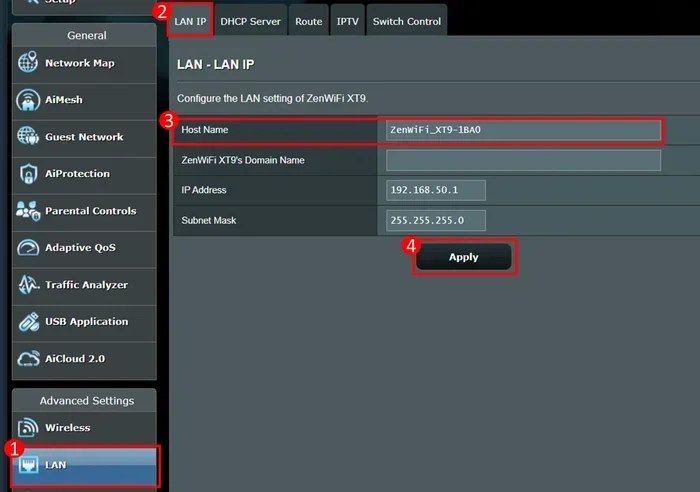
In the address bar, type your router IP address. For most Spectrum routers, this is 192.168.1.1. Press Enter. You should see a login page appear.
Step 4: Enter Your Login Credentials
Here is where many people get stuck. The login page will ask for a username and password. For most Spectrum routers, the default credentials are:
- Username: admin
- Password: admin
Some models use “password” as the default password instead. You can also find the exact login details printed on a sticker on the back or bottom of your router. Check there if the defaults do not work.
Step 5: Access the Dashboard
Once you enter the correct credentials, you will be taken to the router dashboard. From here, you can explore all the settings. Take a moment to look around. The layout varies by model, but the main sections are usually similar across Spectrum routers.
If you ever want to set up a new router from scratch, you might also want to learn about buying your own router for internet to compare options.
Key Settings You Can Adjust in Your Spectrum Router
Now that you are logged in, what can you actually do? The router dashboard gives you access to a lot of powerful settings. Here are the most important ones to know about.
Change Your Wi-Fi Network Name and Password
This is the most common reason people access their router settings. You can change your Wi-Fi network name (also called SSID) to something more personal or easier to recognize. You can also update your wireless password to something stronger and more secure.
Look for a section called “Wireless Settings” or “Wi-Fi Setup.” From there, you can edit both the network name and password. Always save your changes before exiting.
Update Your Security Mode
Your router’s security mode determines how protected your network is. The best option for most people is WPA3 or WPA2. Avoid using WEP, as it is outdated and easy to crack. You will usually find the security mode setting under the wireless or security section of your dashboard.
Set Up Parental Controls
Spectrum routers often include built-in parental controls. These let you block certain websites, set time limits for specific devices, or pause internet access for kids. Look for a “Parental Controls” or “Access Control” section in your settings.
Manage Connected Devices
Want to see what devices are using your internet? The dashboard usually has a list of all connected devices. You can see their names, IP addresses, and how much data they are using. If you spot something unfamiliar, you can block it right from there.
Update Router Firmware
Firmware updates keep your router running smoothly and securely. They fix bugs, improve performance, and patch security vulnerabilities. Check for a “Firmware Update” or “System Update” section in your settings. If an update is available, follow the prompts to install it.
Keeping your firmware updated is one of the simplest ways to maintain a strong internet connection. If you are having trouble with signal strength, you might also want to learn about boosting your Wi-Fi signal outside for better coverage throughout your property.
Configure DNS Settings
DNS (Domain Name System) settings control how your router translates website names into IP addresses. Changing your DNS can sometimes speed up your browsing or add extra security. Popular options include Google DNS (8.8.8.8) and Cloudflare DNS (1.1.1.1). You can usually find DNS settings under the WAN or Internet section of your dashboard.
Troubleshooting Common Access Issues
Having trouble getting into your router settings? You are not alone. This happens to many people. Here are the most common issues and how to fix them.
Login Page Will Not Load
If the login page does not appear when you type in the IP address, try these fixes:
- Double-check that you typed the IP address correctly. A small typo will prevent the page from loading.
- Make sure your device is connected to the Spectrum network.
- Try a different web browser. Sometimes browser extensions or cache can interfere.
- Clear your browser cache and cookies, then try again.
- Restart your router and wait a full minute before trying again.
Forgot Your Login Password
If you changed the password and forgot it, do not panic. You can reset your router to factory defaults. Look for a small reset button on the back of the router. Use a paperclip to press and hold it for about 10 seconds. This will restore all settings to their defaults, including the default login credentials.
Keep in mind that a factory reset will erase all your custom settings. You will need to set up your Wi-Fi name, password, and other preferences again.
Slow Dashboard Loading
If the settings page loads very slowly, try connecting with an Ethernet cable instead of Wi-Fi. A wired connection provides a more stable link to the router. Also, make sure no one is doing heavy downloads or streaming while you are accessing the dashboard.
If you are dealing with broader internet issues, you might want to check if you can get internet in your home without a phone line to explore alternative setup options.
Tips for Keeping Your Spectrum Router Secure
Once you have accessed your router settings, it is important to keep your network secure. An unsecured router can leave your personal data vulnerable. Here are some quick tips.
Change the Default Admin Password
The default login credentials for your router are well known. Anyone can look them up online. Change both the admin username and password to something unique and strong. Use a mix of letters, numbers, and special characters.
Enable Network Encryption
Always use WPA3 or WPA2 encryption for your Wi-Fi network. This scrambles the data sent over your network so that outsiders cannot read it. Avoid WEP at all costs.
Turn Off Remote Management
Remote management allows people to access your router settings from outside your home network. Unless you specifically need this feature, turn it off. It reduces the attack surface for potential hackers.
Keep Firmware Updated
Check for firmware updates regularly. Manufacturers release updates to fix security flaws and improve performance. Setting a calendar reminder once a month is a good habit.
Use a Strong Wi-Fi Password
Your Wi-Fi password should be at least 12 characters long and include a mix of uppercase letters, lowercase letters, numbers, and symbols. Avoid using personal information like birthdays or names.
When to Contact Spectrum Support
Most router access issues can be resolved at home using the steps above. But sometimes you need professional help. Contact Spectrum support if:
- You cannot access the router dashboard after trying all troubleshooting steps.
- Your internet connection drops frequently even after adjusting settings.
- You suspect someone is using your network without permission and you cannot block them.
- Your router firmware will not update properly.
Spectrum support can also help you if you are considering switching to a different setup. For example, if you are wondering whether you can get a portable Wi-Fi instead of a traditional router, their team can guide you through your options.
Final Thoughts
Accessing your Spectrum router settings is a skill that pays off in many ways. You get more control over your network, better security, and the ability to troubleshoot problems on your own. It only takes a few minutes to learn, and once you are in, the possibilities are wide open.
Start with the basics. Find your IP address, log in with the default credentials, and explore the dashboard. Then gradually adjust the settings that matter most to you. Change your password, update your firmware, and enable strong encryption. These small steps make a big difference.
Remember, your router is the heart of your home network. Taking a few minutes to understand its settings puts you in charge. You do not need to be a tech expert. Just follow the steps in this guide, and you will be managing your Spectrum router like a pro in no time.
Frequently Asked Questions
What is the default IP address for a Spectrum router?
The most common default IP address for Spectrum routers is 192.168.1.1. Some newer models use 10.0.0.1. You can also check the sticker on the back of your router for the exact address.
What are the default login credentials for a Spectrum router?
Most Spectrum routers use “admin” for both the username and password. However, some models may vary. Check the sticker on your router or the user manual for the exact default credentials.
Can I access my Spectrum router settings from a phone?
Yes, you can access your router settings from any device connected to your Wi-Fi network. Simply open a browser on your phone, type in the router IP address, and log in with your credentials.
What should I do if I forgot my router admin password?
You can reset your router to factory defaults by pressing and holding the reset button on the back for about 10 seconds. This will restore all settings, including the default login password.
Is it safe to change my router settings?
Yes, it is safe as long as you know what you are changing. Stick to settings you understand, like Wi-Fi name, password, and security mode. Avoid changing advanced settings unless you are confident in what they do.
How often should I update my Spectrum router firmware?
You should check for firmware updates at least once a month. Many Spectrum routers also have an automatic update option you can enable in the settings dashboard.