Can You Use USB 30 In A USB 31 Slot Find Out Right Here
Yes, you can use a USB 3.0 device in a USB 3.1 slot. The USB standard is backward compatible, so your older gear works fine. However, you will not get the faster USB 3.1 speeds. Plug it in and use it without worry!
Have you ever looked at your computer ports and felt totally confused? You grab your old USB 3.0 flash drive and wonder if it will fit. The good news is yes. You can use USB 3.0 in a USB 3.1 slot without any problems at all. Let us dive into the details of how this works and what you should expect.
Key Takeaways
- Backward Compatibility Works: USB 3.0 plugs fit into USB 3.1 slots easily.
- Speed Limits Apply: You will only get USB 3.0 speeds, not the faster USB 3.1 rates.
- Connector Types Matter: Make sure you match the physical shape, like USB-A to USB-C.
- Power Delivery Stays the Same: Your device gets power, but not the increased wattage of USB 3.1.
- No Adapters Needed: Standard USB 3.0 cables work directly in USB 3.1 ports.
- Future-Proofing is Easy: Using older gear in newer ports is safe and common.
📑 Table of Contents
Understanding USB 3.0 and USB 3.1 Basics
Before we get into the details, let us look at the basics. USB stands for Universal Serial Bus. It is the standard way we connect devices to computers and chargers. Over the years, USB has gotten faster and better. People always want to move big files quicker. USB 3.0 was a huge step up from the older USB 2.0 standard. It offered SuperSpeed USB transfer rates that blew the old standard away. Then USB 3.1 arrived and made things even quicker. The USB 3.2 standard came later, but USB 3.0 and 3.1 remain very common. But what does this mean for your daily gear?
When you talk about port compatibility, you mean if a plug fits a port. The good news is that USB 3.0 plugs fit into USB 3.1 slots easily. This is because of backward compatibility. The designers made sure older devices work with newer ports. They did not want you to throw away your old gear. You do not need to buy new devices just because you got a new computer. This saves you a lot of money. It also keeps your old devices useful for many more years. You can keep using that trusty external hard drive or flash drive you love. The whole point of USB is to make life easier. You should not have to worry about whether your old gear will work with your new machine.
When you use a USB 3.0 device in a USB 3.1 slot, the connection is seamless. Your computer recognizes the device right away. It does not matter if the port is newer. The older device works just fine. You can transfer your photos, videos, and documents without a single worry. This is the beauty of modern USB standards. They are built to work together. You get a smooth experience every time you plug something in.
What is the Difference Between USB 3.0 and USB 3.1?
The main difference between these two standards lies in the data transfer rate. USB 3.0 moves data at 5 gigabits per second. That is super fast for most people. USB 3.1 has two different versions. USB 3.1 Gen 1 is actually the same speed as USB 3.0. It also runs at 5 gigabits per second. USB 3.1 Gen 2 doubles the speed to 10 gigabits per second. So, when you plug a USB 3.0 device into a USB 3.1 slot, it will run at the slower 5Gbps speed. The host controller in your computer handles the connection. It checks what speeds the device supports. It then picks the highest speed both devices can handle together.
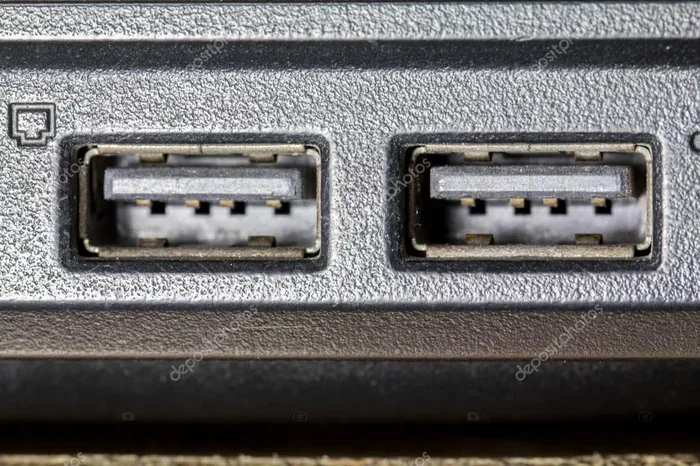
Also, the physical connector shapes can vary between devices. USB-A is the classic big rectangular plug. You have seen it on computers and TVs for years. USB-C is the small, oval plug. It is reversible, so you never flip it wrong. Both USB 3.0 and USB 3.1 can use either shape. A USB 3.0 USB-A flash drive will work in a USB 3.1 USB-A port. A USB 3.0 USB-C cable will work in a USB 3.1 USB-C slot. Just check the shape before you plug it in. The shapes must match for the connection to work. If the shapes do not match, you simply need a small adapter. It is a very easy fix.
Why Backward Compatibility Matters for Your Devices
Backward compatibility is a huge deal in the tech world. It means new technology can still talk to old technology. When USB 3.1 arrived, companies knew people still owned tons of USB 3.0 devices. They did not want everyone to throw away their old external hard drive or flash drive. So, they built the new standard to accept the old plugs. This was a very smart move by the engineers. It saved consumers a lot of money and frustration.
This port compatibility works in both directions. You can plug a USB 3.0 device into a USB 3.1 slot. You can also plug a USB 3.1 device into an older USB 3.0 slot. It will work just fine. But again, it will run at the slower speed of the older device. This ensures that your USB hub and all your other accessories remain useful for many years. You do not have to replace your entire setup every time a new standard comes out. Think about it. You would be very angry if you had to buy a new external hard drive just because you bought a new laptop. Backward compatibility stops that frustration in its tracks. It protects your investment in your current gear.
How Does the Connection Negotiate Speeds?
When you plug in a device, the computer and the device talk to each other. This is called a handshake or negotiation. The computer checks the signaling rate the device supports. If your USB 3.0 flash drive goes into a USB 3.1 slot, the computer sees it is a SuperSpeed USB device. It sets the bandwidth to 5Gbps. The connection is stable and fast. You will not lose any data during the transfer. The power delivery also works normally. Your device gets the electricity it needs to charge or run. You can trust the connection to be safe and reliable.
The negotiation happens very fast. You barely notice it. The computer tells the device, “I can support your speed.” The device replies, “Great, let us go.” This all happens in a fraction of a second. You just see your files moving. The upstream and downstream communication stays smooth. Your old gear works perfectly with your new computer. You do not need to do any special setup. Just plug it in and start working. The system handles all the complex details behind the scenes.
Plugging in USB 3.0 Devices: What to Expect
So, you have a USB 3.0 device and a USB 3.1 slot. What happens when you plug it in? You will not see any error messages. The computer recognizes the device right away. It acts just like it would in an older port. The device works perfectly fine for everyday tasks. You can transfer photos, videos, and documents without a worry.
Let us say you plug in an external hard drive. You want to move a big folder of photos from your camera. The data transfer rate will be 5Gbps. This is still very fast. You can copy a 10-gigabyte movie in about 20 seconds. That is plenty fast for most people. You will not notice a big difference in daily use. Only when you move massive files all day long does the gap show up. For the average user, 5Gbps is more than enough speed. You can edit documents and move files all day without any lag. Your workflow will feel completely normal and smooth.
Does Cable Length Affect Performance?
Yes, cable length can matter a lot. A longer USB 3.0 cable might have a slightly weaker signal over time. But this is true for all USB versions, not just 3.0 or 3.1. Keep your USB 3.0 cables under 3 meters for the best results. If you use a USB hub, the signal can drop faster. Buy a high-quality USB 3.0 hub to keep speeds up. A cheap hub might bottleneck your connection. It does not matter if your slot is USB 3.1. The slowest part of the chain decides the final speed. If the cable is weak, the whole connection slows down. Always invest in good cables. They are the backbone of your setup.
Also, check the build quality of the connector. A loose plug can cause disconnects. You might lose unsaved work if the drive falls off. Make sure the plug fits snugly into the port. A tight fit means a better connection. It also means better signal strength. Good cables last for years. They keep your data transfer speeds consistent every single time you use them. Do not cheap out on cables. They are a small part of the cost but make a huge difference.
Can You Get USB 3.1 Speeds with a USB 3.0 Device?
The short answer is no. You cannot get USB 3.1 speeds with a USB 3.0 device. The USB 3.1 slot is smart. It will only run at the speed the device supports. Since your USB 3.0 gear tops out at 5Gbps, that is the speed you get. The USB 3.1 slot cannot magically make your old device faster. It has to respect the limits of the device you plugged in.
Think of it like a highway. A USB 3.1 slot is a 10-lane highway. A USB 3.0 device is a car that can only go 55 miles per hour. Even on a 10-lane highway, the car still goes 55. The road is wider, but the car is the limit. To get the full 10Gbps data transfer rate, you need a USB 3.1 Gen 2 device. Both the port and the device must support the faster speed. If either one is older, the whole connection drops to the older speed. The system is smart enough to find the common ground.
When Does the Speed Difference Matter?
For most people, the speed difference does not matter at all. You are just moving documents or charging your phone. But for professionals, it matters a lot. Video editors work with huge 4K video files. Photographers copy thousands of high-res photos every single day. These users need the fastest bandwidth possible. If you are one of these pros, you should look for USB 3.1 Gen 2 devices. Using a USB 3.0 device will slow down your workflow. It creates a bottleneck in your data transfer process. The extra seconds add up over a long workday.
Imagine you are editing a movie. You need to read a huge video file from your drive. A USB 3.1 Gen 2 drive reads the file in half the time. You save precious minutes on every single edit. Over weeks of work, those minutes turn into hours. That is why speed matters for pros. For casual users, the difference is invisible. The USB 3.0 connection feels just as fast for everyday tasks. You will be perfectly happy with the performance.
Physical Connectors, Adapters, and Power Delivery
The physical connector is just as important as the standard. USB 3.0 and USB 3.1 use two main shapes. The first is USB-A. It is the big, flat rectangle. You have seen it on computers and game consoles for years. The second is USB-C. It is a small, oval shape. It is reversible, which is very nice. You never have to flip it to get it right.
You can plug a USB 3.0 USB-A plug into a USB 3.1 USB-A slot. You can also plug a USB 3.0 USB-C plug into a USB 3.1 USB-C slot. Just make sure the shapes match. You cannot force a USB-A plug into a USB-C slot without an adapter. Port compatibility depends on matching the physical shape first. Once the shapes match, the backward compatibility of the standard takes over. The devices talk to each other and set the right speed.
Do You Need an Adapter?
Usually, you do not need an adapter. If you have a USB 3.0 USB-A device, it fits right into a USB 3.1 USB-A port. But what if you have a USB 3.0 USB-A device and a USB 3.1 USB-C laptop? You will need a simple adapter. A USB-A to USB-C adapter solves this problem perfectly. It lets you use your old gear with your new laptop. Just remember that the adapter itself might be a limit. A cheap adapter could slow down your connection. Buy a good quality adapter to keep your data transfer fast and reliable.
Also, watch out for adapters that are just passive. They do not have any chips inside. Passive adapters work fine for data. But if you need fast charging, you might need an active adapter. Active adapters have extra electronics inside. They can handle more power delivery. Check what you need before you buy. If you just want to move files, a passive adapter is fine. If you want to charge a big tablet, get an active one. This small choice makes a big difference.
How Power Delivery Works with USB 3.0
Another big question is about power delivery. When you plug a device into a USB 3.1 slot, does it charge better? USB 3.0 and USB 3.1 both provide 5 volts of power for basic data devices. The power delivery is very similar for flash drives and hard drives. Your flash drive or external hard drive will charge and run just fine. They do not need more power than the older standard provides.
However, USB 3.1 does support higher wattage in some cases. This is more about the USB Power Delivery standard than the data speed standard. A USB 3.0 device will still pull the power it needs. It will not overcharge or break. The host controller manages the power flow safely. It makes sure the device gets exactly what it needs. You can leave your USB 3.0 device plugged into a USB 3.1 slot all day long. It is completely safe. Your gear will not suffer any damage from the newer port. The connection remains stable and secure. You can trust your hardware to work together without any issues.
Quick Tips, Common Mistakes, and Final Thoughts
Want the best experience when mixing these ports and devices? Follow these simple tips. They will keep your gear safe and your files moving fast. Here is what you should do every time you connect a device.
- Check the connector shape first. Make sure USB-A fits USB-A or USB-C fits USB-C before you push.
- Use high-quality cables. Cheap cables can slow down your data transfer rate and cause errors.
- Keep cables short. Stay under 3 meters for the best signal strength and reliability.
- Do not worry about speed drops. Your USB 3.0 device will just run at its own safe speed.
- Update your drivers. Keep your computer’s host controller drivers up to date for smooth upstream and downstream communication.
- Eject your device safely. Always use the safe remove option to protect your data transfer integrity.
- Inspect your ports. Keep USB 3.1 slots clean from dust. Dirt can cause bad connections.
Even though this is simple, people make mistakes all the time. Here are a few to avoid. First, do not force a plug into a port. If it does not fit, check the shape. Forcing it can break the delicate connector inside the port. Second, do not assume you will get 10Gbps speeds. A USB 3.0 device will never reach USB 3.1 Gen 2 speeds. The connection will cap at 5Gbps. Third, do not buy the cheapest adapter you find online. A poor quality adapter ruins the bandwidth and causes annoying disconnects. Finally, do not ignore cable quality. A bad cable ruins a good connection. Always buy from reputable brands. They test their USB hub and cable products for reliability.
One more mistake to avoid is using damaged cables. A frayed USB 3.0 cable can cause connection drops. It might not transfer data correctly. Sometimes it will not charge your device at all. Always inspect your cables before you plug them in. A small tear in the rubber means the wire inside is exposed. This can cause short circuits. It can also ruin your port. Throw away damaged cables and buy new ones. It is a cheap way to protect your expensive gear. Another common mistake is using a USB hub with too many devices. If you plug in too many things, the bandwidth gets split. Your data transfer rate will drop. Keep your USB hub connections reasonable. Give each device enough bandwidth to work properly.
So, can you use USB 3.0 in a USB 3.1 slot? Absolutely. The backward compatibility of USB standards is a great feature. You can plug in your old external hard drive or flash drive with full confidence. It will work perfectly fine for everyday tasks. Just remember that you will not get the super-fast 10Gbps speeds of USB 3.1. Your device will run at its own 5Gbps limit. This is perfectly normal and completely safe. Next time you wonder about port compatibility, just plug it in and go. Your gear is ready to work together. Enjoy the simple connection and the fast speeds you have. You are all set to use your older devices with your newer computer.
Frequently Asked Questions
Is USB 3.0 backward compatible with USB 3.1?
Yes, absolutely. USB 3.0 devices work perfectly fine in USB 3.1 slots. The backward compatibility ensures that older gear connects to newer ports without any issues. You can plug and play your USB 3.0 devices right away.
Will I lose data when plugging a USB 3.0 drive into a USB 3.1 port?
No, you will not lose any data. The connection is completely safe and stable. Your files will transfer exactly as they would in a USB 3.0 port. The data integrity remains fully intact during the process.
What is the maximum speed I will get with a USB 3.0 device?
You will get a maximum of 5 gigabits per second. This is the native speed of the USB 3.0 standard. The USB 3.1 slot will automatically negotiate this speed with your device. You cannot exceed the limits of the older device.
Do I need a special cable to use USB 3.0 in a USB 3.1 slot?
No, you do not need a special cable. A standard USB 3.0 cable works perfectly in a USB 3.1 port. Just make sure the connector shape matches the port. If you need to connect USB-A to USB-C, a simple adapter will do the job.
Can I use a USB 3.1 device in a USB 3.0 slot?
Yes, you can use a USB 3.1 device in a USB 3.0 slot. However, it will only run at USB 3.0 speeds of 5Gbps. The connection is fully functional, but you will not experience the faster 10Gbps speeds of USB 3.1 Gen 2.
Does using a USB 3.0 device in a USB 3.1 slot damage the port?
No, it does not damage the port at all. USB standards are designed to be safe and universal. The power delivery is regulated to protect both the device and the port. You can use your USB 3.0 gear without any fear of causing harm.