Can You Use Someone Elses Alexa As A Bluetooth Speaker
Yes, you can use someone else’s Alexa as a Bluetooth speaker, but there are a few important steps and limitations to know. Whether you need a quick audio boost at a party or want to share music in a common area, pairing your phone to a shared Echo device is straightforward. However, you will need access to the Alexa app, proper Bluetooth pairing mode, and an understanding of how the device handles multiple users. This guide walks you through the entire process step by step.
Key Takeaways
- Bluetooth pairing is possible: You can connect your phone or tablet to someone else’s Alexa device for wireless audio streaming.
- You need the Alexa app: At least one person with app access must enable Bluetooth pairing mode on the Echo device.
- Multiple users can connect: Alexa supports Bluetooth connections from different devices, but only one active audio source at a time.
- Privacy and settings matter: The device owner controls what skills and music services are available to guest users.
- Range and interference affect performance: Bluetooth has a limited range, and walls or other devices can weaken the signal.
- Resetting the connection is simple: You can unpair and reconnect devices easily through the Alexa app or voice commands.
📑 Table of Contents
- Can You Use Someone Elses Alexa As A Bluetooth Speaker
- How Alexa Bluetooth Pairing Works
- Step By Step Guide To Pairing
- Limitations And Things To Keep In Mind
- How To Unpair And Disconnect
- Tips For The Best Bluetooth Experience With Alexa
- Common Problems And How To Fix Them
- How This Compares To Other Bluetooth Speaker Options
- Privacy And Security Considerations
- Final Thoughts
Can You Use Someone Elses Alexa As A Bluetooth Speaker
Have you ever been at a friend’s house and wished you could play your own music through their smart speaker? Maybe you are at a party and the host has an Amazon Echo sitting on the counter. The natural thought is to just pair your phone and start streaming. But can you actually use someone else’s Alexa as a Bluetooth speaker? The short answer is yes. The longer answer involves a few steps, some settings you need to know about, and a couple of limitations that might surprise you.
Using another person’s Alexa device for Bluetooth audio is more common than you might think. People share Echo devices at gatherings, in offices, and even in shared living spaces. Whether you want to play a playlist, stream a podcast, or use Alexa for voice commands, the process is fairly simple. But there are important details to understand before you start. This guide covers everything from basic pairing to privacy considerations and troubleshooting tips.
In this article, we will walk you through every step of the process. You will learn how Bluetooth pairing works with Alexa, what the device owner needs to do, and how to handle common issues. By the end, you will feel confident connecting any device to a shared Alexa speaker.
How Alexa Bluetooth Pairing Works
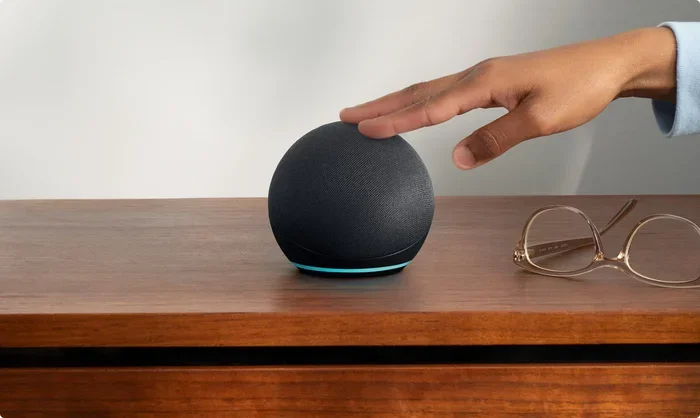
Before you try to connect, it helps to understand the basics of how Bluetooth works with an Alexa device. Alexa supports standard Bluetooth wireless technology. This means any Bluetooth-enabled device can connect to an Echo speaker, as long as the speaker is in pairing mode. The process is similar to connecting your phone to a car stereo or wireless headphones.
When you pair a device with Alexa, the Echo acts as a Bluetooth receiver. It receives audio signals from your phone, tablet, or laptop and plays them through its built-in speakers. This is different from using Alexa’s built-in music services like Amazon Music or Spotify, which stream directly through Wi-Fi. Bluetooth audio comes from your device, not from the internet.
Supported Devices for Bluetooth Connection
Most modern devices can connect to an Alexa speaker via Bluetooth. Here is a quick list of what works:
- Smartphones: Both iPhone and Android devices support Bluetooth audio output to Alexa.
- Tablets: iPads and Android tablets can stream audio wirelessly.
- Laptops: Most laptops with Bluetooth capability can pair with an Echo device.
- Smartwatches: Some smartwatches can send audio to Alexa, though this varies by model.
- Gaming consoles: Certain consoles with Bluetooth can connect, though this is less common.
The key requirement is that the source device must support Bluetooth and have it turned on. If your device does not have Bluetooth built in, you can use a Bluetooth adapter. This is a small USB dongle that adds wireless capability to any device with a USB port.
Step By Step Guide To Pairing
Now let us get into the actual steps. Pairing your device with someone else’s Alexa speaker is a simple process. But you do need the device owner to help with the initial setup. Here is exactly what to do.
Step 1: Ask The Device Owner To Enable Bluetooth Pairing
The Alexa device must be put into Bluetooth pairing mode before your phone can find it. The device owner can do this by saying, “Alexa, pair my device.” Alternatively, they can open the Alexa app on their phone, go to the device settings, and select “Bluetooth Devices.” From there, they tap “Pair a New Device.”
It is important to note that the owner must be within Bluetooth range, which is typically about 30 feet. If the Echo is in another room, the owner may need to bring their phone closer to complete the pairing process.
Step 2: Turn On Bluetooth On Your Device
On your phone or tablet, go to the settings menu and turn on Bluetooth. Make sure it is visible and discoverable. On most devices, Bluetooth stays discoverable for a few minutes after you turn it on. If your phone does not show the Alexa device in the list of available devices, try turning Bluetooth off and back on.
Step 3: Select The Alexa Device From The List
Once Bluetooth is on, go to your device’s Bluetooth settings. You should see a list of available devices. Look for the name of the Echo device, which usually starts with “Echo” followed by a room name or color. Tap on it to connect.
Within a few seconds, the Echo should confirm the connection. You may hear a chime or a voice announcement saying a device has connected. Your phone’s Bluetooth icon should also show a connected status.
Step 4: Start Playing Audio
Once paired, any audio on your phone will route through the Alexa speaker. Open your music app, podcast app, or video app and hit play. The sound should come through the Echo’s speakers. You can control the volume from your phone or by speaking to Alexa.
Limitations And Things To Keep In Mind
While using someone else’s Alexa as a Bluetooth speaker works well, there are some limitations you should know about. These are not deal breakers, but they can affect your experience if you are not prepared.
Only One Bluetooth Device At A Time
Alexa can only connect to one Bluetooth audio source at a time. If the device owner is already streaming music from their phone, your connection may interrupt theirs. The owner can manually switch between devices, but this requires their attention. This is important to keep in mind at parties or shared spaces where multiple people want to take turns.
No Access To Alexa Music Services
When you connect via Bluetooth, you are using your own device’s audio output. This means you do not get access to Alexa’s built-in music services. You cannot ask Alexa to “play jazz music” and expect it to stream through Amazon Music. Instead, you would need to open your own music app on your phone and play from there.
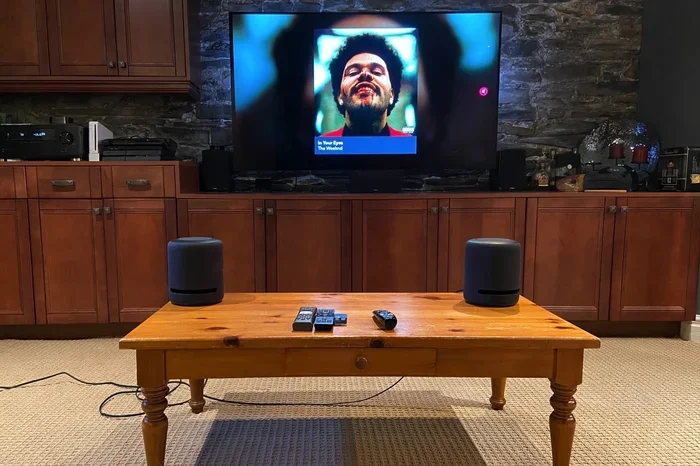
This is different from using Alexa as a Bluetooth speaker for your TV, where the Echo receives audio directly from the television’s Bluetooth output. In that scenario, the TV is the source device, not a phone.
Bluetooth Range Is Limited
Bluetooth has a practical range of about 30 feet in open air. Walls, furniture, and other electronic devices can reduce this range significantly. If you walk too far away from the Alexa device, the connection will drop. You may notice audio cutting out or stuttering if you move beyond the effective range.
Privacy And Personal Data
When you connect to someone else’s Alexa device, you are using their network and their account settings. The device owner can see your connection history in the Alexa app. They may also have voice recordings stored on their Amazon account from previous interactions. If you plan to use voice commands, be mindful of what you say and who has access to the data.
How To Unpair And Disconnect
When you are done using the Alexa speaker, it is good etiquette to disconnect your device. This frees up the Bluetooth connection for the owner or other users. Here is how to do it.
You can unpair from your phone by going to Bluetooth settings, finding the Echo device, and selecting “Forget This Device.” On the Alexa side, the owner can go to the Alexa app, navigate to Bluetooth Devices, and remove your device from the list.
You can also use a voice command. Simply say, “Alexa, disconnect my device.” This will end the current Bluetooth session. If you want to completely reset the Echo’s Bluetooth memory, the owner can say, “Alexa, clear the Bluetooth devices list.” This removes all previously paired devices and starts fresh.
It is a good habit to disconnect after each use. This protects both your privacy and the owner’s device settings. It also ensures a smooth experience the next time someone wants to use the speaker.
Tips For The Best Bluetooth Experience With Alexa
Getting the most out of your Bluetooth connection to an Alexa device is all about a few simple best practices. These tips will help you avoid common frustrations and enjoy a seamless audio experience.
- Keep your device close: Stay within 20 to 30 feet of the Echo for the strongest connection. Walls and obstacles reduce Bluetooth range significantly.
- Turn off other Bluetooth devices: If you have multiple Bluetooth devices active, they can interfere with the connection. Turn off Bluetooth on devices you are not using.
- Update the Alexa app: Make sure the device owner has the latest version of the Alexa app. Updates often include Bluetooth connectivity improvements.
- Restart the Echo if needed: A simple restart can fix most Bluetooth issues. Unplug the Echo, wait 30 seconds, and plug it back in.
- Check the audio output setting: In the Alexa app, go to Device Settings and make sure the audio output is set to the speaker, not a different device.
- Use high-quality audio files: Bluetooth compression can reduce audio quality. For the best sound, use high-bitrate audio files or streaming services that support enhanced audio quality.
Common Problems And How To Fix Them
Bluetooth connections are not always perfect. Here are the most common issues you may face when connecting to someone else’s Alexa device, along with quick fixes.
The Alexa Device Does Not Show Up
If your phone cannot find the Echo device, the first thing to check is whether the Echo is in pairing mode. Ask the owner to repeat the pairing command. Also make sure your phone’s Bluetooth is turned on and set to discoverable. Sometimes restarting both devices solves the problem.
Audio Keeps Cutting Out
Intermittent audio usually means a weak Bluetooth signal. Move closer to the Echo and remove any obstacles between the two devices. Other wireless devices in the area, such as Wi-Fi routers or microwaves, can also cause interference. Try moving to a different room or turning off nearby electronics.
The Connection Won’t Stay Paired
If the Echo keeps disconnecting from your device, try forgetting the device on both ends and pairing again. Sometimes the Bluetooth cache gets corrupted, and a fresh connection solves the issue. On your phone, go to Bluetooth settings, forget the Echo device, and then pair it again from scratch.
No Sound Comes Through The Echo
If the connection is established but you hear no audio, check your phone’s volume and the Echo’s volume. Also check that the audio output on your phone is set to Bluetooth, not the phone’s built-in speaker. In some cases, the audio app on your phone may have its own separate volume control that needs to be adjusted.
How This Compares To Other Bluetooth Speaker Options
Using someone else’s Alexa as a Bluetooth speaker is convenient, but how does it compare to other options? Let us look at a quick comparison.
| Feature | Alexa Bluetooth Speaker | Portable Bluetooth Speaker | Phone Speaker |
|---|---|---|---|
| Sound Quality | Good to excellent | Good to excellent | Poor |
| Portability | Low (plugged in) | High | N/A |
| Range | About 30 feet | About 30 feet | N/A |
| Battery Required | No | Yes | No |
| Voice Assistant | Yes | No | No |
| Shared Access | Yes | Yes | No |
| Setup Required | Bluetooth pairing | Bluetooth pairing | None |
As you can see, using an Alexa device as a Bluetooth speaker offers a great balance of sound quality and smart features. The main downside is that it is not portable. A portable Bluetooth speaker is better for outdoor use or travel. But for home use, an Echo device delivers excellent audio and the added benefit of voice control.
You can also check out how Alexa works as a Bluetooth speaker for your TV if you want to extend this setup to your entertainment system. Similarly, if you are interested in using Bluetooth audio in other settings, you might explore options like using Bluetooth headphones with a Roku device or connecting a microphone to a JBL speaker for different audio setups.
Privacy And Security Considerations
When you use someone else’s Alexa device, privacy should be on your mind. The device owner has full access to the Alexa app and all connected devices. They can see when your device connects, what voice commands you use, and what audio streams through the speaker.
Here are a few privacy tips to keep in mind:
- Use voice commands sparingly: If you do not want your voice recordings saved, avoid using voice commands while connected to someone else’s Echo.
- Check the device settings: Ask the owner to review the Alexa app’s privacy settings before you connect.
- Disconnect when done: Always unpair your device after use. This prevents accidental audio routing and protects your privacy.
- Be mindful of what you say: Even if you are not using voice commands, the Echo’s microphones are always listening for the wake word. Avoid discussing sensitive information near the device.
If you are concerned about privacy, the safest approach is to use Bluetooth audio from your phone without any voice commands. This way, you are simply streaming audio and not interacting with the Alexa assistant at all.
Final Thoughts
Using someone else’s Alexa as a Bluetooth speaker is a practical and convenient solution for sharing audio in any setting. Whether you are at a friend’s house, in a shared office, or attending a social gathering, the ability to connect your device wirelessly gives you flexibility and control over your audio experience.
The process is simple once you know the steps. Ask the owner to enable pairing mode, turn on Bluetooth on your device, select the Echo from the list, and start playing your audio. Keep in mind the limitations, such as single-device connectivity and limited Bluetooth range, and you will have a smooth experience.
Remember to disconnect when you are done, respect the device owner’s privacy settings, and troubleshoot any issues using the tips provided in this guide. With a little patience and understanding, you can turn any Alexa device into your personal Bluetooth speaker whenever you need one.
The next time you find yourself near an Echo device and want to play your favorite music, you will know exactly what to do. Just follow the steps, enjoy the sound, and make the most of the shared technology.
Frequently Asked Questions
Can I use Alexa as a Bluetooth speaker without the owner’s permission?
No, you cannot pair with an Alexa device without the owner’s involvement. The owner must put the device into Bluetooth pairing mode through the Alexa app or a voice command. This is a security feature designed to prevent unauthorized connections to smart home devices.
How many devices can connect to an Alexa speaker via Bluetooth?
Alexa can store multiple paired devices, but it can only connect to one Bluetooth audio source at a time. The owner can switch between paired devices by saying, “Alexa, disconnect” and then pairing a new device. This makes it easy to share the speaker among friends and family.
Does using Bluetooth with Alexa drain its battery?
If the Alexa device is plugged in, battery is not a concern. However, portable Echo devices like the Echo Dot with battery power may drain faster when used as a Bluetooth speaker. The Bluetooth connection requires continuous wireless activity, which uses more power than standard Wi-Fi streaming.
Can I use Alexa voice commands when connected via Bluetooth?
Yes, you can still use Alexa voice commands while connected via Bluetooth. However, the audio output will depend on the current audio source. If your phone is playing music, Alexa’s responses may be mixed in with your audio. You can say, “Alexa, pause” to stop your music and interact with the voice assistant.
What is the maximum Bluetooth range for an Alexa device?
The standard Bluetooth range for an Alexa device is about 30 feet in open space. Walls, furniture, and other electronic devices can reduce this range. For the best experience, keep your source device within 20 feet of the Echo speaker and minimize obstacles between them.
Can I connect my Alexa to another Bluetooth speaker for better sound?
Yes, you can use Alexa to connect to an external Bluetooth speaker. In the Alexa app, go to Device Settings, select your Echo, and choose Bluetooth Devices. Then pair the external speaker. Note that this creates a chain where the Alexa device receives Bluetooth audio and then sends it to the external speaker, which may introduce slight audio delay.