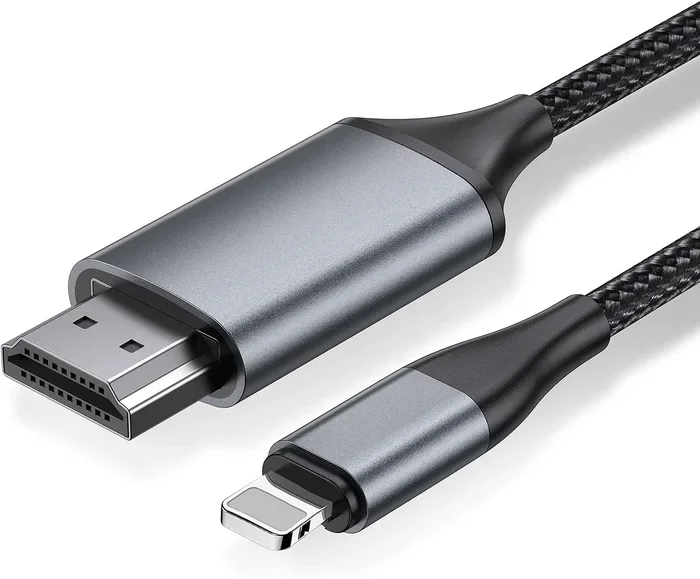
Can You Use Lightning To Hdmi For Netflix On Your TV
Yes, you can use a Lightning to HDMI adapter to watch Netflix on your TV. This simple accessory lets you connect your iPhone or iPad directly to your TV screen. You just need the right adapter, an HDMI cable, and a stable internet connection. We will walk you through everything you need to know, from setup steps to troubleshooting tips.
Have you ever wanted to watch Netflix on a bigger screen but did not know where to start? Maybe you have an iPhone or iPad and a TV with an HDMI port. The thought of connecting them might feel confusing at first. But here is the good news. You can use Lightning to HDMI for Netflix and enjoy your favorite shows on a much larger display.
This guide breaks down everything you need to know. We will cover what a Lightning to HDMI adapter is, how it works, and whether it plays nicely with Netflix. You will also learn about setup steps, common problems, and the best adapters to buy. By the end, you will feel confident connecting your device to your TV. Let us dive right in.
Key Takeaways
- Lightning to HDMI works for Netflix: You can mirror or cast your iPhone screen to a TV using a compatible adapter.
- You need the right gear: An Apple-certified Lightning Digital AV Adapter and an HDMI cable are essential.
- Internet speed matters: A strong Wi-Fi or wired connection ensures smooth Netflix playback on your TV.
- Common issues are fixable: Black screens, no audio, and lag often have simple solutions.
- Wireless options exist too: AirPlay and streaming sticks offer cable-free alternatives for Netflix on TV.
- Compatibility varies: Not all adapters work with every iOS device or TV model.
📑 Table of Contents
- What Is a Lightning to HDMI Adapter?
- Can You Use Lightning to HDMI for Netflix?
- How to Set Up Lightning to HDMI for Netflix
- Common Issues and How to Fix Them
- Lightning to HDMI vs. Wireless Streaming Options
- Best Lightning to HDMI Adapters for Netflix Streaming
- Tips for the Best Netflix Streaming Experience
- Final Thoughts
What Is a Lightning to HDMI Adapter?
A Lightning to HDMI adapter is a small device that plugs into the charging port of your iPhone or iPad. It then connects to your TV through an HDMI cable. This lets you display what is on your phone screen right onto your television. Think of it as a bridge between your mobile device and your big screen.
Apple makes the most popular version of this adapter. It is called the Lightning Digital AV Adapter. Other companies also make compatible versions. These adapters support video output up to 1080p or even 4K on some models. They are widely used for presentations, gaming, and streaming content like Netflix.
You might wonder if this is the same thing as wireless streaming. It is not. A wired connection gives you a stable link without relying on Wi-Fi signals. This can be a big advantage in certain situations. For example, if your Wi-Fi signal is weak in the living room, a wired connection might save the day. Speaking of connectivity, many people also ask whether baby monitors rely on Wi-Fi for their connection, which shows how important stable connectivity is across all devices.
How Does the Adapter Work?
The adapter takes the digital signal from your iPhone or iPad and converts it into an HDMI signal. Your TV then reads this signal and displays it on the screen. The process is mostly automatic. You plug in the adapter, connect the HDMI cable, and switch your TV to the correct input channel.
Most adapters also pass through charging. This means your device can stay plugged in while you watch. That is helpful during long movie nights. You do not want your phone battery dying halfway through a Netflix series.
Can You Use Lightning to HDMI for Netflix?
The short answer is yes. You can absolutely use a Lightning to HDMI adapter to watch Netflix on your TV. Netflix works through apps on iOS devices. When you mirror your screen or use the adapter, the app content gets sent to your TV. This includes all Netflix shows, movies, and documentaries.
However, there are a few things to keep in mind. First, you need a stable internet connection. Netflix streams video over the internet, so your Wi-Fi or data connection must be strong enough. If you are in an area with limited connectivity, you might want to look into options like 5G towers that support Wi-Fi to boost your signal strength for smooth streaming.
Second, not all adapters are created equal. Apple-certified adapters tend to work more reliably. Cheap knockoff adapters might cause glitches or fail to support Netflix altogether. We will talk more about choosing the right adapter later in this guide.
Does Netflix Allow Screen Mirroring?
This is an important question. Netflix does allow screen mirroring through a wired connection like a Lightning to HDMI adapter. However, Netflix has cracked down on some wireless mirroring methods in the past. They did this to prevent unauthorized sharing of content. With a wired adapter, you are using a direct connection, so this is not a concern.
Some users have reported that Netflix occasionally shows a black screen during mirroring. This is usually a DRM (Digital Rights Management) issue. It happens when the adapter or cable does not fully support protected content. Using an Apple-certified adapter almost always solves this problem.
How to Set Up Lightning to HDMI for Netflix
Setting up your adapter is straightforward. Follow these steps and you will be watching Netflix on your TV in minutes.
- Get the right adapter. Make sure it is compatible with your iPhone or iPad model. Check the Lightning connector type.
- Prepare an HDMI cable. You need a standard HDMI cable to connect the adapter to your TV. Most TVs made in the last decade use HDMI ports.
- Plug the adapter into your device. Insert the Lightning end into your iPhone or iPad charging port.
- Connect the HDMI cable. Plug one end into the adapter and the other into an available HDMI port on your TV.
- Switch your TV input. Use your TV remote to select the HDMI port you plugged the cable into. This is usually labeled HDMI 1, HDMI 2, and so on.
- Open Netflix. Launch the Netflix app on your device and start playing a show or movie.
- Adjust the TV settings if needed. Go to your TV picture settings and make sure the resolution matches your adapter output.
That is it. Your iPhone or iPad screen should now appear on your TV. You can control playback from your device or use your TV remote if your TV supports HDMI-CEC. This feature lets you control connected devices with one remote.
Quick Setup Tips
- Always update your iOS device before setting up. Newer software versions fix bugs and improve compatibility.
- Use a high-quality HDMI cable. Cheap cables sometimes cause signal drops or no picture at all.
- Make sure your Netflix app is up to date. Outdated apps can cause playback issues.
- Turn off auto-lock on your device during setup. This prevents the screen from going dark while you configure things.
Common Issues and How to Fix Them
Even with the best setup, you might run into some problems. Do not worry. Most issues are easy to fix. Here are the most common ones people face when using Lightning to HDMI for Netflix.
Black Screen on TV
A black screen is the most common complaint. Usually, this happens because of a DRM or copy protection issue. Netflix uses digital rights management to protect its content. If your adapter does not fully support this, the TV shows a black screen instead of the video.
How to fix it: Switch to an Apple-certified adapter. Avoid cheap third-party brands for Netflix streaming. Also, make sure your HDMI cable is not damaged. A loose connection can sometimes cause the same problem.
No Sound
Sometimes the picture works perfectly but there is no audio. This can be frustrating, especially when you are trying to watch a movie. The issue is often related to audio output settings.
How to fix it: Check your TV audio settings. Make sure the TV is set to receive audio through the HDMI input. On your iPhone, go to Settings, then Sounds, and make sure the ringer and alerts are not muted. You can also try adjusting the volume on both your device and your TV.
Lagging or Poor Video Quality
If your Netflix stream looks blurry or keeps stuttering, your internet connection might be the culprit. Streaming Netflix in HD requires at least 5 Mbps. For 4K content, you need at least 15 Mbps.
How to fix it: Move closer to your Wi-Fi router or switch to a wired internet connection. You can also lower the Netflix playback quality in the app settings. Go to Account, then Playback Settings, and adjust the data usage option.
Adapter Not Recognized
Sometimes your device does not recognize the adapter at all. This could be due to a loose connection or an incompatible adapter model.
How to fix it: Try unplugging the adapter and plugging it back in firmly. Restart your iPhone or iPad. Make sure the adapter supports your specific device model. Some older adapters do not work with newer iPhones that have changed their port designs.
Lightning to HDMI vs. Wireless Streaming Options
Wired adapters are not the only way to get Netflix on your TV. Wireless options exist too, and each has its own pros and cons. Let us compare them so you can decide what works best for you.
| Feature | Lightning to HDMI (Wired) | AirPlay (Wireless) | Streaming Stick (Roku, Fire Stick) |
|---|---|---|---|
| Connection Type | Cable (stable) | Wi-Fi (convenient) | Wi-Fi (dedicated device) |
| Setup Difficulty | Easy | Easy | Moderate |
| Video Quality | Up to 1080p or 4K | Up to 1080p or 4K | Up to 4K |
| Depends on Wi-Fi | No | Yes | Yes |
| Netflix DRM Issues | Rare with Apple-certified adapters | Occasional | Rare |
| Cost | $20-$50 for adapter and cable | Free (built-in) | $30-$60 for device |
| Best For | Stable, reliable connections | Quick, cable-free streaming | Smart TV without HDMI adapters |
Each option has its place. If you want a reliable, no-fuss connection, a wired adapter is hard to beat. If you prefer convenience and do not want extra cables, AirPlay or a streaming stick might be better. For those who do not have a smart TV, streaming sticks are a popular choice. Many people also explore alternatives to traditional cable services like Dish Network and DirectTV and rely on Netflix and other streaming apps as their primary entertainment source.
When to Use a Wired Adapter
Use a Lightning to HDMI adapter when you need a rock-solid connection. This is especially useful when your Wi-Fi signal is weak or when you are hosting a movie night with friends. A wired connection means no buffering, no lag, and no dropped signals. It is the most dependable way to stream Netflix on a TV.
When to Go Wireless
Wireless options shine when you want simplicity and flexibility. AirPlay lets you cast from your iPhone without any cables. You can move around your room while controlling playback. Streaming sticks like Roku or Amazon Fire Stick turn any TV into a smart TV. They give you access to Netflix and hundreds of other apps without needing your phone at all.
Best Lightning to HDMI Adapters for Netflix Streaming
Not all adapters are the same. Some work flawlessly with Netflix, while others cause headaches. Here are some of the best options you can consider.
Apple Lightning Digital AV Adapter
This is the gold standard. Apple makes this adapter specifically for its devices. It supports up to 1080p HD video output and works with Netflix without any DRM issues. The price is around $49, which is on the higher side. But the reliability and compatibility make it worth every penny.
Belkin Lightning to HDMI Adapter
Belkin is a trusted brand in the accessory world. Their Lightning to HDMI adapter offers solid performance at a slightly lower price point than Apple’s version. It supports 1080p output and works well with Netflix and other streaming apps. Many users report a smooth experience with this adapter.
UGREEN Lightning to HDMI Adapter
UGREEN offers a budget-friendly option that still delivers good performance. This adapter supports 1080p HD output and is compatible with most iOS devices. It is a great choice if you do not want to spend too much money. Just be aware that some users have reported occasional DRM issues with Netflix on this model.
What to Look For in an Adapter
- Apple certification. Look for MFi certification. This means Apple has approved the adapter for use with iOS devices.
- HD support. Make sure the adapter supports at least 1080p. Some adapters only support 720p, which looks blurry on modern TVs.
- HDMI version. Look for adapters that support HDMI 1.4 or higher for the best video quality.
- Pass-through charging. This feature lets you charge your device while streaming. It is a small but important detail.
- Customer reviews. Always check reviews before buying. Real user experiences can reveal issues that product descriptions might not mention.
Tips for the Best Netflix Streaming Experience
Once you have your adapter set up, you want to make sure you are getting the best possible experience. Here are some tips to help you out.
Optimize Your Wi-Fi Connection
A strong internet connection is the backbone of smooth Netflix streaming. Place your Wi-Fi router close to where you watch TV. If possible, use a 5 GHz band for faster speeds. You can also consider a mesh Wi-Fi system to extend coverage throughout your home. Stable internet is key, whether you are streaming Netflix or using any other connected device.
Adjust Netflix Playback Settings
Netflix lets you control how much data it uses. If your internet is not very fast, lower the playback quality. Go to your Netflix account settings, find Playback Settings, and choose a lower data usage option. This reduces buffering and keeps things running smoothly. If you have a fast connection, set it to High or Auto for the best picture quality.
Keep Your Devices Updated
Always keep your iPhone, iPad, and TV firmware up to date. Updates often include bug fixes and performance improvements. They also ensure compatibility with the latest Netflix app features. A simple update can sometimes solve streaming issues you did not even know you had.
Use a Power Source
Streaming Netflix uses a lot of battery. Plug your device into a power source while watching. This prevents your phone from dying mid-movie. It also keeps the adapter working at full performance. Some adapters lose functionality when the connected device battery drops too low.
Final Thoughts
Using a Lightning to HDMI adapter for Netflix is a practical and reliable way to enjoy your favorite content on a bigger screen. Whether you are hosting a movie night, catching up on a series, or just want a better viewing experience, this simple accessory delivers. The setup is easy, the connection is stable, and the results are satisfying.
Remember to choose an Apple-certified adapter for the best compatibility with Netflix. Keep your internet connection strong, and do not be afraid to troubleshoot if something goes wrong. Most issues have simple fixes. With the right setup, your iPhone or iPad becomes a powerful streaming remote control for your TV. Happy watching.
Frequently Asked Questions
Can I use any Lightning to HDMI adapter for Netflix?
Not all adapters work well with Netflix. Cheap, non-certified adapters may cause black screens or DRM issues. Always choose an Apple-certified or well-reviewed adapter to ensure Netflix plays correctly on your TV.
Do I need Wi-Fi to use a Lightning to HDMI adapter for Netflix?
Yes, you still need an internet connection. The adapter sends video from your device to your TV, but Netflix streams content over the internet. A strong Wi-Fi connection ensures smooth playback without buffering.
Can I watch Netflix in 4K using a Lightning to HDMI adapter?
Some Lightning to HDMI adapters support 4K output. However, most standard adapters max out at 1080p. Check the adapter specifications before purchasing if 4K streaming is important to you.
Why does my Netflix show a black screen when using the adapter?
A black screen usually means your adapter does not fully support Netflix’s DRM protection. Switching to an Apple-certified adapter almost always fixes this problem. Also, make sure your HDMI cable is working properly.
Can I charge my iPhone while using the Lightning to HDMI adapter?
Yes, most Lightning to HDMI adapters support pass-through charging. This means you can plug a charger into the adapter while it is connected to your TV. Your device will charge while you stream Netflix.
Is AirPlay better than a Lightning to HDMI adapter for Netflix?
It depends on your needs. AirPlay is wireless and convenient, but it relies on a strong Wi-Fi signal. A Lightning to HDMI adapter provides a stable wired connection with no buffering. For the most reliable experience, a wired adapter is often the better choice.
=== /FAQS ===