Can You Use HDMI On A Receiver Here Is The Full Guide
Can You Use HDMI On A Receiver? Absolutely yes. An HDMI receiver serves as the central hub for your home theater, delivering both audio and video through a single cable. This full guide covers setup, HDMI ARC, troubleshooting, and expert tips to help you get the most from your audio video receiver and surround sound system.
Setting up a home theater system can feel like a puzzle, especially when you are staring at a wall of ports and cables. One question comes up again and again: can you use HDMI on a receiver? The answer is a resounding yes. In fact, HDMI is the go-to connection for most modern entertainment setups. It carries both high-definition video and multi-channel audio through a single cable, which makes life so much easier.
Whether you are connecting a gaming console, a streaming box, a Blu-ray player, or a cable box, your audio video receiver can handle it all. But knowing how to use HDMI on a receiver properly makes a huge difference. You will avoid frustrating signal issues, get better audio formats, and enjoy a cleaner setup. This guide walks you through everything from basic connections to advanced features like HDMI ARC and eARC. By the end, you will feel confident and ready to build the best surround sound experience possible.
Key Takeaways
- HDMI works on receivers: Modern audio video receivers support HDMI inputs and outputs for seamless audio and video routing.
- HDMI ARC and eARC are game-changers: They allow your TV to send audio back to the receiver using just one cable.
- Compatibility matters: Always check your HDMI version and device compatibility before purchasing cables or equipment.
- Troubleshooting is simple: Most HDMI handshake issues can be fixed with a quick power cycle or cable swap.
- Avoid common mistakes: Using the wrong cable, skipping firmware updates, and ignoring port labels cause most problems.
- Optimal setup makes a difference: Following best practices ensures your receiver setup delivers the best audio connection and picture quality.
📑 Table of Contents
What Is an HDMI Receiver and Why Does It Matter
An audio video receiver is the brain of your home theater. It takes audio and video signals from multiple sources and sends them to your TV and speakers. HDMI is the primary way these signals travel. Without it, you would need separate cables for video and audio, which quickly becomes a tangled mess.
Here is why HDMI on a receiver matters so much:
- Single cable convenience: One HDMI cable handles both video and audio. No need for extra wires.
- High-quality output: HDMI supports 4K, 8K, and even surround sound formats like Dolby Atmos and DTS:X.
- Easy switching: Your receiver lets you switch between devices with the press of a button on your remote.
- Future-proofing: Newer HDMI versions support the latest features, so your setup stays current longer.
Think of your receiver as a traffic controller. It directs signals from your HDMI inputs to the right HDMI outputs. Understanding this basic concept helps you troubleshoot problems and plan your setup more effectively. When you know how the signal flows, everything else falls into place.
How HDMI Connects to Your Receiver
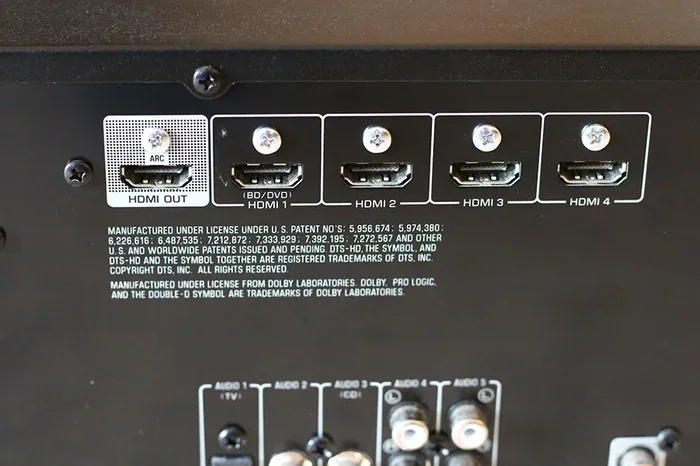
Most receivers have several HDMI inputs labeled HDMI 1, HDMI 2, and so on. Each input connects to a different device. The HDMI output then sends the combined signal to your TV. Some receivers also have HDMI pass-through ports, which let you daisy-chain devices without needing extra cables.
Here is a simple way to think about it:
- Plug your cable box into HDMI Input 1.
- Plug your gaming console into HDMI Input 2.
- Plug your streaming device into HDMI Input 3.
- Connect the HDMI output from the receiver to your TV.
- Use your remote to select the source you want to watch.
That is all there is to it. The receiver setup process is straightforward once you understand the flow of signals. HDMI version compatibility also plays a role here. If your receiver supports HDMI 2.1, you get the best speeds and features. Older HDMI 2.0 cables still work great for most setups, but they may limit certain capabilities like 4K at 120Hz.
How to Connect HDMI to Your Receiver Step by Step
Connecting HDMI to your receiver is not hard, but doing it the right way prevents headaches later. Follow these steps for a clean and reliable audio connection.
Step 1: Check Your Ports
Look at the back of your receiver. You will see several HDMI ports. Some may be labeled “ARC” or “eARC.” These are special ports designed for specific features. Make sure you know which port is which before you start plugging things in.
Step 2: Choose the Right Cable
Not all HDMI cables are the same. For most setups, a standard HDMI High Speed cable works fine. If you want 4K resolution or HDMI eARC, look for a Premium High Speed cable or an Ultra High Speed cable. Here is a quick comparison:
| Cable Type | Max Resolution | Best For | Price Range |
|---|---|---|---|
| Standard HDMI | 1080p | Basic setups, older devices | $5 – $10 |
| High Speed HDMI | 4K at 30Hz | Most home theaters | $10 – $20 |
| Premium High Speed | 4K at 60Hz, HDR | 4K TVs and receivers | $15 – $30 |
| Ultra High Speed | 4K at 120Hz, 8K, eARC | Advanced setups, gaming | $25 – $50 |
Step 3: Plug In and Power On
Connect your device to an HDMI input on the receiver. Then connect the HDMI output to your TV. Power on all devices. Your TV should display the signal from the receiver. If it does not, do not panic. We will cover troubleshooting in a later section.
Step 4: Configure Your Receiver
Use your receiver remote to select the correct HDMI input. Most modern receivers auto-detect the connected device, but sometimes you need to manually switch. Check your receiver manual for specific steps on receiver setup and audio format selection.
Quick Tips
- Always label your cables or use different colored cables for different devices. This saves time when troubleshooting.
- Keep your HDMI cables away from power cords to reduce interference.
- Firmly push the cable into the port until it clicks. A loose connection causes signal drops.
Understanding HDMI ARC and eARC on Receivers
You will often see the terms HDMI ARC and HDMI eARC on your receiver and TV. These features are incredibly useful and worth understanding. They solve a common problem: how do you get audio from your TV back to your receiver without running extra cables?
What Is HDMI ARC?
HDMI ARC stands for Audio Return Channel. It allows your TV to send audio back through the same HDMI cable that carries video. This means if you watch a show on your TV using built-in apps, the audio goes to your receiver and speakers automatically. You do not need a separate optical cable or any extra wiring.
What Is HDMI eARC?
HDMI eARC stands for Enhanced Audio Return Channel. It is the newer, better version of ARC. eARC supports higher audio formats like Dolby Atmos and uncompressed surround sound. If you have a surround sound system with advanced audio formats, eARC is the way to go.
ARC vs eARC: Which Do You Need?
Here is a simple breakdown:
- HDMI ARC works for most basic setups. It handles standard stereo and Dolby Digital audio.
- HDMI eARC is needed for Dolby Atmos, DTS:X, and other high-resolution audio formats.
- Both require an HDMI ARC or eARC port on your TV and receiver.
If your TV and receiver both support eARC, use it. You get the best audio connection quality. If only one of them has eARC, standard ARC still works well for everyday watching.
Expert Insight
Many people do not realize that HDMI ARC needs to be enabled in both the TV settings and the receiver settings. If your audio connection is not working through ARC, check both devices. This is one of the most common receiver troubleshooting steps, and it solves the problem more often than not.
Common HDMI Receiver Problems and How to Fix Them
Even with the best setup, you may run into issues. HDMI problems are frustrating but usually easy to fix. Here are the most common issues and their solutions.
No Signal or Black Screen
This is the most common problem. The HDMI handshake between devices fails to establish a connection. Try these steps:
- Unplug the HDMI cable from both ends.
- Wait 30 seconds.
- Plug the cable back in firmly.
- Power cycle your TV and receiver.
- Select the correct HDMI input on your TV.
In most cases, this simple reset fixes the problem. The HDMI handshake is a process where devices negotiate the signal format. Sometimes it just needs a fresh start.
Poor Audio or No Sound
If your video works but there is no audio, the issue is usually with the audio settings. Check these things:
- Make sure your TV audio output is set to HDMI ARC or the receiver port.
- Check that your receiver is set to the correct audio format.
- Ensure the volume is not muted on either the TV or the receiver.
- Try a different HDMI cable to rule out a faulty connection.
HDMI Version Mismatch
Older devices may not support the latest HDMI version. If you connect a device that only supports HDMI 1.4 to a receiver with HDMI 2.1 ports, it still works. The connection simply runs at the older standard’s capabilities. You will not get the full 4K 120Hz experience, but basic functionality remains intact.
Common Mistakes to Avoid
- Using cheap, non-certified cables: These often fail to support higher resolutions and audio formats. Stick with reputable brands.
- Ignoring firmware updates: Both your TV and receiver may need firmware updates for full device compatibility. Check the manufacturer’s website regularly.
- Plugging into the wrong port: Not all receiver ports support ARC or eARC. Always check the labels.
- Overloading a single HDMI port: Daisy-chaining too many devices through one port can cause signal degradation.
Quick Tips for Better HDMI Performance
Getting the most out of your HDMI connection comes down to a few smart habits. These tips help you maintain a reliable and high-quality audio video receiver experience.
Keep Your Cables Short and Quality
Longer HDMI cables can lose signal quality, especially at higher resolutions. Keep cables under 15 feet when possible. If you need a longer run, use a high-quality cable with a built-in signal booster. This ensures your signal conversion stays clean from end to end.
Update Firmware Regularly
Manufacturers release firmware updates that improve device compatibility and fix bugs. Check your receiver and TV settings for update options at least once a month. A simple update can solve connection issues you did not even know existed.
Use the Right Ports for the Right Devices
Not all receiver ports are created equal. Use your HDMI ARC or eARC port for your TV connection. Use your standard HDMI inputs for devices like game consoles and streaming boxes. This organization keeps your receiver setup clean and reduces confusion.
Power Cycle Before Big Changes
Whenever you add a new device or change a connection, power cycle everything. Turn off the TV, receiver, and all connected devices. Unplug them for 60 seconds. Then plug them back in and power on. This refreshes the HDMI handshake and prevents most connection issues.
Expert Insight
Professional installers always recommend labeling every cable and port. When something goes wrong, you can instantly trace the problem. It takes two minutes to do and saves hours of frustration. A little organization goes a long way in maintaining a smooth home theater experience.
Frequently Asked Questions
Can I use any HDMI cable with my receiver?
You can use any HDMI cable that fits the port, but for the best results, match your cable to your needs. A standard cable works for older devices. For 4K or HDMI eARC, use a Premium High Speed or Ultra High Speed cable. Always check the specifications of your receiver and TV to ensure full device compatibility.
What is the difference between HDMI ARC and optical audio?
HDMI ARC carries both audio and video through one cable and supports higher-quality formats. Optical audio only carries audio and requires a separate cable for video. HDMI ARC is more convenient and supports better audio formats like Dolby Atmos. However, optical audio can still be a good backup option if your HDMI connection has issues.
Why does my HDMI connection keep dropping on my receiver?
Dropping connections are usually caused by a loose cable, a faulty HDMI cable, or an outdated firmware version. Try reseating the cable firmly into the port. If that does not work, try a different cable. Also, check if there are firmware updates available for your receiver and TV. A simple power cycle often resolves HDMI handshake issues as well.
Do I need a special receiver for 4K HDMI?
You need a receiver that supports HDMI 2.0 or higher for 4K content. Most modern audio video receivers include 4K support. Check the specs before buying. Look for terms like “4K pass-through” or “4K upscaling” on the product description. This ensures your receiver setup can handle the highest quality video your TV offers.
Can I connect multiple devices to one HDMI port on my receiver?
No, each device needs its own HDMI input on the receiver. However, you can use an HDMI switch or a receiver with HDMI pass-through to expand your port options. A switch lets you connect multiple devices to a single HDMI input and toggle between them. This is a great solution if your receiver runs out of ports.
Is HDMI eARC worth it over regular HDMI ARC?
Yes, if you care about high-quality audio. HDMI eARC supports uncompressed audio and advanced formats like Dolby Atmos. Regular HDMI ARC handles standard audio formats just fine. If you have a premium surround sound system and a TV that supports eARC, enabling it gives you the best possible audio connection without extra cables.
Final Thoughts
So, can you use HDMI on a receiver? The answer is a clear and confident yes. HDMI is the backbone of any modern home theater setup. It delivers stunning video and rich audio through a single, simple connection. From basic setups to advanced surround sound systems with Dolby Atmos, HDMI on a receiver handles it all with ease.
Understanding your receiver setup, choosing the right HDMI cable, and knowing how to troubleshoot common issues puts you ahead of most users. You now know the difference between HDMI ARC and eARC, how to connect devices properly, and what to do when things go wrong. These skills make a real difference in your daily entertainment experience.
Take the time to organize your cables, update your firmware, and use the right ports. Your audio video receiver will reward you with reliable performance and incredible sound quality every single time you turn it on. A well-connected home theater is one of the best upgrades you can make to your living space, and HDMI makes it all possible.