Can You Use Any Wireless Mouse With A Mac For Sure
Yes, you can use most wireless mice with a Mac, but not every model works perfectly out of the box. This guide covers Bluetooth pairing, USB receiver support, and the best wireless mouse options for macOS. You will learn about compatibility issues, setup steps, and which mice deliver the best experience.
Can You Use Any Wireless Mouse With A Mac? The short answer is yes, but the full answer is a bit more nuanced. Not every wireless mouse works seamlessly with Apple computers. Some connect through Bluetooth, while others need a small USB receiver. And a few simply do not play nice with macOS at all.
If you have been using a Windows PC and are switching to a Mac, this question matters a lot. You do not want to buy a new mouse only to find out it does not work. This guide walks you through everything you need to know about wireless mouse compatibility with Mac computers. We will cover how Bluetooth connectivity works, which brands are the most reliable, and how to set things up in just a few minutes.
Whether you want an Apple Magic Mouse, a Logitech wireless mouse Mac users love, or a budget-friendly option from another brand, you are in the right place. Let us dive in and make sure you find the perfect Mac compatible mouse for your needs.
Key Takeaways
- Most wireless mice work with Mac: Many Bluetooth mice and USB receiver mice are compatible with macOS, but some need extra drivers.
- Bluetooth pairing is the easiest method: Modern Macs support Bluetooth connectivity, making setup simple for most wireless mouse models.
- Some brands work better than others: Logitech and Apple make the most Mac-friendly wireless mice with full feature support.
- Setup is quick and straightforward: You can pair a wireless mouse with your Mac in just a few minutes using System Settings.
- Watch out for compatibility issues: Some wireless mice require Windows-only drivers or special software that does not work on macOS.
- The right mouse depends on your needs: Consider factors like battery life, ergonomics, and multi-device support when choosing.
📑 Table of Contents
- Understanding Wireless Mouse and Mac Compatibility
- How Bluetooth Connectivity Works With Your Mac
- Popular Wireless Mice That Work Great With Mac
- Step by Step Setup for Your Wireless Mouse on Mac
- Common Problems When Using a Wireless Mouse With a Mac
- Which Wireless Mouse Is the Best Choice for Your Mac
- Final Thoughts
Understanding Wireless Mouse and Mac Compatibility
Before you buy any wireless mouse, it helps to understand how Mac computers handle different types of wireless connections. Not all wireless mice are created equal when it comes to wireless mouse compatibility with macOS.
Bluetooth vs USB Receiver Mice
There are two main ways a wireless mouse connects to a Mac. The first is Bluetooth. Most modern Macs, including MacBook Air, MacBook Pro, and iMac models, support Bluetooth connectivity. This means you can pair a Bluetooth mouse directly with your computer without any extra hardware.
The second method uses a small USB receiver. This is a tiny plug-in device that comes with many wireless mice, especially from Logitech and Microsoft. You insert the receiver into a USB port, and the mouse connects instantly. Some Macs have USB-C ports, while older models use USB-A. Make sure you have the right adapter if needed.
A multi-device mouse can switch between Bluetooth and USB receiver modes. This gives you flexibility. You can use the same mouse with your Mac and a Windows laptop. Just make sure the mouse you choose supports both connection types.
macOS and Mouse Drivers
Apple designs macOS to work with a wide range of input devices. However, some wireless mice need special software or drivers to unlock all their features. For example, advanced buttons on a gaming mouse might not work without a driver. And some drivers are Windows-only, which means they will not work on a Mac.
This is where mouse driver Mac support becomes important. Brands like Logitech offer software such as Logitech Options or Logitech Options+. These tools let you customize buttons, adjust scroll speed, and tweak mouse DPI Mac settings. Always check if the software supports macOS before you buy.
Some ergonomic wireless mouse models work perfectly out of the box on a Mac. Others need third-party tools like USB Overdrive or Steermouse to unlock full functionality. These tools are affordable and widely used by Mac users who want more control over their Mac peripheral setup.
How Bluetooth Connectivity Works With Your Mac
Bluetooth is the most common way to connect a wireless mouse to a Mac. It is simple, wireless, and does not require any extra cables or adapters. But how exactly does it work?
When you turn on a Bluetooth mouse, it broadcasts a signal. Your Mac picks up that signal and asks you to confirm the connection. Once paired, the mouse sends movement data wirelessly to your computer. The whole process happens in seconds.
Pairing a Bluetooth Mouse for the First Time
Pairing a Bluetooth mouse for Mac is straightforward. Here is how you do it:
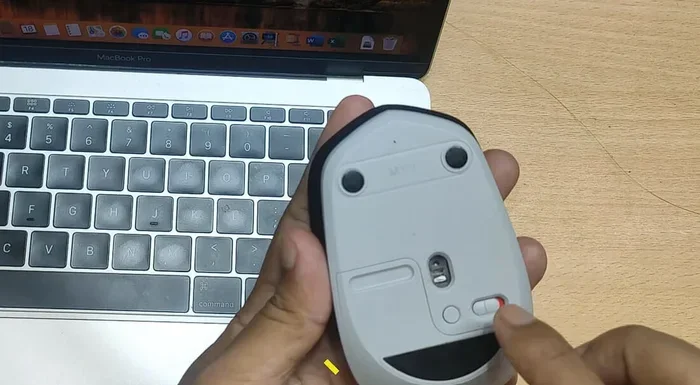
- Turn on your wireless mouse and put it in pairing mode. Most mice have a small button on the bottom or side you need to press.
- Open System Settings on your Mac. On older macOS versions, this is called System Preferences.
- Click on Bluetooth. Make sure Bluetooth is turned on.
- Your mouse should appear in the list of available devices. Click on it and then click Connect.
- Your cursor should start moving right away. If it does not, try turning the mouse off and on again.
That is all there is to it. The wireless mouse setup Mac process is quick and easy. You do not need to download any extra software for most basic mice.
Bluetooth Range and Latency
Bluetooth has a typical range of about 30 feet. This means you can use your mouse from across the room. However, walls and other electronics can weaken the signal. If you notice lag or wireless mouse latency, try moving closer to your Mac.
For most everyday tasks like browsing, writing, and clicking, Bluetooth latency is barely noticeable. But if you are a gamer or a graphic designer who needs pixel-perfect precision, you might notice a slight delay. In those cases, a USB receiver mouse might be a better choice because it offers a more direct and faster connection.
Popular Wireless Mice That Work Great With Mac
Not all wireless mice are the same. Some are designed specifically for Apple users, while others work well but lack Mac-specific features. Here are some of the most popular options.
Apple Magic Mouse
The Apple Magic Mouse is the most obvious choice for Mac users. It has a sleek design, supports multi-touch gestures, and connects through Bluetooth. It feels premium and works seamlessly with macOS.
However, the Magic Mouse has some downsides. It uses a flat design that can be uncomfortable for long work sessions. It also runs on a built-in battery that is not user-replaceable. And it does not have a scroll wheel in the traditional sense, which some users find awkward.
Logitech MX Master Series
The Logitech wireless mouse Mac community loves the MX Master series. These mice are built for productivity. They have ergonomic shapes, customizable buttons, and excellent battery life. The MX Master 3S, for example, works beautifully with macOS through Logitech Options software.
These mice support both Bluetooth and USB receiver connections. You can pair up to three devices and switch between them easily. This makes them perfect for users who work with multiple computers.
Logitech Pebble and M330
If you want something simpler and more affordable, the Logitech Pebble or M330 are great choices. They are compact, quiet, and work well with Mac computers. They connect via USB receiver or Bluetooth, depending on the model.
The M330 Silent Plus is especially popular because it has a near-silent click feature. This is great if you work in a quiet office or share space with others.
Budget-Friendly Options
You do not need to spend a lot of money to get a good wireless mouse for your Mac. Many budget options under $30 work well. Brands like Kensington, Anker, and TP-Link make affordable mice that support Bluetooth and work with macOS.
Just keep in mind that budget mice may lack advanced features like adjustable DPI or customizable buttons. But for basic tasks like web browsing and document editing, they get the job done just fine.
Step by Step Setup for Your Wireless Mouse on Mac
Setting up a wireless mouse on a Mac is usually a breeze. But sometimes things do not go as planned. Here is a detailed walkthrough to make sure everything works smoothly.
For Bluetooth Mice
Start by checking your Mac Bluetooth settings. Go to System Settings, then Bluetooth. Make sure Bluetooth is turned on. Next, put your mouse in pairing mode. This usually involves holding down a small button on the bottom of the mouse until a light starts blinking.
Your Mac should detect the mouse automatically. Click on the mouse name in the Bluetooth settings list and then click Connect. If the mouse does not appear, try turning it off and on again, or reset the Bluetooth connection by holding down the Shift and Option keys and clicking the Bluetooth icon in the menu bar.
For USB Receiver Mice
Plug the USB receiver into an available port on your Mac. If your Mac only has USB-C ports and the receiver is USB-A, you will need a USB-C to USB-A adapter. Once plugged in, the mouse should be recognized immediately.
Some USB receiver mice come with software that you should install. Check the manufacturer website for a macOS version of the driver. Install it before or after connecting the receiver, depending on the brand.
Quick Tips for a Smooth Setup
- Make sure your Mac is running the latest version of macOS. Updates often fix Bluetooth issues.
- Keep your mouse charged. A low battery can cause connection problems.
- If the mouse works but some buttons do not, you may need third-party software like USB Overdrive.
- Restart your Mac if you experience connection issues. A fresh start often fixes Bluetooth problems.
- Remove other Bluetooth devices temporarily if you are having trouble pairing. Too many connected devices can interfere.
Common Problems When Using a Wireless Mouse With a Mac
Even with the best wireless mouse for Mac, you might run into some issues. Here are the most common problems and how to fix them.
Mouse Not Showing Up in Bluetooth Settings
This is the most common issue. First, make sure your mouse is in pairing mode. Second, check that Bluetooth is turned on. Third, try resetting your Mac Bluetooth module. You can do this by holding Shift and Option, clicking the Bluetooth icon in the menu bar, and selecting Reset the Bluetooth module.
If none of that works, try deleting old Bluetooth pairings from your Mac. Sometimes a stale connection causes new devices to fail.
Cursor Jumping or Lagging
A jumping cursor can be very frustrating. This often happens when the mouse battery is low. Replace or recharge the batteries and see if the problem goes away.
Interference from other wireless devices can also cause lag. Keep your mouse close to your Mac and away from Wi-Fi routers, microwaves, and other Bluetooth devices.
Buttons Not Working as Expected
Some wireless mice have extra buttons that do not work on macOS by default. This is because macOS does not recognize all mouse button functions. In these cases, you need third-party software. USB Overdrive and Steermouse are two popular options that let you map every button on your mouse to specific Mac functions.
Mouse Disconnects Frequently
If your mouse keeps disconnecting, the battery is likely the culprit. Check the charge level and recharge if needed. Also, make sure your Mac is not going to sleep too quickly. You can adjust sleep settings in System Settings under Energy or Lock Screen.
Which Wireless Mouse Is the Best Choice for Your Mac
Choosing the right wireless mouse depends on how you use your Mac. Different users have different needs. Here is a quick comparison of the top options.
| Mouse | Connection | Best For | Price Range |
|---|---|---|---|
| Apple Magic Mouse | Bluetooth | Apple ecosystem users | $99 |
| Logitech MX Master 3S | Bluetooth + USB | Productivity and multitasking | $99 |
| Logitech Pebble | USB Receiver | Travel and budget users | $20 |
| Logitech M330 Silent | USB Receiver | Quiet office use | $30 |
| Anker Vertical Mouse | USB Receiver | Ergonomic comfort | $25 |
The Apple Magic Mouse is the best choice if you want seamless integration with the Apple ecosystem. It looks great and works flawlessly with macOS gestures. But if you need a more comfortable shape for long work sessions, the Logitech MX Master 3S is hard to beat.
For budget-conscious users, the Logitech Pebble or M330 offer solid performance at a low price. And if you have wrist pain or carpal tunnel concerns, a vertical ergonomic wireless mouse can make a big difference in comfort.
Consider Your Use Case
Think about what you do with your Mac most of the time. If you are a casual user who browses the web and writes documents, a simple Bluetooth mouse will work fine. If you are a creative professional who uses design software, you need precise tracking and customizable buttons. If you are a gamer, look for a mouse with low wireless mouse latency and adjustable DPI settings.
Also consider battery life. Some mice last for months on a single charge, while others need frequent recharging. A rechargeable battery mouse with a long battery life saves you from constantly swapping out batteries or hunting for a charger.
Finally, think about portability. If you travel often, a compact mouse like the Logitech Pebble is easy to throw in your bag. If you mostly work at a desk, a larger ergonomic mouse might be more comfortable.
Final Thoughts
Can You Use Any Wireless Mouse With A Mac? Yes, you can. Most wireless mice work with Mac computers, whether they connect through Bluetooth or a USB receiver. The key is to check compatibility before you buy. Look for mice that support macOS, check if drivers are available, and consider your specific needs like ergonomics, battery life, and multi-device support.
The right wireless mouse can make your Mac experience so much better. It makes your workflow smoother, your setup cleaner, and your daily tasks more enjoyable. Take your time, do a little research, and you will find the perfect Mac compatible mouse for your setup.
Now that you know what to look for, you are ready to make a smart choice. Whether you go with the Apple Magic Mouse, a Logitech favorite, or a budget-friendly option, your Mac will work beautifully with the right wireless mouse. Happy clicking!