Can You Really Use Any Bluetooth Keyboard With Android
Short answer: yes, you can use most Bluetooth keyboards with Android, but not every keyboard works perfectly. This guide covers Bluetooth keyboard compatibility, pairing steps, common issues, and tips to get the best typing experience on your Android device. You will learn what to look for, how to fix problems, and how to type faster on your phone or tablet.
So you bought a Bluetooth keyboard for your Android device. Maybe it was on sale, or maybe you found one lying around the house. Either way, the big question is simple: can you use any Bluetooth keyboard with Android? The short answer is yes. But the full answer is a little more nuanced.
Not every wireless keyboard plays nice with every phone or tablet. Some keyboards connect right away. Others need a bit of tweaking. And a few just refuse to work no matter what you try. This guide walks you through everything you need to know about using a Bluetooth keyboard with Android. We will cover pairing, compatibility, troubleshooting, and tips to make your typing experience better.
Whether you use an Android phone, an Android tablet, or both, this article has you covered. We will look at real-world examples and give you practical advice you can use right away. Let us get started.
Key Takeaways
- Most Bluetooth keyboards work with Android: Android supports a wide range of wireless keyboards out of the box.
- Pairing is simple: You can connect a keyboard in just a few steps through your Android settings.
- Not all keyboards are fully compatible: Some keys may not work, and layout differences can cause issues.
- Keyboard shortcuts boost productivity: Using shortcuts on Android saves time and makes typing easier.
- Battery life matters: A good Bluetooth keyboard should last days or weeks on a single charge.
- Troubleshooting is straightforward: Most connection problems have simple fixes you can do at home.
📑 Table of Contents
- Can You Really Use Any Bluetooth Keyboard With Android?
- How Bluetooth Keyboard Pairing Works on Android
- Best Bluetooth Keyboards for Android Devices
- Keyboard Compatibility: What Works and What Does Not
- Boost Your Android Productivity with an External Keyboard
- Troubleshooting Bluetooth Keyboard Issues
- Final Thoughts
Can You Really Use Any Bluetooth Keyboard With Android?
The quick answer is yes, you can use most Bluetooth keyboards with Android. Android has built-in support for Bluetooth connectivity. This means your device can detect and connect to many wireless keyboards without needing extra apps or software.
However, saying “any” Bluetooth keyboard works is a bit of an oversimplification. Some keyboards use special keys or layouts that Android may not fully support. For example, a Mac keyboard has a Command key where Android expects a Ctrl key. A Windows keyboard might have a Windows key that does nothing on Android. These small differences can confuse users.
So what does this mean for you? It means you should check a few things before buying or using a Bluetooth keyboard with Android. Look at the keyboard layout. Check the Bluetooth version. And make sure the keyboard is compatible with mobile devices, not just computers.
What Makes a Keyboard Compatible?
For a wireless keyboard to work well with Android, a few things need to line up. First, the keyboard must support Bluetooth HID (Human Interface Device) profile. This is the standard protocol that lets keyboards talk to phones and tablets. Most modern keyboards use this profile, so you are usually safe.
Second, the Android version on your device matters. Android 5.0 and newer have excellent Bluetooth keyboard support. If your device runs an older version, you might run into problems. Third, the keyboard layout should match your language and region. A US layout keyboard might not type correctly if your Android is set to a different language.
How Bluetooth Keyboard Pairing Works on Android
Pairing a Bluetooth keyboard with Android is a straightforward process. Android makes it easy to connect wireless devices. You do not need to download special software or use a cable. Here is how it works step by step.
Step-by-Step Pairing Process
Follow these simple steps to connect your external keyboard to your Android device:
- Turn on your Bluetooth keyboard and make sure it is in pairing mode. Most keyboards have a dedicated Bluetooth button or a switch you need to flip.
- On your Android device, go to Settings and then tap Connected Devices or Bluetooth, depending on your Android version.
- Toggle Bluetooth on if it is not already enabled.
- Your Android device will scan for nearby devices. Look for your keyboard name in the list of available devices.
- Tap the keyboard name to start pairing.
- If a PIN appears on your screen, type it into the keyboard and press Enter. This confirms the connection.
- Once paired, your keyboard is ready to use. You should see a Bluetooth icon in your status bar.
That is it. The whole process takes less than a minute. Bluetooth keyboard pairing on Android is designed to be fast and easy.
Common Bluetooth Connectivity Problems
Sometimes things do not go smoothly. Here are a few issues you might run into and how to fix them:
- Keyboard does not appear in the device list: Make sure the keyboard is in pairing mode. Try turning Bluetooth off and on again on your Android device.
- Paired but no input: The keyboard may be connected but not set as the input method. Go to Settings > System > Languages & Input > On-screen Keyboard and select your Bluetooth keyboard.
- Intermittent disconnections: This often happens when the keyboard battery is low. Charge the keyboard and try again. Distance from the Android device can also cause drops.
- Wrong keys type: This usually means a layout mismatch. Check your keyboard layout settings in Android and adjust accordingly.
Best Bluetooth Keyboards for Android Devices
Not all wireless keyboards are created equal. Some are great for typing on Android. Others are designed for computers and fall short on mobile devices. Here is what to look for when choosing a Bluetooth keyboard for Android.
Full-Size vs Compact Keyboards
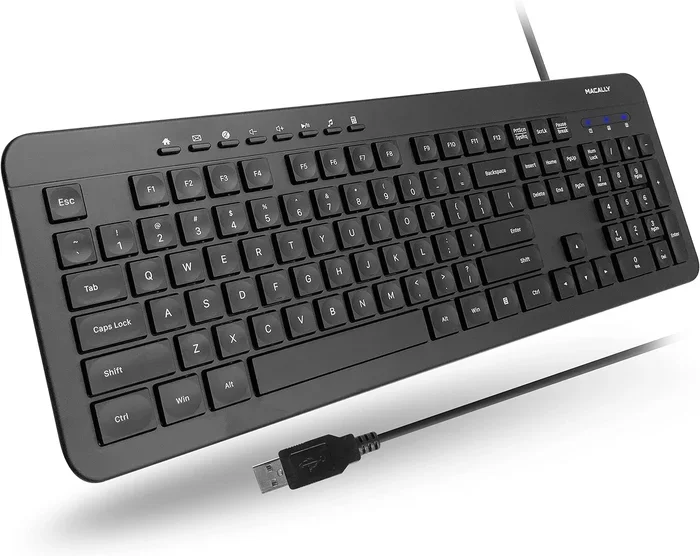
Full-size keyboards feel familiar and comfortable for long typing sessions. They have number pads, function rows, and full-size arrow keys. However, they are bulky and hard to carry around with your Android tablet or phone.
Compact keyboards are smaller and more portable. Many are designed specifically for tablets. They often fold up or come with built-in stands. The trade-off is that some compact keyboards leave out the number pad or use smaller keys, which can slow down fast typists.
If you mainly use your Android device at home or in the office, a full-size keyboard is a great choice. If you travel often or type on the go, a compact Bluetooth keyboard makes more sense.
Key Features to Look For
When shopping for a Bluetooth keyboard, keep these features in mind:
- Bluetooth version: Look for Bluetooth 4.0 or higher. Newer versions offer better range, faster connection, and lower power use.
- Battery life: A good wireless keyboard should last at least a week on a single charge. Some keyboards last a month or more.
- Layout compatibility: Make sure the keyboard has a layout that matches your language and Android settings.
- Build quality: A sturdy keyboard with well-spaced keys makes typing more comfortable.
- Multi-device support: Some keyboards can connect to multiple devices at once. This is handy if you use both a phone and a tablet.
- Weight and portability: If you carry your keyboard around, look for a lightweight design.
Keyboard Compatibility: What Works and What Does Not
Understanding keyboard compatibility with Android helps you avoid frustration. Most standard keyboards work fine, but some have limitations.
Keyboards that work well: Standard USB and Bluetooth keyboards from brands like Logitech, Microsoft, and Apple generally work great with Android. They use the HID profile, which Android supports natively. Most external keyboards in this category connect without any extra setup.
Keyboards that may cause issues: Specialty keyboards with custom keys, backlight controls, or gaming features might not map correctly on Android. Some gaming keyboards need special drivers that Android does not support. Keyboards designed exclusively for macOS or Windows may have keys that do nothing on Android.
Keyboard layouts and input languages also matter. If your Android device is set to English (US) but your keyboard is a UK layout, the keys for symbols like quotes and the @ sign will be in different places. Always match your keyboard layout to your Android language settings for the best experience.
Comparing Keyboard Types
Here is a quick look at how different keyboard types compare for use with Android:
| Keyboard Type | Compatibility | Portability | Typing Comfort |
|---|---|---|---|
| Full-size Bluetooth | Excellent | Low | High |
| Compact Bluetooth | Very Good | High | Medium |
| Foldable Bluetooth | Very Good | Very High | Medium |
| Gaming Keyboard | Limited | Low | High |
| Mac Keyboard | Good (with layout issues) | Medium | High |
| USB Keyboard (with OTG adapter) | Good | Low | High |
As you can see, standard Bluetooth keyboards offer the best balance of compatibility and comfort for most Android users.
Boost Your Android Productivity with an External Keyboard
Using a wireless keyboard with your Android device can seriously boost your productivity. Typing long emails, writing documents, and chatting become much faster and more comfortable. Here is how to get the most out of your setup.
Keyboard Shortcuts for Android
Keyboard shortcuts are a game changer on Android. Once you connect an external keyboard, you can use shortcuts that work across the system. Here are some of the most useful ones:
- Ctrl + C — Copy selected text
- Ctrl + V — Paste copied text
- Ctrl + X — Cut selected text
- Ctrl + Z — Undo the last action
- Ctrl + A — Select all text
- Ctrl + S — Save the current document or page
- Alt + Tab — Switch between open apps
- Home or Search — Open the home screen or Google app
- Ctrl + Space — Toggle between input languages
These shortcuts work on most Android devices with a connected external keyboard. Learning them takes a few days, but they save a lot of time in the long run.
Using a Keyboard with Android Tablets
Android tablets benefit a lot from a Bluetooth keyboard. A tablet with a keyboard turns into a mini laptop. You can write emails, edit documents, browse the web, and take notes with ease.
Many compact Bluetooth keyboards come with built-in stands or magnetic attachments for tablets. These make it easy to set up your keyboard and tablet on a desk or your lap. Some keyboards even fold up into a slim case for easy transport.
When using a keyboard with a tablet, pay attention to screen size and keyboard placement. A large tablet screen gives you more room to type. A smaller tablet might feel cramped if the keyboard takes up half the screen. Try different setups to find what works best for you.
Quick Tips for Better Typing on Android
- Keep your Android device and keyboard within 3 feet of each other for the most stable connection.
- Turn off other Bluetooth devices nearby if you experience interference.
- Use a keyboard with a built-in rechargeable battery to avoid buying disposable batteries.
- Check for firmware updates for your keyboard. Some manufacturers release updates that improve Android compatibility.
- Use a Bluetooth keyboard with a low input lag for a smoother typing experience.
Troubleshooting Bluetooth Keyboard Issues
Even with the best Bluetooth keyboard, you may run into problems from time to time. Most issues are easy to fix. Here is how to handle the most common ones.
Keyboard Not Connecting
If your wireless keyboard will not connect to Android, try these steps:
- Turn off Bluetooth on your Android device and turn it back on.
- Remove the keyboard from the list of paired devices and try pairing again.
- Restart both your Android device and the keyboard.
- Check that the keyboard has enough battery power.
- Move the keyboard closer to your Android device.
- Make sure no other device is connected to the keyboard already.
Keys Not Typing Correctly
If some keys type the wrong characters, check your keyboard layout settings in Android. Go to Settings > System > Languages & Input > Physical Keyboard and select the correct layout. If the problem continues, try unpairing and re-pairing the keyboard.
Input Lag or Delayed Typing
A slight delay between pressing a key and seeing the character on screen is normal for Bluetooth connections. This input lag is usually very small and not noticeable. If the lag is large, it could be caused by interference from other Bluetooth devices or a weak battery. Move closer to your Android device and charge the keyboard if needed.
Keyboard Disconnects Frequently
Frequent disconnections are often a battery issue. Charge your Bluetooth keyboard fully and check if the problem stops. Also, make sure your Android device is not too far away. Walls and other obstacles can weaken the Bluetooth signal. Keeping the devices in the same room helps maintain a steady connection.
Final Thoughts
Can you use any Bluetooth keyboard with Android? The answer is a confident yes, with a few small caveats. Most wireless keyboards connect to Android devices without any hassle. The pairing process is quick and simple. Once connected, you can type emails, write documents, and browse the web with ease.
Not every keyboard is perfect for every Android device. Layout differences, special keys, and Bluetooth version mismatches can cause minor issues. But these problems are easy to spot and fix. With the right Bluetooth keyboard, your Android phone or tablet becomes a much more productive tool.
Take the time to choose a keyboard that fits your needs. Consider size, battery life, layout, and Bluetooth version. Once you find the right external keyboard, you will wonder how you ever typed without one. Give it a try and enjoy the freedom of mobile typing on your Android device.