Can You Use A 2 0 Flash Drive In A 3 0 Port Without Issues
Yes, you can use a 2.0 flash drive in a 3.0 port without any problems. The USB standard is designed to be backward compatible, which means older devices work with newer ports. However, your data transfer speed will be limited to the slower 2.0 rate, so you won’t get the full super speed USB benefits.
You have a USB 2.0 flash drive sitting in a drawer, and you just plugged it into a shiny new USB 3.0 port. The question is simple but important: will it work? The short answer is yes. But the full story is more interesting than you might think. Understanding how these two USB standards interact helps you get the most out of your external storage devices. Whether you are transferring photos, backing up documents, or moving large video files, knowing what to expect saves time and frustration.
A USB flash drive is one of the most convenient tools for file transfer and portable storage. These small devices carry your important data anywhere you go. But not all USB drives are created equal. The difference between USB 2.0 and USB 3.0 is significant, especially when it comes to data transfer speed. Let us break down everything you need to know about using an older drive in a newer port.
Key Takeaways
- Full Compatibility: A 2.0 flash drive works perfectly in a 3.0 port thanks to backward compatibility design.
- Speed Limitation: Your transfer rate will max out at USB 2.0 speeds, typically around 480 Mbps.
- No Damage Risk: Plugging a 2.0 drive into a 3.0 port will not harm your device or the flash drive.
- Plug and Play: Most modern operating systems recognize the drive instantly without extra setup.
- Upgrade When Needed: If you regularly move large files, a USB 3.0 drive will save you significant time.
- File System Matters: Using the right format like NTFS or exFAT ensures smooth performance on any port.
📑 Table of Contents
- What Is A USB 2.0 Flash Drive And A USB 3.0 Port
- Can You Plug A 2.0 Flash Drive Into A 3.0 Port
- Speed Differences Between USB 2.0 And USB 3.0
- Benefits And Limitations Of Using A 2.0 Drive In A 3.0 Port
- Quick Tips For Best Performance
- When To Upgrade From USB 2.0 To USB 3.0
- Common Mistakes To Avoid
- Expert Insights On USB Compatibility
- Conclusion
What Is A USB 2.0 Flash Drive And A USB 3.0 Port
Before we answer the main question, it helps to understand what each standard actually is. Both USB 2.0 and USB 3.0 serve the same basic purpose. They connect devices to computers for data transfer and power. But they do it very differently under the hood.
Understanding USB 2.0 Technology
USB 2.0 came out in the year 2000. For many years, it was the standard for external storage and portable devices. It offers a maximum transfer rate of 480 megabits per second. That sounds fast on paper. But in real life, you rarely hit that number. Most users see actual speeds between 20 and 40 megabytes per second. For small files like documents and photos, this is perfectly fine. For large files like movies or backups, it can feel painfully slow.
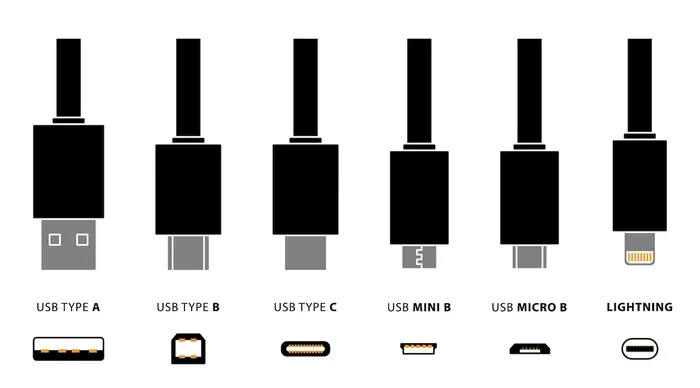
The USB 2.0 connector is typically black or white inside the port. If you look at your old flash drive, you will likely see a standard Type-A plug. This is the flat, rectangular shape that fits into most computers. USB 2.0 devices have been around for over two decades. They are reliable, affordable, and still widely used today.
Understanding USB 3.0 Technology
USB 3.0 arrived in 2008 and brought a huge leap in performance. It is often called Super Speed USB for a good reason. The maximum theoretical speed jumps to 5 gigabits per second. That is more than ten times faster than USB 2.0. In practice, you can expect real-world speeds of 100 to 150 megabytes per second or even higher with modern drives.
USB 3.0 ports are usually blue inside, which makes them easy to identify. The bandwidth is much greater, allowing faster file transfer and smoother performance with large memory sticks. Many newer computers, laptops, and external hard drives use USB 3.0 or even USB 3.1 and 3.2 standards. The technology has evolved, but the basic connector shape remains compatible with older devices.
Physical Differences Between The Two
The physical shape of a USB 2.0 plug and a USB 3.0 plug is nearly identical. Both use the same Type-A design for standard ports. This is the key reason why device compatibility works so well between the two standards. The internal pins are different, but the outer shape has not changed. You can physically plug a 2.0 drive into a 3.0 port without any adapters or extra effort.
Some USB 3.0 cables have an extra row of pins inside. This extra wiring enables the faster speeds. But a 2.0 cable and plug still make full contact with the 3.0 port. The connection is solid and secure. There is no risk of damaging your hardware by mixing the two standards.
Can You Plug A 2.0 Flash Drive Into A 3.0 Port
The answer is a definitive yes. You can absolutely use a 2.0 flash drive in a 3.0 port. The USB standard was specifically designed to be backward compatible. This means newer ports are built to recognize and work with older devices. Your computer will detect the flash drive as soon as you plug it in.
Backward Compatibility Explained
Backward compatibility is a core principle of USB design. It ensures that investments in older devices do not become useless when new technology arrives. When you insert a USB 2.0 drive into a USB 3.0 port, the port automatically detects the device and adjusts its communication protocol. The computer and the drive negotiate the best connection speed they both support.
This negotiation happens in milliseconds. You will not notice any delay or error. The operating system on your computer, whether Windows, macOS, or Linux, handles the process seamlessly. The drive appears in your file manager just like any other storage device. You can open files, copy files, delete files, and do everything you normally would.
How The Connection Works
When the drive is plugged in, the computer sends a small electrical signal to identify the device. It reads the drive’s capabilities and sets the communication speed accordingly. Since the 2.0 drive can only handle 2.0 speeds, the port drops down to match. This is called speed negotiation, and it happens automatically every time.
The power delivery also works without issues. USB 3.0 ports supply more power than USB 2.0 ports. A 2.0 flash drive only needs the standard 5 volts, which the 3.0 port provides easily. You do not need any external power source or Y-cable. The drive will be powered entirely through the port. This makes the experience simple and hassle-free.
Plug And Play Functionality
One of the best things about USB technology is plug and play support. You do not need to install drivers or restart your computer. Just plug the drive in and start using it. Modern operating systems have built-in drivers for virtually every USB flash drive ever made.
If your computer does not recognize the drive right away, try plugging it into a different port. Sometimes a specific port might be disabled or malfunctioning. Restarting the computer also helps in rare cases where the system fails to detect the device. But in the vast majority of situations, everything works instantly and without any setup.
Speed Differences Between USB 2.0 And USB 3.0
This is where the real story gets interesting. Yes, the drive works in the 3.0 port. But the speed will not be 3.0 speed. Understanding the speed difference helps you set realistic expectations and decide whether an upgrade makes sense.
Theoretical Transfer Rates
USB 2.0 has a theoretical maximum of 480 megabits per second. USB 3.0 has a theoretical maximum of 5 gigabits per second. That is a massive gap. In practical terms, USB 2.0 delivers about 60 megabytes per second at best. USB 3.0 delivers 625 megabytes per second or more.
When you use a 2.0 drive in a 3.0 port, you are stuck at the 2.0 ceiling. The port can go faster, but the drive cannot keep up. Think of it like putting a small engine in a sports car. The car is capable of going fast, but the engine limits your top speed. The data transfer speed will always match the slower device in the connection.
Real-World Performance
In real-world testing, a USB 2.0 flash drive typically achieves 20 to 40 megabytes per second for sequential reads and writes. A USB 3.0 flash drive in the same 3.0 port can achieve 100 to 200 megabytes per second. That is a fivefold or greater difference.
For small files like word documents and spreadsheets, you probably will not notice the difference. But for large files like HD videos, game installations, or full backup archives, the speed gap becomes very obvious. A 5-gigabyte video file might take 3 minutes on a 3.0 drive but 15 minutes or more on a 2.0 drive.
Why Your 2.0 Drive Won’t Go Faster
The transfer rate is limited by the slowest device in the chain. This is called the bottleneck effect. Your 3.0 port is capable of much faster speeds, but the 2.0 flash drive simply does not have the internal hardware to support them. The controller chip, the NAND flash memory, and the firmware are all designed for 2.0 performance.
No software update or setting change will make a 2.0 drive run at 3.0 speeds. The limitation is physical and electronic. The drive’s components were manufactured to 2.0 specifications. Until you replace the drive with a 3.0 model, you will be stuck at 2.0 speeds regardless of which port you use.
Benefits And Limitations Of Using A 2.0 Drive In A 3.0 Port
Using an older flash drive in a newer port has both advantages and drawbacks. Understanding these helps you make smart decisions about your external storage strategy.
What Works Well
There are several situations where a 2.0 drive in a 3.0 port works just fine. Here are the main benefits:
- Full Functionality: You can read, write, copy, and delete files without any problems.
- No Extra Cost: You get to keep using a drive you already own.
- No Adapter Needed: The physical connection works perfectly without any accessories.
- Reliable Performance: For everyday tasks like document storage and photo backup, the speed is perfectly adequate.
- Wide Compatibility: It works on virtually any computer, old or new.
What Does Not Improve
On the other hand, there are clear limitations to be aware of:
- No Speed Boost: The 3.0 port cannot make the 2.0 drive faster.
- Large File Frustration: Moving big files takes much longer than it should.
- No Future-Proofing: USB 2.0 technology is aging and may not be supported on future devices.
- Limited Bandwidth: The drive cannot take advantage of the extra bandwidth the 3.0 port offers.
Comparison Table
| Feature | USB 2.0 Drive in 3.0 Port | USB 3.0 Drive in 3.0 Port |
|---|---|---|
| Max Speed | 480 Mbps | 5 Gbps |
| Real-World Speed | 20-40 MB/s | 100-200 MB/s |
| Compatibility | Full | Full |
| Power Draw | Standard | Standard |
| Plug and Play | Yes | Yes |
| Large File Transfer | Slow | Fast |
| Cost | Already owned | Requires purchase |
As you can see from the table, the main difference is speed. Everything else remains essentially the same. The drive is recognized, powered, and functions correctly in both scenarios.
Quick Tips For Best Performance
Even though your 2.0 drive will not reach 3.0 speeds, you can still optimize its performance. These simple tips help you get the most out of your flash drive and avoid common problems.
Format Your Drive Correctly
The file system on your flash drive affects how well it works. If you use the drive on Windows and Mac computers, format it as exFAT or FAT32. These formats are universally supported. NTFS works great on Windows but may require extra software on Mac systems.
Before formatting, make sure you back up all your files. Formatting erases everything on the drive. Once formatted, the drive will communicate more efficiently with your computer and reduce errors during file transfer.
Use The Right File System
For drives larger than 32 gigabytes, exFAT is the best choice. It handles large files and works across different operating systems. FAT32 has a 4-gigabyte file size limit, which can be annoying for video files. NTFS is ideal for Windows-only use but has limited Mac support without third-party tools.
Choosing the correct file system is a small step that makes a big difference in reliability and performance. It prevents errors and keeps your portable storage running smoothly on any computer you plug it into.
Avoid Common Bottlenecks
Sometimes the slow speed is not the drive’s fault. Other components in your setup can create bottlenecks. Here are a few things to check:
- Use a direct port: Avoid USB hubs when possible. Hubs add extra connection points that can slow things down.
- Check your cable: A damaged or low-quality cable can limit speeds even on a 3.0 connection.
- Close unnecessary programs: Other software using the drive can slow down your transfer.
- Keep the drive cool: Overheating can cause throttling and reduce performance.
These small adjustments can make a noticeable difference, even with a 2.0 drive. They ensure you are getting everything the drive is capable of delivering.
When To Upgrade From USB 2.0 To USB 3.0
Using a 2.0 drive in a 3.0 port works fine for many situations. But there comes a point where upgrading makes sense. Knowing the signs helps you decide when it is time to invest in a new USB flash drive.
Signs Your Current Drive Is Holding You Back
Ask yourself a few simple questions. Do you regularly transfer files larger than 2 gigabytes? Does it take more than a few minutes to copy a folder of photos or videos? Do you get impatient waiting for backups to finish? If you answered yes to any of these, your 2.0 drive is likely slowing you down.
Another sign is frequent use. If you use the same flash drive every day for work or school, the time savings from a faster drive add up quickly. A few minutes saved per transfer becomes hours saved over weeks and months. The performance boost from USB 3.0 is real and noticeable in daily use.
Cost Versus Benefit
USB 3.0 flash drives are very affordable today. A 64-gigabyte USB 3.0 drive costs around $10 to $15. The price difference compared to a 2.0 drive is minimal. Given the dramatic speed improvement, the upgrade pays for itself quickly in saved time and reduced frustration.
Consider also the long-term value. USB 3.0 has been the standard for over a decade and shows no signs of being phased out. Investing in a 3.0 drive now ensures your external storage remains useful for years to come. You will be ready for future computers and devices that may drop USB 2.0 support entirely.
Future-Proofing Your Setup
Technology moves fast. Many newer laptops and tablets are dropping traditional USB ports in favor of USB-C. If you buy a 3.0 drive now, you are making a smart investment. Even if your current computer has both 2.0 and 3.0 ports, having a 3.0 drive means you are always ready for the fastest connection available.
You can also buy USB 3.0 drives with USB-C connectors for maximum future compatibility. These drives work with both USB 3.0 and USB-C ports. They give you flexibility and ensure your memory stick stays useful as technology evolves.
Common Mistakes To Avoid
Even though using a 2.0 drive in a 3.0 port is straightforward, a few common mistakes can cause problems. Avoiding these keeps your data safe and your workflow smooth.
- Never remove the drive without ejecting: Always use the safely remove hardware feature. Pulling the drive out while data is being written can corrupt files.
- Do not ignore slow speeds: If your 2.0 drive feels unusually slow, it might be failing. Run a health check on the drive regularly.
- Avoid using the drive for system backups only: Keep at least one backup on a separate device or cloud storage. A single flash drive is not a complete backup solution.
- Do not assume all 3.0 ports are equal: Some ports on certain computers may be slower than others. Test different ports if you notice inconsistent speeds.
Expert Insights On USB Compatibility
According to hardware engineers, the USB standard’s backward compatibility is one of its strongest features. It has allowed billions of devices to remain useful across multiple generations of technology. The physical and electronic design of USB connectors ensures that older devices communicate safely with newer ports. The key limitation is always the slowest component in the connection chain.
Tech experts also recommend keeping a mix of USB 2.0 and USB 3.0 drives on hand. A 2.0 drive works great for small, everyday tasks. A 3.0 drive is essential for large files and frequent transfers. Having both gives you flexibility and covers all your portable storage needs. It is a simple strategy that saves time and money.
One final piece of advice from industry professionals: always check your drive’s specifications. Some drives marketed as 3.0 may have older controller chips that limit real-world performance. Reading reviews and benchmarks helps you choose a drive that actually delivers the speeds it promises. This is especially important if you are buying a new drive specifically for a 3.0 port setup.
Conclusion
Using a 2.0 flash drive in a 3.0 port is completely safe and fully supported. The backward compatibility built into USB standards means your older devices continue to work with newer technology. You will not damage your drive or your computer. The connection is instant, and the drive functions normally for all your everyday tasks.
The one thing you should know is that your data transfer speed will be limited to USB 2.0 rates. You will not get the super speed USB benefits of the 3.0 port. For small files and occasional use, this is perfectly fine. For large files and frequent transfers, upgrading to a USB 3.0 drive is a smart move that saves significant time.
Whether you keep using your 2.0 drive or invest in a new 3.0 model, the most important thing is that your external storage meets your needs. Now you have all the information to make the best decision for your workflow. Plug in your drive, transfer your files, and keep your data safe and accessible wherever you go.
Frequently Asked Questions
Will a 2.0 flash drive damage a 3.0 port?
No, it will not cause any damage. USB standards are designed with safety in mind. The port and the drive negotiate the connection automatically, and the power levels are within safe limits for both devices. Your 3.0 port and 2.0 drive will work together without any risk to either component.
Can I use a USB 2.0 flash drive on a USB 3.1 or 3.2 port?
Yes, absolutely. USB 3.1 and 3.2 ports are also backward compatible with USB 2.0 devices. The same rules apply. The drive will work, but the speed will be limited to USB 2.0 rates. The newer port standards use the same Type-A connector shape, so physical compatibility remains seamless across all USB 3.x versions.
Why is my 2.0 flash drive slow even in a 3.0 port?
The speed is limited by the flash drive itself, not the port. A USB 2.0 drive has a controller and memory chips designed for 2.0 speeds. No matter how fast the port is, the drive cannot go beyond its hardware limits. This is the bottleneck effect. To get faster speeds, you need a USB 3.0 flash drive with hardware that supports the higher transfer rate.
Do I need to install drivers for a 2.0 flash drive on a 3.0 port?
No, you do not need any special drivers. Modern operating systems like Windows 10, Windows 11, macOS, and Linux include built-in drivers for USB 2.0 devices. The drive should appear in your file explorer within seconds of plugging it in. If it does not show up, try a different port or restart your computer.
Can I use a USB 2.0 flash drive on a smart TV or game console?
Yes, most smart TVs and game consoles support USB 2.0 flash drives. Check your device manual for supported file systems. FAT32 and exFAT are the most widely compatible formats. Keep in mind that the device may have its own speed limitations, so even a 3.0 drive might not run at full speed on non-computer devices.
Is it worth buying a USB 3.0 drive if I mostly use 2.0 ports?
It depends on your needs. If you mostly use older computers with only USB 2.0 ports, a 3.0 drive will still work in those ports at 2.0 speeds. But if you also use 3.0 ports or plan to upgrade your computer, a 3.0 drive gives you flexibility and future-proofing. The small price difference is worth the added speed when you have access to a 3.0 port.