Can You Use 2 Display Ports for Dual Monitor Setup
Yes, you can use 2 display ports for a dual monitor setup in most cases. Whether you have a dedicated graphics card or integrated graphics, running two monitors is simpler than you think. This guide walks you through every step, from checking your ports to setting up both screens. You will learn about DisplayPort, HDMI, USB-C, and Thunderbolt options. By the end, you will know exactly how to get your dual monitor arrangement working perfectly.
Have you ever looked at your computer and thought, “I need more screen space”? You are not alone. Millions of workers, gamers, and creatives want to run two monitors at the same time. The good news is that you can use 2 display ports for a dual monitor setup in most situations. But how exactly does it work? And what do you need to know before you start? This guide answers all those questions and more.
Setting up two monitors might feel intimidating at first. There are cables, ports, settings, and compatibility questions to sort through. But here is the truth — it is much easier than it sounds. With the right information, you can have a dual monitor setup running in under 30 minutes. Let us break it all down for you.
Key Takeaways
- Dual monitor setups work with most modern computers: Almost any desktop or laptop with 2 or more video outputs can run two displays.
- DisplayPort and HDMI are the most common options: Both deliver great quality, but DisplayPort offers better bandwidth for high refresh rates.
- Check your graphics card first: Your GPU determines how many monitors you can run and at what resolution.
- Adapters and docks expand your options: USB-C and Thunderbolt docks let you add extra display outputs easily.
- Avoid common setup mistakes: Wrong cables, outdated drivers, and incorrect display settings trip up many users.
- Daisy chaining saves cable clutter: DisplayPort MST lets you connect multiple monitors through a single port.
- Resolution and refresh rate matter: Running two 4K monitors requires a powerful GPU and the right ports.
📑 Table of Contents
- What Are Display Ports and Why Do They Matter?
- Can You Use 2 Display Ports for a Dual Monitor Setup?
- How to Set Up Your Dual Monitor Configuration
- Common Mistakes When Using 2 Display Ports
- Daisy Chaining: Connect Multiple Monitors Through One Port
- What GPU Do You Need for a Dual Monitor Setup?
- Expert Insights on Multi-Monitor Productivity
- Key Takeaways
- Conclusion
What Are Display Ports and Why Do They Matter?
A display port is simply a connection on your computer that sends video to a monitor. Think of it as a highway for visual data. The more display ports your computer has, the more monitors you can connect directly. Most modern desktops come with multiple ports built in. Laptops are a bit different, but even they often have at least two options.
Not all display ports are the same, though. You will find several types on computers today. Each one has its own strengths. Let us look at the most common ones.
DisplayPort (DP)
DisplayPort is the go-to choice for many multi-monitor users. It was designed specifically for video output and handles high resolutions with ease. You will find DisplayPort versions 1.2 through 2.1 on modern hardware. The newer versions offer much more bandwidth. This means you can run two 4K monitors at 60Hz without any problems. DisplayPort also supports daisy chaining, which we will cover later.
HDMI
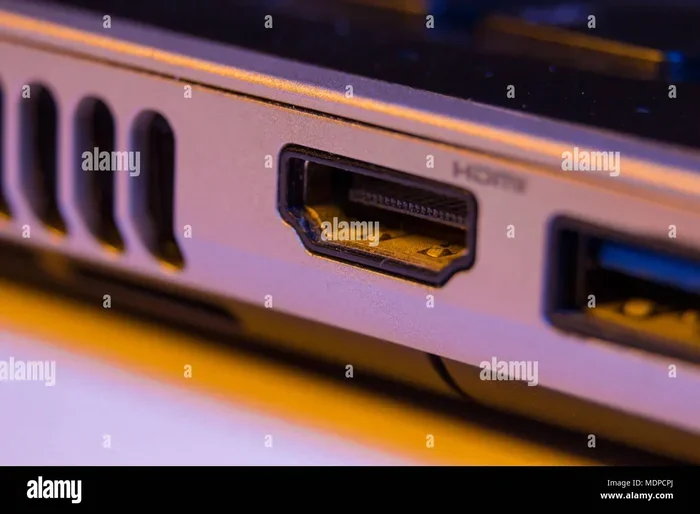
HDMI is everywhere. You will find it on TVs, monitors, laptops, and desktops. It is a reliable and widely supported option. HDMI 2.0 can handle 4K at 60Hz on a single cable. HDMI 2.1 goes even further with support for 4K at 120Hz or 8K at 60Hz. For a basic dual monitor setup, HDMI works perfectly fine. Just make sure your cables match the resolution you need.
USB-C and Thunderbolt
Many newer laptops and monitors use USB-C or Thunderbolt ports. These are versatile because they carry video, data, and power through one cable. A Thunderbolt 4 port can drive two 4K monitors on its own. USB-C with DisplayPort Alt Mode can run one monitor. If your computer only has USB-C, you can use a dock or adapter to add more display outputs.
Can You Use 2 Display Ports for a Dual Monitor Setup?
The short answer is yes. You can use 2 display ports for a dual monitor setup on almost any modern computer. But the details matter. Let us walk through the different scenarios so you know exactly what to expect.
Using 2 Display Ports on a Desktop PC
Desktop computers are the easiest to set up for dual monitors. Most mid-range and high-end desktops have at least two video outputs. These might be a mix of DisplayPort, HDMI, and DVI. You can plug one monitor into each port and you are good to go. Your graphics card handles both displays at the same time.
Even budget desktops often come with two ports. If your motherboard has integrated graphics, you might find one HDMI and one VGA or DisplayPort. For best results, always use the outputs on your dedicated GPU rather than the motherboard ports. Using both can cause confusion and performance issues.
Using 2 Display Ports on a Laptop
Laptops can be a bit trickier. Many modern laptops have only one or two video outputs. Some have one HDMI and one USB-C port. Others have two USB-C ports that support video. In most cases, you can still run two monitors. You just might need an adapter or a docking station.
For example, if your laptop has one HDMI port and one USB-C port, you can connect one monitor via HDMI and another through a USB-C to DisplayPort adapter. This gives you two screens without any problem. Just make sure your laptop’s GPU can handle the extra load.
Using a USB-C or Thunderbolt Dock
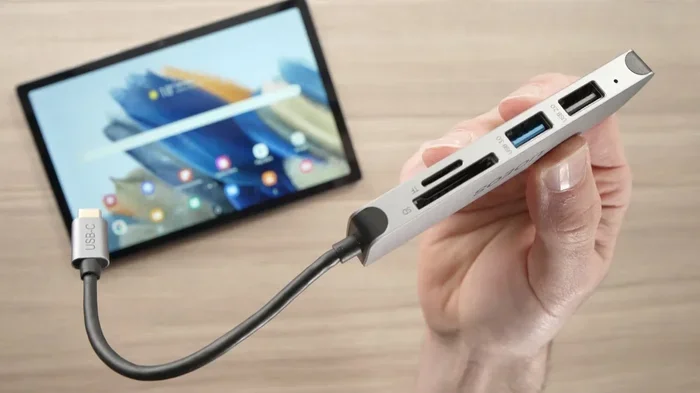
If your computer does not have enough native ports, a dock is your best friend. A docking station plugs into one USB-C or Thunderbolt port and gives you multiple video outputs. You can connect two, three, or even four monitors through a single cable. This is especially popular with laptop users who want a clean desk setup.
When buying a dock, look for one that supports the resolution and refresh rate you need. Not all docks are created equal. A cheap dock might only support 1080p, while a quality one handles 4K. Check the specs carefully before you buy.
How to Set Up Your Dual Monitor Configuration
Once you have your cables and ports sorted, the actual setup is straightforward. Here is a step-by-step guide to get both monitors running.
Step 1: Connect Both Monitors
Plug each monitor into a display port on your computer or dock. Use the best cable you have for each connection. If one monitor supports DisplayPort and the other uses HDMI, that is perfectly fine. Your computer can handle mixed inputs.
Step 2: Open Display Settings
On Windows, right-click your desktop and select Display Settings. On macOS, go to System Settings and click Displays. You should see both monitors listed. If you do not, check your cables and try a different port.
Step 3: Arrange Your Displays
Drag the monitor icons in your settings to match their physical placement on your desk. If your second monitor is to the right of your main one, move its icon to the right. This ensures your mouse moves naturally between screens.
Step 4: Set the Main Display
Choose which monitor will be your primary display. This is where your taskbar and notifications appear by default. Click the monitor icon and check the box that says “Make this my main display.”
Step 5: Adjust Resolution and Scaling
Make sure both monitors are set to their native resolution. If one monitor is larger or smaller, you may need to adjust the scaling so text and icons look consistent across both screens.
Quick Tips for a Smooth Setup
- Use the same resolution on both monitors for a consistent viewing experience.
- Match cable quality to your needs. A cheap cable can limit your resolution and refresh rate.
- Update your graphics drivers before setting up dual monitors. Outdated drivers cause many issues.
- Use monitor arms or stands to position both screens at eye level for better ergonomics.
- Test each monitor individually before arranging them. This helps you isolate any problems.
Common Mistakes When Using 2 Display Ports
Even with a simple setup, people make mistakes that cause frustration. Here are the most common ones and how to avoid them.
Using Motherboard Ports Instead of GPU Ports
This is the number one mistake. If you have a dedicated graphics card, always plug your monitors into the GPU’s ports, not the motherboard’s. When you use the motherboard ports, your integrated graphics handle the display output instead of your powerful GPU. This can lead to poor performance, especially in games or video editing.
Using the Wrong Cable Version
Not all cables are equal. An older HDMI 1.4 cable might not support 4K at 60Hz. A DisplayPort 1.2 cable works fine for 1080p or 1440p but may struggle with dual 4K. Always check what version your cable supports and match it to your monitor’s capabilities.
Ignoring Bandwidth Limits
Your GPU has a limited amount of bandwidth to share between displays. Running two high-resolution monitors at high refresh rates uses a lot of that bandwidth. If your GPU is too weak, you might experience stuttering or reduced refresh rates. Check your graphics card specifications to make sure it can handle your setup.
Forgetting to Update Drivers
Outdated or corrupt drivers are a hidden cause of display problems. Before and after setting up dual monitors, update your GPU drivers. Both NVIDIA and AMD release regular driver updates that improve multi-display support.
Mismatched Monitors
While you can mix different monitors, mismatched models can cause issues. Different sizes, resolutions, and refresh rates mean your eyes constantly adjust. If possible, try to use two identical monitors for the best experience. If you must mix, match the resolution and refresh rate as closely as you can.
Daisy Chaining: Connect Multiple Monitors Through One Port
Did you know you can connect more than two monitors using just one display port? This is called daisy chaining and it works through a technology called MST, or Multi-Stream Transport. Not all monitors support it, but many modern ones do.
To daisy chain, you connect your computer to Monitor A, then connect Monitor A to Monitor B using a DisplayPort cable. Monitor A passes the signal through to Monitor B. This means you only use one port on your computer for two or more monitors. It is a great option if you have limited ports or want a cleaner desk.
Keep in mind that your GPU must support MST, and all monitors in the chain must have DisplayPort In and DisplayPort Out ports. Daisy chaining works best with DisplayPort connections. HDMI does not support this feature.
What GPU Do You Need for a Dual Monitor Setup?
Most modern graphics cards can handle two monitors without any issue. Even budget GPUs from NVIDIA and AMD support dual display output. The real question is what resolution and refresh rate you want to run.
For a standard setup with two 1080p or 1440p monitors at 60Hz, almost any GPU from the last five years will work fine. For two 4K monitors at 60Hz, you need a more powerful card. Here is a quick comparison to help you understand the requirements.
| Monitor Setup | Minimum GPU | Recommended GPU |
|---|---|---|
| 2x 1080p at 60Hz | Any modern integrated GPU | NVIDIA GTX 1650 or AMD RX 550 |
| 2x 1440p at 60Hz | NVIDIA GTX 1060 or AMD RX 580 | NVIDIA RTX 3060 or AMD RX 6600 |
| 2x 4K at 60Hz | NVIDIA RTX 2070 or AMD RX 5700 | NVIDIA RTX 3080 or AMD RX 6800 |
| 3x monitors (mixed) | NVIDIA GTX 1660 or AMD RX 5600 | NVIDIA RTX 3070 or AMD RX 6700 XT |
These are general guidelines. Your actual experience depends on what you do on those monitors. If you are just browsing and working with documents, even a basic GPU will handle it. If you are gaming or editing video on both screens, you want a stronger card.
Expert Insights on Multi-Monitor Productivity
Setting up a multi-monitor arrangement can transform your workflow. Studies show that dual monitor users are more productive and switch tasks faster. But the setup matters just as much as having two screens.
Place your primary monitor directly in front of you at eye level. Your secondary monitor should be angled slightly to the side so you do not twist your neck constantly. A monitor arm makes this easy to adjust. It also frees up desk space.
Use your screens for different purposes. Keep your main task on the primary monitor and use the secondary one for reference material, chat windows, or monitoring tools. This division of labor is one of the biggest productivity boosts you can get from a dual setup.
For gamers, running a game on one monitor and a guide or chat on the other is a popular setup. Just make sure your GPU has enough power. Gaming on two monitors uses more resources than gaming on one. Lower the settings on the game monitor if you notice performance drops.
Key Takeaways
- You can use 2 display ports for a dual monitor setup on almost any modern computer, whether desktop or laptop.
- DisplayPort offers the best bandwidth for high-resolution multi-monitor setups and supports daisy chaining.
- HDMI is a reliable and widely available option that works well for most dual monitor arrangements.
- USB-C and Thunderbolt docks expand your options when your computer lacks enough native video outputs.
- Always plug monitors into your dedicated GPU rather than the motherboard for the best performance.
- Avoid common mistakes like using old cables, mismatched monitors, and outdated drivers.
- Daisy chaining through DisplayPort MST lets you connect multiple monitors using a single port.
Conclusion
The answer to whether you can use 2 display ports for a dual monitor setup is a clear yes. Almost every modern computer supports running two monitors, and the process is simpler than most people think. Whether you use DisplayPort, HDMI, USB-C, or a combination of these, you have plenty of options to choose from.
Start by checking your graphics card and available ports. Pick the right cables and adapters for your needs. Follow the setup steps outlined in this guide, and avoid the common mistakes that trip up many users. With the right configuration, a dual monitor setup can boost your productivity, improve your gaming experience, and make your workspace feel more spacious.
Take your time with the setup. Position your monitors ergonomically. Adjust your settings until everything feels right. Once you get used to having two screens, you will wonder how you ever worked with just one. A multi-monitor setup is one of the best upgrades you can make to your computer, and it all starts with those two display ports.
Frequently Asked Questions
Can I use one DisplayPort and one HDMI for dual monitors?
Yes, absolutely. Mixing DisplayPort and HDMI is completely fine. Your graphics card can output video through different port types at the same time. Just make sure both cables are in good condition and support the resolution you need. Most modern GPUs handle mixed inputs without any issues.
Do I need a special graphics card to run 2 monitors?
Not necessarily. Most modern graphics cards, even budget ones, support at least two display outputs. Integrated graphics on modern processors also handle dual monitors well for everyday tasks. For demanding workloads like gaming or video editing on two 4K screens, a dedicated GPU with more power is recommended.
Can I connect 2 monitors to a laptop with only 1 HDMI port?
Yes, you can. Use your HDMI port for one monitor and connect the second monitor through a USB-C adapter or a docking station. Many USB-C docks support multiple video outputs. This gives you the flexibility to run two or even three monitors from a single laptop port.
Does using 2 monitors affect performance?
It can, but usually only slightly for everyday tasks. Running two monitors uses a small amount of GPU resources just to drive the extra display. Gaming or video editing on both screens at the same time will use more GPU power and may reduce frame rates. For office work, browsing, and coding, the performance impact is negligible.
What is DisplayPort daisy chaining and do I need it?
Daisy chaining lets you connect multiple monitors in a chain using a single DisplayPort output on your computer. Each monitor passes the signal to the next one. You need monitors that support DisplayPort In and DisplayPort Out, and a GPU that supports MST. It is not required for dual monitors but is a great option for saving ports and reducing cable clutter.
Can I run 2 different size monitors in a dual setup?
Yes, you can mix different monitor sizes. Many people pair a 27-inch monitor with a 24-inch one. The key is to match the resolution and refresh rate as closely as possible for a consistent experience. Different sizes may require different scaling settings in your operating system to make text and icons look uniform across both screens.