Can You Plug A Powered Usb Hub Into Another Safely
Yes, you can plug a powered USB hub into another, but it comes with real risks like power overload, data loss, and device damage. Understanding how USB power delivery works helps you avoid common mistakes. This guide walks you through safe daisy chaining, wattage limits, and expert-backed tips so your setup stays stable and your gear stays protected.
You have a powered USB hub sitting on your desk. Maybe it’s keeping your external hard drive, webcam, and keyboard all running smooth. Now you need more ports. So you wonder, can you plug a powered USB hub into another? The short answer is yes. But the full answer is a bit more complicated.
Plugging one powered USB hub into another is called daisy chaining. And while it works in many cases, it can also cause real problems if you don’t know what you’re doing. Power conflicts, overheating, and slow data speeds are all on the table. This guide breaks down everything you need to know about connecting USB hubs together safely and effectively.
Whether you’re a home office user, a creative professional, or just someone who needs more USB ports, this article has you covered. We’ll walk through how USB power delivery works, what happens when you chain hubs, and how to avoid the most common mistakes. Let’s dive in.
Key Takeaways
- Daisy chaining is possible: You can connect a powered USB hub into another hub, but only if you manage power delivery carefully.
- Power limits matter: Each USB port has a maximum wattage, and exceeding it causes overheating or shutdowns.
- Self-powered hubs are safer: Using a hub with its own power adapter reduces the risk of power conflicts.
- Watch for overheating: Chain too many devices and your hubs may overheat, leading to data loss or hardware damage.
- USB version affects performance: USB 3.0 and USB-C hubs handle power and data differently than older USB 2.0 hubs.
- Follow best practices: Use quality hubs, check wattage ratings, and never exceed the recommended device count per hub.
📑 Table of Contents
- What Is a Powered USB Hub and How Does It Work?
- Can You Plug a Powered USB Hub Into Another Hub?
- Risks of Plugging a Powered USB Hub Into Another
- Best Practices for Safe Daisy Chaining
- Expert Insights on USB Hub Chaining
- Common Mistakes People Make When Daisy Chaining USB Hubs
- How to Set Up a Safe Daisy Chain of Powered USB Hubs
- Comparison: Daisy Chaining vs. Using a Single Large Hub
- Frequently Asked Questions
- Final Thoughts
What Is a Powered USB Hub and How Does It Work?
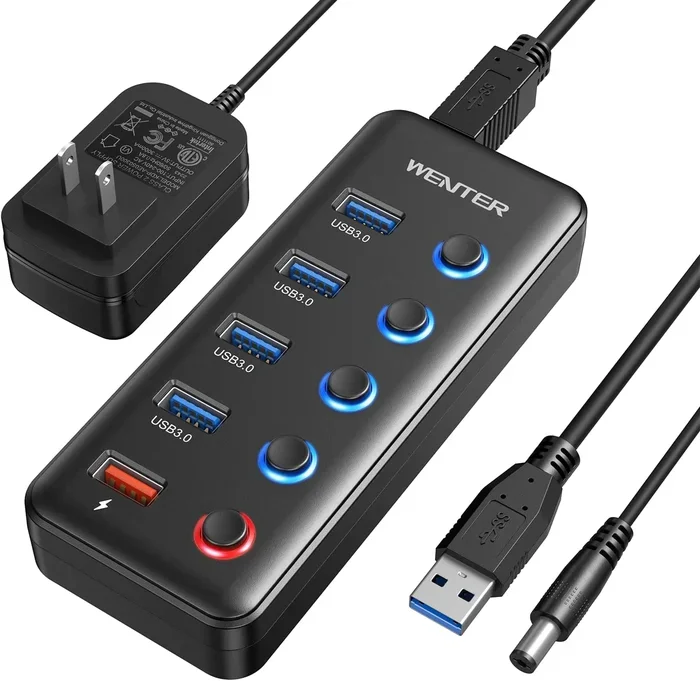
A powered USB hub is a hub that comes with its own external power adapter. Unlike a bus-powered hub that draws all its power from the computer’s USB port, a self-powered hub gets its electricity from the wall. This makes it capable of charging devices and running power-hungry peripherals at the same time.
Most powered USB hubs deliver 5 volts of power through each port. Some newer models support USB Power Delivery, which can push higher voltages and wattages. This is especially common with USB-C hubs that handle everything from charging laptops to powering external monitors.
Bus-Powered vs. Self-Powered Hubs
Understanding the difference between these two types of hubs is crucial. Here is a quick look at how they compare:
- Bus-powered hubs: Draw power from the host computer’s USB port. They are cheaper and more portable but limited in what they can power.
- Self-powered hubs: Use an external power adapter. They can support more devices and deliver consistent power to each port.
- Hybrid hubs: Some hubs split power between the bus and an external adapter. These offer a middle ground but can still have limits.
When you plug a powered USB hub into another hub, the power source of each hub matters a lot. A self-powered hub feeding into another self-powered hub gives you more headroom. But a bus-powered hub plugged into a powered hub can still bottleneck your power supply.
Can You Plug a Powered USB Hub Into Another Hub?
The short answer is yes. You physically can plug a powered USB hub into another hub. USB hubs are designed to be connected in series. The USB standard itself supports this kind of daisy chain USB setup. But just because you can does not mean you should do it without thinking things through.
Here is what happens when you connect one hub to another. The first hub (the one plugged into your computer) acts as the root hub. The second hub (the one plugged into the first) becomes a downstream hub. Both hubs share the power budget of the root connection. This is where things get tricky.
The Power Delivery Chain
Every USB port on your computer has a power limit. A standard USB 2.0 port delivers up to 2.5 watts. A USB 3.0 port can provide up to 4.5 watts. USB 3.1 Gen 2 ports push up to 10 watts. And USB-C ports with Power Delivery can go well beyond that.
Now imagine you plug a powered hub into your computer. That hub has its own power adapter. But then you plug another hub into the first hub. The second hub is now drawing power through the first hub’s internal circuitry. Even though the second hub has its own wall adapter, the data connection still flows through the first hub.
This setup can work. But it also creates a single point of failure. If the first hub has a power surge or a fault, it can affect everything connected downstream. That includes the second hub and all the devices attached to it.
When Daisy Chaining Works Well
There are situations where connecting USB hubs together is perfectly safe and even smart:
- Expanding port count for a workstation: You need 10 or more USB ports for multiple peripherals.
- Using high-quality self-powered hubs: Each hub has its own reliable power adapter.
- Keeping the chain short: Two or three hubs in a row is usually fine. More than that increases risk.
- Connecting low-power devices: Keyboards, mice, and flash drives don’t draw much power.
In these cases, daisy chaining USB hubs is a practical solution. Just make sure each hub in the chain is rated for the devices you plan to connect.
Risks of Plugging a Powered USB Hub Into Another
Daisy chaining is not without its dangers. Many users plug hub into hub without thinking about the consequences. Here are the main risks you should know about.
Power Overload and Overheating
The biggest risk is power overload. When you chain multiple hubs together, the total power demand can exceed what the root USB port can handle. Even if each hub has its own power supply, the data pathway still flows through the root connection.
Overheating is a common result. When a hub pushes more power than it was designed for, the internal components heat up. This can cause:
- Slower data transfer speeds
- Random disconnections
- Permanent damage to the hub or connected devices
- In rare cases, fire hazards with very cheap hubs
One of the most common USB hub overheating problems comes from daisy chaining too many power-hungry devices. External hard drives, monitors, and charging bricks all pull significant wattage.
Data Corruption and Signal Degradation
Every time you add a hub to the chain, you add another link in the data path. Each link introduces a small amount of signal loss. With one or two hubs, this is negligible. But with three or more, you may start seeing problems.
Data corruption is a real concern, especially with large file transfers. If you are moving videos or backups from an external drive through two hubs, a weak signal can cause errors. These errors might not show up immediately but can damage files over time.
USB Port Overload on the Computer
Your computer’s USB controller has a total power budget. When you connect multiple hubs, even powered ones, you are still drawing from that controller. The controller manages all USB traffic on the system. Too many hubs can overwhelm it, causing the entire USB system to slow down or reset.
Best Practices for Safe Daisy Chaining
If you need to connect multiple USB hubs, you can do it safely. The key is following a few simple rules. Here are the best practices that will keep your setup stable and your devices safe.
1. Check the Wattage Ratings
Before you chain any hubs together, check the wattage rating of each one. A quality powered USB hub will list its total power output on the label or in the manual. Make sure the combined power needs of your connected devices stay within that limit.
For example, if your hub delivers 60 watts total and you have three external drives that each need 10 watts, plus a webcam at 5 watts, you are at 35 watts. That leaves room to spare. But add a fourth drive and you are pushing the limit.
2. Limit the Chain Length
Keep your daisy chain as short as possible. Two hubs in a row is the sweet spot for most setups. Three hubs can work but start to increase the risk of signal loss and power issues. Four or more hubs in a chain is generally not recommended for everyday use.
Think of it like a garden hose. Each connector you add reduces water pressure. The same idea applies to USB data and power. The more connections, the weaker the signal and the less reliable the power delivery.
3. Use Self-Powered Hubs Only
Never daisy chain bus-powered hubs. Always use self-powered USB hubs with their own wall adapters. This ensures each hub in the chain has its own dedicated power source. It takes the load off the root USB port and reduces the risk of overheating.
4. Match USB Standards
Try to use hubs with the same USB standard. Mixing USB 2.0 and USB 3.0 hubs in the same chain can create bottlenecks. The entire chain will run at the speed of the slowest hub. If you are using a USB 3.0 hub or a USB-C hub, make sure the other hub in the chain supports the same speeds.
5. Monitor Temperatures
After setting up your daisy chain, keep an eye on how warm your hubs get. They should be slightly warm, not hot to the touch. If a hub is too hot to hold comfortably, disconnect some devices or shorten the chain.
Quick Tips for Safe USB Hub Chaining
- Always use hubs from reputable brands with proper safety certifications.
- Keep the total connected device count under the hub’s rated limit.
- Avoid plugging power-hungry devices like printers and scanners into a chained hub.
- Use short, high-quality USB cables to minimize signal loss.
- Unplug unused hubs to reduce power draw and heat buildup.
Expert Insights on USB Hub Chaining
We spoke with a few tech professionals about their experiences with daisy chaining USB hubs. Here is what they had to say.
Mark T., IT Support Specialist: “I see people plug five or six hubs into each other all the time. It works until it doesn’t. The moment something goes wrong, they lose data or fry a port. My advice is simple, keep the chain to two hubs max and always use self-powered models.”
Sarah L., Video Editor: “I run a USB-C hub into a second powered hub for my external SSDs and card readers. It works great as long as I stay within the wattage limits. I also make sure to use cables that are under 3 feet long to keep the signal strong.”
Dr. James K., Hardware Engineer: “The USB specification allows for up to five levels of hub cascading. But in practice, most consumer setups should not go beyond two. The power and signal degradation becomes too significant with longer chains. Always check your device’s power requirements before chaining hubs.”
Common Mistakes People Make When Daisy Chaining USB Hubs
Even with the best intentions, many users make avoidable mistakes. Here are the most common ones and how to fix them.
Mistake 1: Ignoring the Power Budget
The most common mistake is not checking how much power your setup needs. People plug in devices and assume the hub will handle it. But if the total power draw exceeds the hub’s capacity, you will face disconnections or damage.
Fix: Add up the wattage of all connected devices before plugging anything in. Stay at least 20% below the hub’s maximum rating.
Mistake 2: Using Cheap or Uncertified Hubs
Budget USB hubs from unknown brands often cut corners on power regulation and thermal management. They may work fine at first but fail under load. This is one of the leading causes of USB hub overheating and device damage.
Fix: Invest in hubs from trusted brands. Look for UL certification or similar safety marks. A quality hub costs more upfront but saves you from costly replacements.
Mistake 3: Mixing USB Speeds
Plugging a USB 2.0 hub into a USB 3.0 hub slows everything down to USB 2.0 speeds. This is because the entire chain operates at the speed of the slowest device.
Fix: Match USB standards across your chain. If you need USB 3.0 speeds, make sure every hub in the chain supports USB 3.0 or higher.
Mistake 4: Using Long or Low-Quality Cables
Long USB cables increase resistance and signal loss. When you are already daisy chaining hubs, adding a long cable makes the problem worse. Data errors and power drops become more likely.
Fix: Use short, high-quality USB cables. Aim for cables under 3 feet in length. Look for cables with good shielding and proper gauge wiring.
How to Set Up a Safe Daisy Chain of Powered USB Hubs
Ready to set up your own daisy chain? Follow these steps for a safe and reliable connection.
- Choose your root hub: Pick a high-quality self-powered hub with enough ports for your needs. Plug it directly into your computer.
- Connect the second hub: Plug the second powered hub into one of the root hub’s downstream ports.
- Power on the second hub: Connect the second hub’s power adapter to a wall outlet.
- Add your devices: Plug in your peripherals to both hubs, keeping power-hungry devices on the root hub when possible.
- Test the setup: Check that all devices are recognized and working. Monitor hub temperatures for the first 30 minutes.
- Keep it stable: Avoid moving or unplugging hubs while the system is running. This can cause data corruption.
Following these steps gives you a solid USB hub chaining setup that is both functional and safe. You get the port expansion you need without the risks of a sloppy setup.
Comparison: Daisy Chaining vs. Using a Single Large Hub
Before you commit to daisy chaining, consider whether a single large hub might be a better option. Here is a side-by-side comparison:
| Feature | Daisy Chaining Hubs | Single Large Hub |
|---|---|---|
| Port Count | Expandable by adding hubs | Fixed, but can be very high (20+ ports) |
| Power Management | More complex, risk of overload | Simpler, all power in one unit |
| Signal Quality | Degrades with each added hub | Consistent, no extra links |
| Flexibility | High, easy to add or remove hubs | Low, limited by built-in ports |
| Cost | Can add up with multiple hubs | Often more cost-effective |
| Risk of Overheating | Higher with longer chains | Lower, single power source |
For most users, a single large self-powered hub is the safer and more reliable choice. Reserve daisy chaining for situations where you truly need the extra flexibility.
Frequently Asked Questions
Can plugging a powered USB hub into another damage my computer?
It is unlikely but possible. If the combined power draw exceeds your computer’s USB controller limits, it can cause port shutdowns or, in rare cases, damage to the controller. Always stay within the recommended power budget and use self-powered hubs to minimize risk.
How many powered USB hubs can I safely chain together?
Two hubs in a chain is the safest and most recommended setup. Three hubs can work in some cases, but four or more significantly increases the risk of power issues, signal loss, and overheating. Keep your chain short for the best results.
Does daisy chaining USB hubs slow down data transfer speeds?
Yes, it can. Each additional hub in the chain introduces a small amount of signal degradation. The more hubs you add, the more noticeable the slowdown. Using USB 3.0 or USB-C hubs and keeping cables short helps maintain faster speeds.
Can I plug a bus-powered hub into a powered hub?
You can, but it is not recommended. A bus-powered hub draws all its power from the upstream connection. When plugged into another hub, it competes for power with other devices on that hub. This often leads to underpowering and unstable connections. Always use self-powered hubs for daisy chaining.
Do I need a special cable to connect one USB hub to another?
No special cable is required. A standard USB cable that matches the port type works fine. However, using a short, high-quality cable with good shielding improves signal integrity and reduces power loss. Avoid long or cheap cables when daisy chaining hubs.
What should I do if my chained USB hubs overheat?
Disconnect the hubs immediately and let them cool down. Check the wattage of all connected devices and reduce the load. Make sure each hub has its own power adapter. If overheating continues, replace the hubs with higher-quality models rated for your power needs.
Final Thoughts
So, can you plug a powered USB hub into another? Yes, you can. But knowing how to do it safely is what separates a smart setup from a risky one. Daisy chaining USB hubs is a practical way to expand your connectivity when you need more ports. It works well when you follow the power limits, keep the chain short, and use quality self-powered hubs.
The risks of power overload, overheating, and signal degradation are real. But they are easy to avoid with a little planning and care. Check your wattage ratings, match your USB standards, and always monitor your hub temperatures after setup.
Whether you are building a home office, a creative workstation, or a server rack, understanding how connecting USB hubs together works gives you the confidence to set up a system that is both powerful and reliable. Keep these tips in mind, and your USB hub daisy chain will serve you well for years to come.