Can I Convert 3 5 Mm To Usb A Simple Step By Step Guide
Can I convert 3.5mm to USB? Yes, you absolutely can, and it is easier than you might think. Whether you need to plug headphones, microphones, or audio devices into a modern USB port, the right 3.5mm to USB adapter makes it possible. This guide walks you through every step, from choosing the right converter to troubleshooting common issues. You will learn about different adapter types, setup steps, and expert tips for better audio quality.
Have you ever plugged in your favorite headphones only to find that your laptop or phone does not have a 3.5mm jack anymore? You are not alone. Many modern devices have dropped the traditional audio port in favor of USB-C or Bluetooth-only setups. This leaves people wondering whether they can still use their older audio gear. The good news is that you can convert 3.5mm to USB easily, and it does not have to cost a fortune.
This guide is here to help you understand every part of the process. We will cover why you might need this conversion, what types of adapters exist, and exactly how to set things up step by step. By the end, you will feel confident choosing the right 3.5mm to USB converter for your needs. Whether you are a gamer, a musician, or just someone who loves wired headphones, this article has you covered.
The world of audio connectivity can feel confusing at first glance. There are cables, adapters, sound cards, and digital converters all competing for your attention. But the core idea is simple. You are taking an analog audio signal from a 3.5mm jack and turning it into a digital USB signal that your device can understand. Let us break it all down in a way that makes sense.
Key Takeaways
- Simple Conversion: Converting 3.5mm audio to USB is straightforward with the right adapter or converter.
- Multiple Options: USB sound cards, cables, and adapters all serve different needs and budgets.
- Widely Compatible: Most converters work with Windows, Mac, Chromebooks, and even some smart TVs.
- Easy Setup: Plug-and-play options require no software installation in most cases.
- Audio Quality Matters: Choosing a quality converter ensures clear sound and reliable performance.
- Common Issues Are Fixable: Driver updates and correct port selection solve most problems.
- Budget-Friendly: You can find reliable converters for under $15 in most cases.
📑 Table of Contents
What Does It Mean to Convert 3.5mm to USB?
When we talk about converting 3.5mm to USB, we are describing the process of bridging two different audio technologies. A 3.5mm jack sends an analog audio signal. USB sends a digital audio signal. Your device needs something to translate between these two formats. That “something” is an adapter, cable, or sound card.
Analog vs. Digital Audio Signals
Understanding the difference between analog and digital audio helps you choose the right solution. Analog audio is a continuous electrical signal. It travels through the 3.5mm cable directly to your speaker or headphone driver. Digital audio is a series of ones and zeros. It needs a digital-to-analog converter, or DAC, to become sound you can hear. USB audio devices contain a built-in DAC that handles this conversion for you.
Most phones and laptops made before 2016 had a 3.5mm headphone jack built in. That jack acted as a simple DAC inside your device. When manufacturers removed the jack, they shifted that conversion work to USB or Bluetooth. This is exactly why you need an external converter now.
Why the Shift Away from 3.5mm Jacks?
Phone makers removed the 3.5mm port for a few reasons. It frees up internal space for bigger batteries or other components. Waterproofing becomes easier without a large hole in the phone body. Some companies also push you toward wireless audio, which means more sales of Bluetooth earbuds. Whatever the reason, the result is the same. Many of us now need a 3.5mm to USB adapter to keep using our wired gear.
Why Do People Need to Convert 3.5mm to USB?
The reasons for needing a 3.5mm to USB conversion are more common than you might think. Let us look at the most frequent situations where this conversion comes in handy.
Laptops Without a Headphone Jack
Many newer ultrabooks and Chromebooks have completely removed the 3.5mm audio port. If you want to use wired headphones or a desktop microphone, USB is your only wired option. A small USB audio adapter solves this problem instantly. You plug it into any USB port, and your 3.5mm devices work again.
Gaming Headsets and USB Connections
Gamers often prefer USB headsets because they offer better surround sound and microphone quality. But what if you have a great 3.5mm gaming headset that you love? Converting it to USB lets you use it on PCs, consoles, and other devices that prefer USB audio input. This is especially useful for platforms like PlayStation or Xbox where USB audio is standard.
Recording and Streaming Setups
Content creators and podcasters often need professional audio gear. A USB sound card with a 3.5mm input lets you connect studio microphones or instruments to your computer. The digital signal is cleaner and less prone to interference than a standard analog connection. This makes a big difference in recording quality.
Smart TVs and External Audio
Many smart TVs have limited or no 3.5mm ports. Instead, they offer USB ports for power or peripherals. A 3.5mm to USB converter can help you connect external speakers or headphones directly to your TV. This works great for late-night watching when you do not want to disturb anyone else in the house.
Types of 3.5mm to USB Adapters and Converters
Not all converters are the same. Different types serve different purposes and budgets. Here is a breakdown of the most common options you will find on the market.
USB Sound Cards
USB sound cards are small devices that plug into a USB port and provide a 3.5mm audio jack on the other end. They are the most popular choice for general users. Most cost between $5 and $20. They work as plug-and-play devices on most operating systems. You simply insert the card, plug in your headphones, and the sound comes through.
Some USB sound cards also include a microphone input. This makes them perfect for people who need both audio output and input through a single device. Look for ones that support stereo output and have a built-in DAC for better sound quality.
3.5mm to USB Cables
A direct cable is the simplest option. One end has a 3.5mm plug, and the other end has a USB plug. You do not need any extra box or dongle. These cables work well for straightforward connections like plugging headphones into a laptop. They tend to be shorter and less bulky than standalone adapters.
However, cables have a limitation. They cannot boost signal quality the way a dedicated sound card can. If you need better audio performance, a standalone adapter is usually the better choice. Also, cable length can be an issue if your USB port is far from where you are sitting.
USB Audio Interfaces
For musicians and serious audio enthusiasts, a USB audio interface is the way to go. These devices offer high-quality DACs, multiple input and output options, and better build quality. They cost more, usually starting around $50 and going up to several hundred dollars. But the audio quality they deliver is in a completely different league.
Interfaces often include XLR inputs for professional microphones, gain controls, and headphone amplifiers. If you are recording music or doing podcasting, this is the investment that pays off in sound quality.
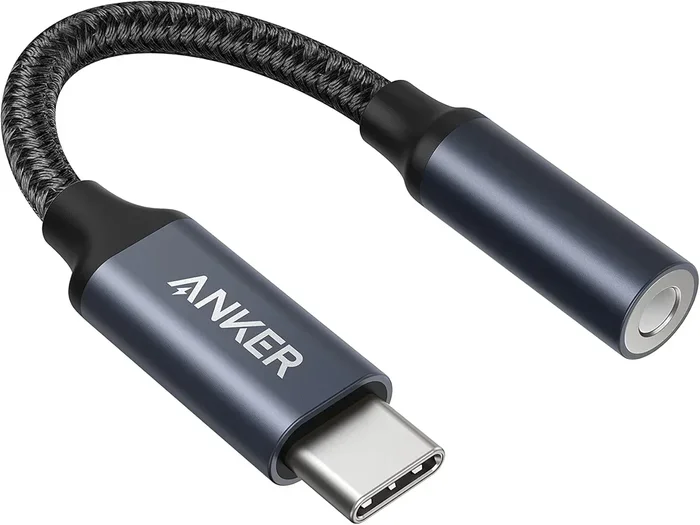
USB-C Adapters for Modern Devices
If you have a newer phone or tablet with only USB-C ports, you need a specific type of converter. USB-C to 3.5mm adapters are widely available and affordable. Some even include a built-in DAC for improved audio output. Make sure you buy one that matches your device. A USB-C adapter will not work in a standard USB-A port without an additional cable or hub.
| Converter Type | Best For | Price Range | Audio Quality |
|---|---|---|---|
| USB Sound Card | General use, laptops | $5 – $20 | Good |
| 3.5mm to USB Cable | Simple connections | $3 – $10 | Average |
| USB Audio Interface | Music production, streaming | $50 – $300+ | Excellent |
| USB-C to 3.5mm Adapter | Phones, tablets | $5 – $25 | Good to Excellent |
Step-by-Step Guide to Convert 3.5mm to USB
Now that you know what kind of converter you need, let us walk through the actual setup process. This guide works for most Windows PCs, Macs, and Chromebooks.
Step 1: Identify Your Device Ports
Before you buy anything, check what ports your device has. Look for USB-A, USB-C, or both. Note whether you need a 3.5mm output or input. If you are connecting headphones, you need audio output. If you are connecting a microphone, you need audio input. Some adapters support both at the same time.
Take a moment to check if your device already has a built-in audio jack. Many desktop computers still have one on the back of the tower. Laptops are more hit or miss these days. If your device already has a 3.5mm port, you may not need a converter at all.
Step 2: Choose the Right Converter
Based on your port check, select the appropriate converter type. If you have USB-A ports, a standard USB sound card or cable works perfectly. If you only have USB-C, get a USB-C adapter or a USB-C to 3.5mm cable. For the best sound quality, consider a USB audio interface.
Read reviews before you buy. Cheap adapters sometimes have noisy background sound or loose connections. Spending a few extra dollars on a well-reviewed product saves you from frustration later. Look for brands that specialize in audio accessories and have good customer feedback.
Step 3: Plug in the Converter
Insert the USB end of your adapter or cable into an available port on your device. If you are using a USB hub, connect the hub first, then plug the adapter into the hub. Make sure the connection is firm and secure. A loose connection is one of the most common causes of audio problems.
Most modern operating systems will recognize the device immediately. You should see a notification or a sound indicating that new audio hardware has been detected. If nothing happens, do not worry. We will cover troubleshooting in the next section.
Step 4: Connect Your Audio Device
Plug your 3.5mm headphones, speakers, or microphone into the converter. Make sure the plug goes in all the way. You should feel a slight click when it is fully seated. If you are using a combined headset with a single plug, make sure it lines up with the correct port on the adapter. Some adapters have separate input and output jacks, so check the labeling.
Step 5: Set Your Audio Preferences
Go to your device audio settings and select the USB converter as your default output or input device. On Windows, right-click the speaker icon in your taskbar and choose “Open Sound Settings.” On Mac, go to System Preferences and then Sound. On a Chromebook, click the time in the bottom right corner and select the audio output.
You may need to adjust the volume or test the microphone to make sure everything works correctly. Play a song or speak into the microphone and check for clear sound. If the audio sounds distorted, try adjusting the input or output levels in your settings.
Common Problems and How to Fix Them
Even with the right adapter, you might run into issues. Here are the most common problems and their solutions.
No Sound at All
If you plug in your converter and hear nothing, check a few things first. Make sure the volume is turned up on your device. Check that the correct output device is selected in your audio settings. Try a different USB port, as some ports may not supply enough power. Unplug and replug the adapter to refresh the connection.
On Windows, you can also go to Device Manager and look for any yellow warning icons near your audio devices. This usually means a driver issue. Right-click the device and select “Update Driver.” Follow the on-screen prompts to install the latest version.
Static or Crackling Noise
Static noise is annoying but usually easy to fix. First, check if the 3.5mm cable is fully inserted. A loose connection causes most static issues. Try a different USB port, preferably one directly on your computer rather than through a hub. Move away from other electronic devices that might cause interference, like routers or microwaves.
If the noise persists, your adapter might be low quality. Some cheap converters have poor shielding that picks up electromagnetic interference. Upgrading to a better adapter or using a USB audio interface can eliminate this problem entirely.
Microphone Not Being Recognized
If your microphone works through the 3.5mm jack but not through the USB converter, check your input settings. Make sure the correct input device is selected. On some systems, you need to manually enable the microphone input. Go to your sound settings and look for the input level slider. Make sure it is not muted or set to zero.
Some converters only support stereo output and do not include microphone input. Check the product specifications before purchasing if you need mic functionality. Look for adapters that specifically list microphone support or have a dedicated mic input jack.
Expert Tips for the Best Audio Quality
Getting the most out of your 3.5mm to USB setup is easier than you think. A few small changes can make a big difference in sound quality.
Invest in a Built-In DAC
A DAC, or digital-to-analog converter, is the heart of any USB audio device. Better DACs produce cleaner, more detailed sound. If you listen to music seriously or record audio professionally, a converter with a high-quality DAC is worth the extra cost. You will notice clearer highs, deeper bass, and less background noise.
Keep Cables Short and Organized
Longer cables can pick up more interference and reduce signal strength. Keep your cables as short as practical for your setup. Use cable ties or clips to keep them neat and prevent accidental pulls or tangles. A clean setup not only sounds better but also lasts longer.
Update Your Audio Drivers Regularly
On Windows, audio drivers can become outdated over time. Visit your computer manufacturer’s website or the adapter brand’s support page to download the latest drivers. Updated drivers fix bugs, improve compatibility, and sometimes even enhance audio performance. This simple habit keeps everything running smoothly.
Use the Right Cable for the Job
Not all 3.5mm cables are the same. TRS cables carry stereo audio. TRRS cables carry stereo audio plus a microphone. Using the wrong cable type can cause sound to only come from one ear or prevent the microphone from working. Check your device requirements and buy the matching cable type to avoid frustration.
Key Takeaways
- Simple Conversion: Converting 3.5mm audio to USB is straightforward with the right adapter or converter.
- Multiple Options: USB sound cards, cables, and adapters all serve different needs and budgets.
- Widely Compatible: Most converters work with Windows, Mac, Chromebooks, and even some smart TVs.
- Easy Setup: Plug-and-play options require no software installation in most cases.
- Audio Quality Matters: Choosing a quality converter ensures clear sound and reliable performance.
- Common Issues Are Fixable: Driver updates and correct port selection solve most problems.
- Budget-Friendly: You can find reliable converters for under $15 in most cases.
Conclusion
The answer to “Can I convert 3.5mm to USB” is a clear and definite yes. Whether you need a simple cable for your headphones or a professional interface for music production, there is a solution that fits your needs and budget. The process is simple, the adapters are affordable, and the results are immediate.
Start by identifying what you need. Choose the right type of converter for your situation. Follow the setup steps carefully, and troubleshoot any issues using the tips we shared. You will be listening to your favorite audio or recording your next podcast in no time. Do not let a missing headphone jack stop you from using the audio gear you love.
Take action today. Pick up a 3.5mm to USB adapter that matches your device, and enjoy seamless audio connectivity once again. The world of wired audio is still alive and well, and with the right converter, it works beautifully with modern devices.
Frequently Asked Questions
Can I convert 3.5mm audio to USB without buying any extra equipment?
In most cases, you will need an adapter or converter. Some devices still have a 3.5mm jack built in, but modern laptops and phones often do not. A small USB adapter is the easiest and most affordable way to make the connection work.
Do I need to install drivers for a 3.5mm to USB adapter?
Most adapters work as plug-and-play devices and do not require any driver installation. However, some advanced USB sound cards or audio interfaces may need specific drivers for full functionality. Check the product manual or the manufacturer’s website for driver downloads if needed.
Will converting 3.5mm to USB improve my audio quality?
It can, depending on the converter you use. A quality USB adapter with a built-in DAC can produce cleaner sound than your device’s internal audio hardware. However, a cheap or poorly made adapter may not improve quality and could even introduce noise.
Can I use a 3.5mm to USB adapter with a Mac computer?
Yes, most 3.5mm to USB adapters work with Mac computers. macOS recognizes USB audio devices automatically in most cases. Simply plug in the adapter, go to Sound Preferences, and select the USB device as your audio output or input.
What is the difference between a 3.5mm to USB cable and a USB sound card?
A cable is a direct connection with no extra features. A USB sound card is a small device that provides audio ports and often includes a better DAC. Sound cards usually offer better audio quality and more flexibility, while cables are simpler and more portable.
Can I use a USB-C to 3.5mm adapter with a USB-A port?
No, USB-C and USB-A are different connector types. You need a USB-C adapter for USB-C ports and a USB-A adapter for USB-A ports. If your device only has USB-A and you have a USB-C adapter, you will need a USB-C to USB-A cable or hub to bridge the connection.